How to create Live Poll content
Different question types with Live Poll
In Live Poll events you can combine 3 different, equally fun question formats.
- Multiple-Choice
- Rating
- Word Cloud
1) Set a title for the event
In the Title section at the top of the page that opens, set a title of at most 30 characters.
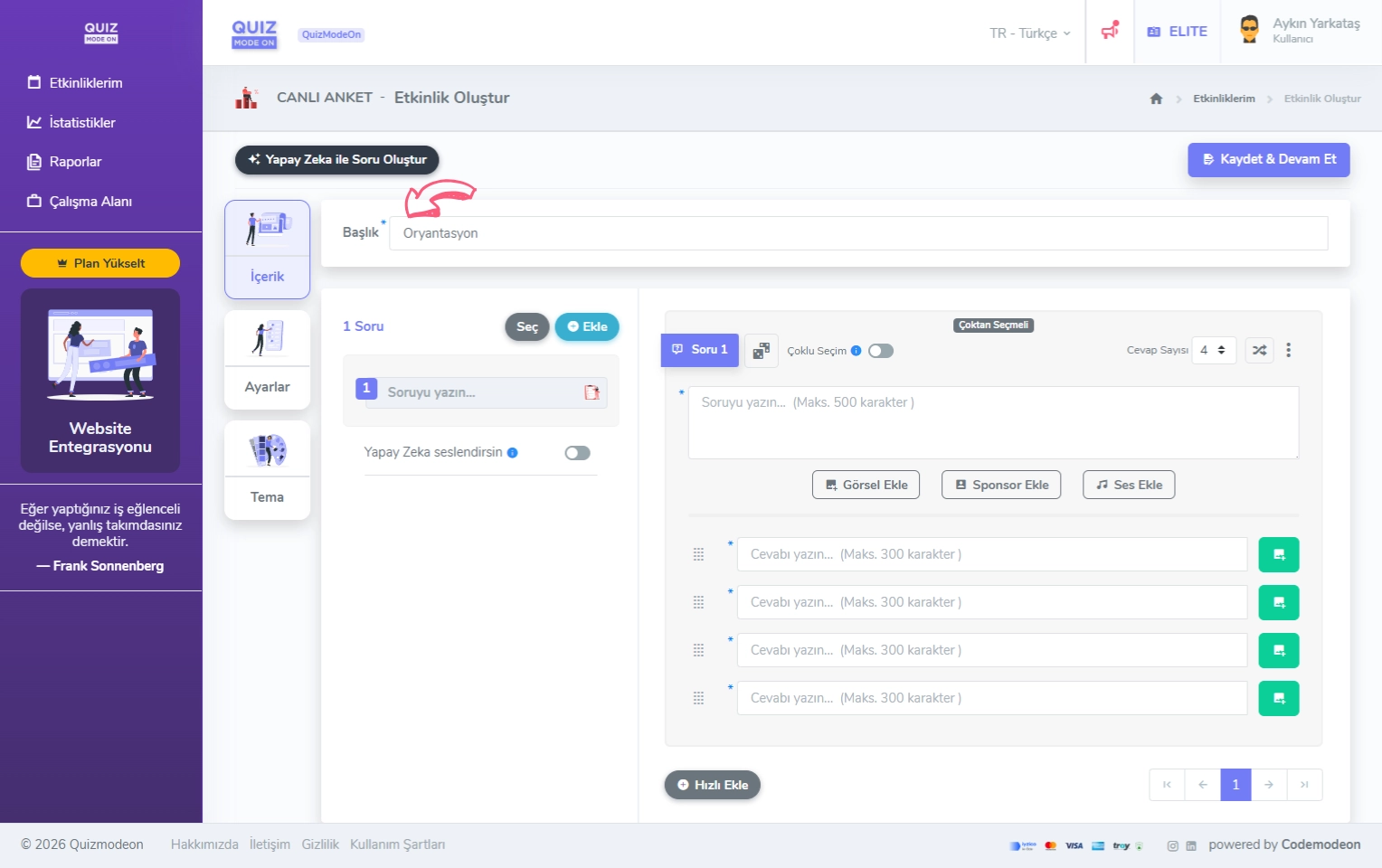
create a live poll - content - title
2) Add your questions
When you use the Add button to add questions, different options appear.
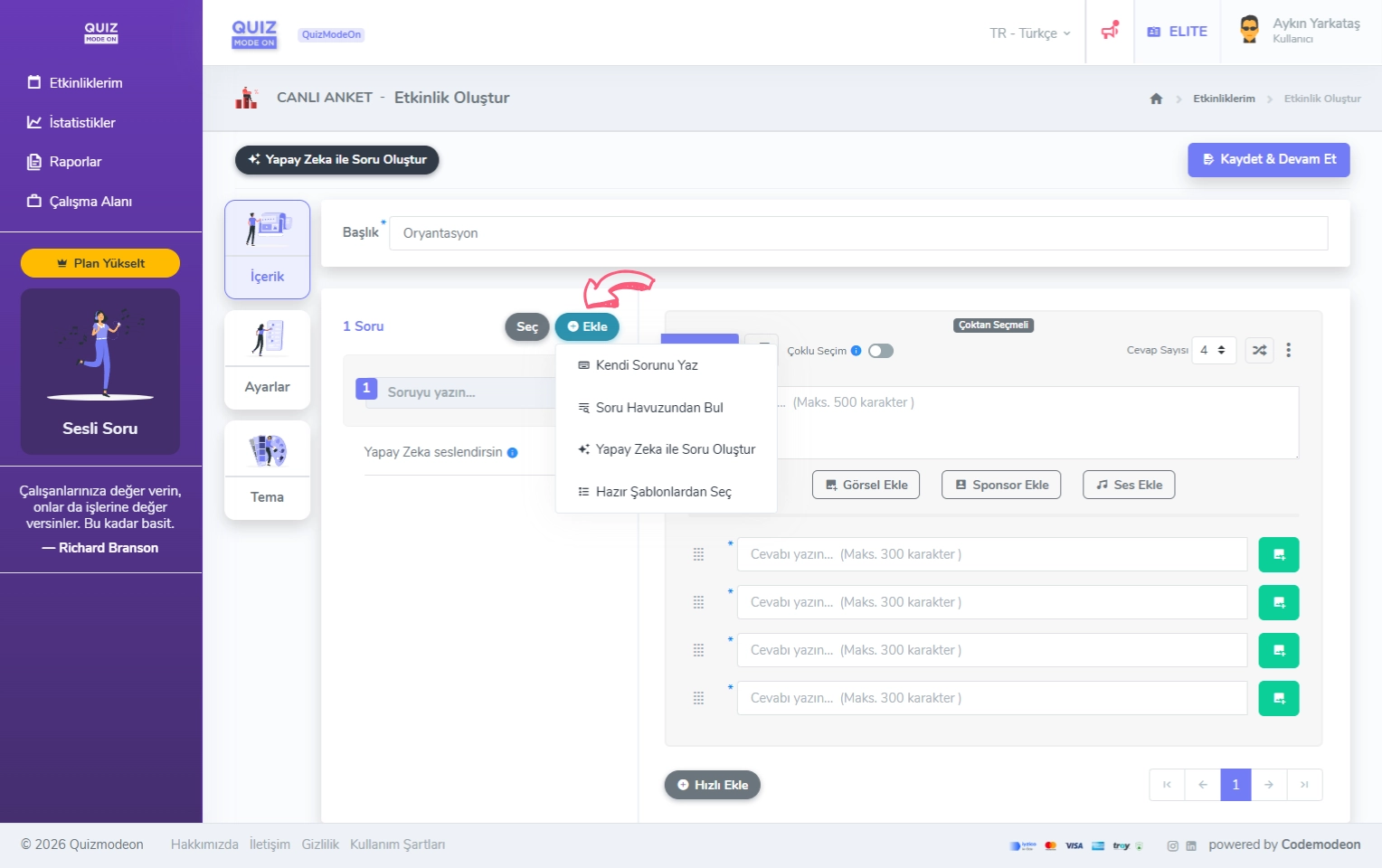
create a live poll - content - adding questions
- Write Your Own Question: A popup with 3 different question types opens. After you choose one of the Multiple-Choice, Rating and Word Cloud formats, a new question form opens on the page you are on so you can enter a question manually. To add your questions more practically and quickly, you can use the Quick Add button below the question form.
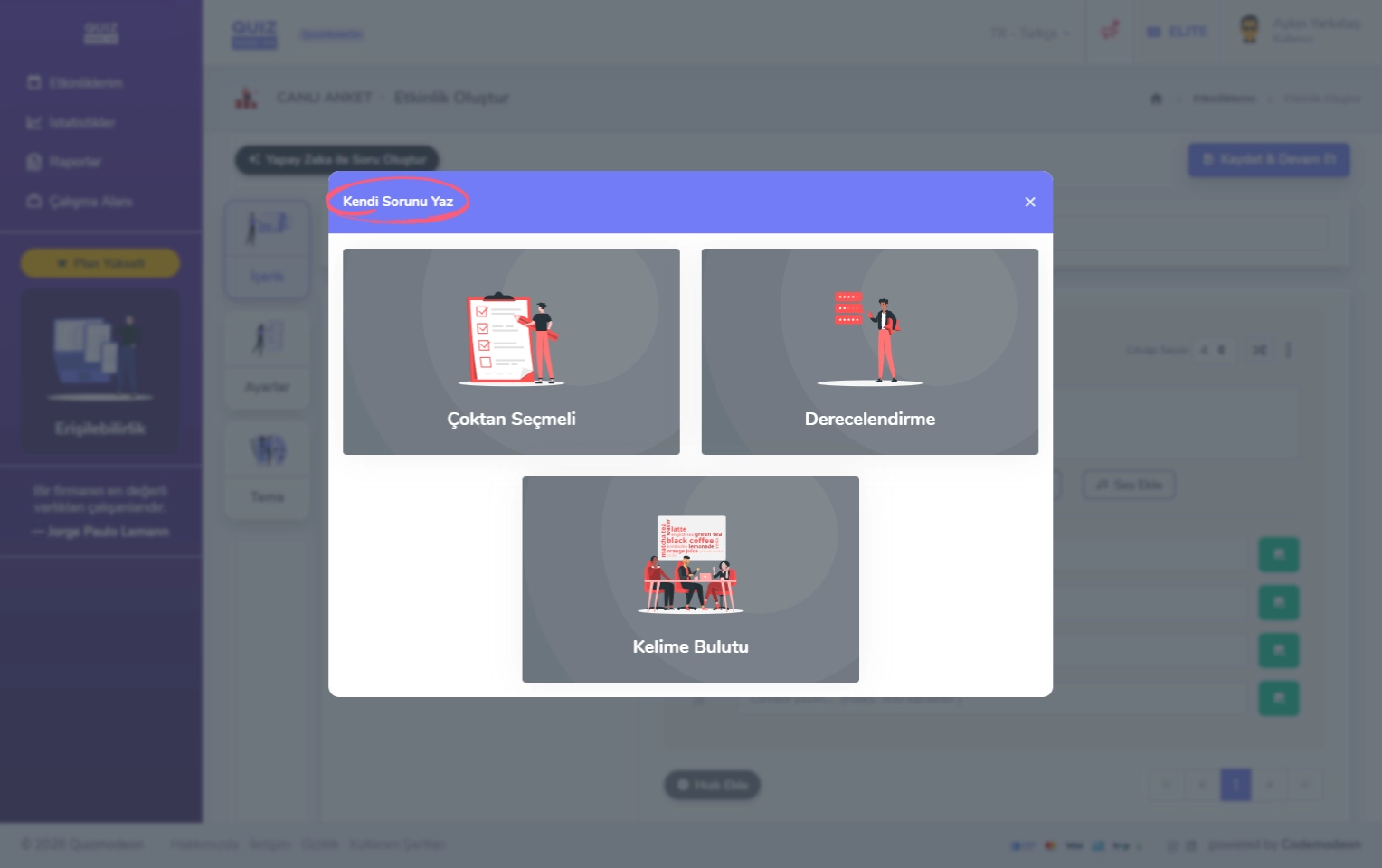
create a live poll - content - adding questions - question types
- Find from the Question Pool: You can add one of the questions the QuizModeOn team prepared for you, or one of the questions you wrote yourself in your earlier events.
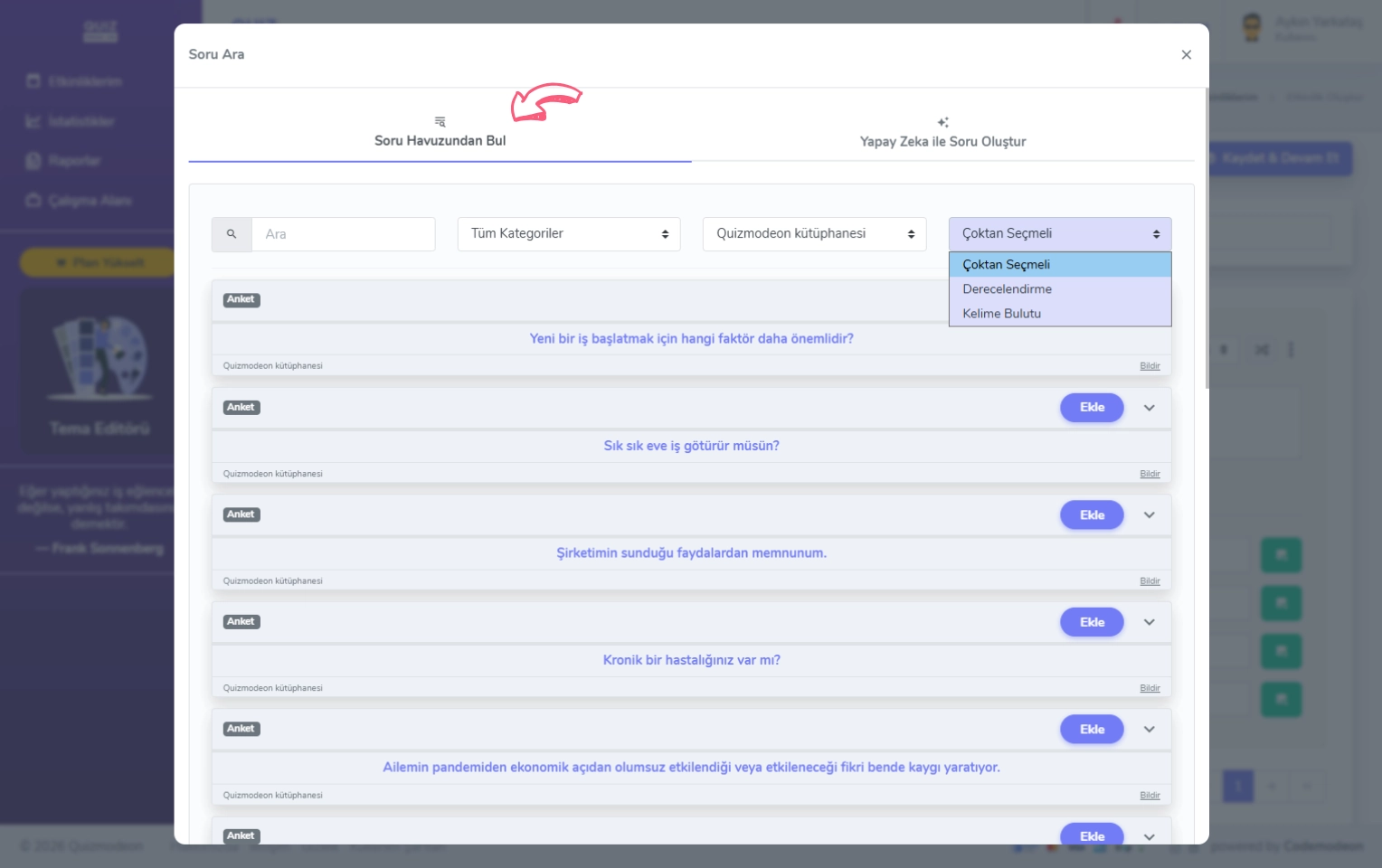
create a live poll - content - adding questions - question pool
- Create Question with AI: For the word or words you give the AI, you spend 1 credit and the AI creates 5 sample questions for you.
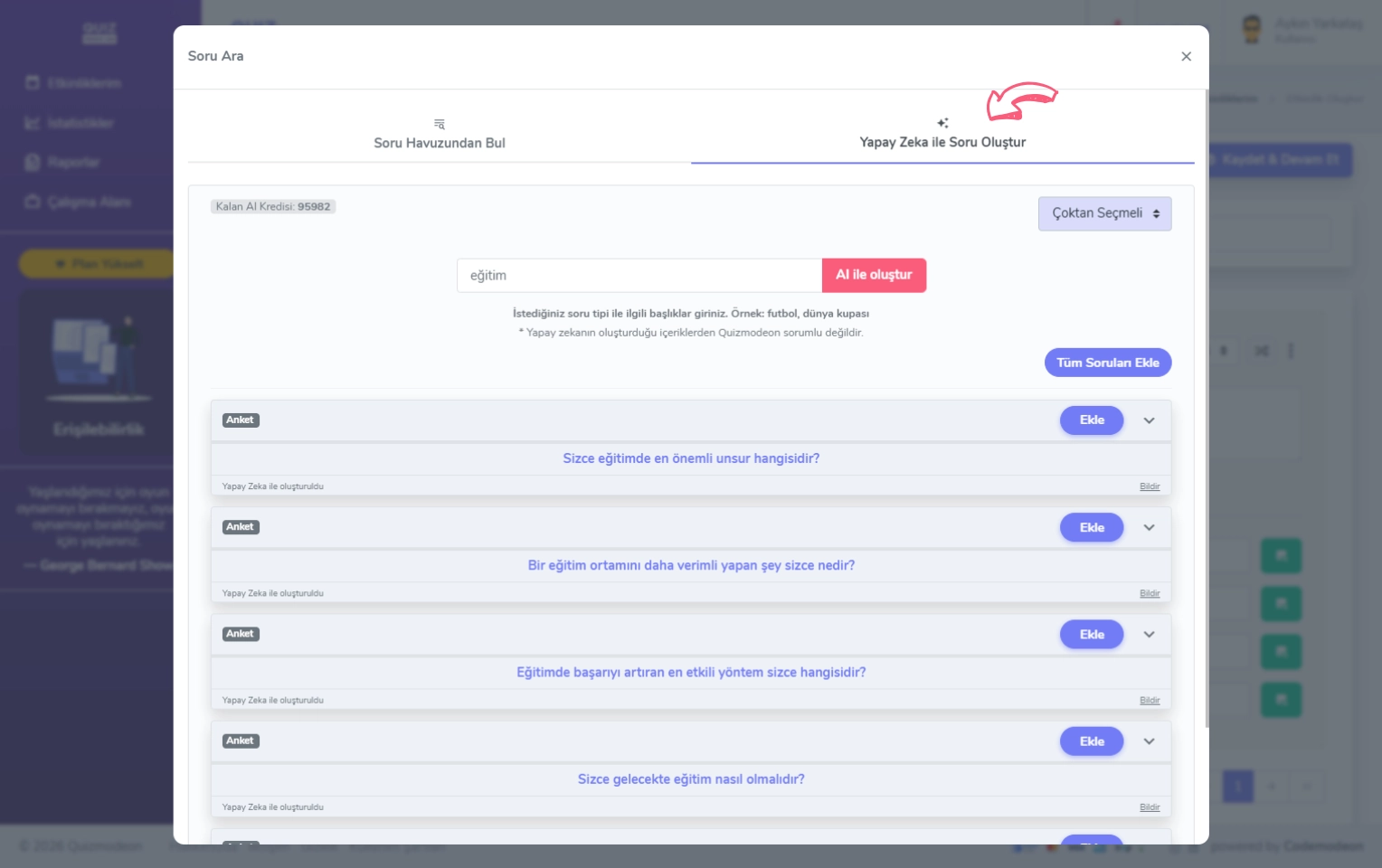
create a live poll - content - adding questions - creating questions with AI
- Start from a Template: You can choose one of the question sets prepared by the QuizModeOn team according to the concept you want.
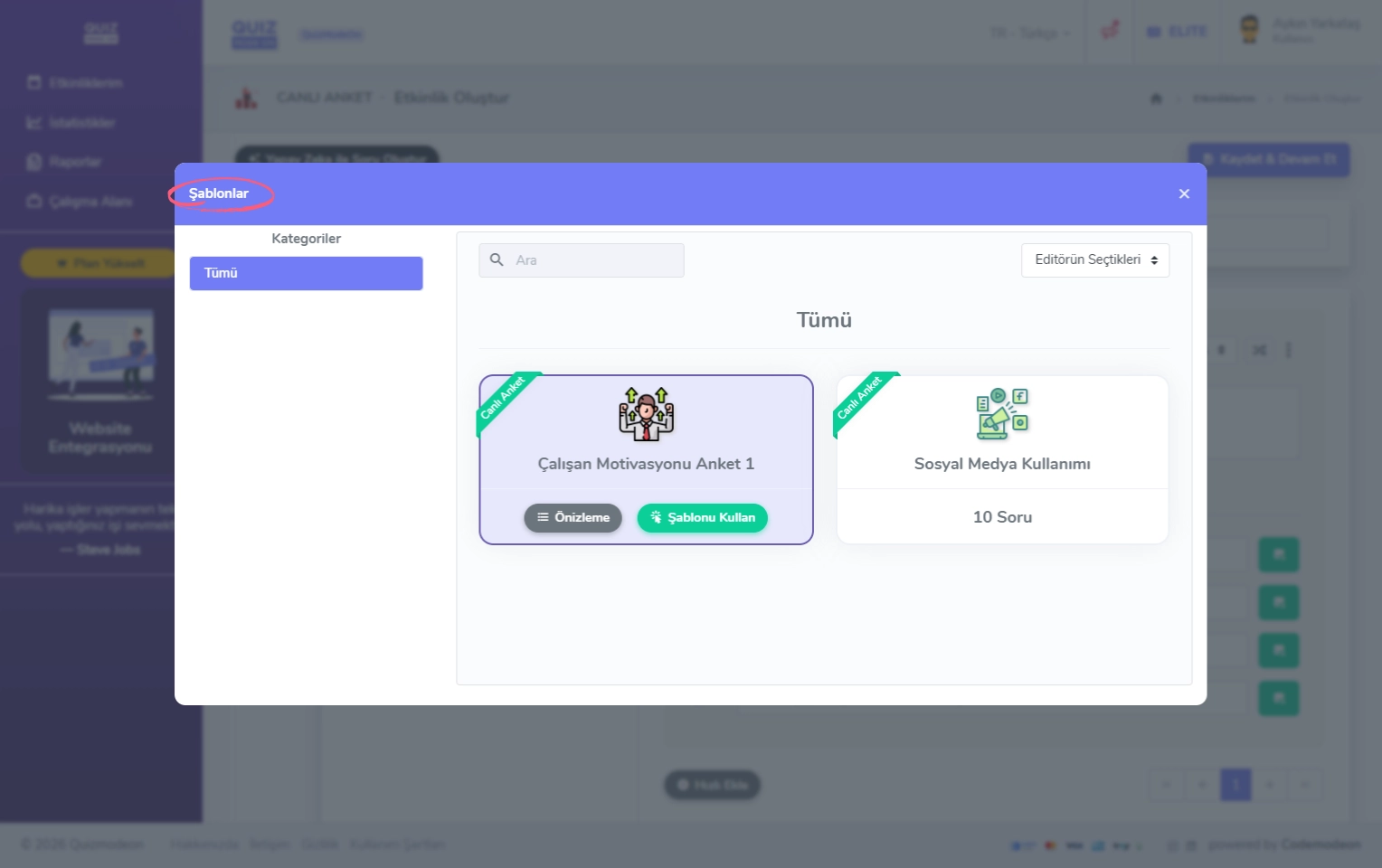
create a live poll - content - adding questions - ready-made content templates
Character limit for questions
You can use a maximum of 500 characters for each question text. In the left panel that lists all the questions, you can easily change the order of the questions with drag and drop.
Character limit for answers
The criteria for each answer option change depending on the question format.
- For Word Cloud, the answers are given by the participants.
- For Multiple-Choice, maximum 300 characters
- For Rating:
- Star and Slider: at least 2 (1-2) values, at most 10 (1-10) values
- Emoji: a fixed 5 values
can be set.
Answer options and multiple answers
For all the alternative Rating formats, you must fill in the Low Value and High Value labels below the options.
In the Multiple-Choice question type, you can use the ⠿ icon to the left of the answer text to easily change the order of the answers. The number of answers can be updated from the box at the top right in the range of 2 - 8 options.
In Multiple-Choice question types, if you want more than one answer to be selectable for a question, you can use the Multi-select option. Multiple-choice answers are frequently used in poll types.
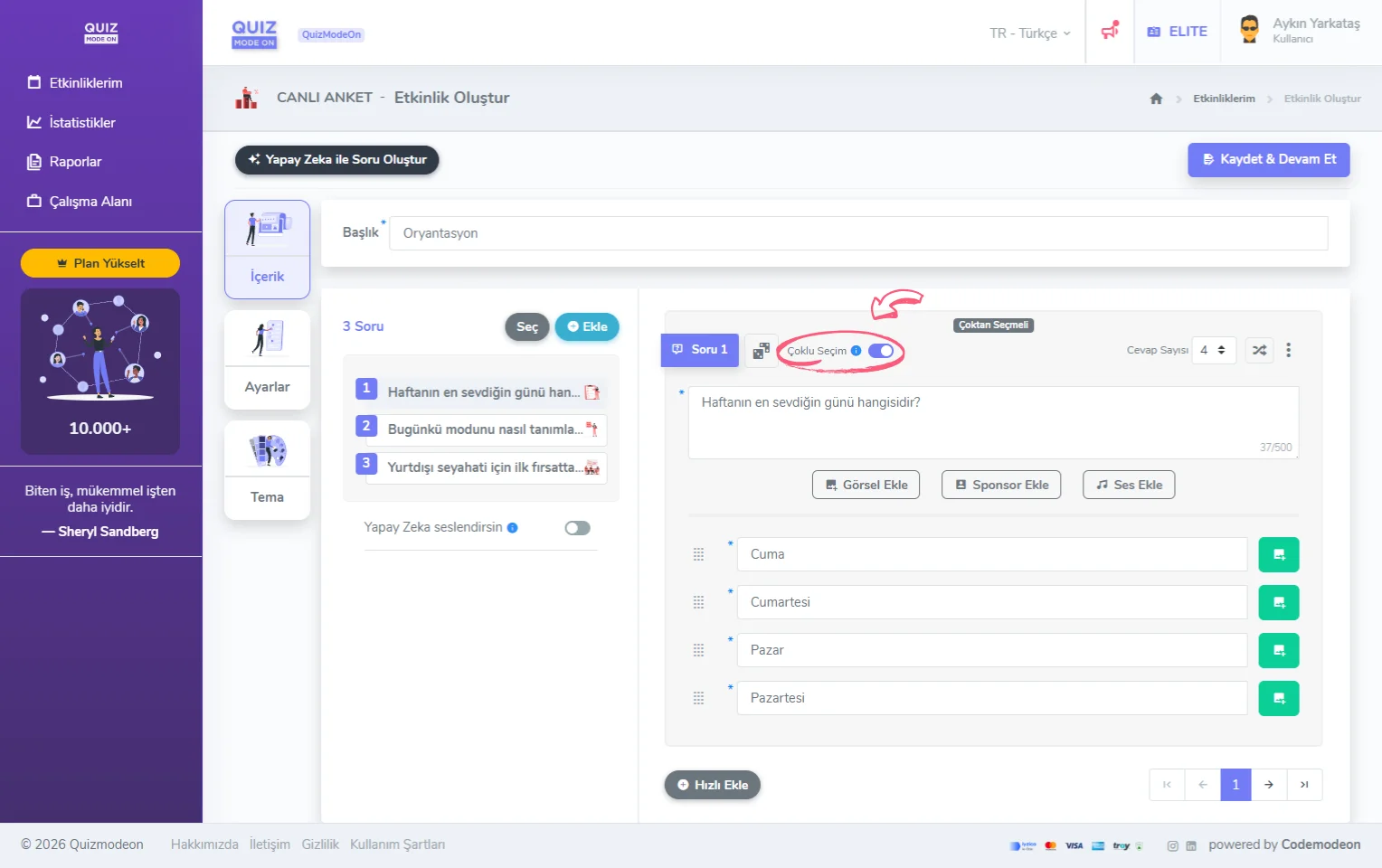
create a live poll - content - multiple-choice answers
3) Delete your questions
With the Select button next to the Add button, you can select the questions you want to delete and delete them in bulk.
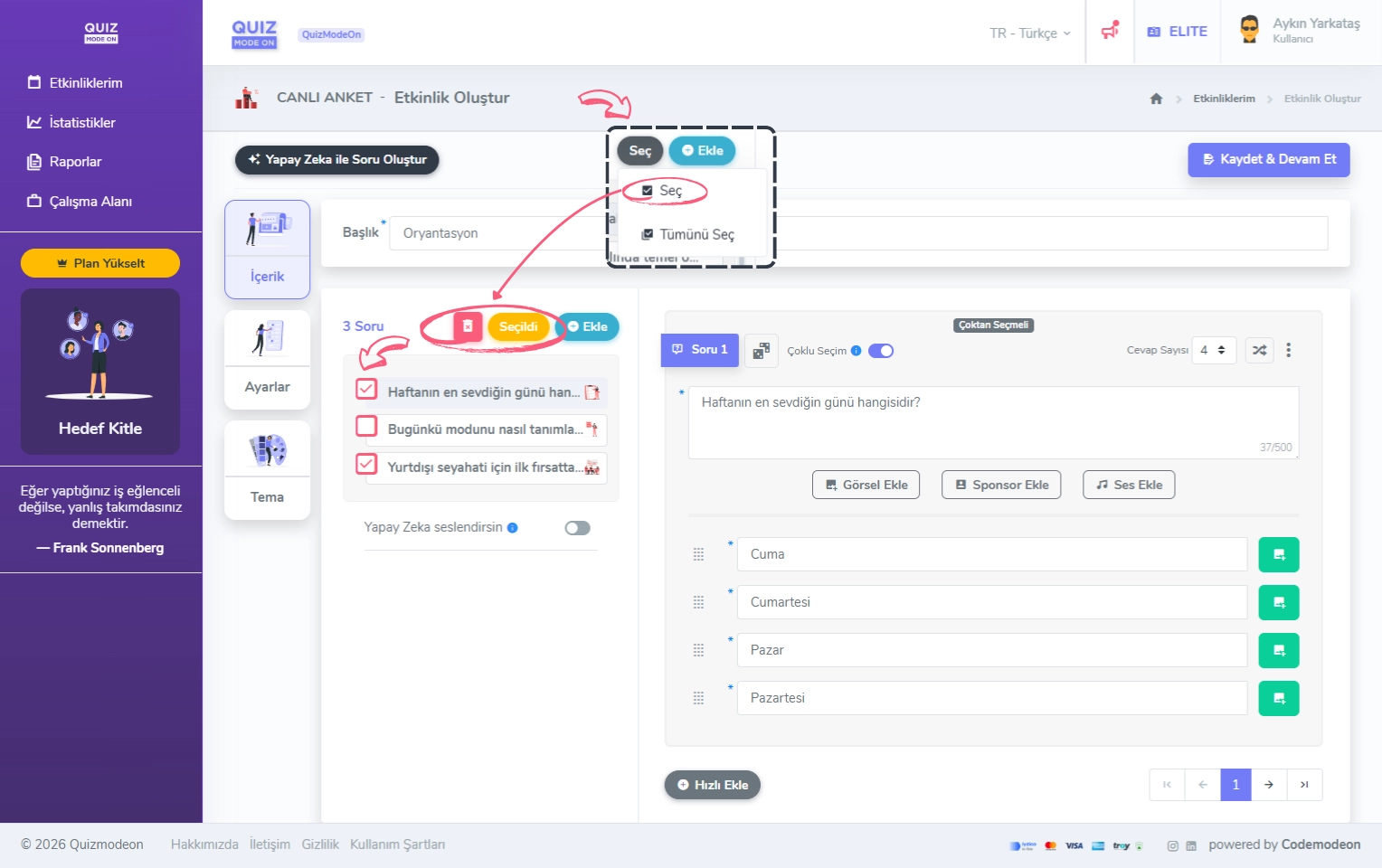
create a live poll - content - deleting questions
4) Customize your questions
You can see a preview of your questions on the right side of the section where you add them.
You can add an Image, Sponsor and Audio specific to each question.
-
If you want to use the Add Image button, you need to upload an image of 768x256 pixels. You can upload your own image, or click the Image Library button to choose one of the Pixabay images.
-
If you want to use the Add Sponsor button, you need to fill in the Sponsor Name field and upload an image of 512x512 pixels. You can upload your own image, or click the Image Library button to choose one of the Pixabay images.
-
If you want to use the Add Audio button, you can add any file in mp3 format.
In the Multiple-Choice question format, you can add an Image specific to each option.
- If you click the green box to the right of the answer options, you can upload images for the options. You can upload your own image, or click the Image Library button to choose one of the Pixabay images and add it at 512x512 pixels.
5) Voice your questions with AI
If you want the questions to be read aloud by AI, you can turn on the Read Aloud by AI button below the question list. When the button is turned on, you can choose one of the female or male voices for the voice-over.
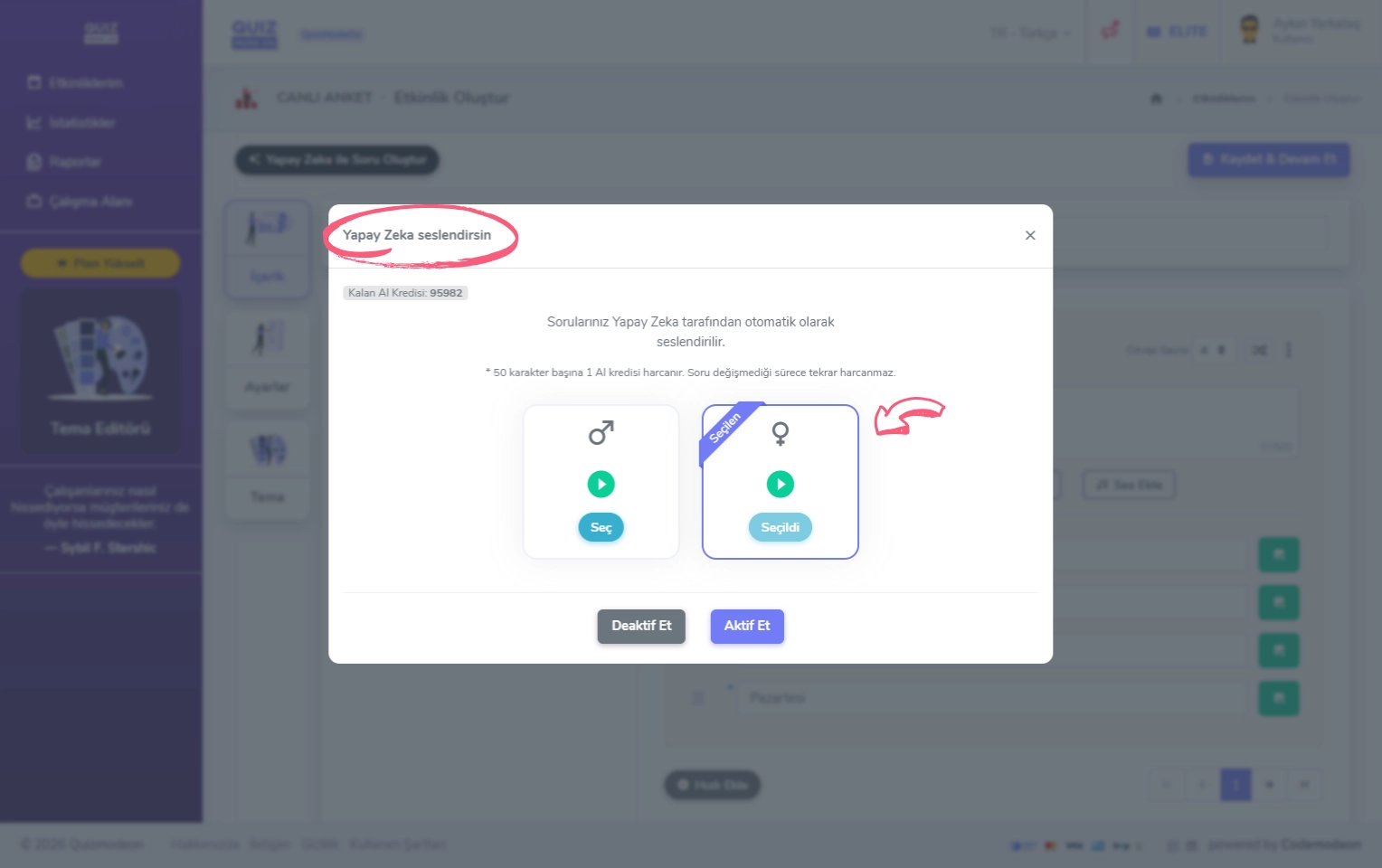
create a live poll - content - AI voice-over
Your AI credit is spent according to the number of characters in the question.
Note: While the Read Aloud by AI button is on, if the questions or answers change, AI credit is spent again. For this reason, we recommend turning on the Read Aloud by AI button after you finalize your content.
6) Collect different kinds of information with different question formats
In your Live Poll events, you can create an extraordinary poll experience by combining 3 different question formats.
- Multiple-Choice
- Rating
- Word Cloud
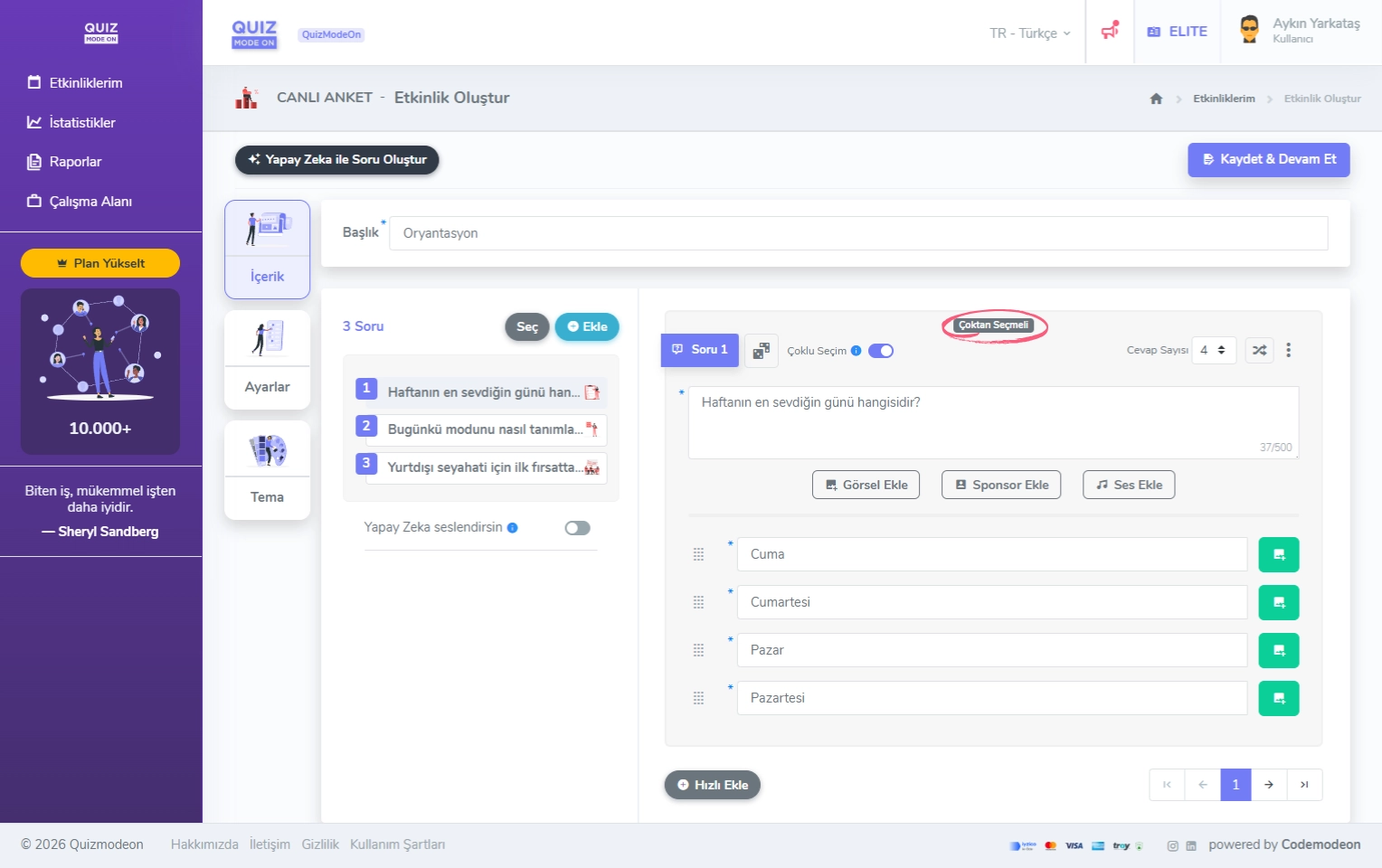
create a live poll - content - question type - multiple-choice question
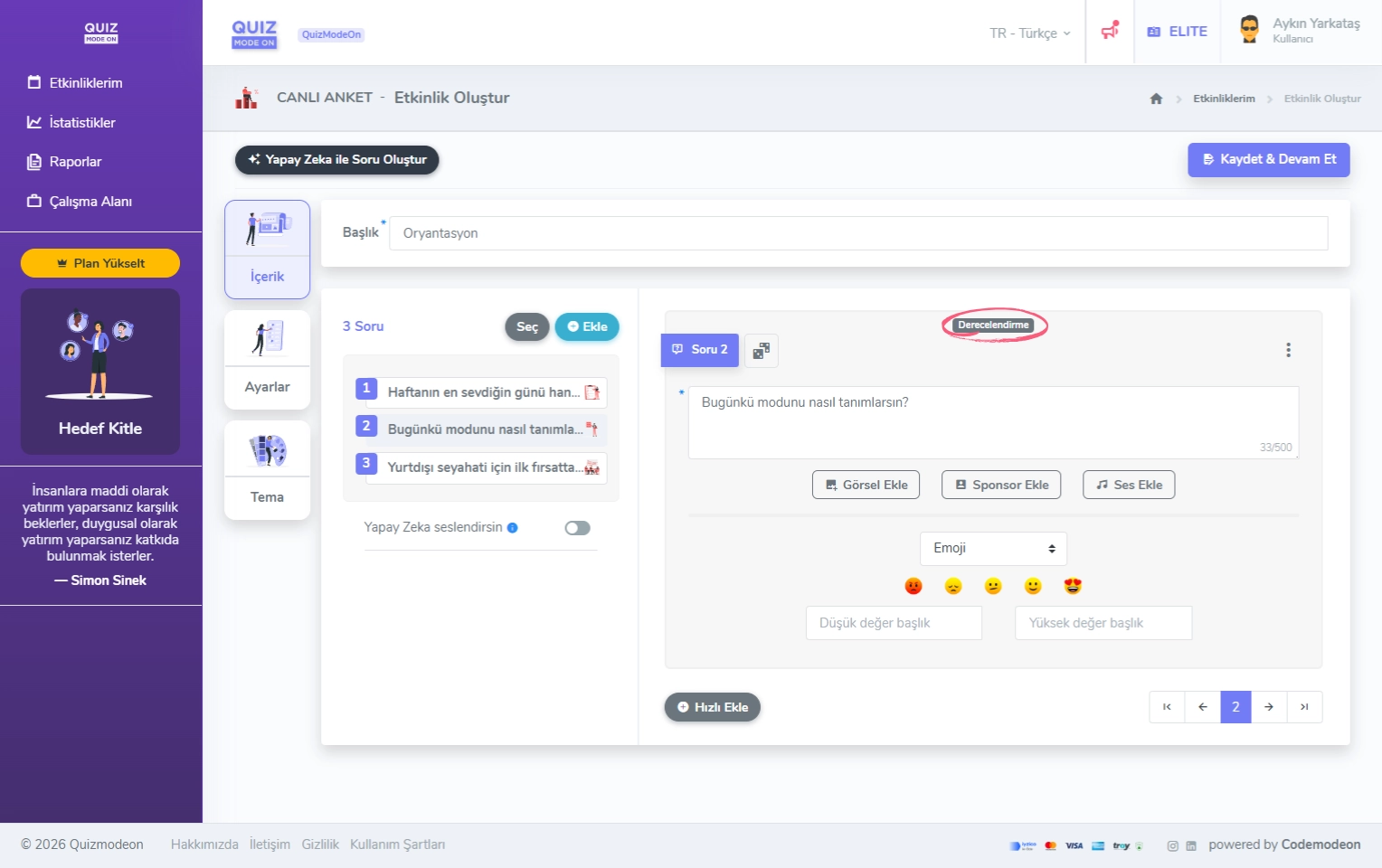
create a live poll - content - question type - rating question
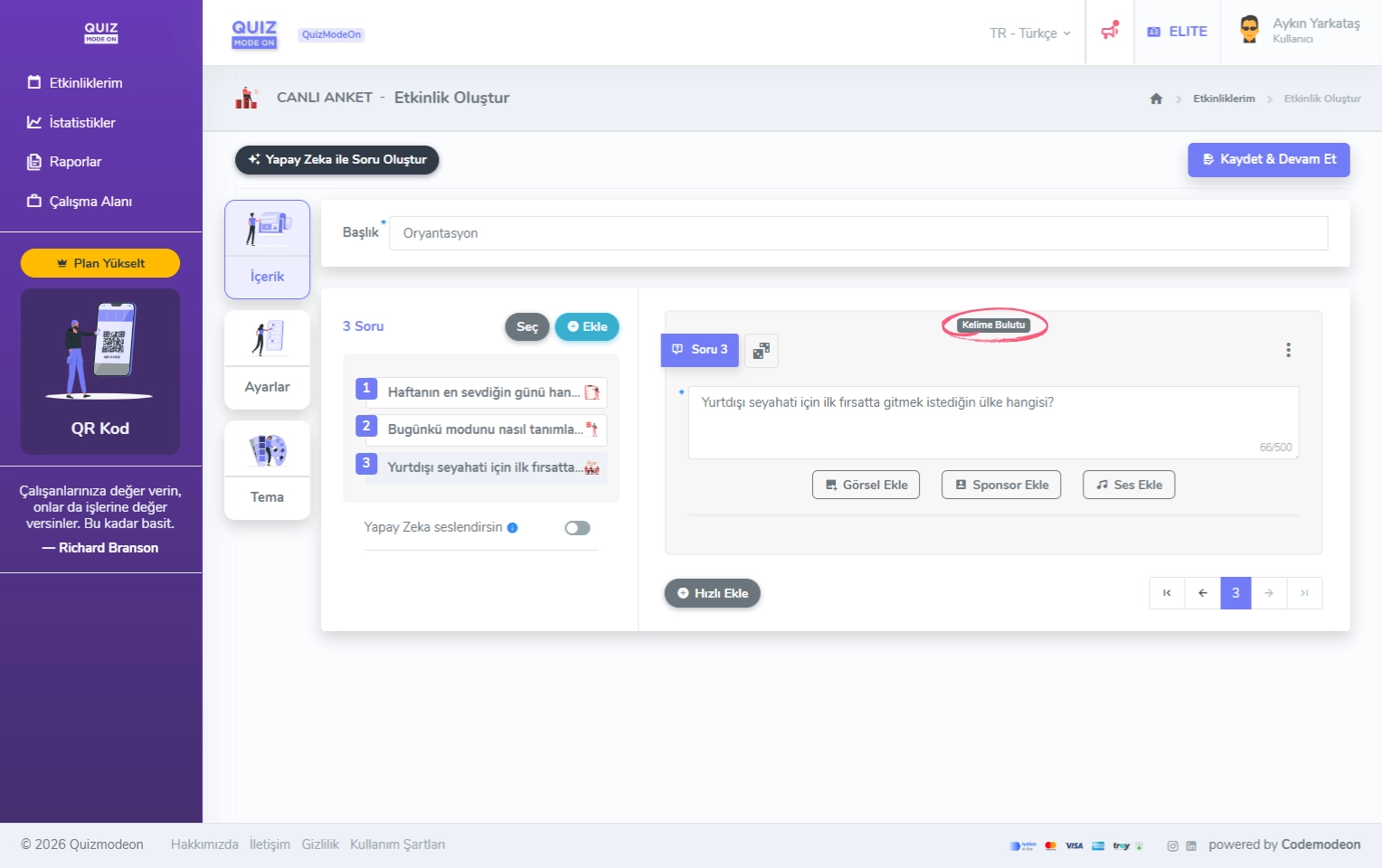
create a live poll - content - question type - word cloud question