Manage the event flow
A moderator is a user who logs in to the event presentation page through the presenter link to start live events, manage the flow and end them, and who guides participants through the event.
A moderator can also run the actions in the moderation menu on the right side of the presenter page. The moderation menu actions are:
- Share the login link and QR code for participants
- Send an info message
- Enter full screen
- Switch to Streaming mode
- Hide and show participation info
- Turn the background sound on and off
- Change the font size
- Reset the event
Note #1: Only live events can be managed by the presenter and moderator. Live events are events in which all participants interact synchronously, especially for events that need collective participation and high energy.
Note #2: Some events, such as Taboo, Tombola and Q&A, can, by their nature, only be run as Live flow.
1) Open the presenter link and wait for participants to connect
What is the presenter page?
The presenter page is the event page where a person with the moderator or presenter role can view the presentation page of the live event and manage the flow.
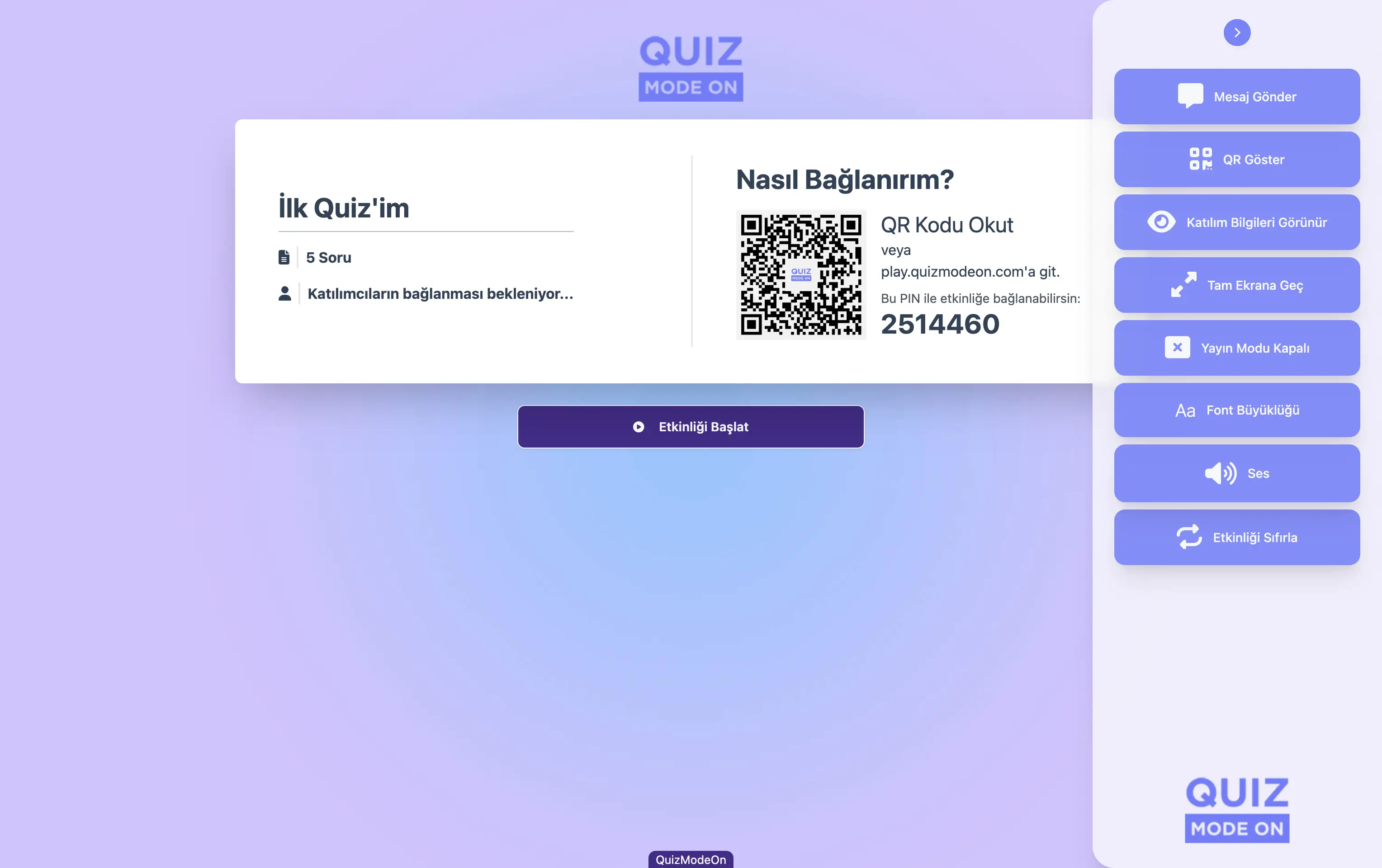
moderator - presenter page - main screen and moderation menu
The presenter link has the format https://play.quizmodeon.com/NAMESPACE?psc=EVENT_ID&type=m . For example, it will be a very long and complex link such as play.quizmodeon.com/codemodeon?psc=1a2b3c4d-wxyz&type=m.
Where can I find the presenter link?
The link to the presenter page is shared with the moderator by the admin (member) who prepared the event and has a portal membership.
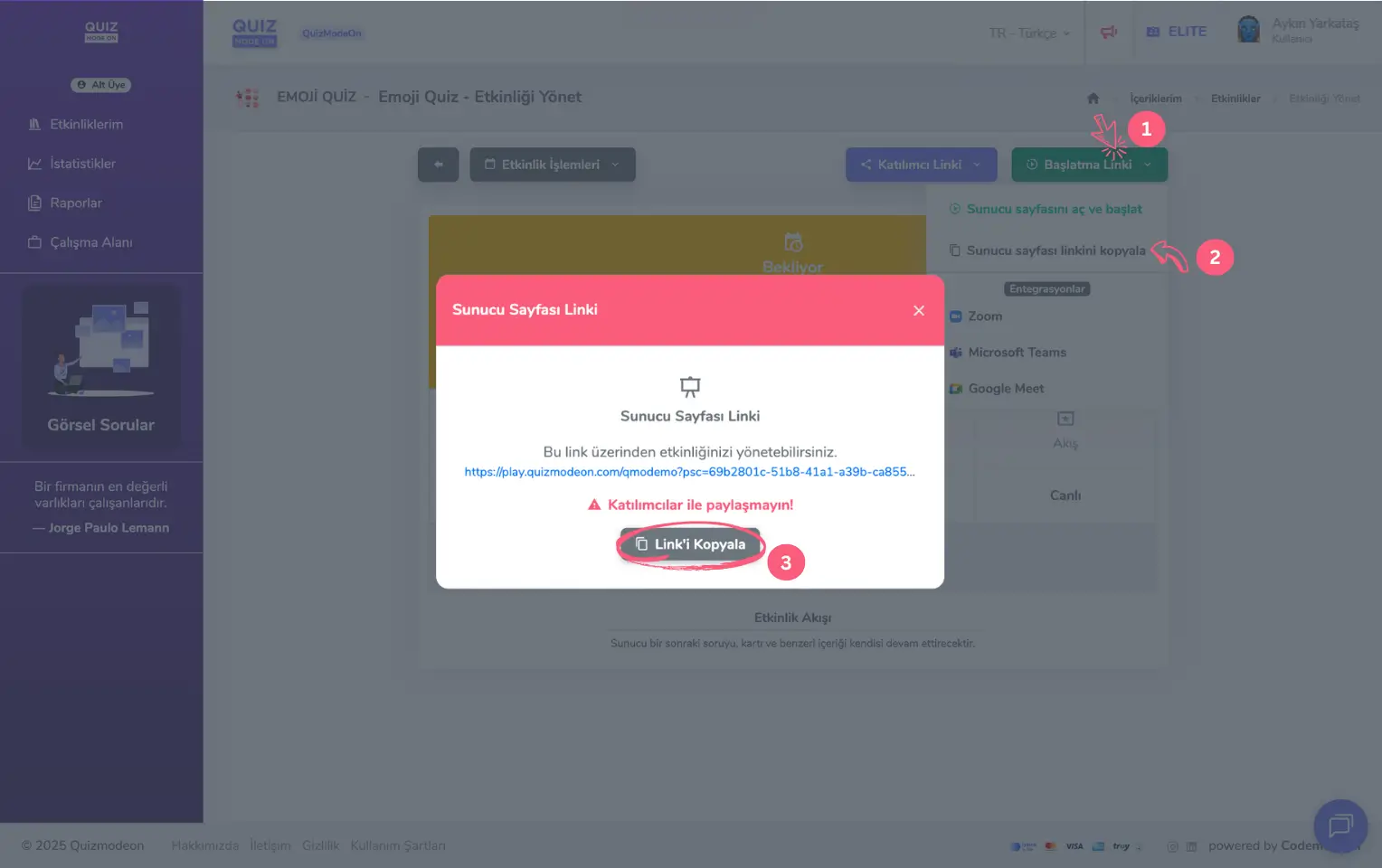
admin member - portal - event management - presenter page - copy and share the link
Note: If they like, the admin can take the moderator role and manage the event without sharing the presenter page link with anyone. To do this, they can quickly open the event presentation page from the portal management page by clicking Start Link -> Open presenter page and start.
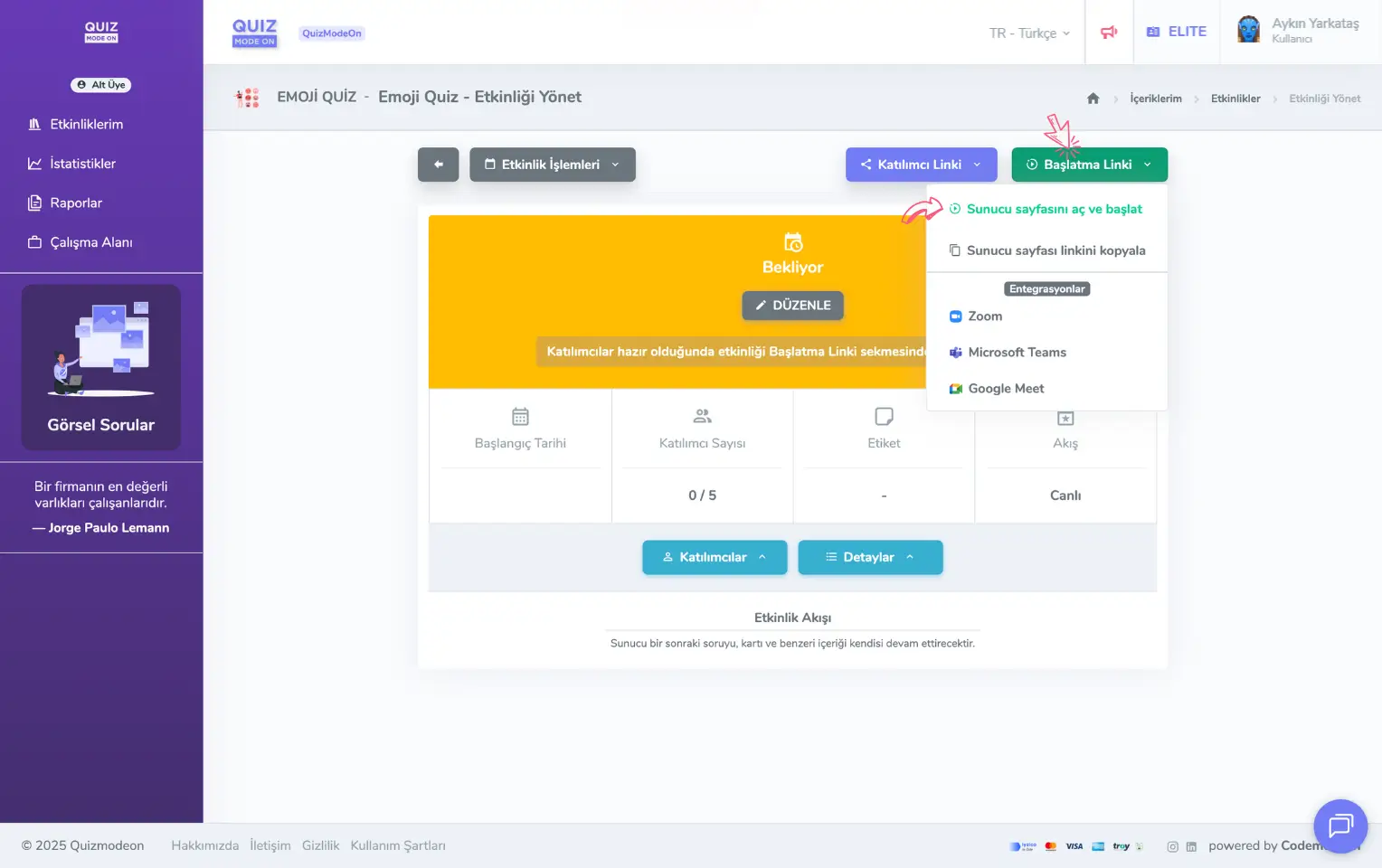
admin member - portal - event management - presenter page - open the link and start
How can I share the event login link with participants?
When the moderator opens the presenter page, they see the pre-event login screen. This screen shows general information about the flow, such as the event name, content information (total number of questions, etc.), the number of participants who have logged in and registered so far, and the login details for the event (the participant login link and QR code).
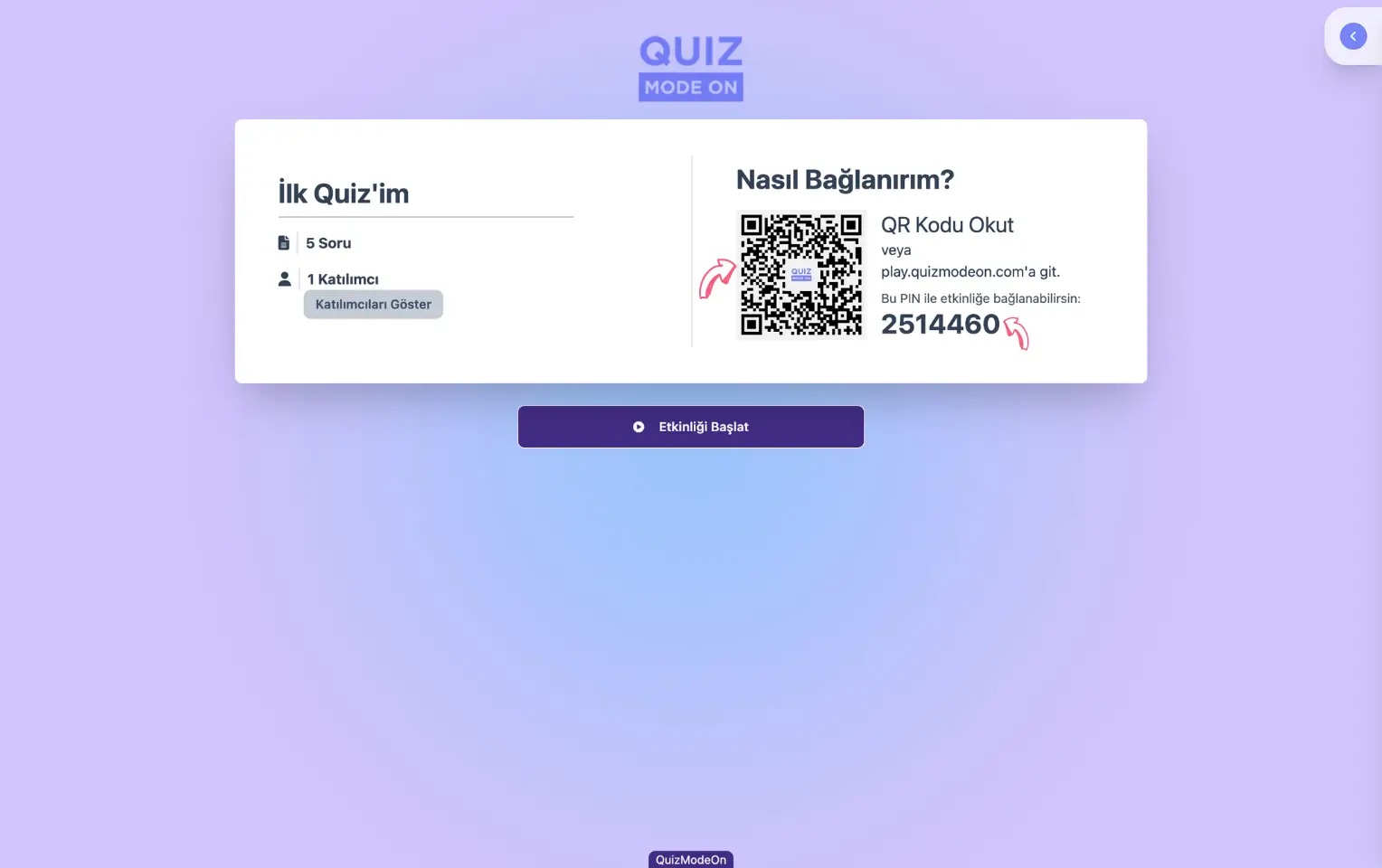
moderator - presenter page - moderator view - participant link and qr code
Note: You can copy the participant login link to the clipboard by clicking the PIN code.
Can I see the live participant count and the participant list?
As participants log in by scanning the QR code or through the link, the live participant count on the screen updates. Click the Show Participants button to view all participants who have logged in so far and to search among them.
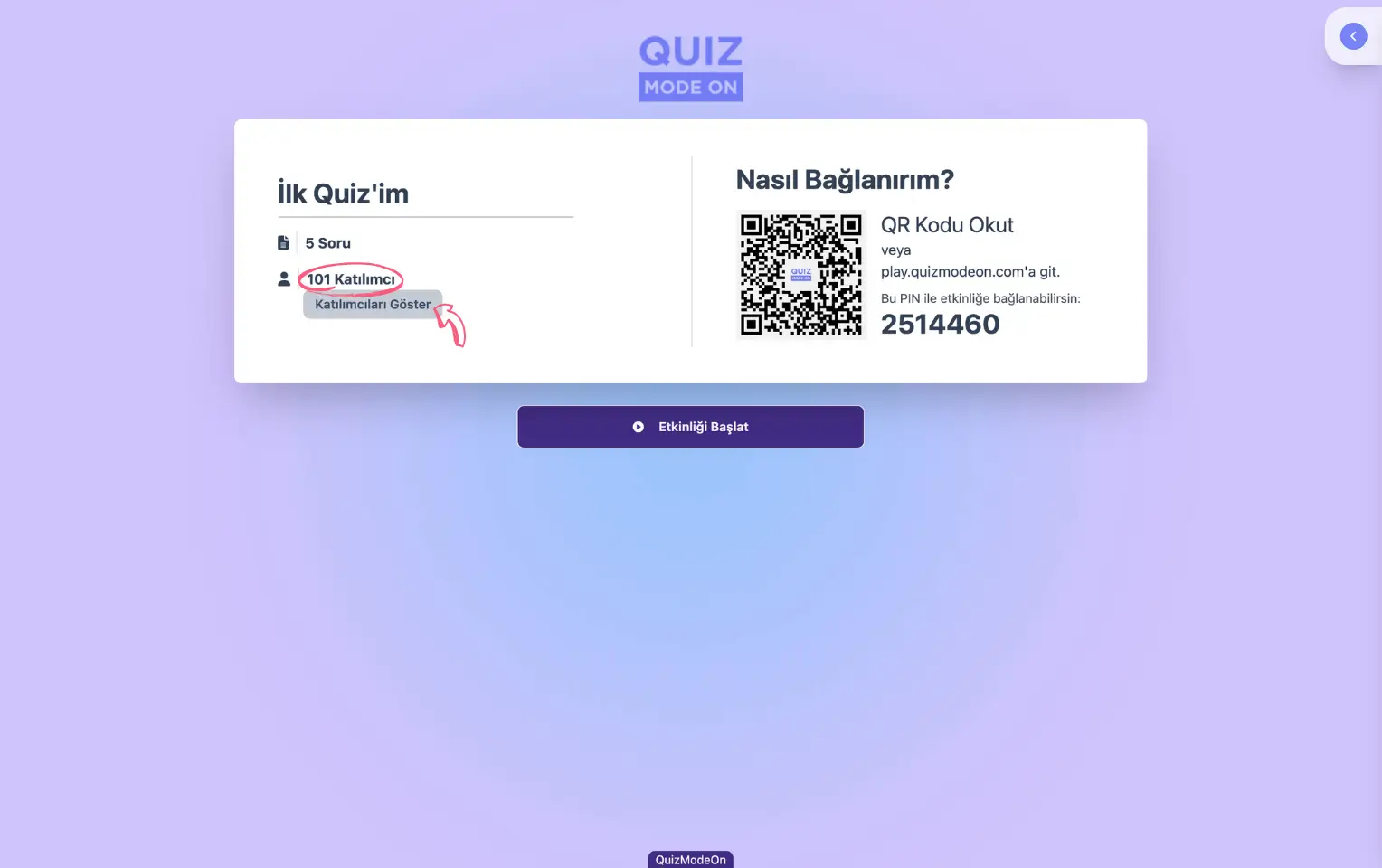
moderator - presenter page - live participant count and show participants button
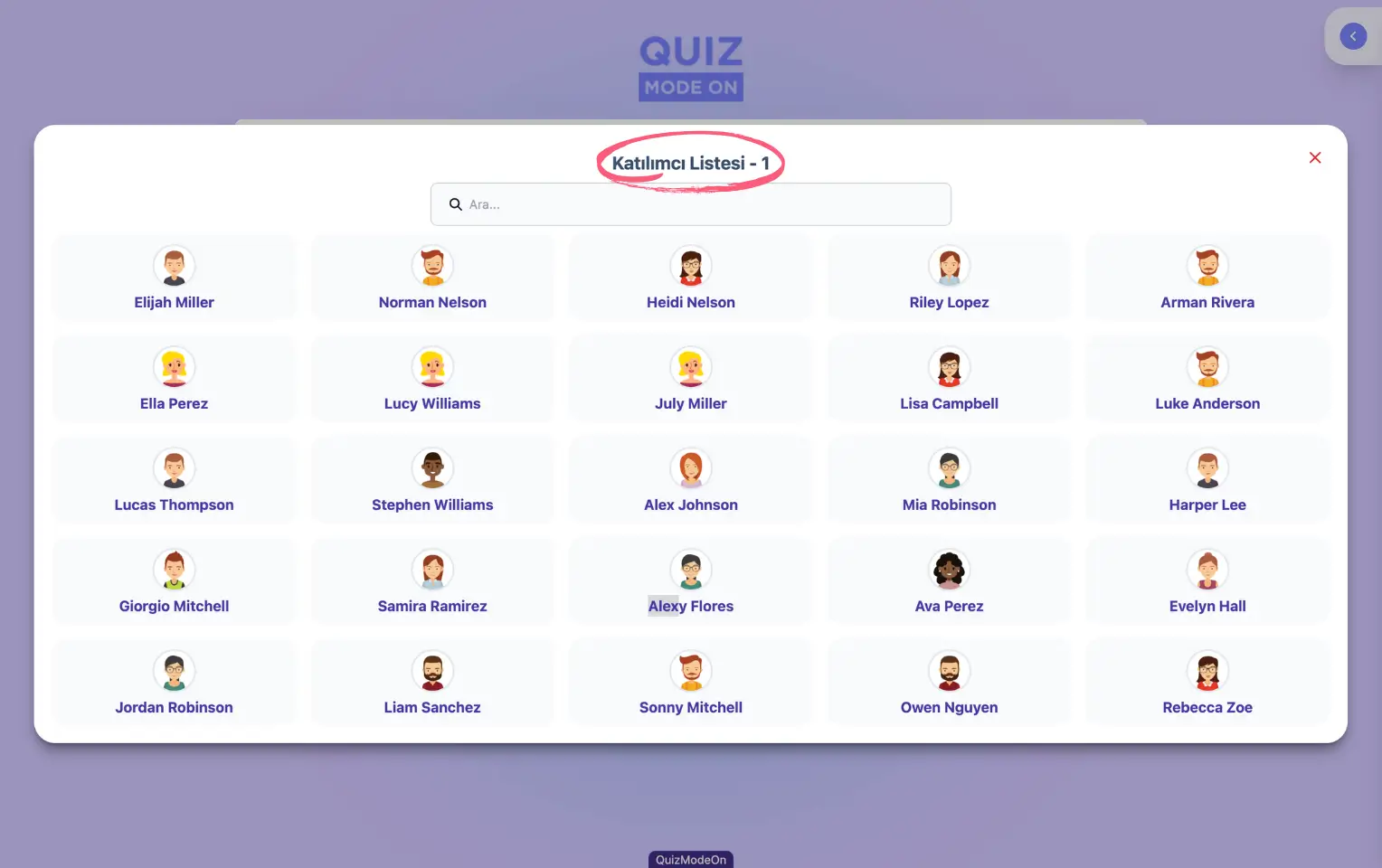
moderator - presenter page - participant list
Can I share information with participants before the event starts?
If they like, the moderator can click the Send Message button on the top right bar to send short, one-way info messages and announcements to all participants.
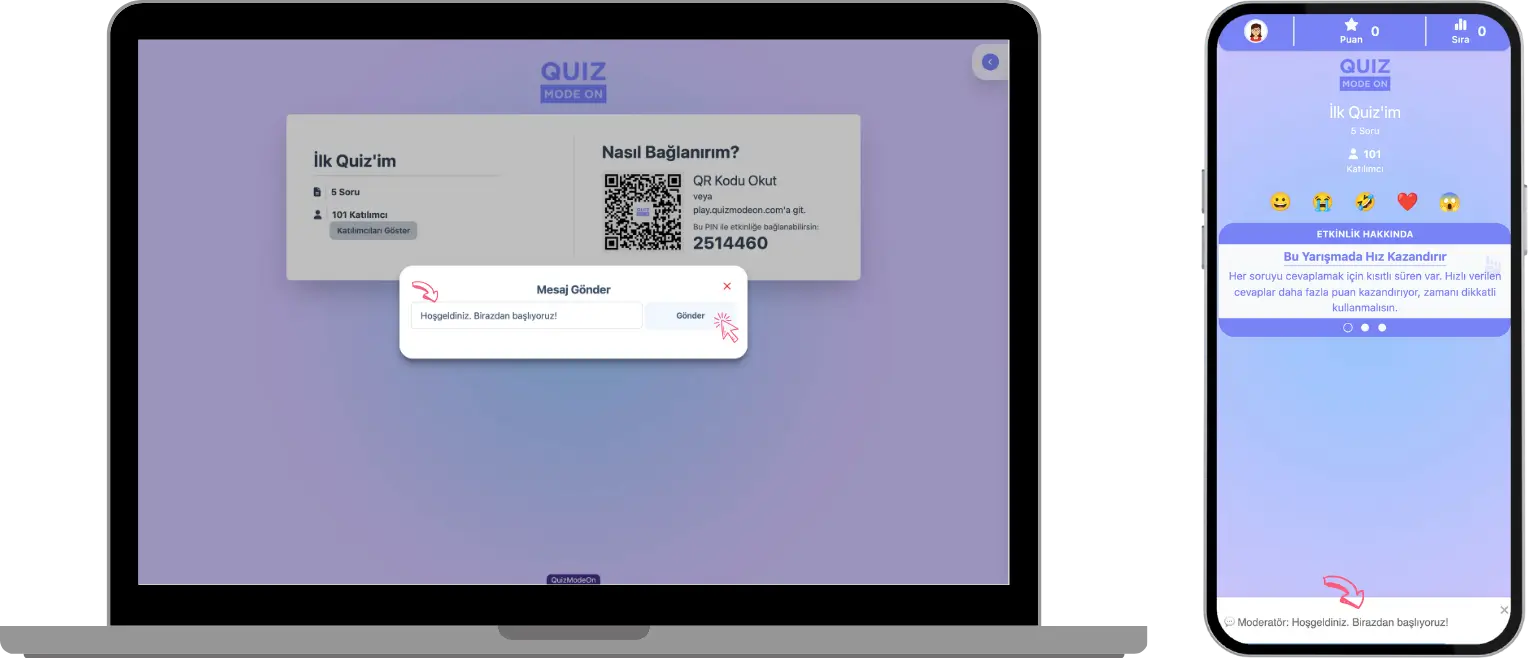
moderator - presenter page - moderation menu - sending a message
Note #1: Especially in online events where participants connect remotely, participants may be busy with something else away from the presentation screen. In that case, participants who join the event from their own phones can be informed with instant messages. For example: for a quiz competition with prizes that was due to start at 12:30, the schedule ran late and the new start time is 12:45. The moderator can quickly send a message to everyone to let them know.
Note #2: In events such as Q&A, you can switch between the presenter and moderator views by clicking the bar at the top right of the presenter page. Because of the nature of the Q&A event type, the presenter and moderator screens differ. The moderator page has a special moderation interface where the questions sent by all participants are listed and can be filtered. This way, the moderator can select the relevant questions to approve, reject, revise, mark as read or pin them. On the presenter page, only the questions approved by the moderator can be shown.
2) Start the event
After checking the participant count one last time, you can start the event flow.
In game and competition events such as Taboo, Draw It, Tombola, Quiz and Guess What, participants cannot log in after the event has started. Make sure all participants have joined the event before you start it.
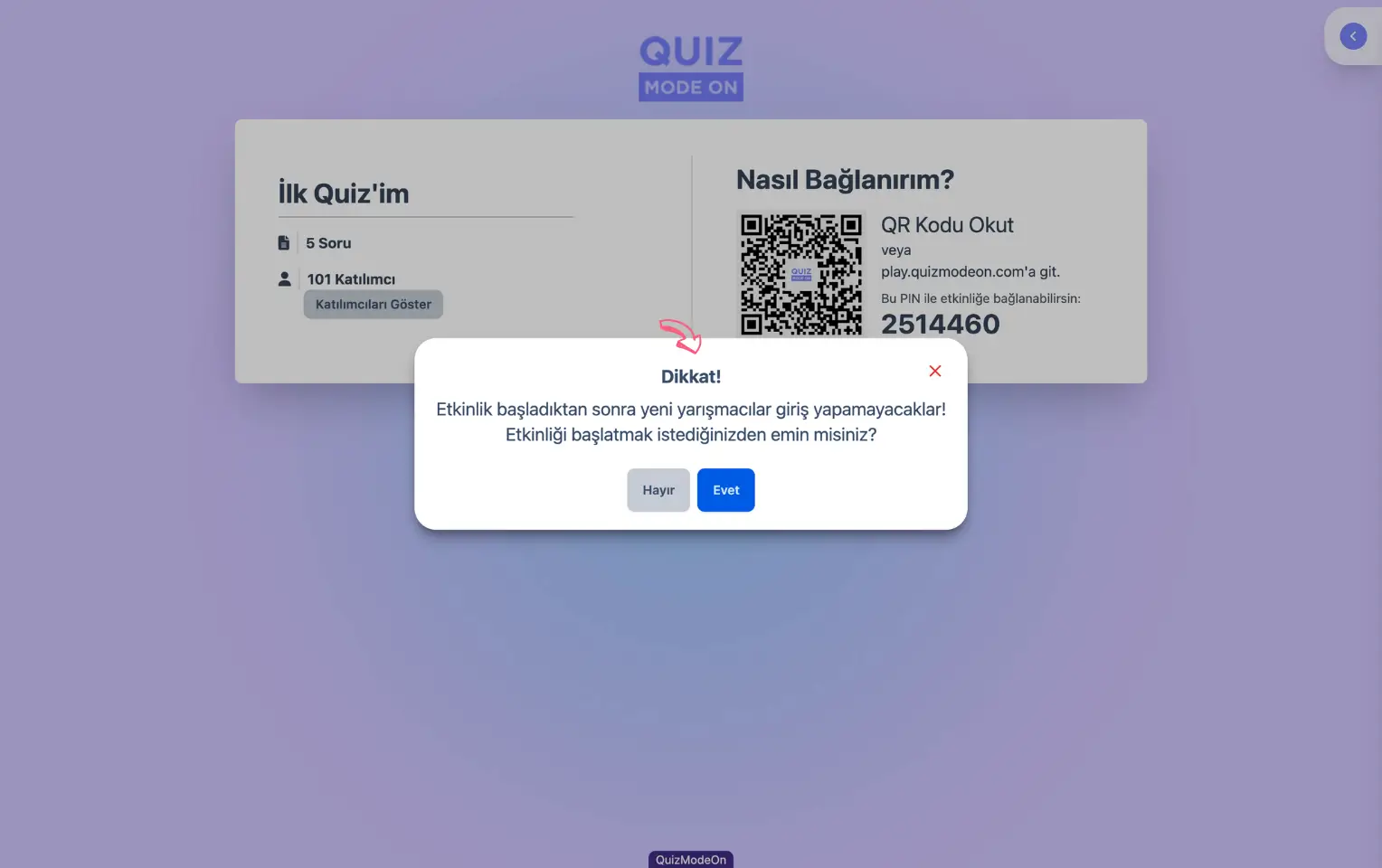
moderator - presenter page (quiz) - starting the event - participant login warning
Note: Participants can join live events such as Quiz, Guess What and Poll after they start. For this, the admin (member) must turn on the Allow registration after the event has started option under the event’s Settings -> Registration tab.
3) Manage the flow
The moderator starts the event flow by pressing the Start the Event button.
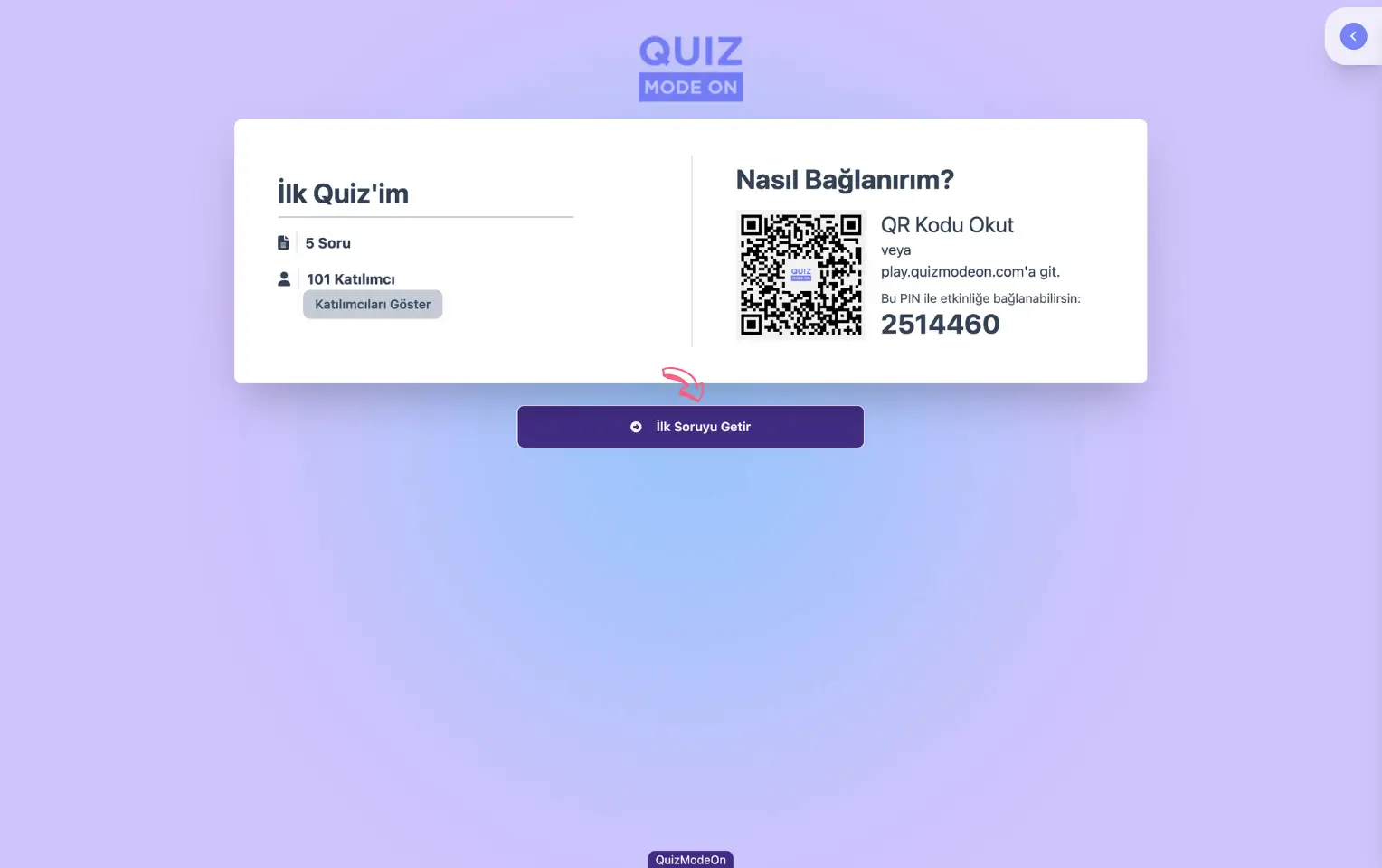
moderator - presenter page (quiz) - bringing up the first question
After the event starts, the management functions under the moderator’s control vary by event type, as follows.
- In events such as Quiz, Poll and Word Cloud: moving between questions
- In a Q&A event: approving, rejecting, pinning and filtering the questions that come from participants
- In team games such as Taboo and Draw It: managing round transitions, and accepting or rejecting the explanation
- In a Spin Wheel event: spinning the wheel
- In a Tombola game: drawing and setting the numbers
In game-based events with score and time gamification dynamics, such as Quiz, Guess What and Taboo, the transition screens show the current high scores or winners.
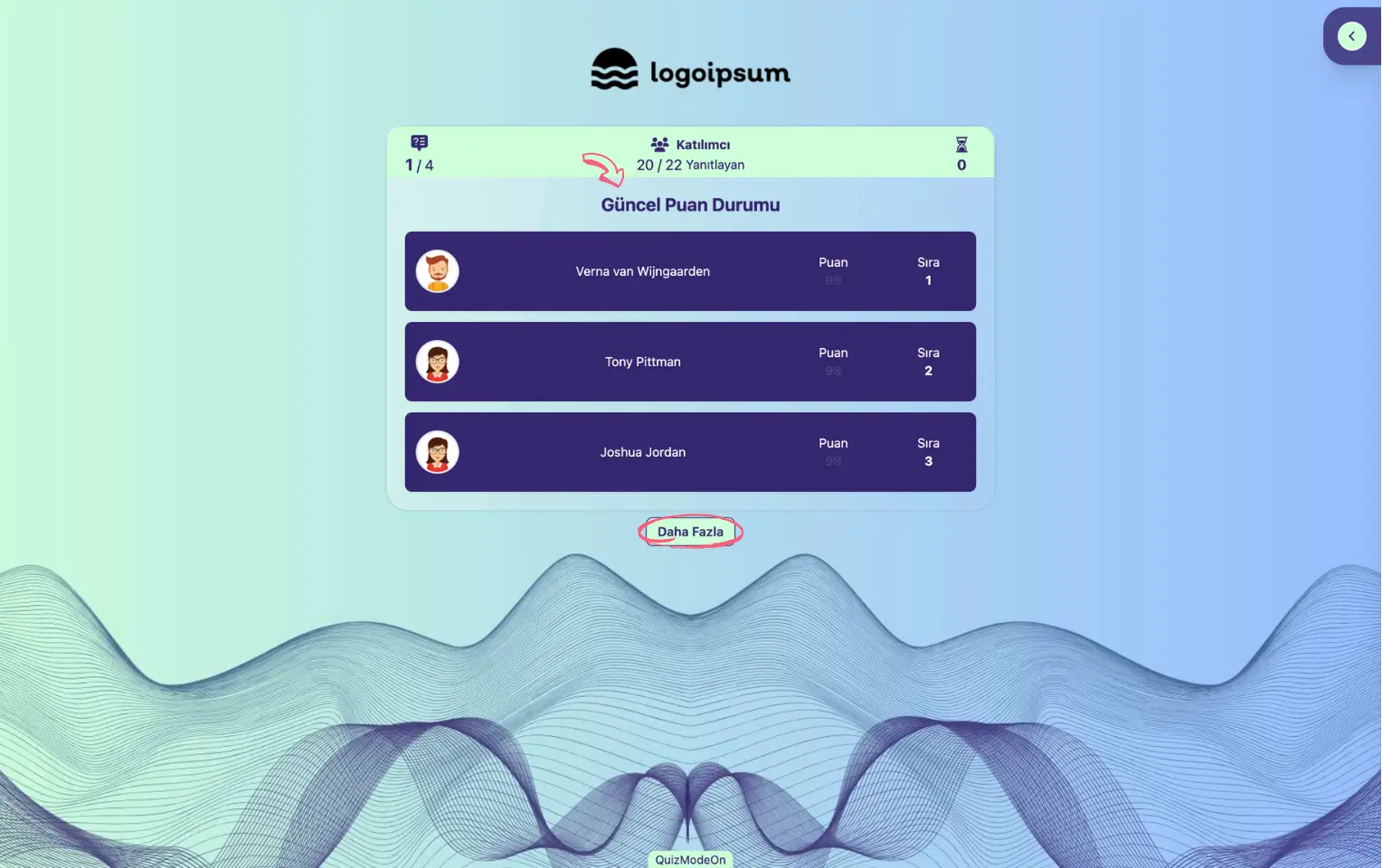
moderator - presenter page (quiz) - current standings - high scores
Note: Click the See More button to view the top 10 participants as well.
4) End the event
How live events end
Live events are started by the moderator, and depending on the event type they can end on their own or be ended by the moderator.
- In events with a set number of questions and answering time, such as Quiz, True or False, Guess What, Emoji Quiz, Mixed Quiz, Poll, Open-Ended, Rating, Mixed Survey and Dynamic Poll, the flow ends on its own.
- In team games such as Taboo and Draw It, the game ends when the content (cards or drawings) runs out or the maximum number of rounds is reached.
- In a Word Cloud event, participants’ opinions are collected by asking them questions, and there is no time limit on the questions. After the moderator moves on to the last question, they can end the event whenever they like.
- In a Q&A event, participants ask questions or share their opinions. Since there is no content count or time limit, the event does not end on its own. The moderator can end the event.
- In a Spin Wheel setup, the moderator can end the event whenever they like.
- In a Tombola game, the game ends when a Tombola is called after the 1st and 2nd cinquina.
- In a Lucky Pick setup, the event ends when all rounds are completed or nobody is left to draw.
How 24/7 events end
24/7 events can only be started and ended by the admin (member). The admin (member) starts and ends the event from the management page in the portal. After the event is started, participants can join whenever they like. Participants can log in until the admin (member) ends the event. They cannot log in once the event has ended. Events such as Wordle and Prize Wheel can, by their nature, only be run as 24/7 flow.
End-of-event final screens
On the final screens of events with score-based gamification and competition dynamics, such as Quiz, Emoji Quiz, Guess What and Taboo, the high scores or winners are shown.
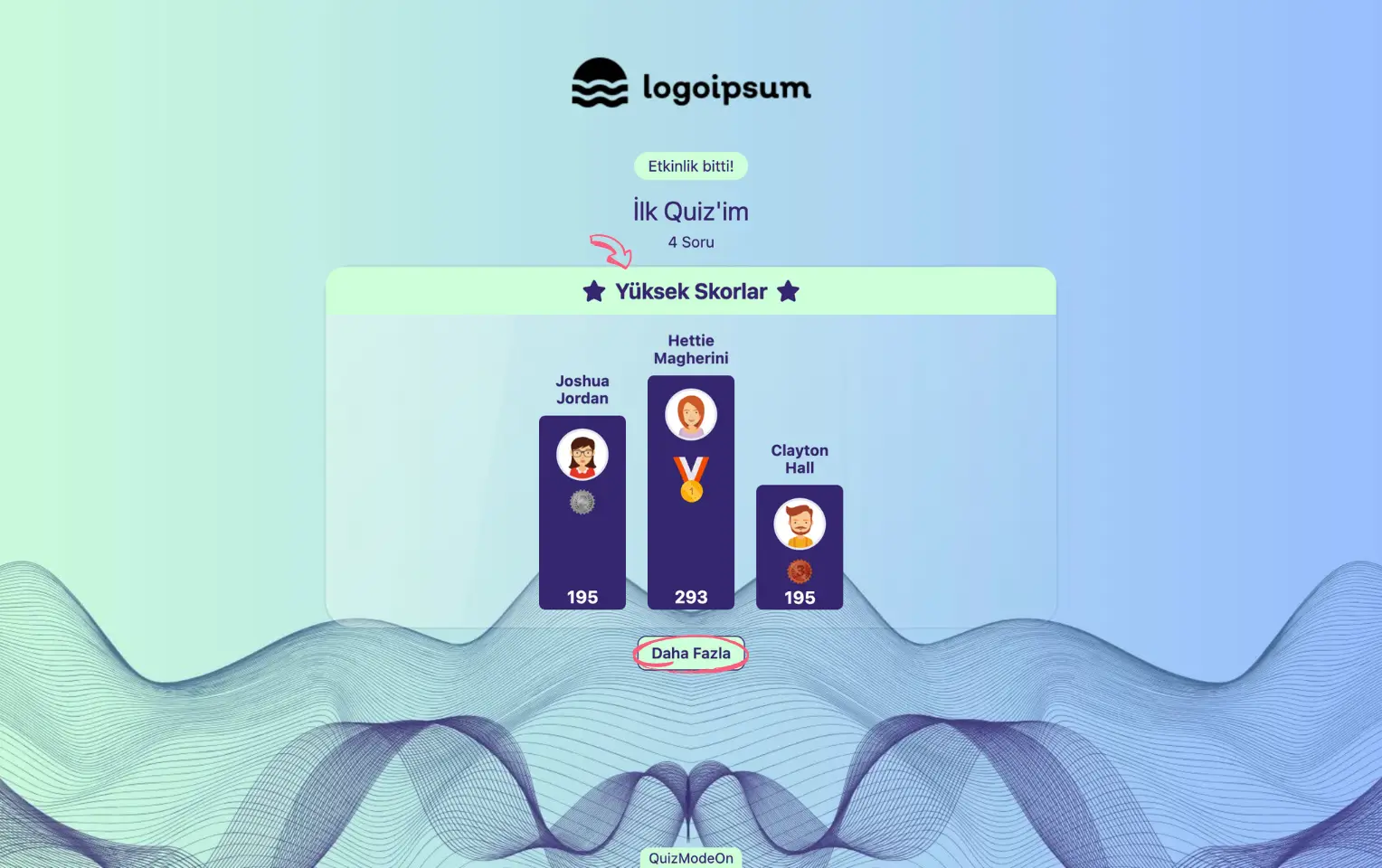
moderator - presenter page (quiz) - results - high scores
In games of chance such as Tombola and Lucky Pick, the final screen shows the winners.
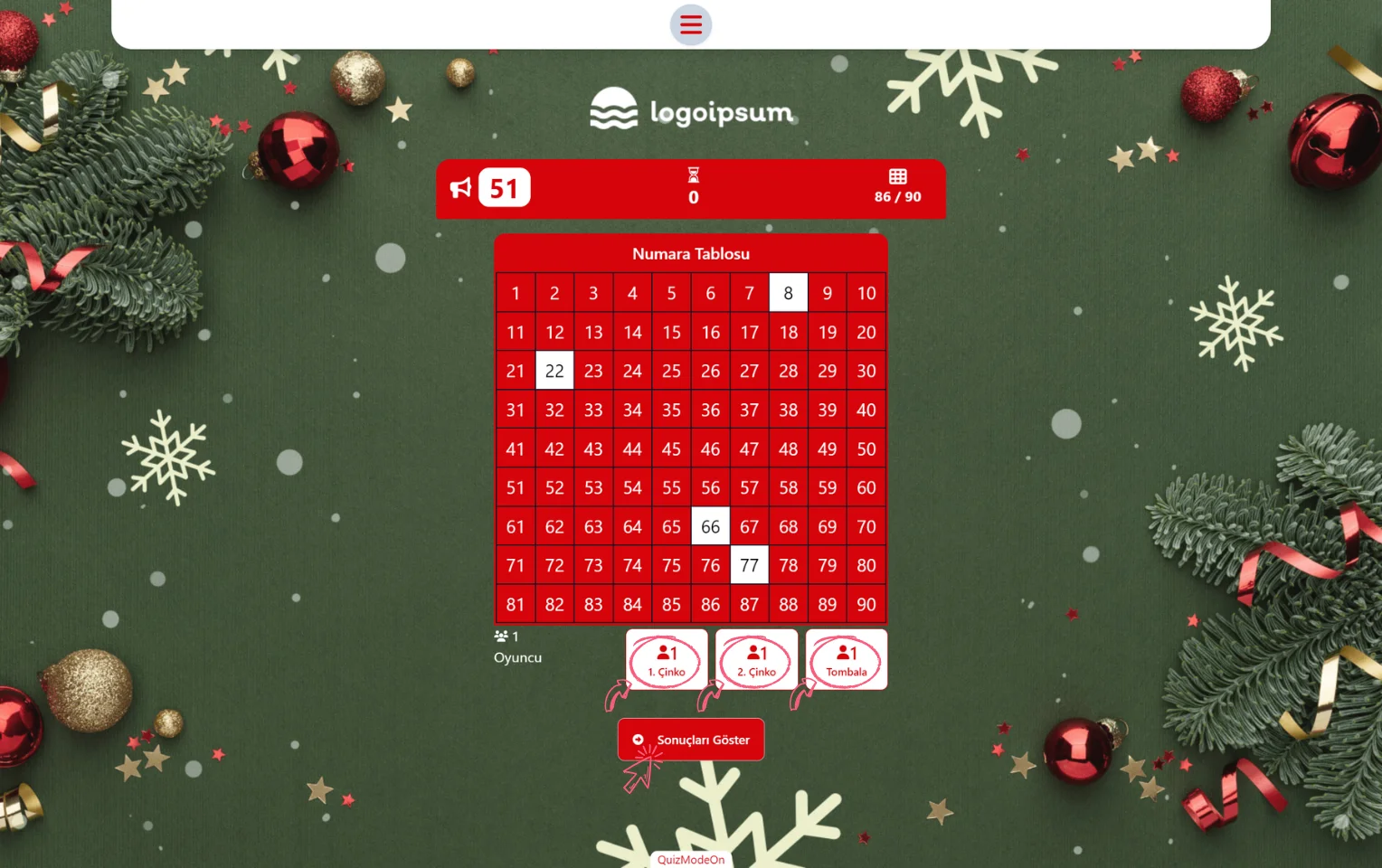
moderator - presenter page (tombola) - results - showing the winners
On the final screens of events that have no score or other gamification dynamic, such as Poll, Rating and Word Cloud, a thank-you message is shown.
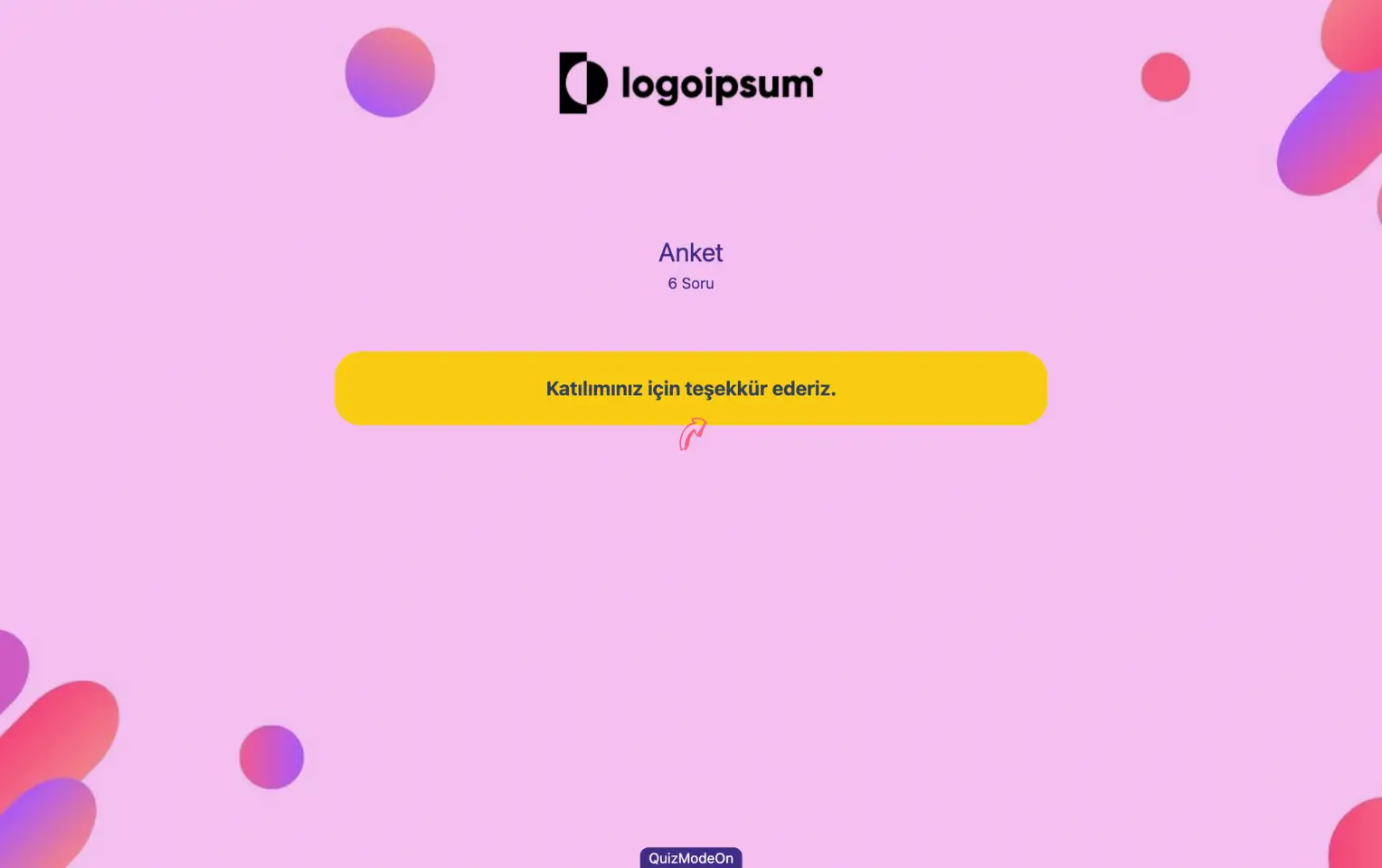
moderator - presenter page (poll) - end of event - thank you