Explore the event management page
How are asynchronous events managed in 4 simple steps?
- The event preparations are completed and you open the management page.
- The event is started from the event management page.
- The participant link is shared so participants can log in.
- The event is ended from the event management page.
Open the event management page in the portal
You can reach the event management page in 2 different ways.
1- After you create your event, select the Start and Manage button in the popup screen that appears to go to the event management page.
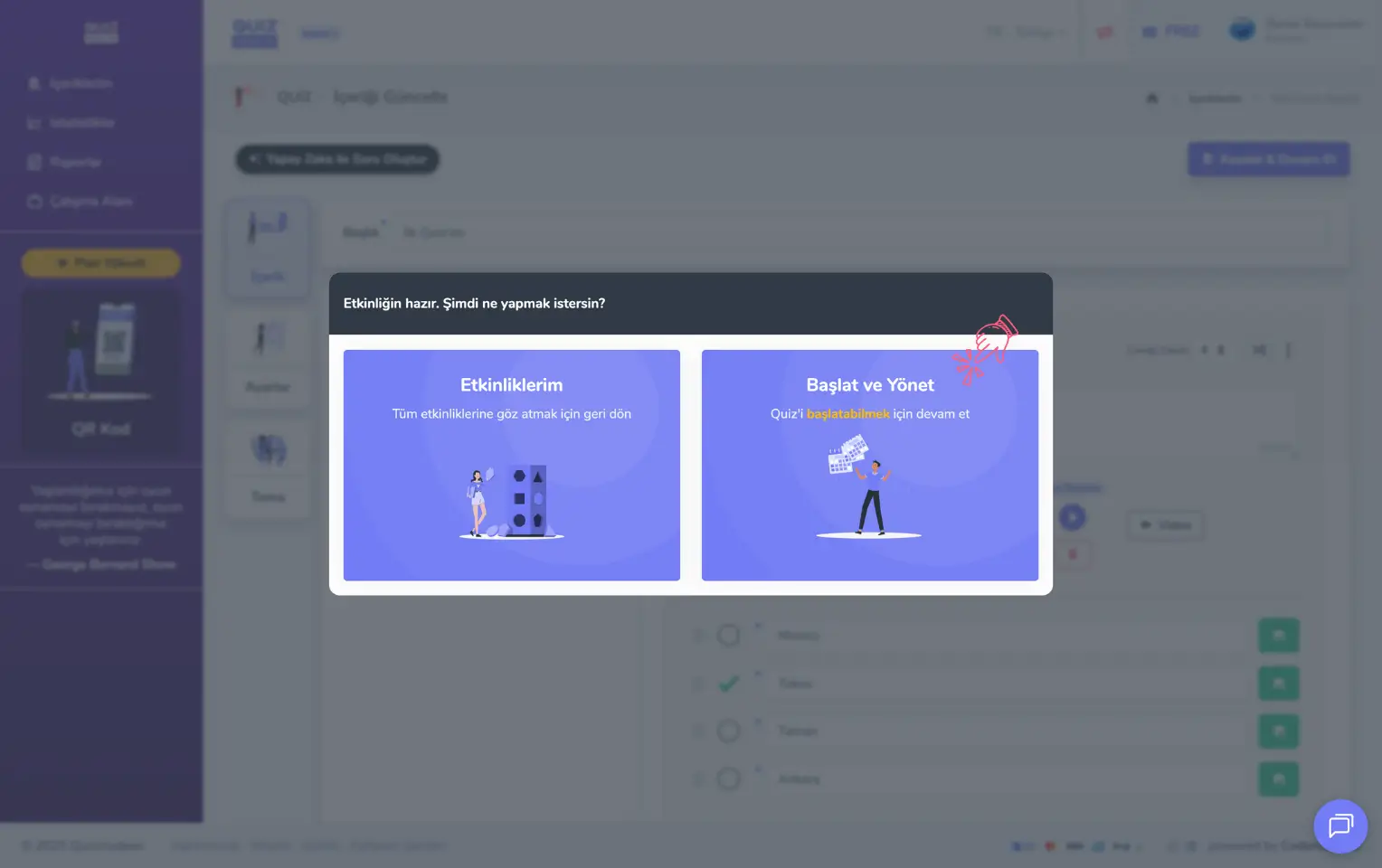
admin member - my events - creating a new event - managing the event
Note: If you go to the event management page right after creating your event, you see the current status of the event as Waiting, because the event has not started yet.
2- On the My Events home page you see a list of all the events you have created so far. Find the event you want there and press the Manage button to go to the event management page.
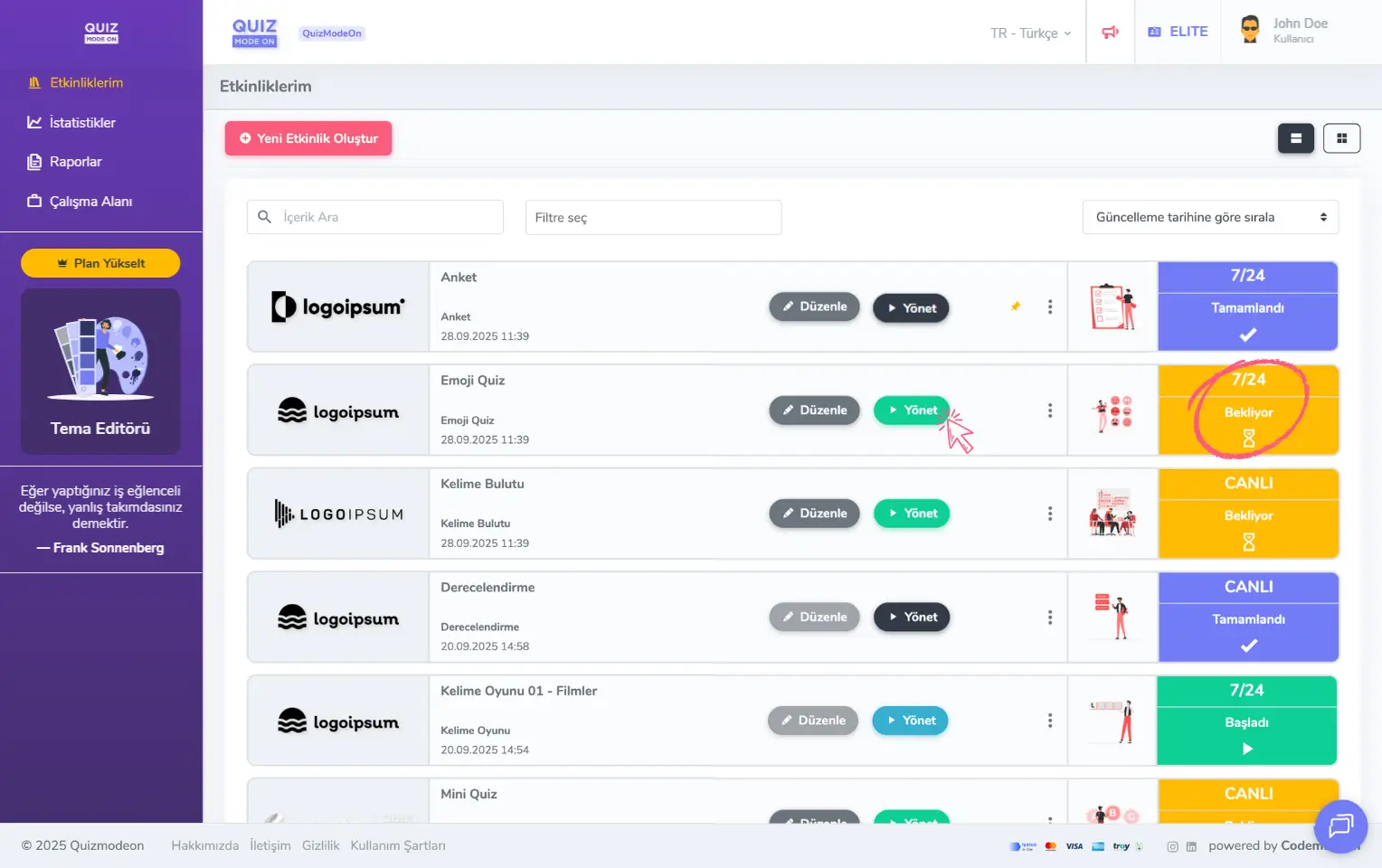
admin member - home page - my events - asynchronous event - managing the event
Check the current status of the event
Asynchronous (24/7) events can be in 3 different statuses.
- Waiting: The event has not started yet and has not been started.
- Started: The event has started and is in progress.
- Finished: The event has ended.
Note #1: The current status of the event is shown at the far right of every event on the home page, and it is also shown clearly on the event management page.
Note #2: Each event status is shown in a different color. Waiting is yellow, Started is green and Finished is blue/purple.
Note #3: In asynchronous (24/7) events, participants cannot log in while the event is in the Waiting status. They can log in while the event is in the Started status.
Waiting events
An event moves to the Waiting status right after it is created. This status represents the state before the event starts.
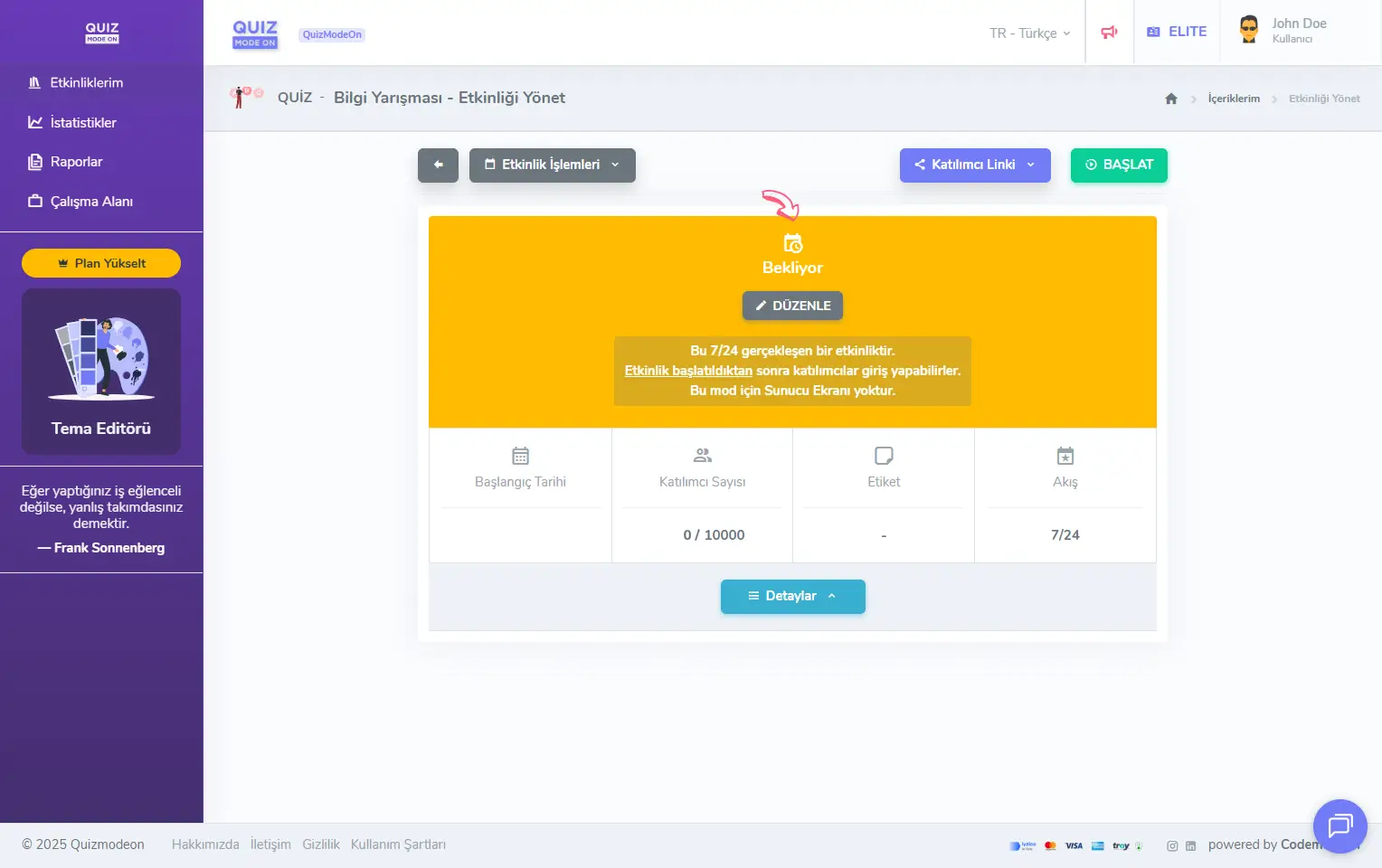
admin member - events - event management - asynchronous event - waiting event
Start Link
To start an event set up with an asynchronous (24/7) flow, click the START button.
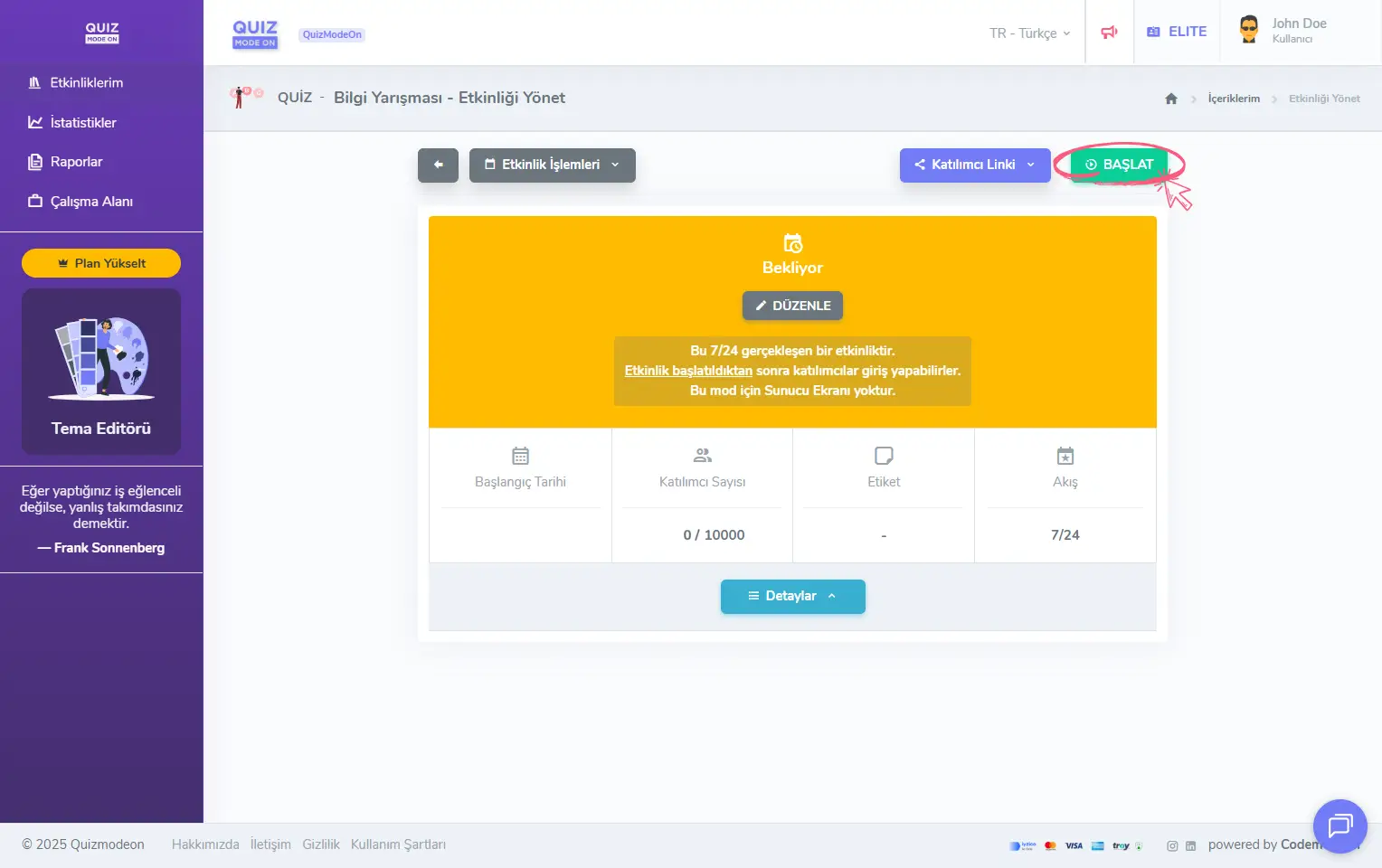
admin member - events - event management - asynchronous event - start
Started events
An event moves to the Started status right after it is started. This status means the event flow has begun. You can follow the current number of participants here.
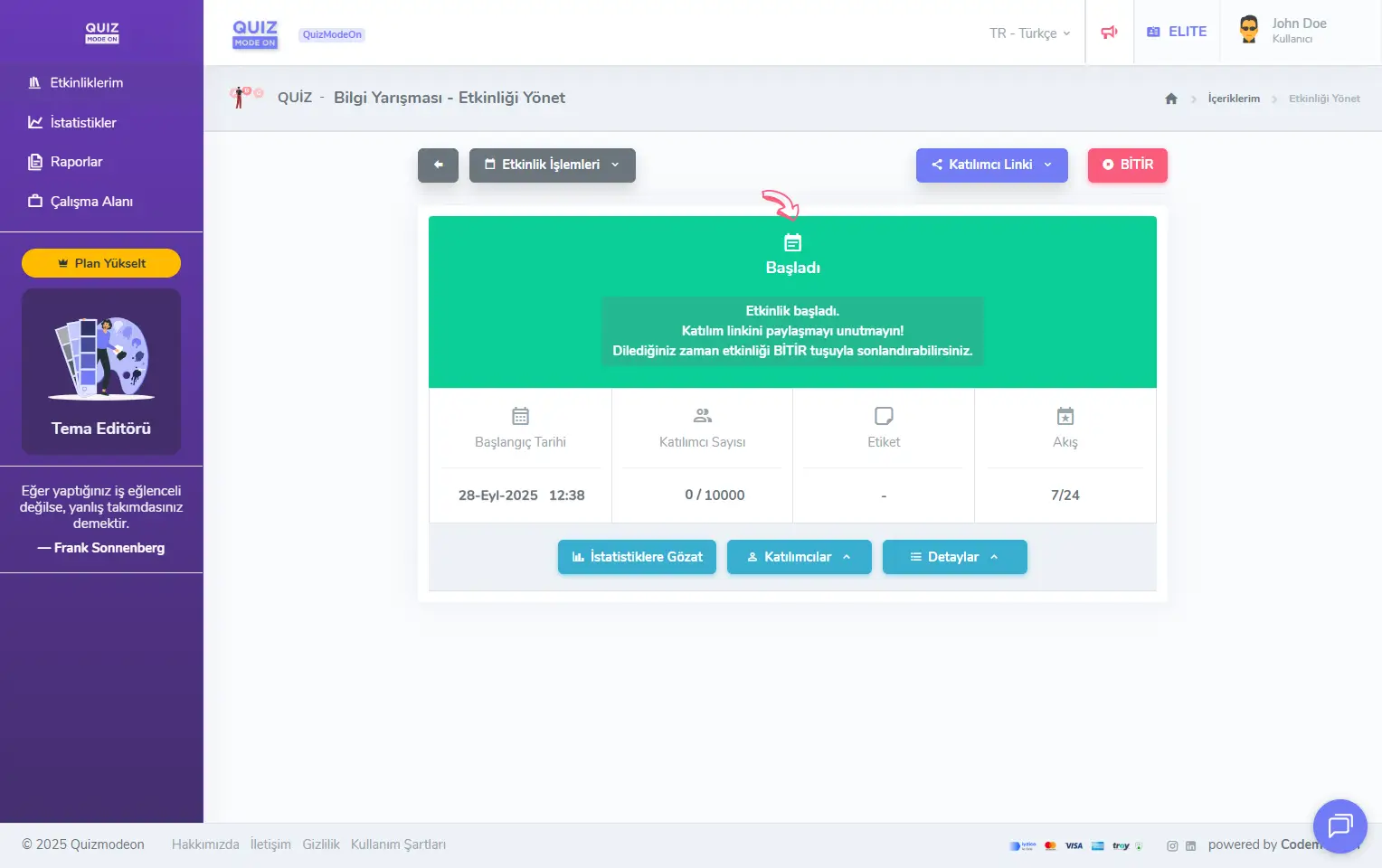
admin member - events - event management - asynchronous event - started event
Note #1: In asynchronous events, after participants open the link, they start their own event flow by pressing the Start the Event button.
Note #2: In asynchronous events, you may prefer to share the login details with participants after starting the event. If you share the link before the event starts, participants see the warning “This event has not yet started. Please try again later.” and cannot log in.
Participant link
If you want to share login details with participants easily in asynchronous events, click the Participant Link button and pick one of 3 options.
Share public link with participants: The login link shared here does not ask participants for a PIN code and takes them straight to the registration form, so they can log in easily.
Show public link QR code: The QR code shared here does not ask participants for a PIN code and takes them straight to the registration form, so they can log in easily.
Share private access link: The login link shared here first asks participants for a PIN code and then takes them to the registration form to log in.
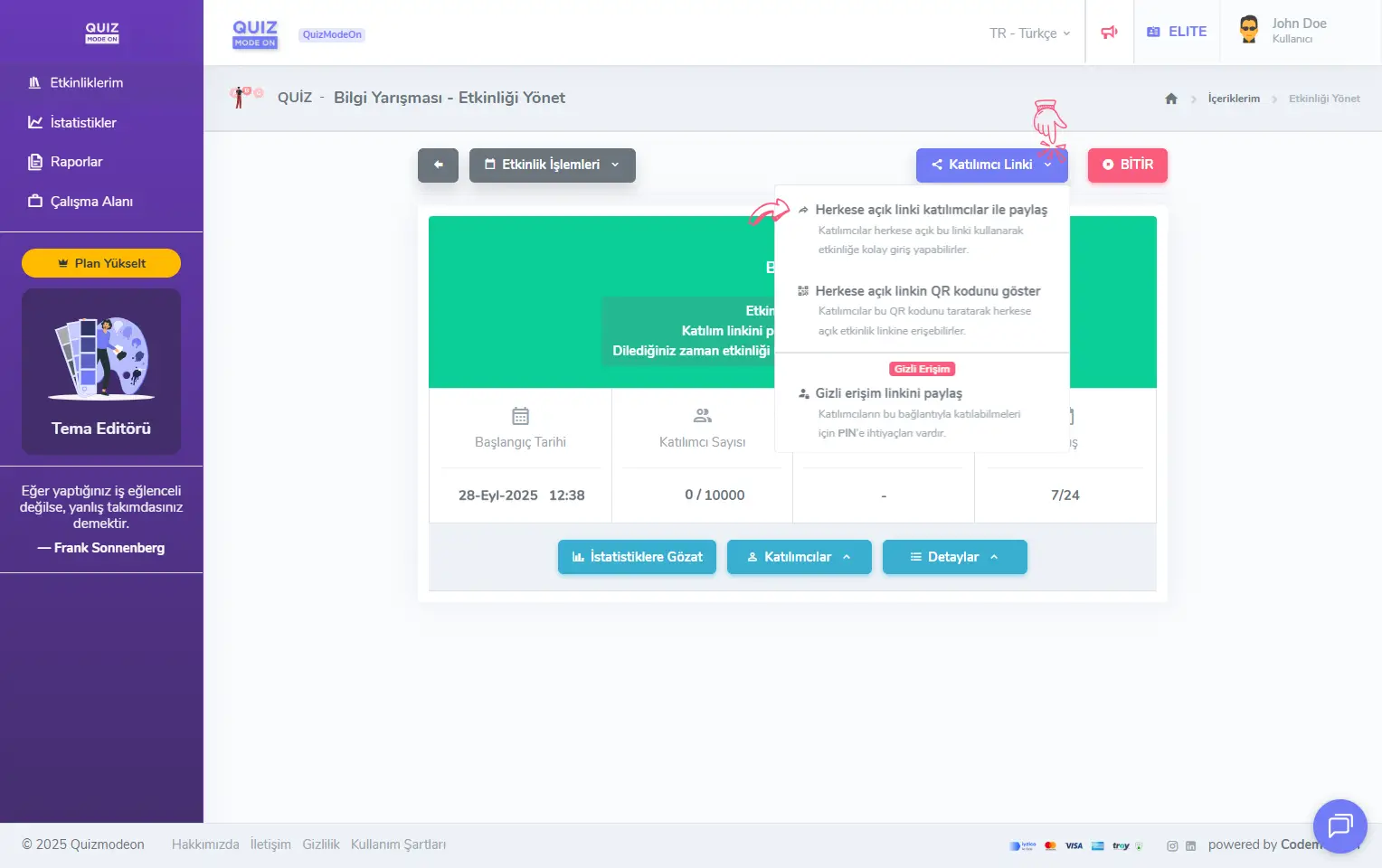
admin member - events - event management - asynchronous event - participant link
When you click Share public link with participants, you can share the login details for participants as a link or a QR code.
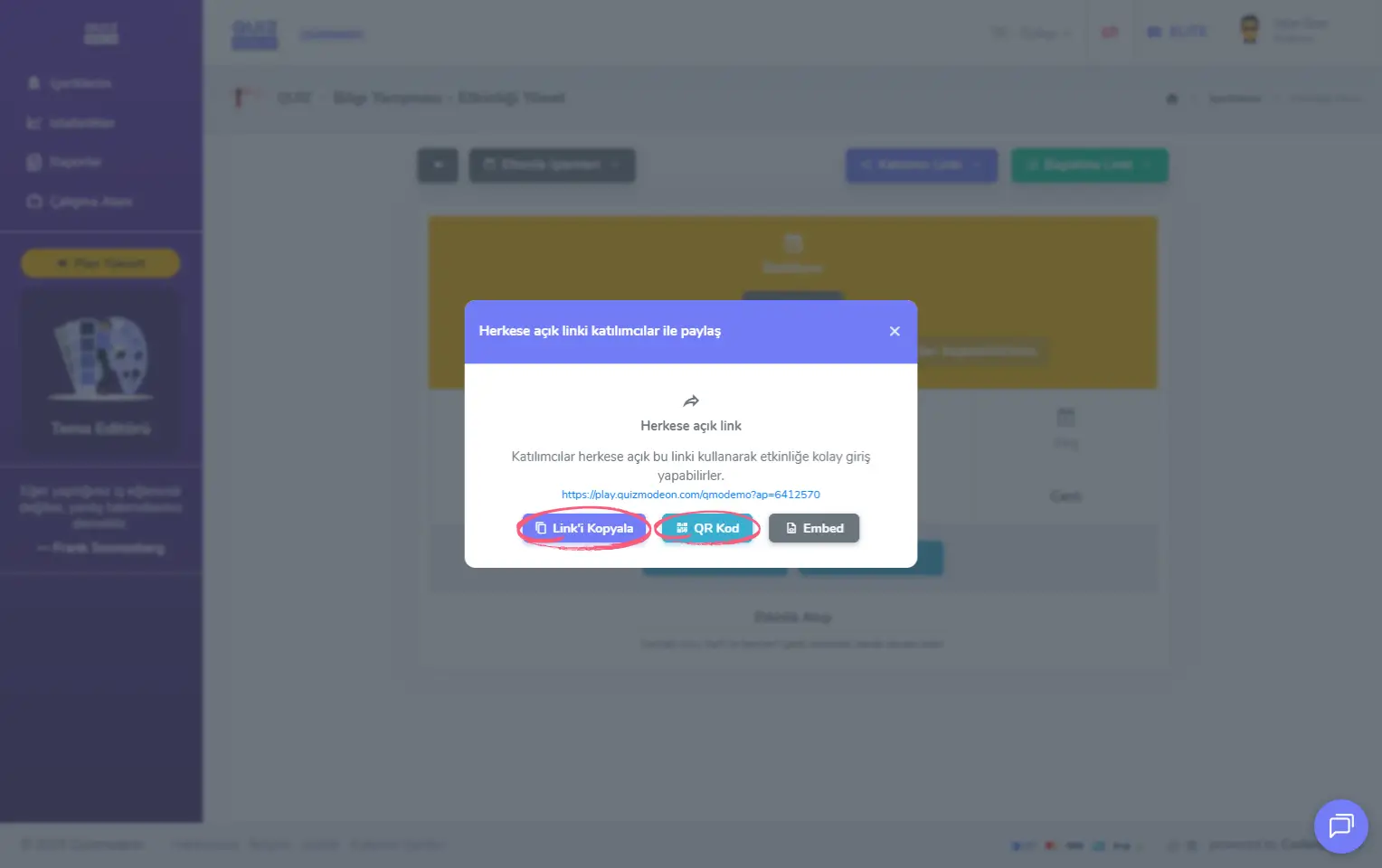
admin member - events - event management - asynchronous event - participant link - copying the link and sharing the QR code
When you click Share private access link, you can share the login details for participants as a link or a QR code. You also need to share the PIN code separately so they can log in.
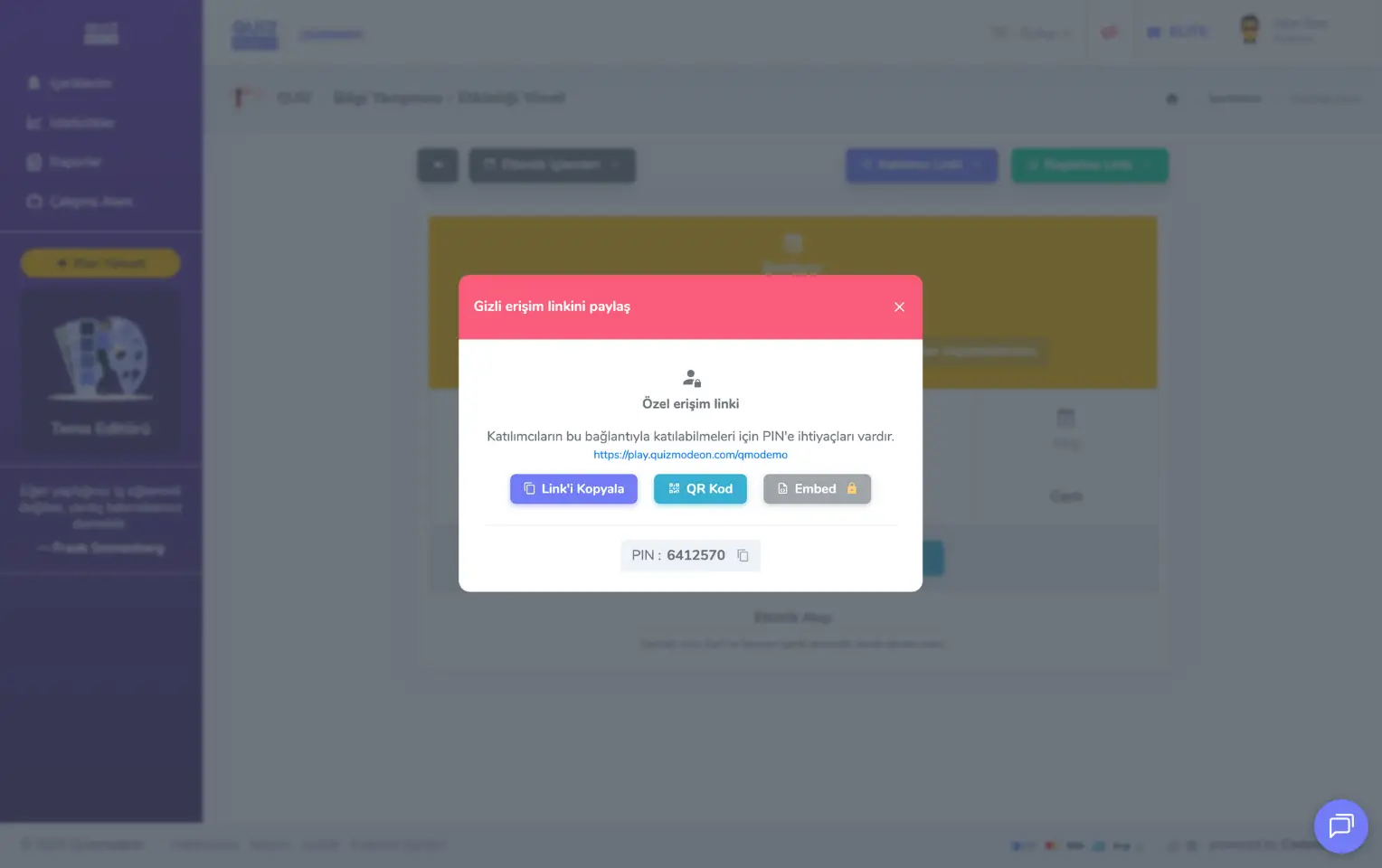
admin member - events - event management - asynchronous event - private participant link - pin, link and qr code
Note: If you want to offer participants a more user-friendly experience, use Share public link with participants, the most preferred method.
Finished events
Asynchronous events do not end on their own. To end one, you need to click the FINISH button manually.
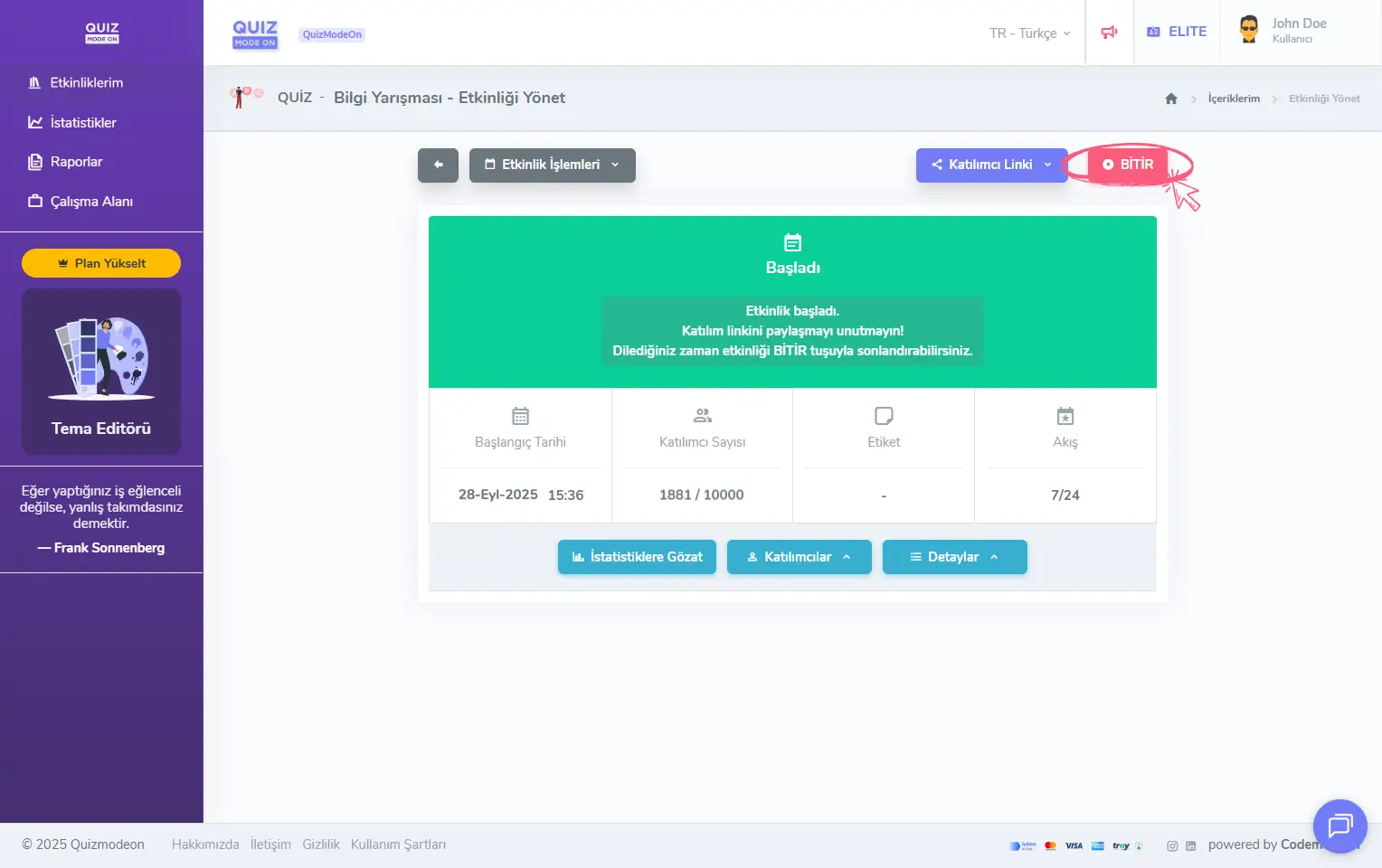
admin member - events - event management - asynchronous event - finishing
An event moves to the Finished status right after you finish it. This status means the event flow has ended.
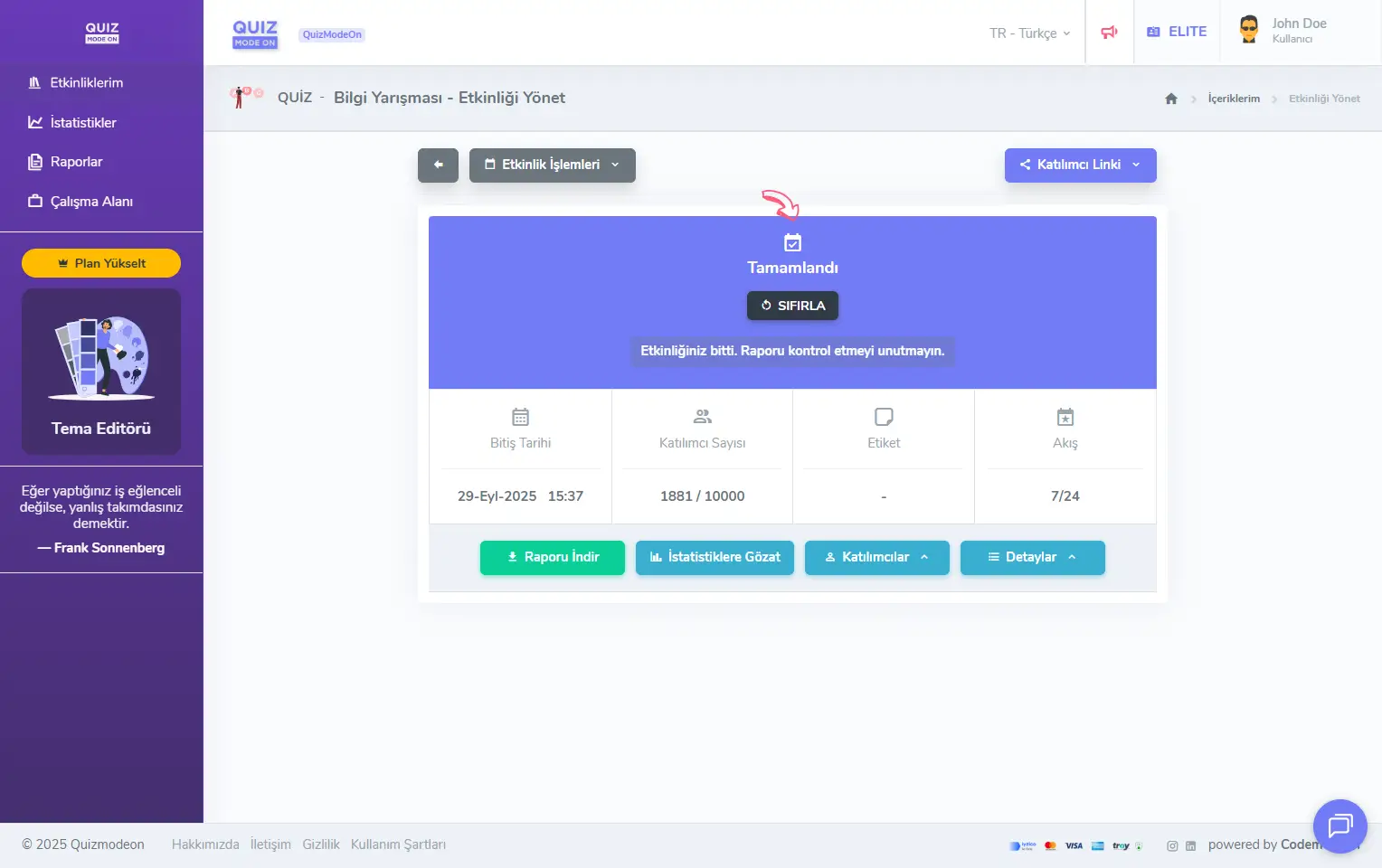
admin member - events - event management - asynchronous event - finished event
View reports and statistics
After the event is finished, you can open the event reports, charts and all participant data here.
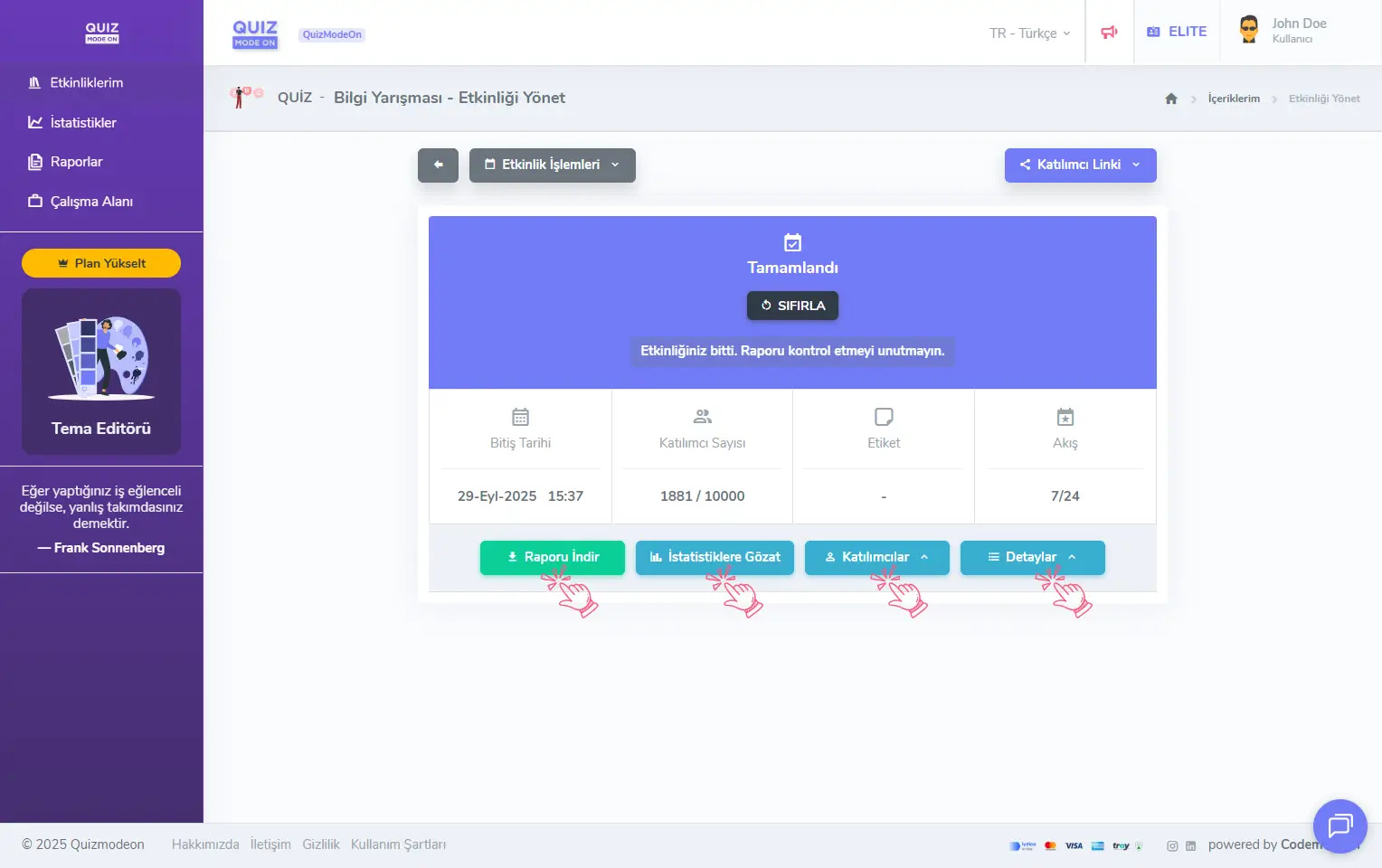
admin member - events - event management - asynchronous event - reports and statistics
Event Report: After each event, a comprehensive report with all the participants’ data for the event is created. Click the Download Report button to download the event report in Excel format. The report contains general information (login time, avatar choice, etc.), participant information (name, surname, ID, email, etc.) and data specific to the event format (for a quiz, for example, the number of correct answers, joker usage, score and ranking).
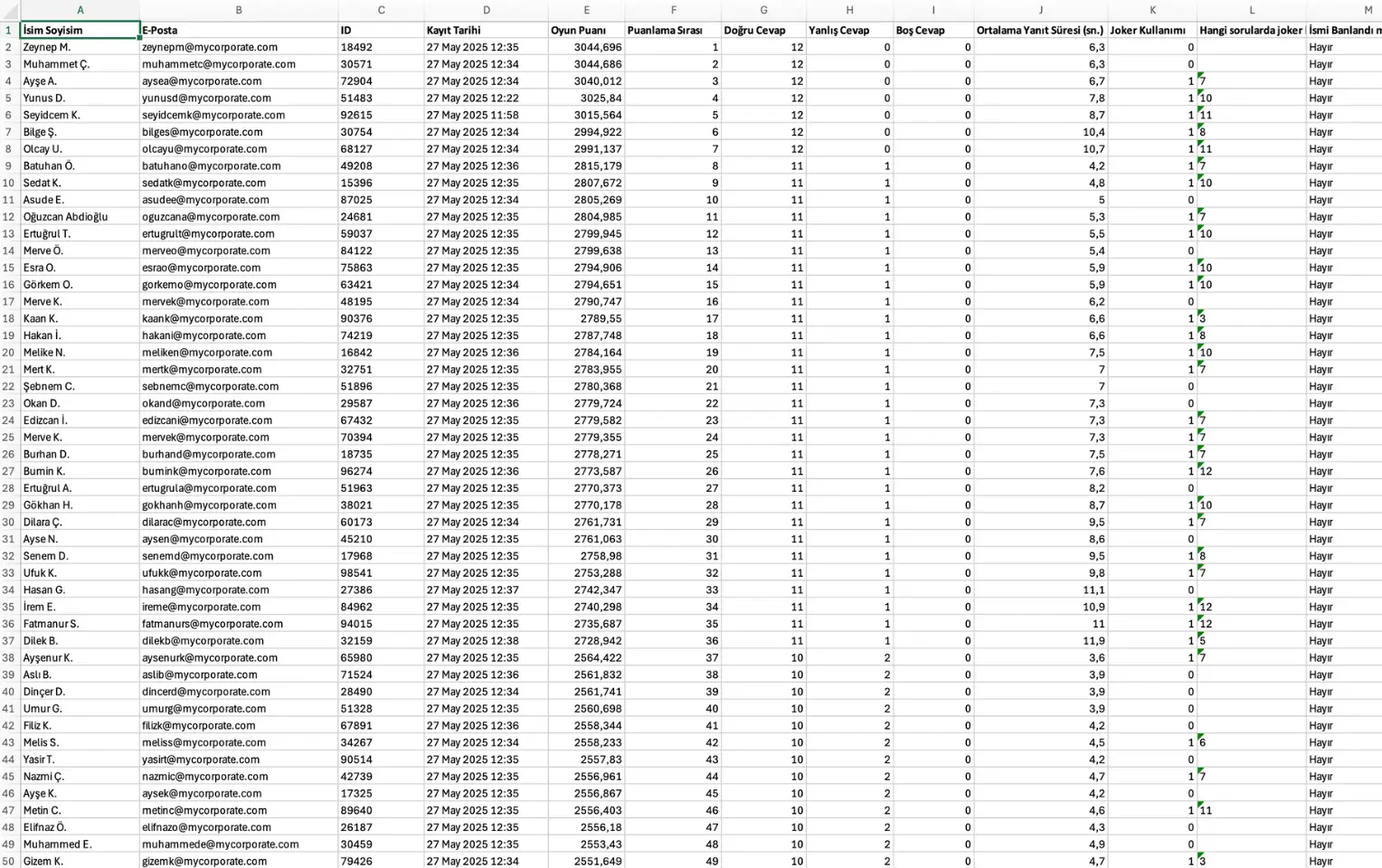
admin member - events - event management - reports - excel output
Charts: If you want a quick preview of the results after each event, click the View Statistics button to look at the charts.
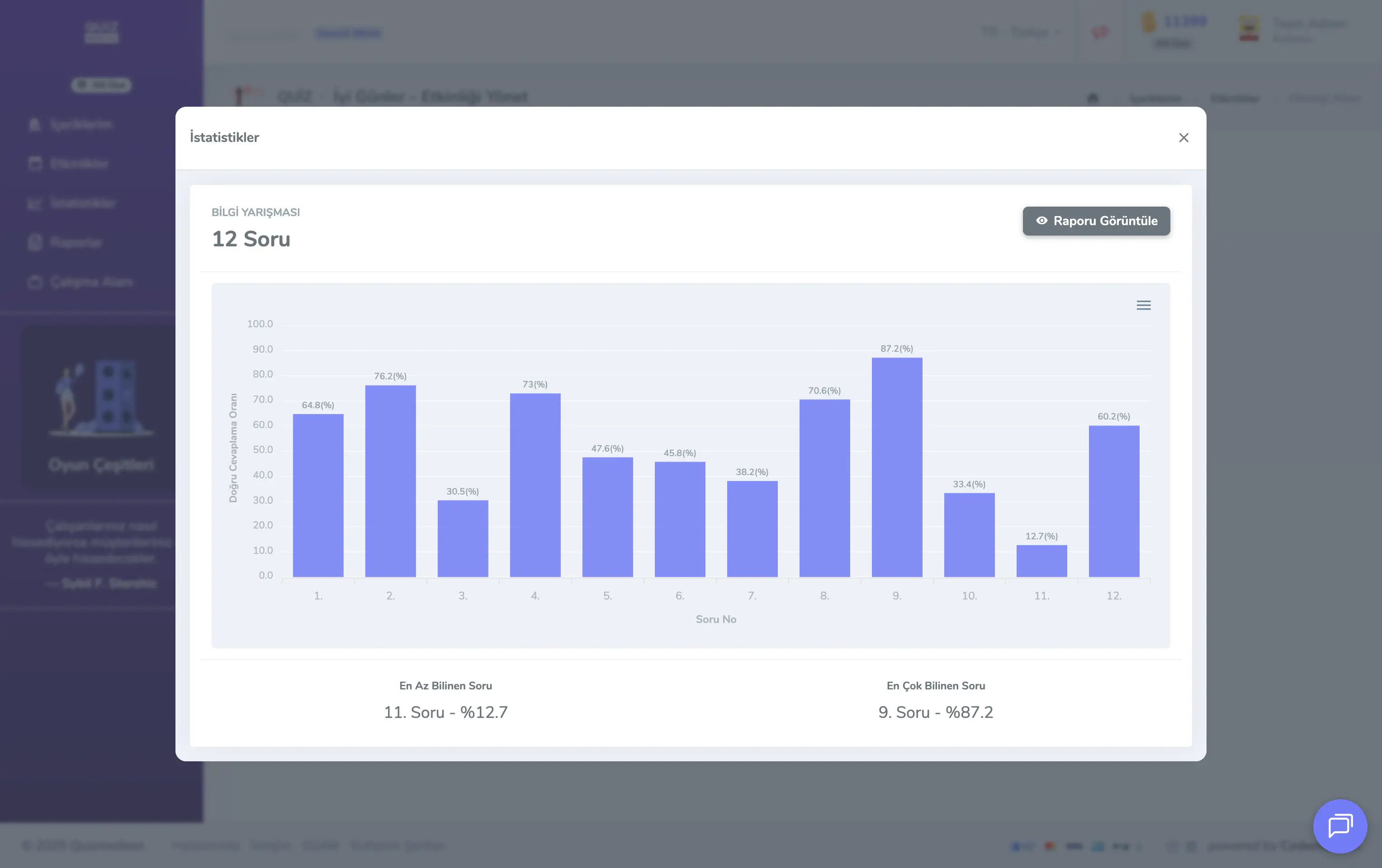
admin member - events - event management - reports - charts
Event Participants: If you want a quick look at the people who joined the event, you can reach the full list from All Participants under the Participants button.
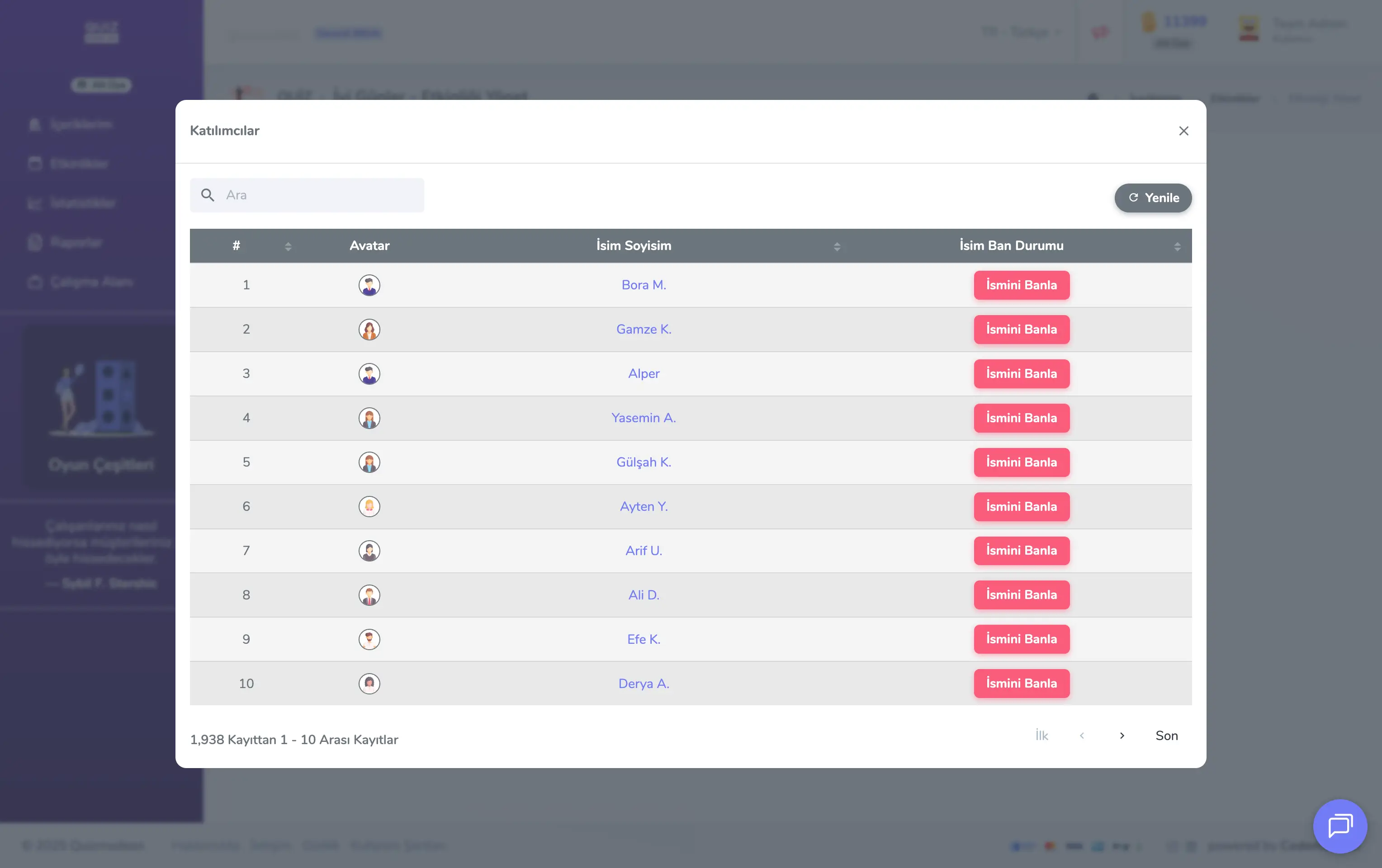
admin member - events - event management - participant list and management
Note: If, during the event, there is a participant whose name you find inappropriate, click the Ban Name button to change that name to Participant #0.
High-Scoring Participants: If you want to look at the scores of the people who joined the event, you can reach the full list from High Scores under the Participants button.
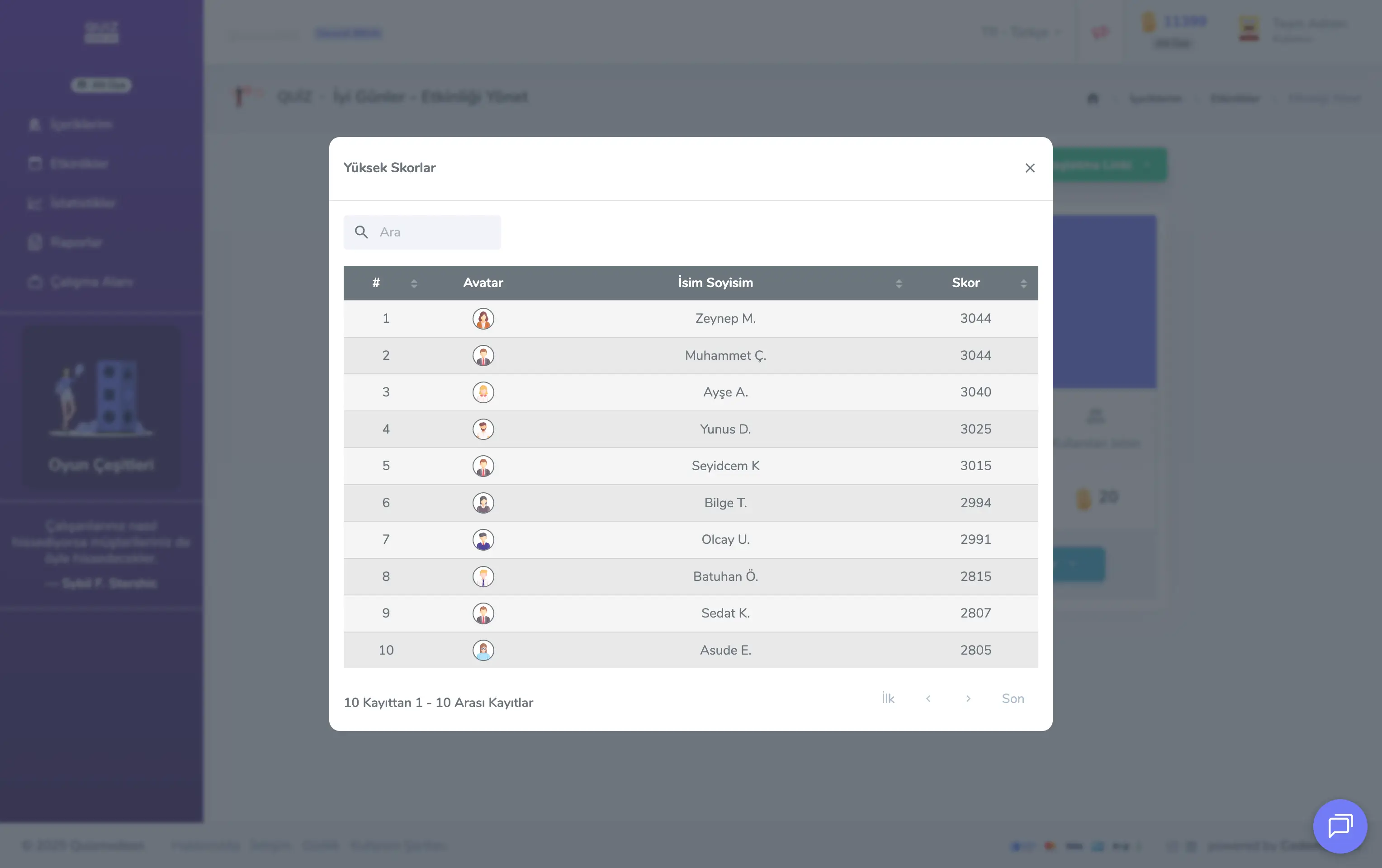
admin member - events - event management - high scores
Event Details: To see the defined event settings and other details, you can reach various information (PIN, flow type, answering time, number of jokers, selected event modes, defined registration fields and rules, etc.) from View Event Details under the Details button.
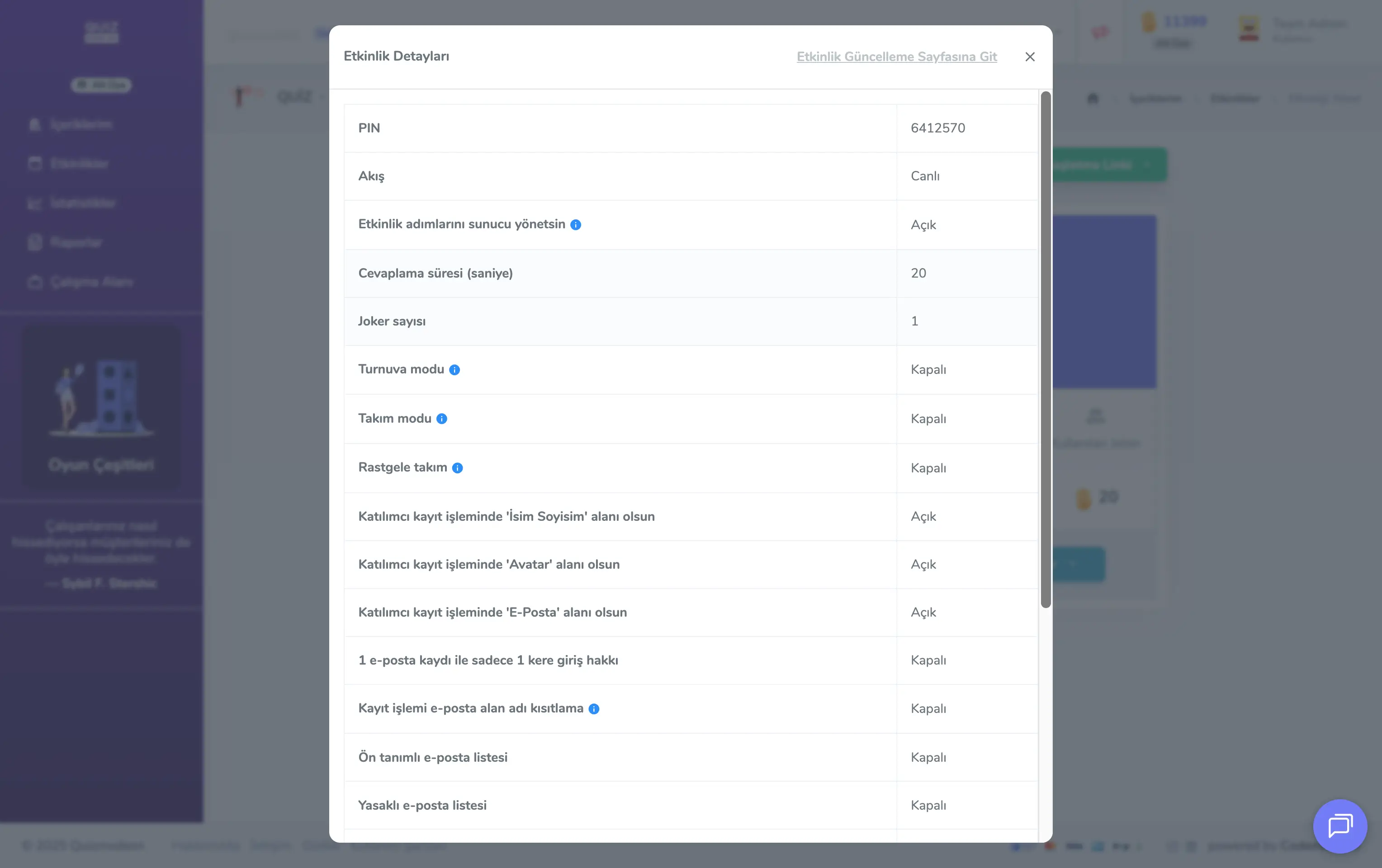
admin member - events - event management - event details
What are event operations?
Click the Event Operations button at the top left of the event management page to update or reset your event.
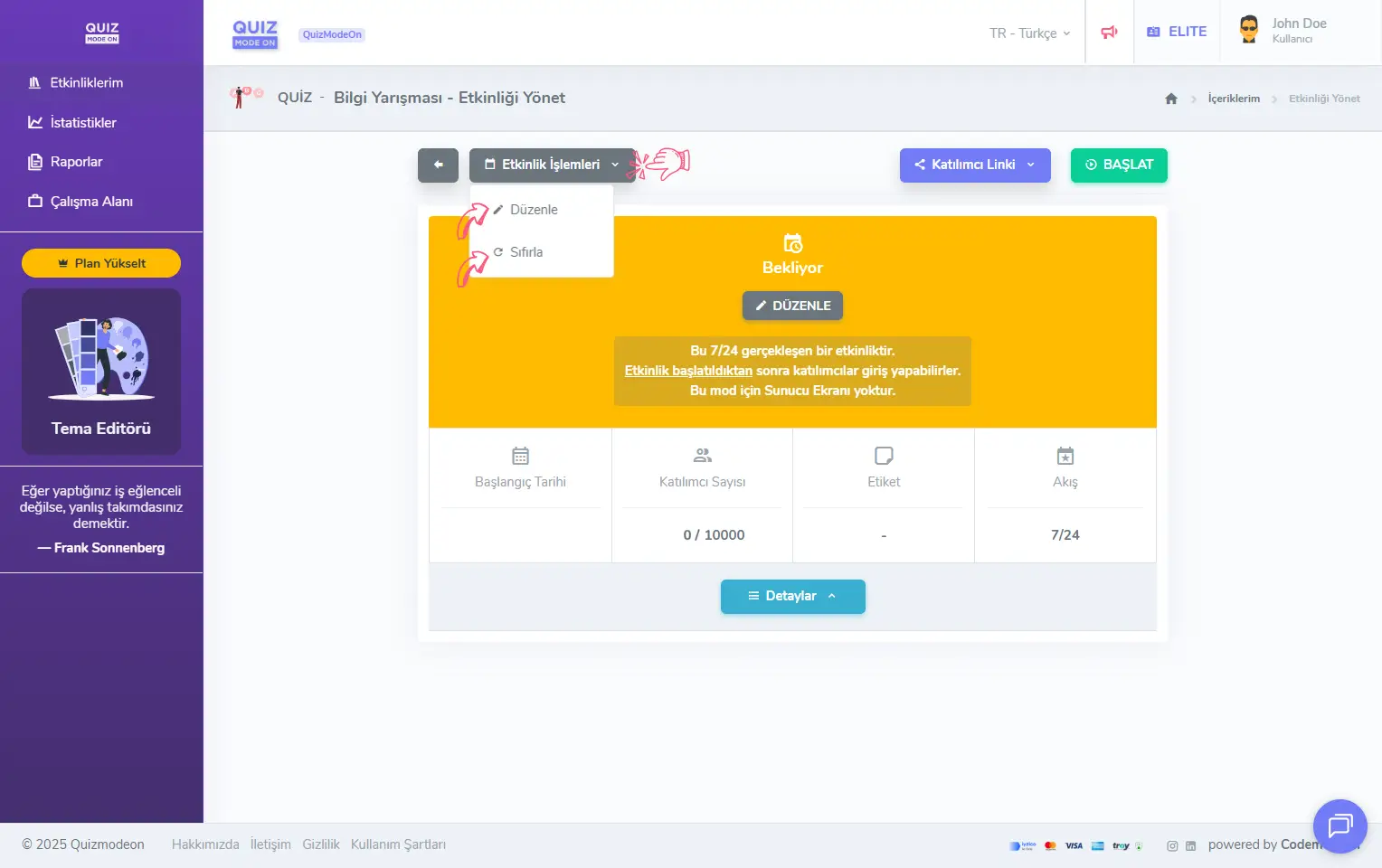
admin member - events - event management - event operations - editing and resetting
Updating the event
Click Edit under the Event Operations button to update the event content, the event settings and the event theme.
Note #1: The Edit option is available only for Waiting Events.
Note #2: Started Events and Finished Events cannot be updated. The Edit option becomes active only after the event is reset.
Resetting the event
Click Reset under the Event Operations button to return the event to its initial state. When an event is reset, all users who had logged in earlier are also removed from the event.
Note: The Reset option is available in every event status. If you want to take a quick look at the flow or run a test before the event, such as a rehearsal, you can use Reset to return the event to the beginning, to the waiting status.