Invite your participants to the event
Choose live events for high-energy, instant engagement, and asynchronous (24/7) events for long-running engagement spread over a wider time frame.
Reach your participants with live events
Invite participants within seconds and start the event.
- Open the presentation page from the presenter link.
- Wait for participants to join the event through the QR code or link on the screen.
- When everyone is ready, start the event.
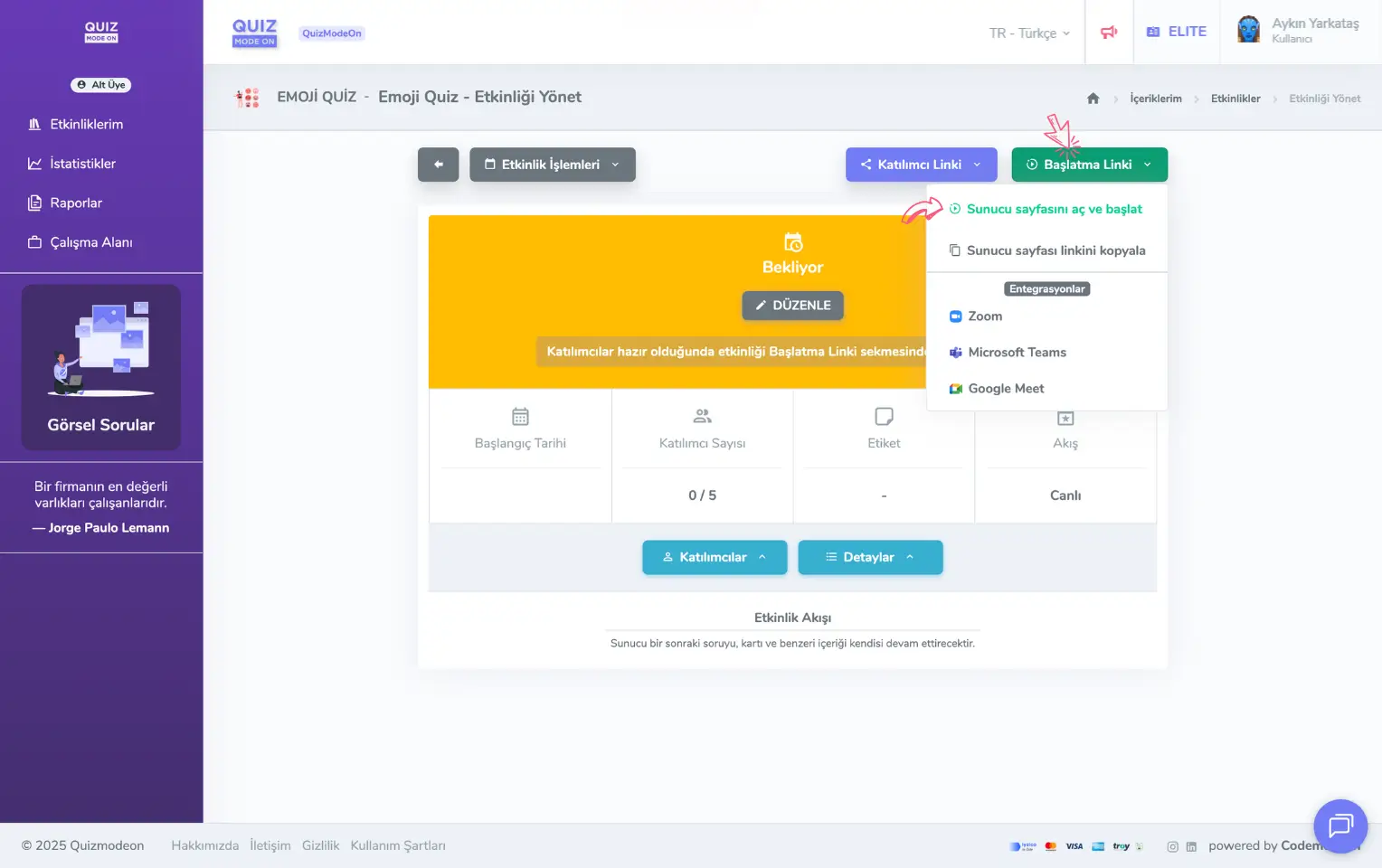
admin member - events - event management - live event - start link
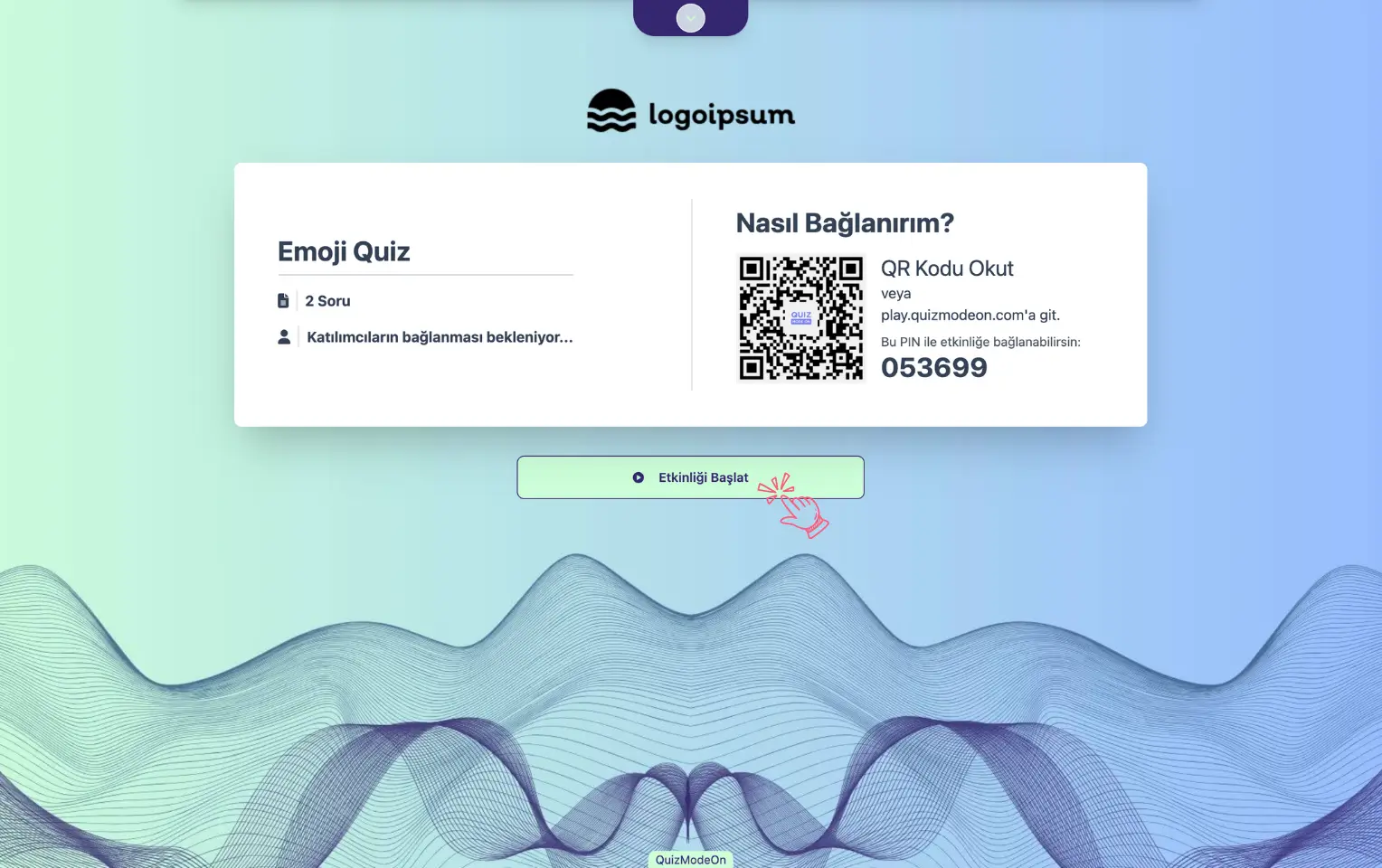
moderator - presenter page - starting the event
You can customize your live events by event type. For more details, see the settings specific to each event in the Create Games and Events category.
For more details about live event formats, portal event settings and flow management, see the Live Events category.
Note #1: If someone else will run the event, you can also share the presenter link with that authorized person. The person who takes the presenter or moderator role can then open the presentation page whenever they like and invite participants to the event.
Note #2: Participants can join faster with the QR code. You can click the QR code on the presenter screen to enlarge it. This is designed to help participants who are far from the presentation screen, especially at crowded events, scan the QR code more easily.
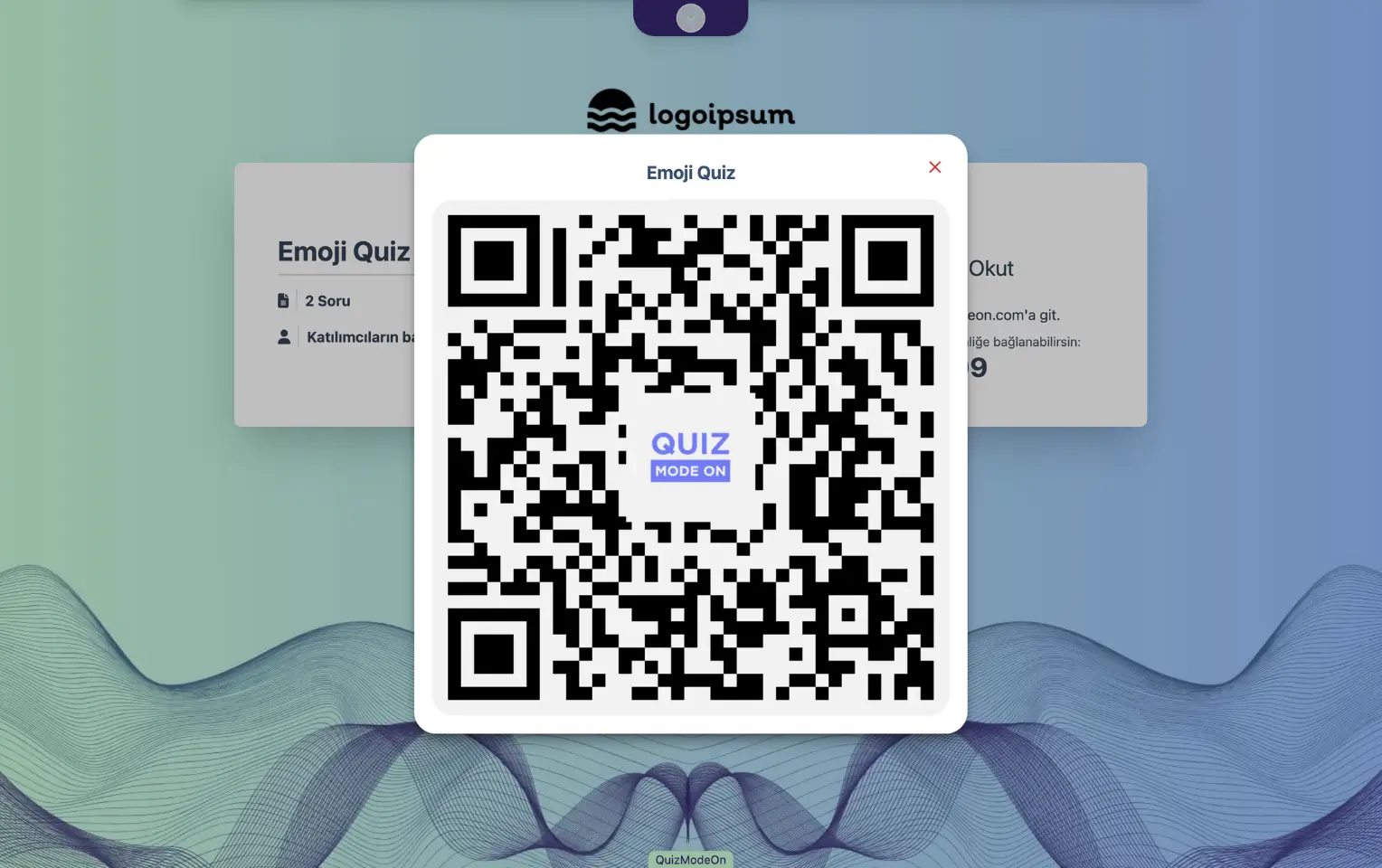
presenter page - enlarging the QR code
Note #3: Events such as Word Cloud, Taboo and Tombola can only be run as Live flow.
Note #4: In the Settings panel of the event creation page, open the Information tab to set a start date, and, if you like, have the event start automatically at the time you set. Auto start is available only on Enterprise membership plans.
Reach your participants with asynchronous (24/7) events
Start the event and keep it open as long as you like. Participants can join the event whenever they want.
- Start the event by clicking the Start button on the portal management page.
- Share the event link or QR code with participants.
- Participants join the event.
- When you want to end the event, click the Finish button on the portal management page.
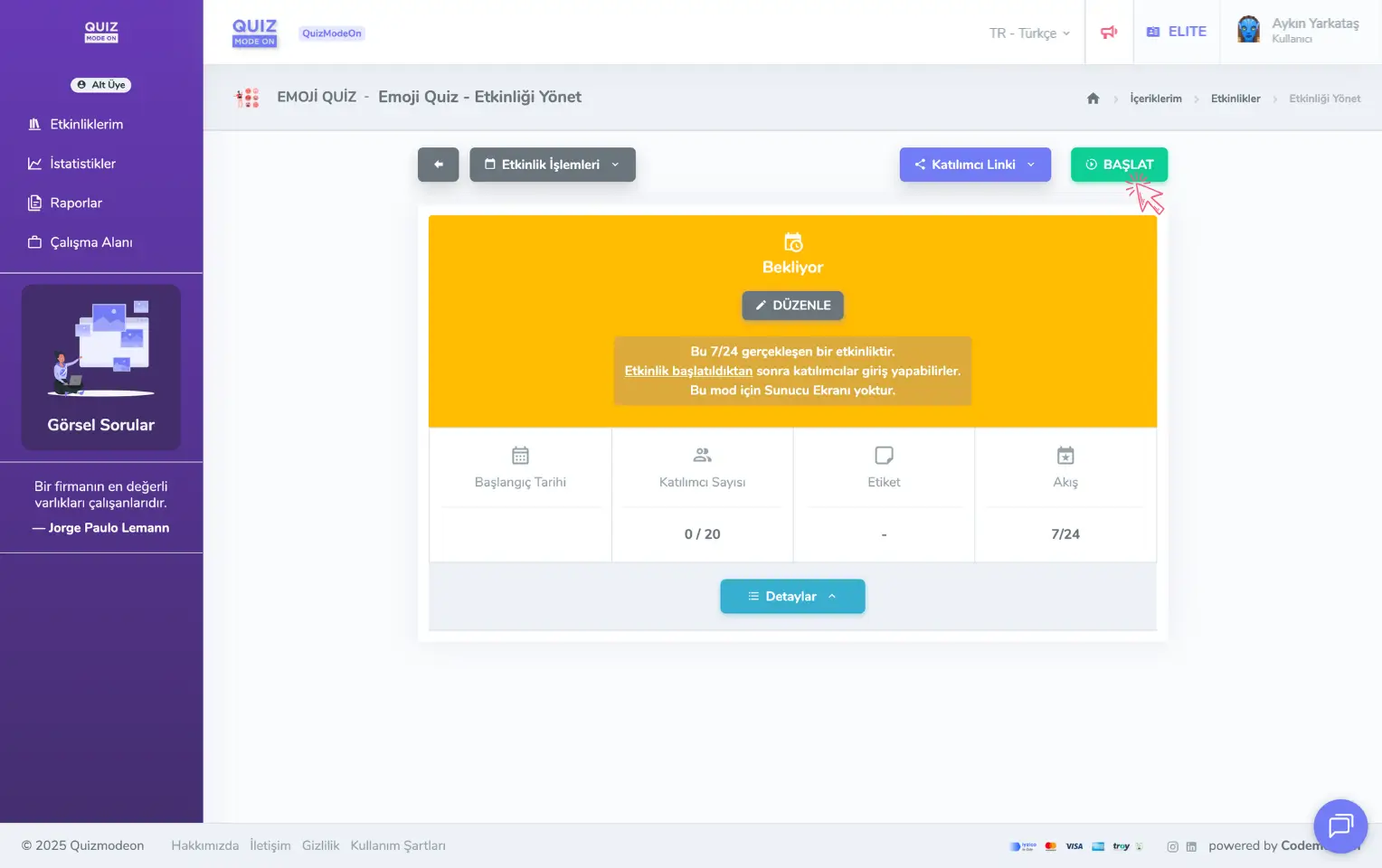
admin member - events - event management - asynchronous event - start
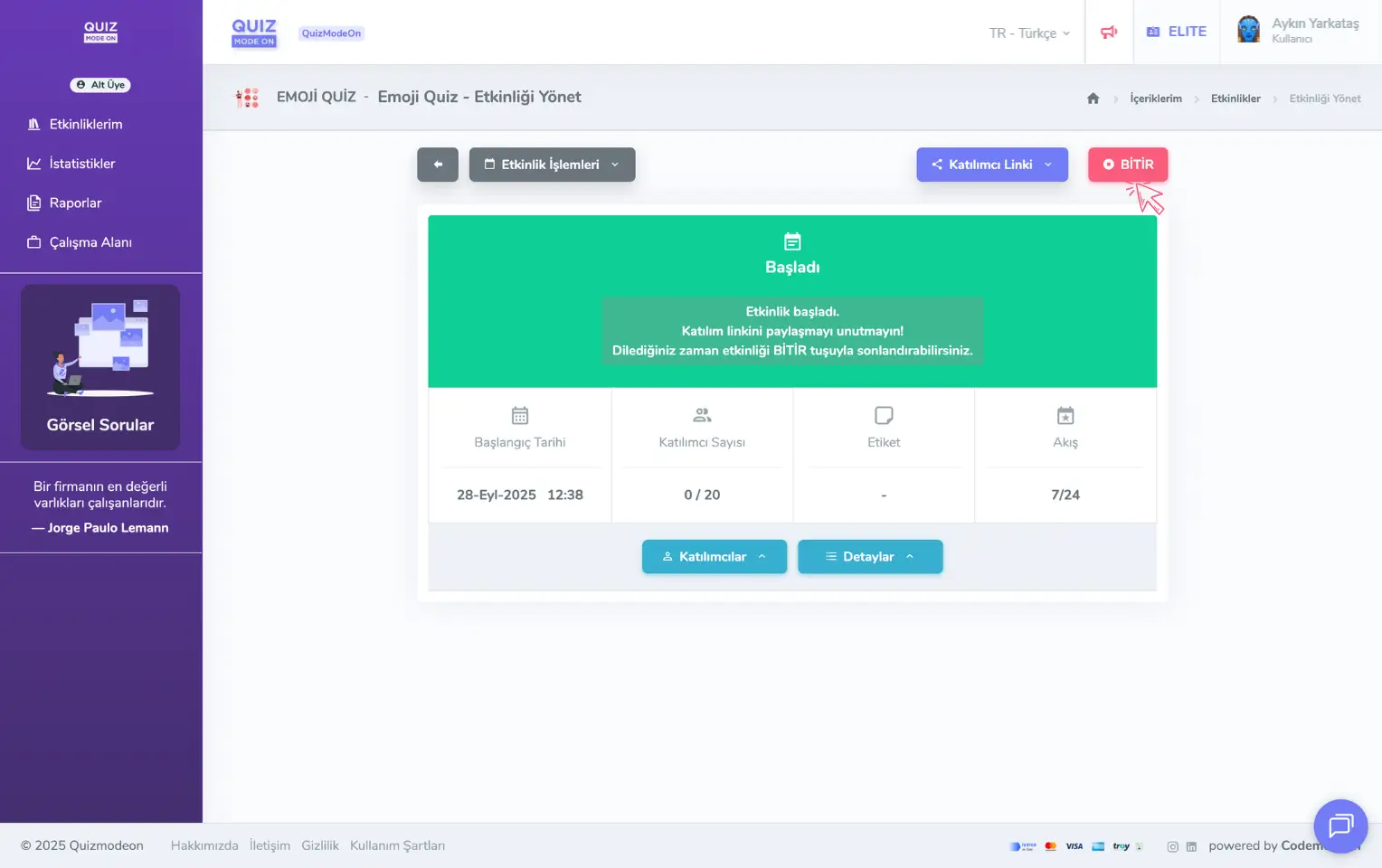
admin member - events - event management - asynchronous event - finish
For more details about asynchronous (24/7) event formats, portal event settings and flow management, see the Asynchronous Events category.
Note #1: 24/7 events have no presenter link or presenter page. The admin (member) can control the event flow from the portal management screen.
Note #2: Events such as Wordle and Prize Wheel can only be run as 24/7 flow.
Note #3: In the Settings panel of the event creation page, open the Information tab to set a start date, and, if you like, have the event start automatically at the time you set. Auto start is available only on Enterprise membership plans.