How to create a custom design for Lucky Pick with the theme editor
1) Adjust the theme settings from the Images tab
On the Images tab you can use customization options such as choosing a Preset Theme, adding a Logo and uploading a Background image.
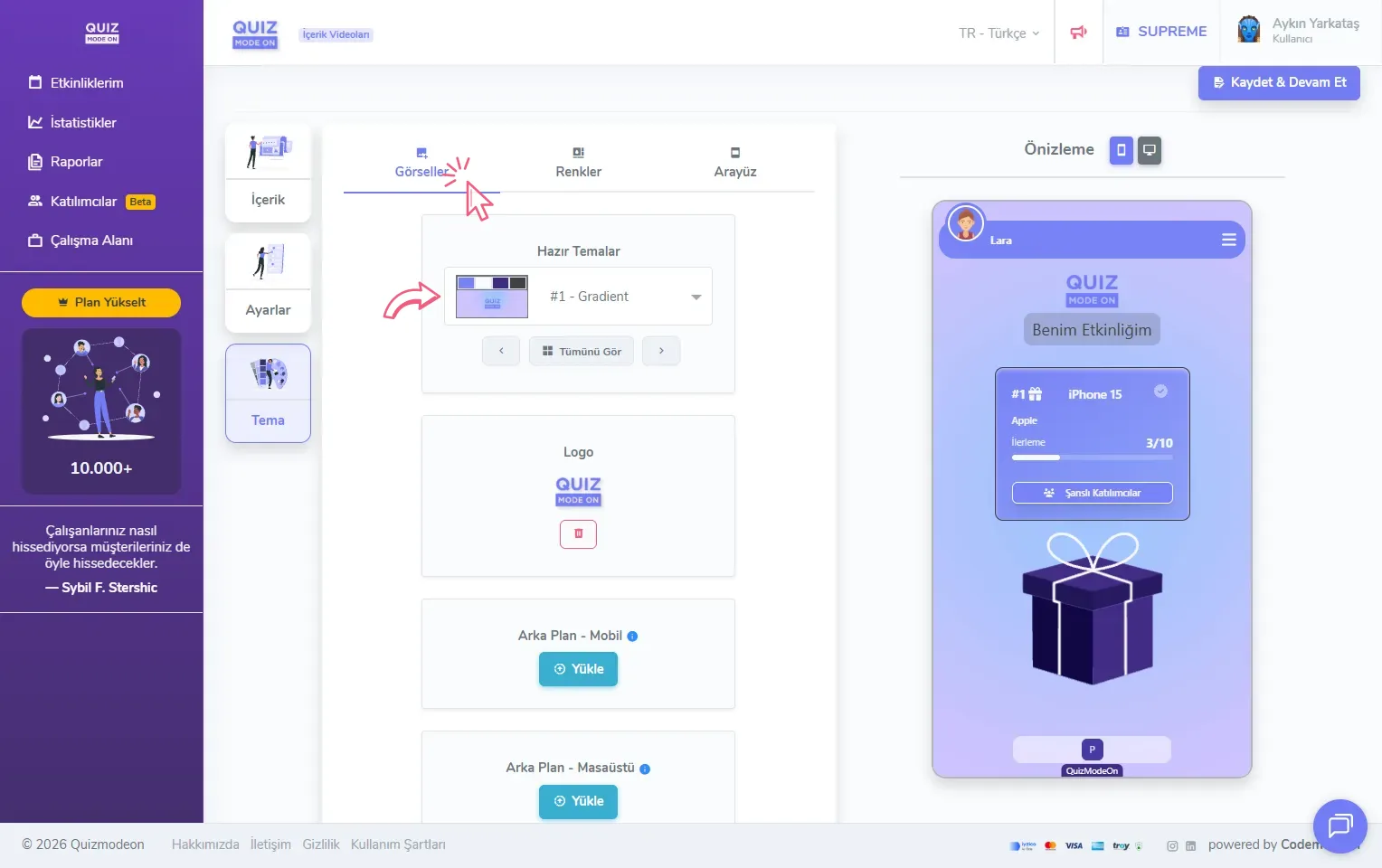
create a lucky pick - theme editor - images
From the Preset Themes list you can choose one of the themes prepared by the QuizModeOn team and update the whole interface with it. When the list is open you can search by typing a theme name in the box at the top, see all themes together with the View All button, or move between themes with the arrows. Choosing a preset theme also changes the interface colors on the Colors tab.
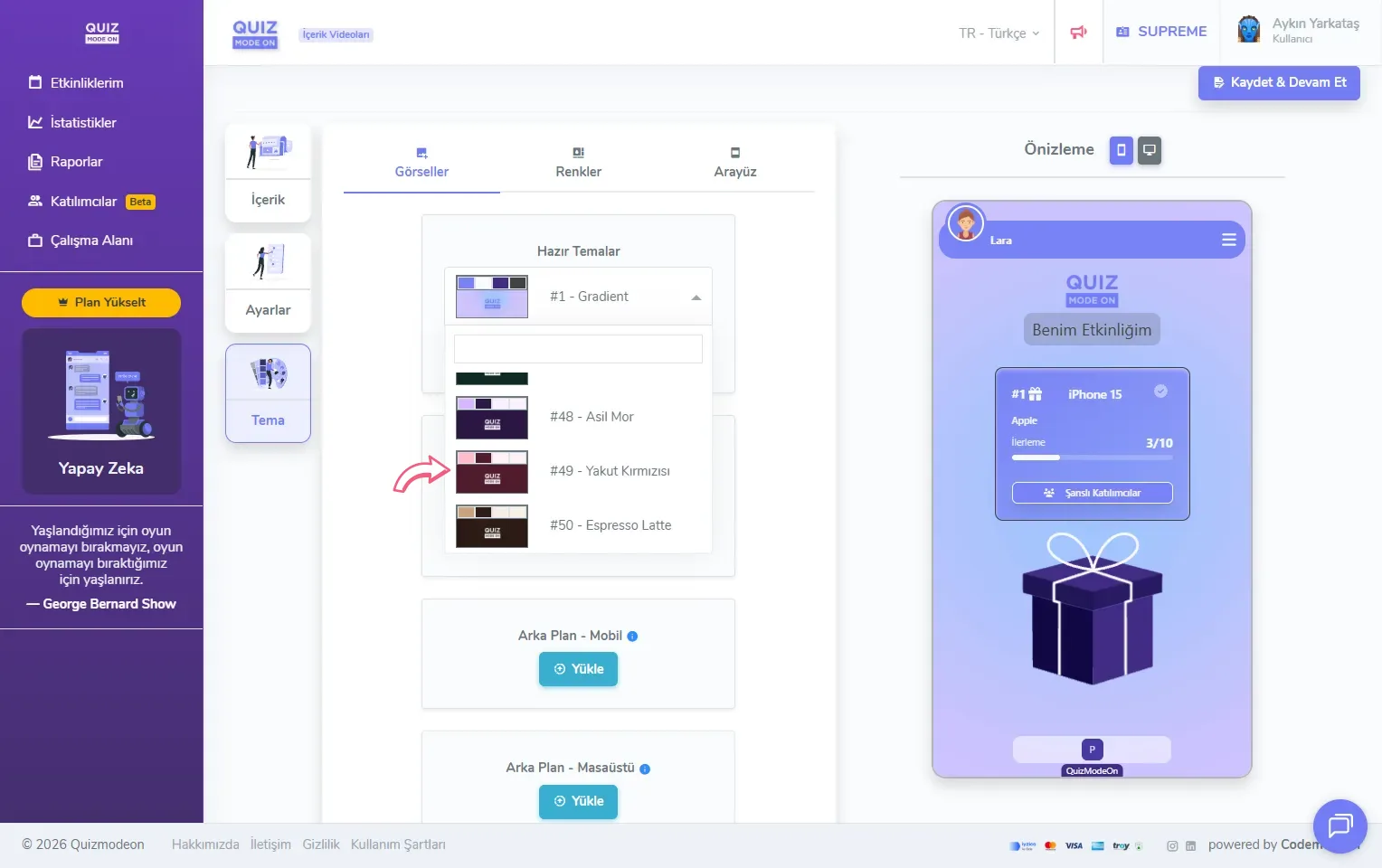
create a lucky pick - theme editor - images - preset themes
In the Logo area you can add any logo or image you like. If you want your logo to stand out, choose a cut-out logo image in png format.
In the Background - Mobile area you can add a background image suited to mobile devices such as smartphones and tablets. Choose an image with a resolution of 1080x1920 pixels.
In the Background - Desktop area you can add a background image suited to landscape screens such as computers, projectors or TVs. Choose an image with a resolution of 1920x1080 pixels. Because Lucky Pick is usually run on a big screen, the desktop background sets the look of the moderator screen.
When you click the Upload button, the window that opens lets you add the image in three ways: From my Computer by choosing or dragging and dropping a file, from the Image Library, or By URL by entering an image address. The jpg, gif, jpeg and png formats are supported.
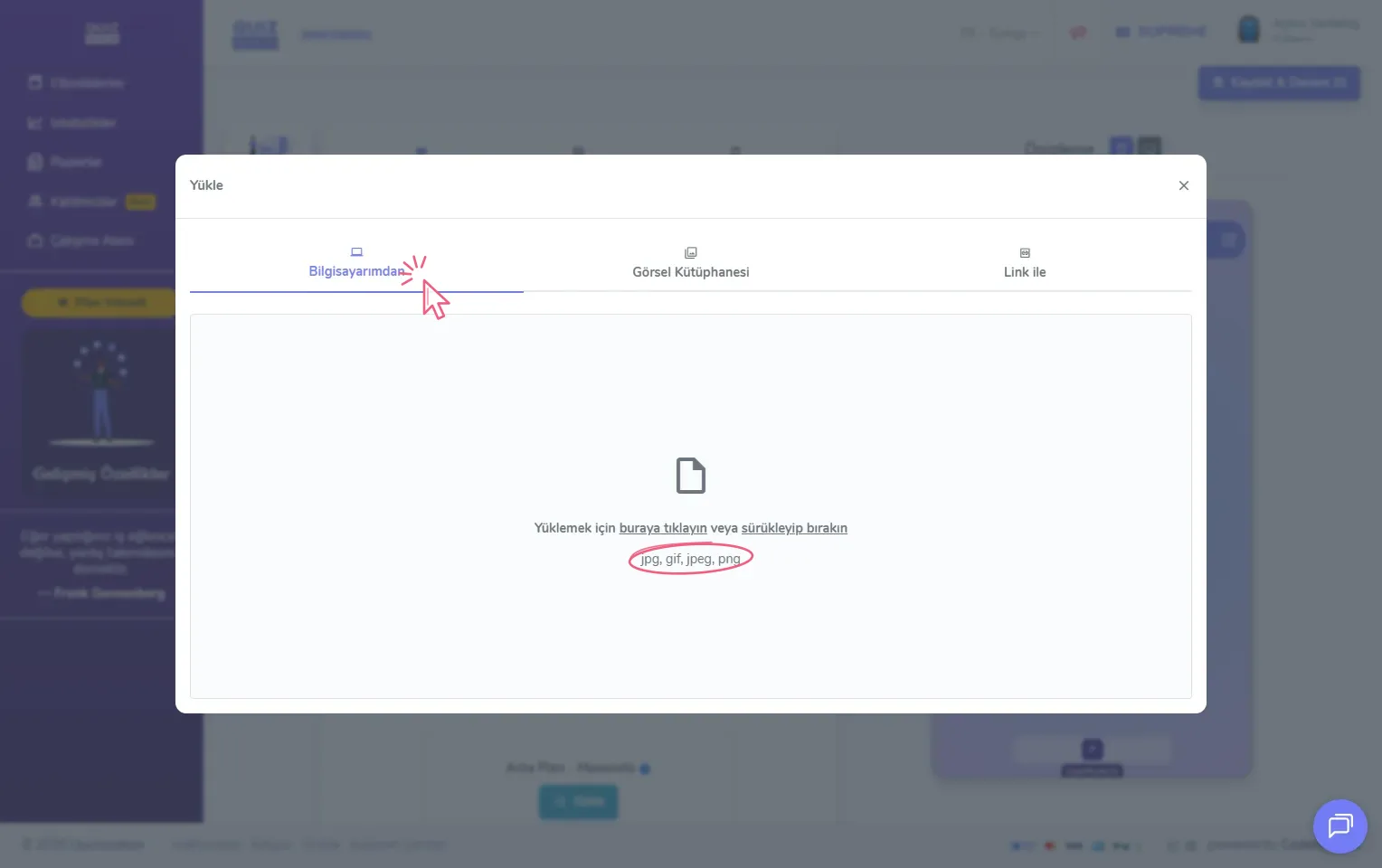
create a lucky pick - theme editor - images - image upload
2) Adjust the theme settings from the Colors tab
On the Colors tab you can change the colors of the interface. You can enter a color code yourself or click the color box of a field to pick a color from the palette. You can follow every change instantly in the Preview area on the right.
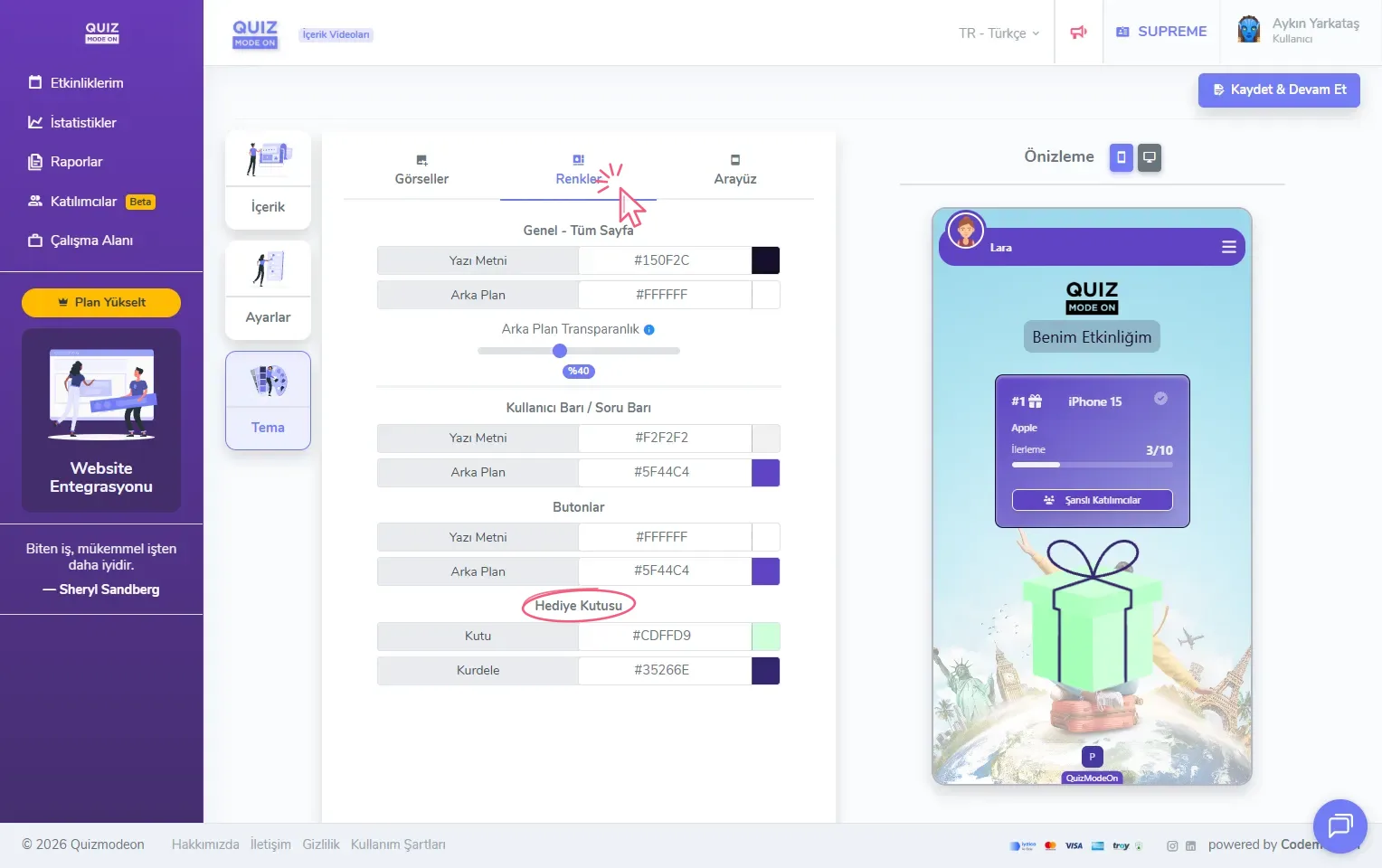
create a lucky pick - theme editor - colors
In the General - App Page area you can set the color of the text and the background of the page.
In the Background Transparency area you can set a value between 0% and 100%. Transparency is applied based on the Background color in the General - App Page section. 0% is the selected background color itself; as the value goes up, more of the background image shows through.
In the User Bar / Question Bar area you can customize the text and background colors of the bar at the very top where the participant’s name is written.
In the Buttons area you can change the text and background colors of the buttons in the app.
The Gift Box area is specific to Lucky Pick. You can set the Box and Ribbon colors of the gift box in the middle of the screen to match your brand.
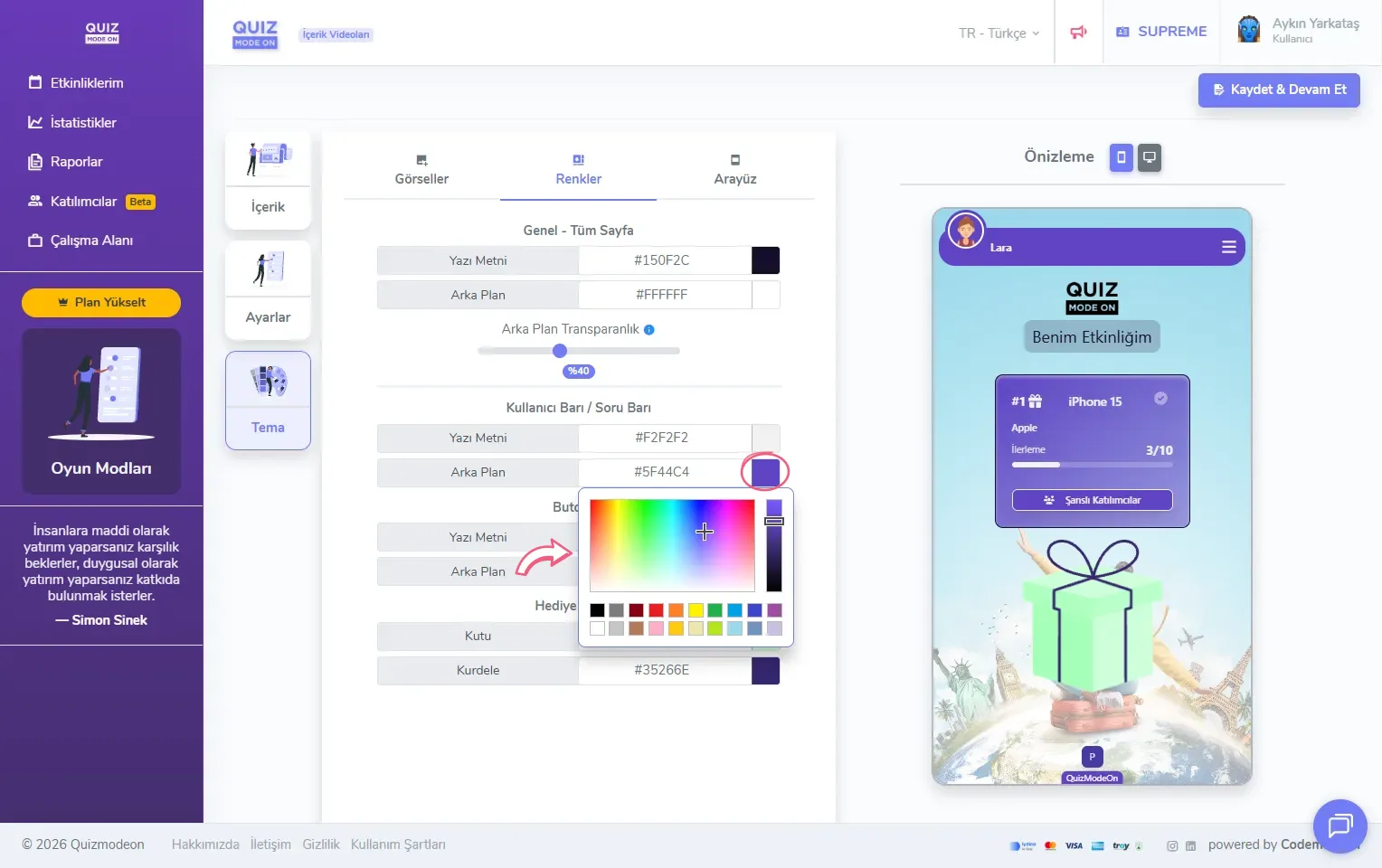
create a lucky pick - theme editor - colors - color palette
3) Adjust the theme settings from the Interface tab
The options on the Interface tab are on by default. You can turn them off to hide some areas as needed.
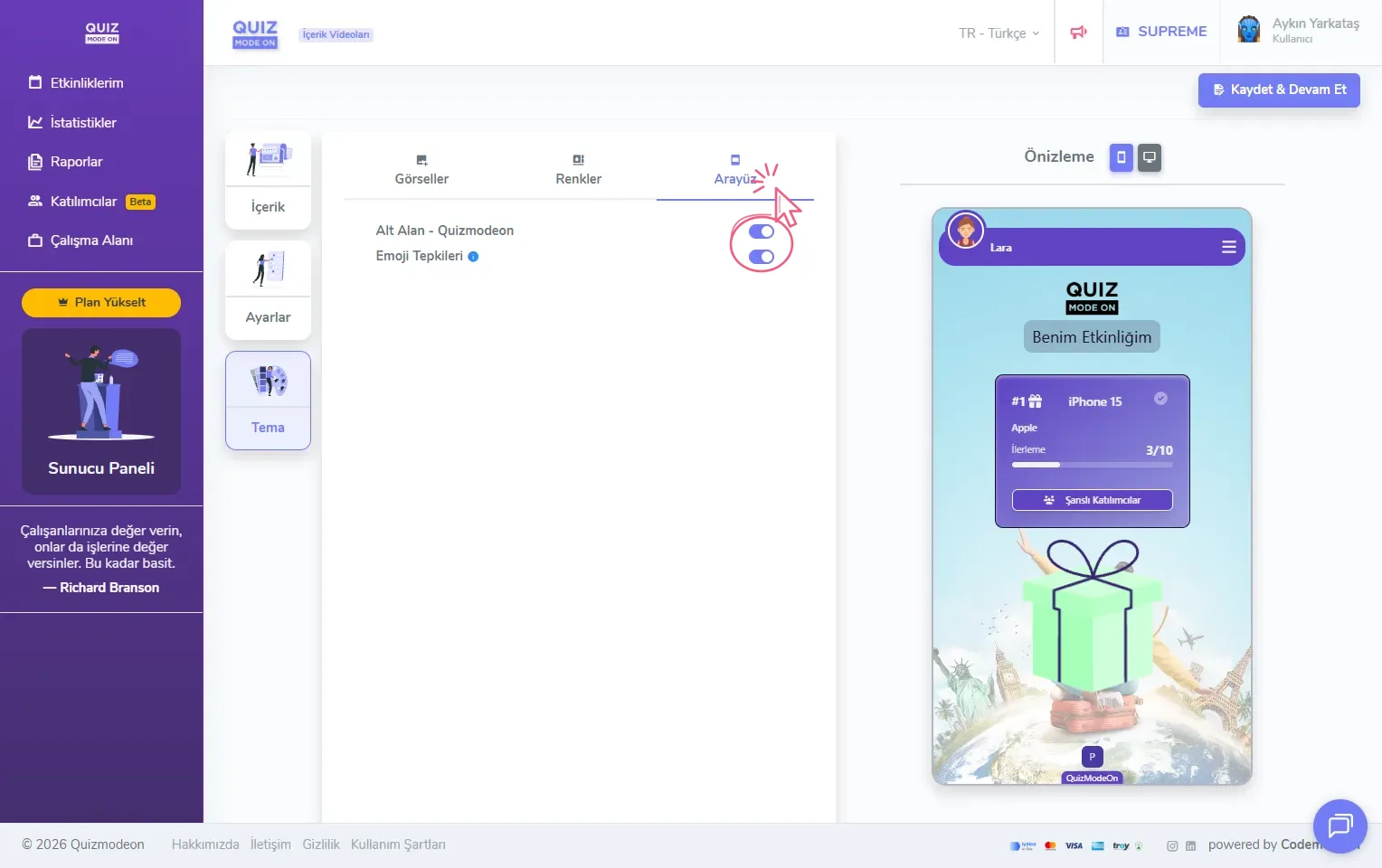
create a lucky pick - theme editor - interface
With the Bottom Area - Quizmodeon option you can remove the ‘QuizModeOn’ text at the very bottom of the interface.
With the Emoji Reactions option you can turn participants’ emoji reactions on or off.
4) Check the current design in the preview area
You can check all the changes you make on the Images, Colors and Interface tabs instantly in the Preview area on the right. The mobile preview shows the screen participants see on their phones: the user bar at the top, the logo and event name in the middle, the card of the current prize below them (prize name, description, progress and the Lucky Participants button) and the gift box.
When you click the monitor icon to the right of the Preview title, the window that opens shows the landscape preview. Because Lucky Pick is usually run on a projector, a TV or a screen shared in a video conference, we recommend checking the final look of the design on a big screen here.
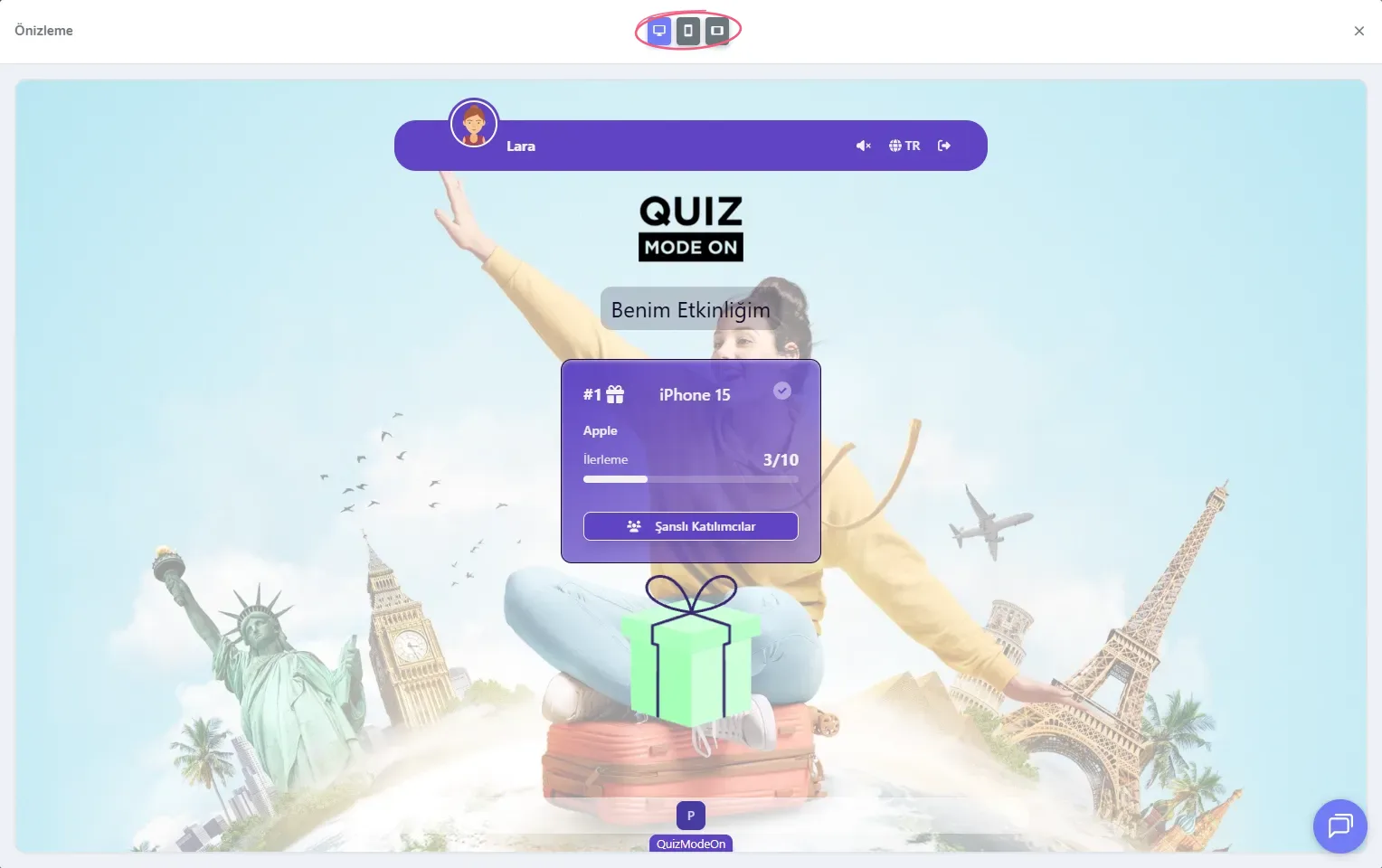
create a lucky pick - theme editor - desktop preview