Present the event flow
A presenter is a user who logs in to the event presentation page through the presenter link and turns on Streaming mode to show the flow of a live event, so that the audience can follow the event along with all the participants.
Note: Only live events can be managed by the presenter and moderator. Live events are events in which all participants interact synchronously, especially for events that need collective participation and high energy. Events such as Taboo, Tombola and Q&A can, by their nature, only be run as Live flow.
1) Open the event presentation page and switch to Streaming mode
What is the presenter page?
The presenter page is the event page where a person with the presenter or moderator role can view the presentation page of the live event and manage the flow.
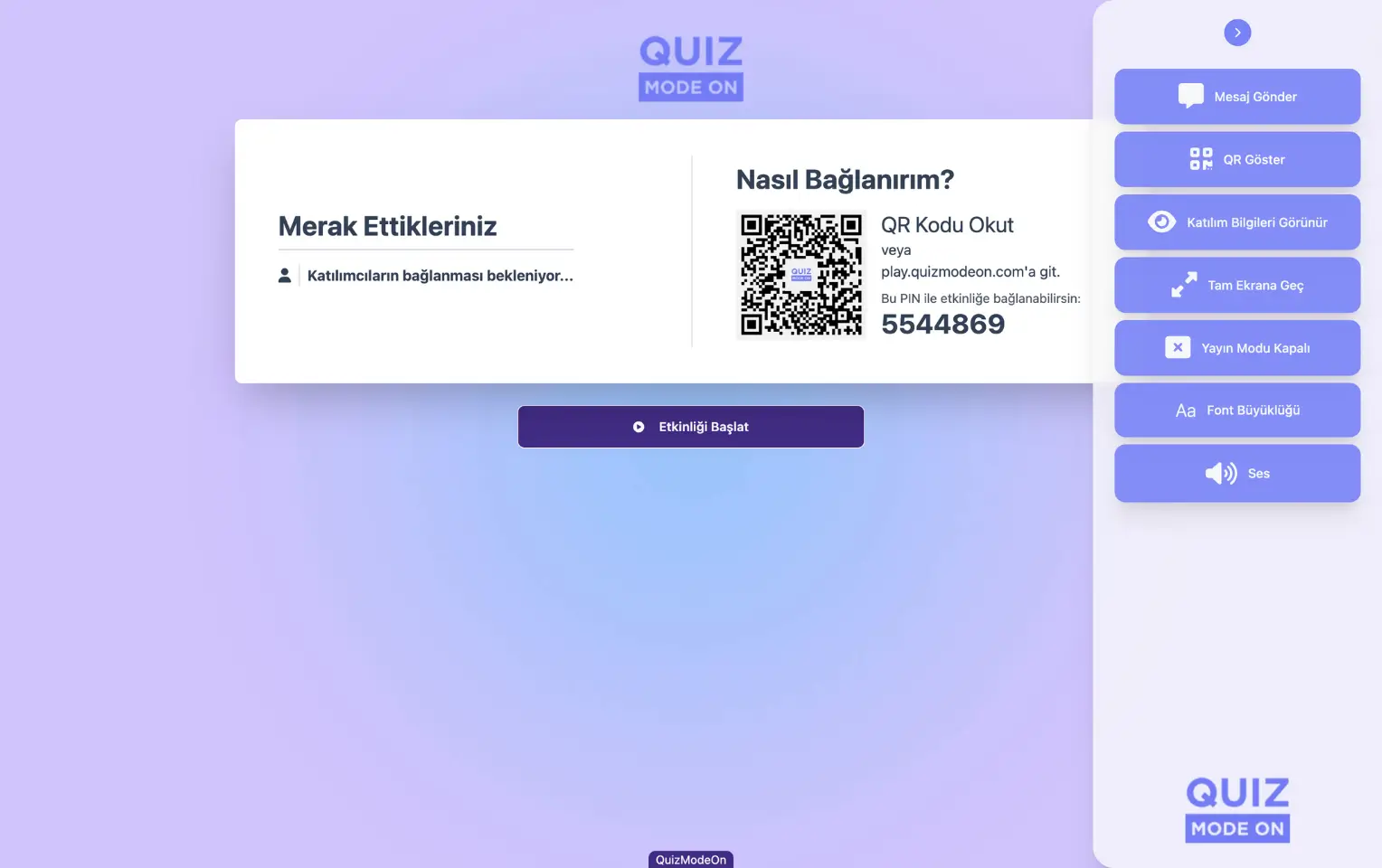
presenter - presenter page - main screen and moderation menu
The presenter link has the format https://play.quizmodeon.com/NAMESPACE?psc=EVENT_ID&type=m . For example, it will be a very long and complex link such as play.quizmodeon.com/codemodeon?psc=1a2b3c4d-wxyz&type=m.
Where can I find the presenter link?
The link to the presenter page is shared with the presenter by the admin (member) who prepared the event and has a portal membership.
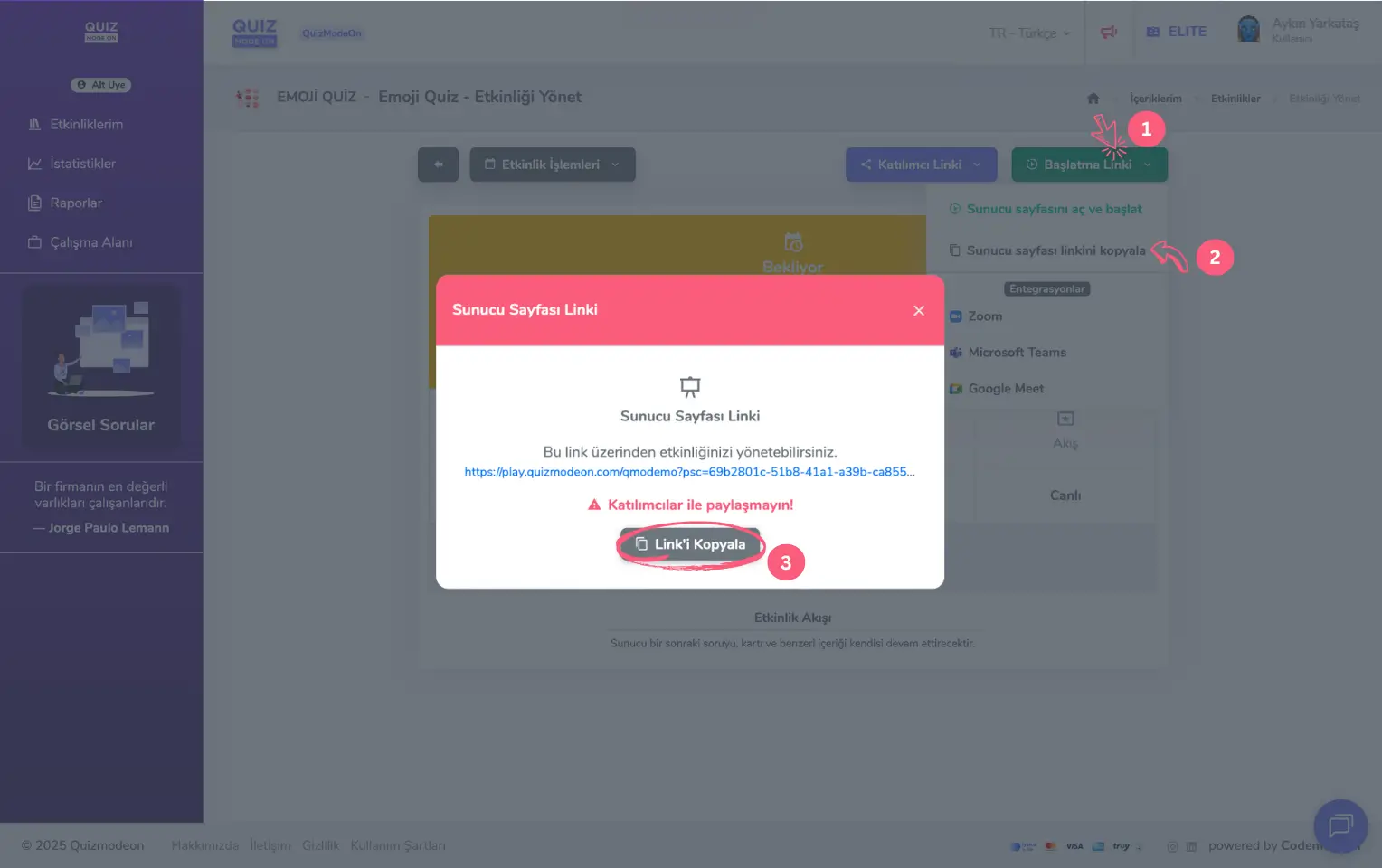
admin member - portal - event management - presenter page - copy and share the link
What is Streaming mode?
When you click the presenter page link, the page opens with Streaming mode off. If you take the presenter role and only want to show the flow and project it on a screen, turn on Streaming from the moderation menu on the right.
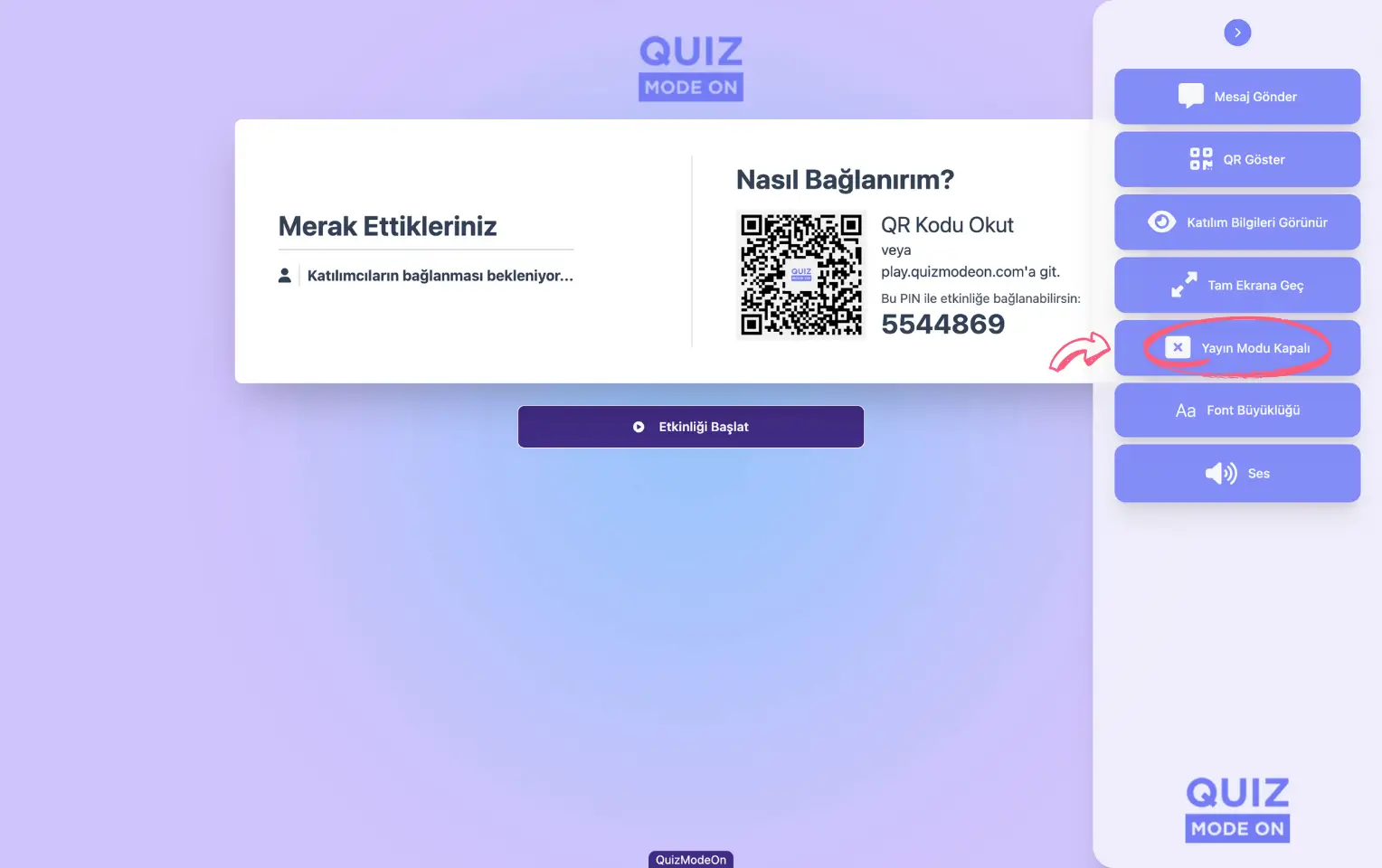
presenter - presenter page - moderation - streaming mode off
While Streaming mode is on, the event management buttons, such as the start event button, and the moderation menu are not shown on the screen.
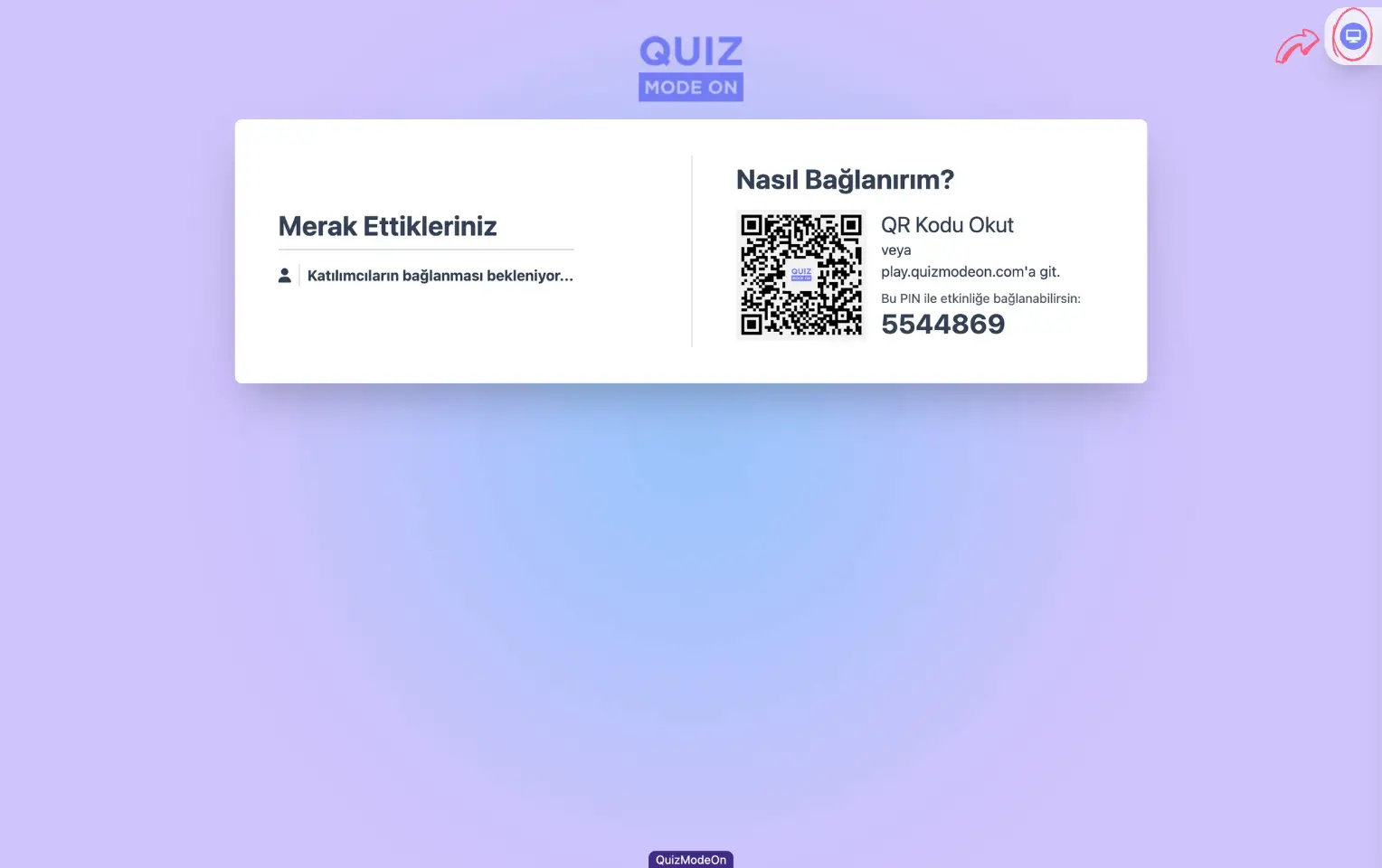
presenter - presenter page - moderation - streaming mode on
Note: If you take the moderator role and want to manage the flow, turn Streaming off.
How can I share the event login link with participants?
When the presenter opens the presenter page, they see the pre-event login screen. This screen shows general information about the flow, such as the event name, content information (total number of questions, etc.), the number of participants who have logged in and registered so far, and the login details for the event (the participant login link and QR code).
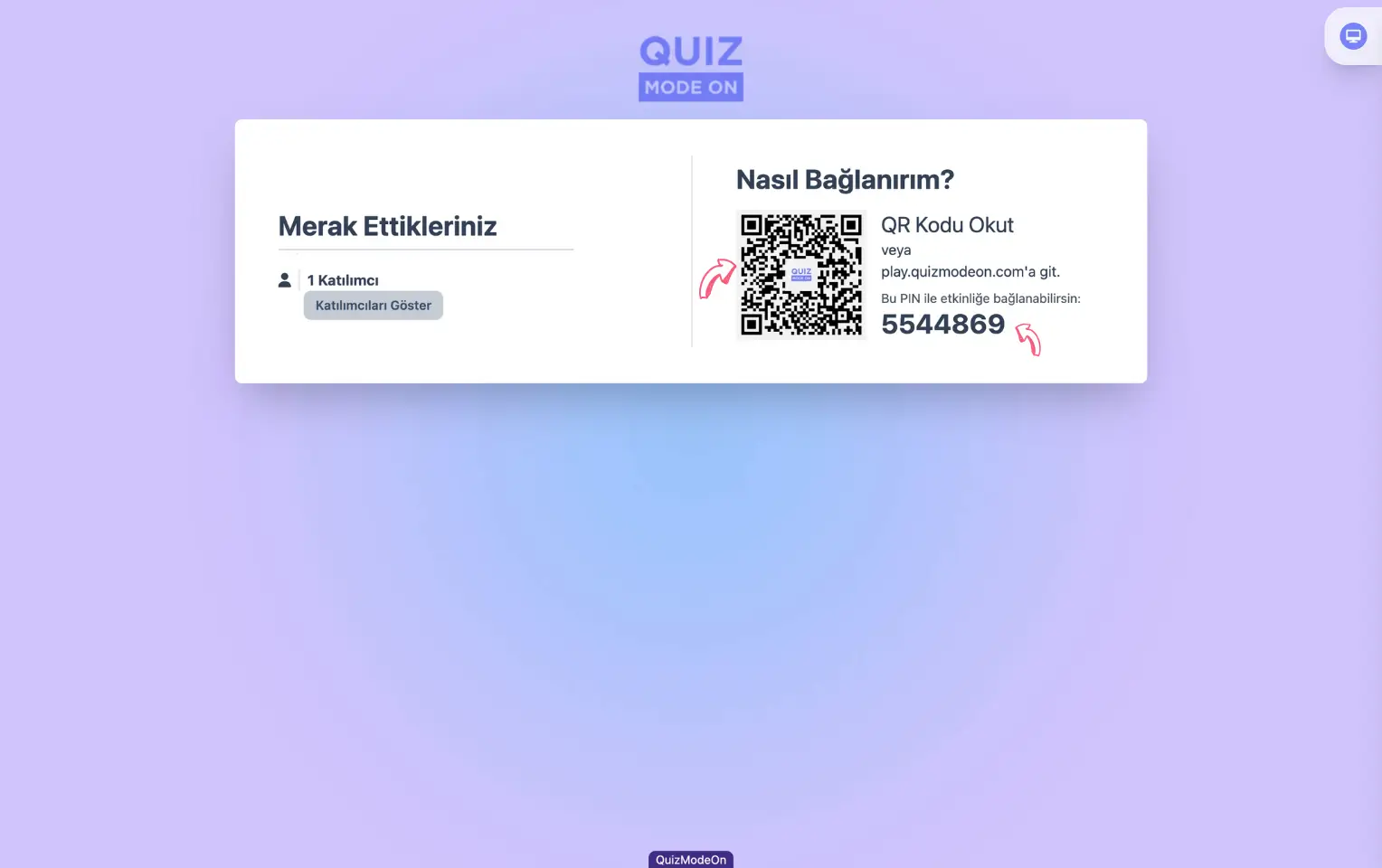
presenter - presenter page - presenter view - participant link and qr code
Note: You can copy the participant login link to the clipboard by clicking the PIN code.
2) The event flow starts
Different content for different event formats
The content shown on the flow screens varies by event format.
In events such as Quiz, True or False, Guess What, Emoji Quiz, Mixed Quiz, Poll, Open-Ended, Rating, Mixed Survey and Dynamic Poll, the screen shows the questions, answer options, different answering options and the question timer.
In team games such as Taboo and Draw It, the Taboo card or the drawing area is shown.
In Word Cloud and Q&A events, the answers and questions that participants submit are shown on the screen.
In Spin Wheel and Tombola events, content specific to the game dynamics is shown: the sliced wheel and the Tombola cards.
In a Lucky Pick event, the prizes being given away and the names of the lucky winners are shown.
Current standings between questions
In game-based events with score and time gamification dynamics, such as Quiz, Guess What and Taboo, the transition screens show the current high scores or winners.
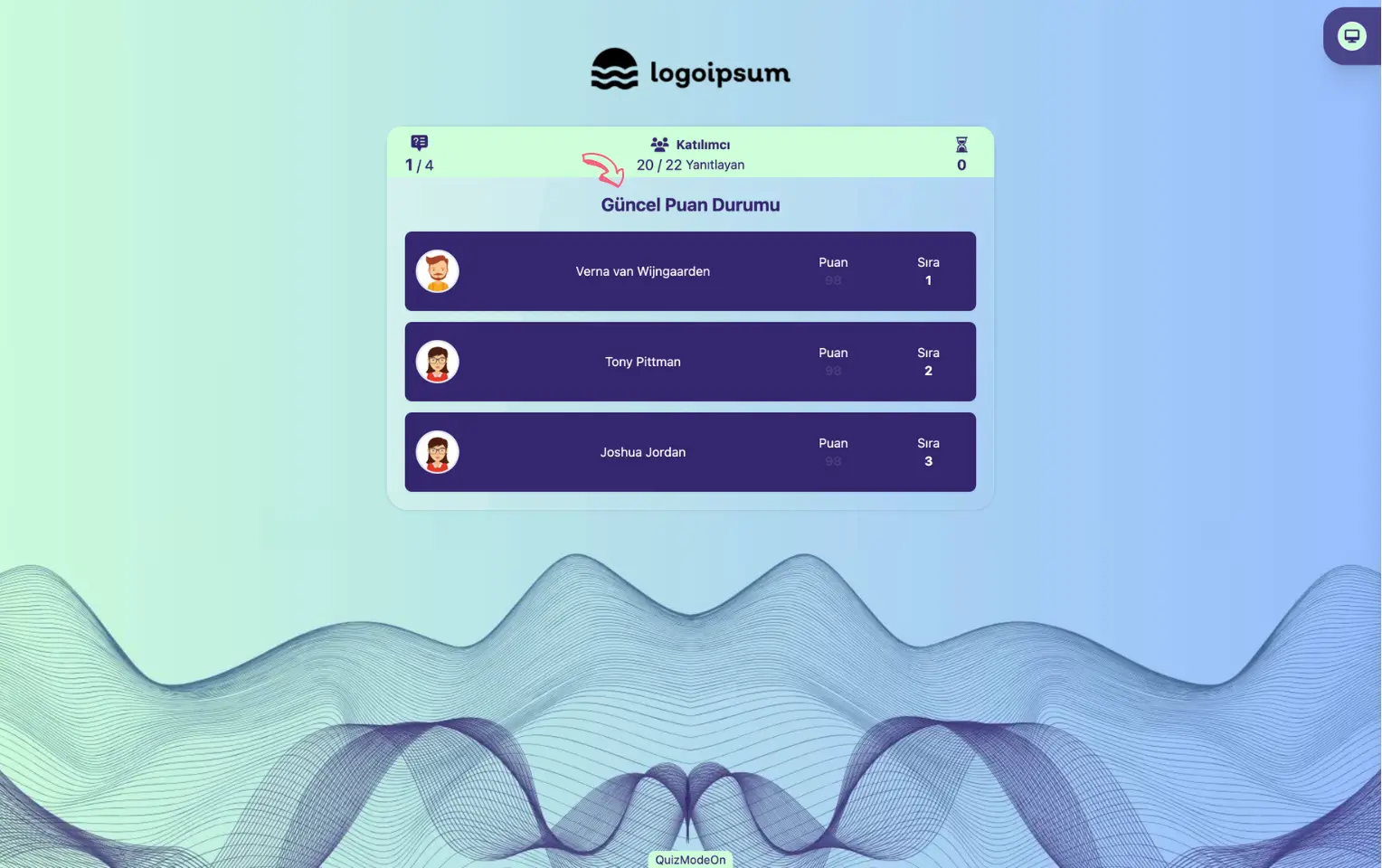
presenter - presenter page (quiz) - current standings - high scores
3) The event ends
Live events are started by the moderator, and depending on the event type they can end on their own or be ended by the moderator.
-
In events with a set number of questions, such as Quiz, Poll and Guess What, the flow ends on its own.
-
In team games such as Taboo and Draw It, the game ends when the content (cards or drawings) runs out or the maximum number of rounds is reached.
-
In a Tombola game, the game ends when a Tombola is called after the 1st and 2nd cinquina.
-
In open-ended events such as Q&A, participants ask questions. Since there is no content count or time limit, the event does not end on its own. The presenter can end the event.
Final screens by event type
On the result screens of events that have no score or other gamification dynamic, such as Poll, Rating and Word Cloud, a thank-you message is shown.
On the result screens of events with score-based gamification dynamics, such as Quiz, Guess What and Taboo, the high scores or winners are shown.