Join an event
A participant is a user who logs in to the event page through the participant link and registers in order to join events such as Quiz, Poll, Word Cloud, Spin Wheel and Tombola.
1) Log in
Participants can join an event by logging in through the event’s link or QR code. The link or QR code created for joining the event is shared by the people who prepare or run the event. The participation link can be shared by a user with the admin, presenter or moderator role.
To make it easy for participants to log in and to create a user-friendly experience, the participant link is shared as a public link.
Public links use the format https://play.quizmodeon.com/NAMESPACE?ap=EVENT_PIN . For example, a link might look like play.quizmodeon.com/codemodeon?ap=123456.
When a participant clicks this link, they go straight to the registration screen without being asked for a PIN code.
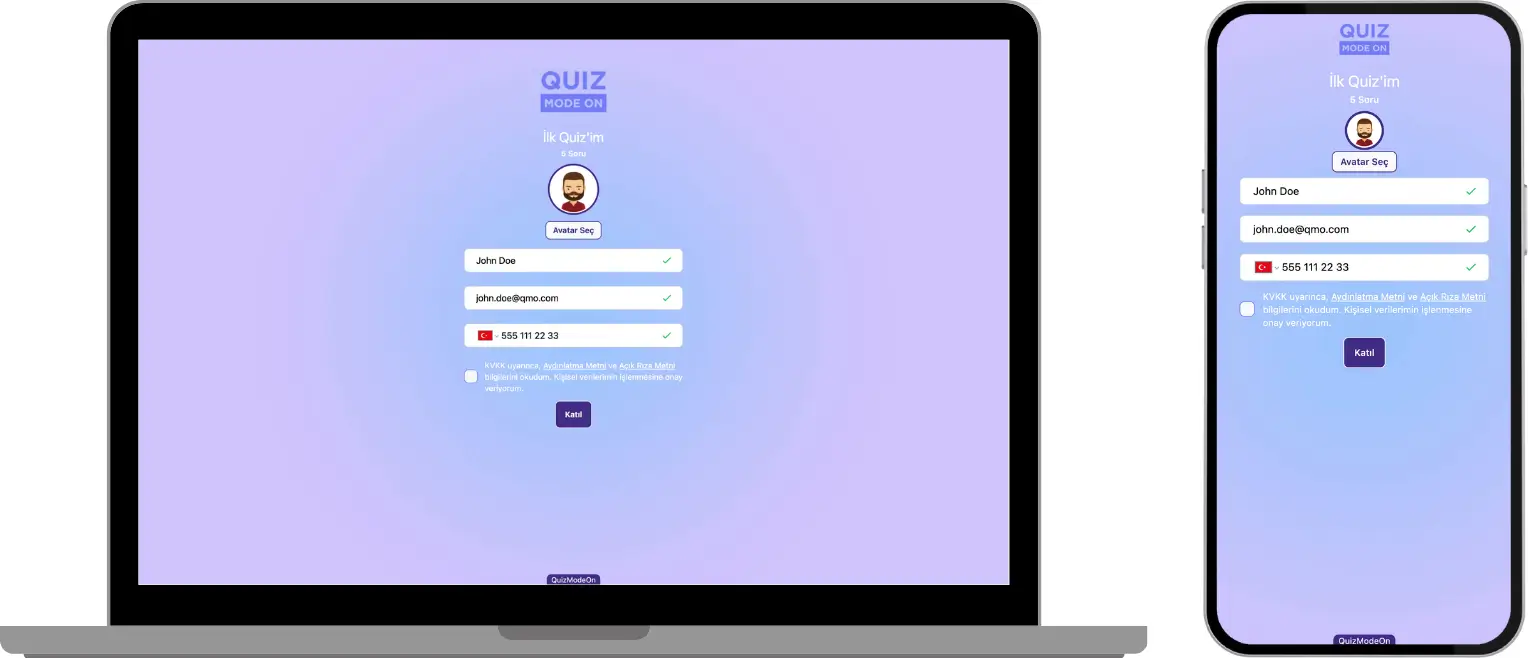
participant - registration screen - login without a PIN
Note #1: If the participant link shared by the admin (member) is a secret link that asks for a PIN code, the participant link has the format https://play.quizmodeon.com/NAMESPACE . In this case the PIN screen opens first, and after you enter the PIN code you are taken to the registration screen.
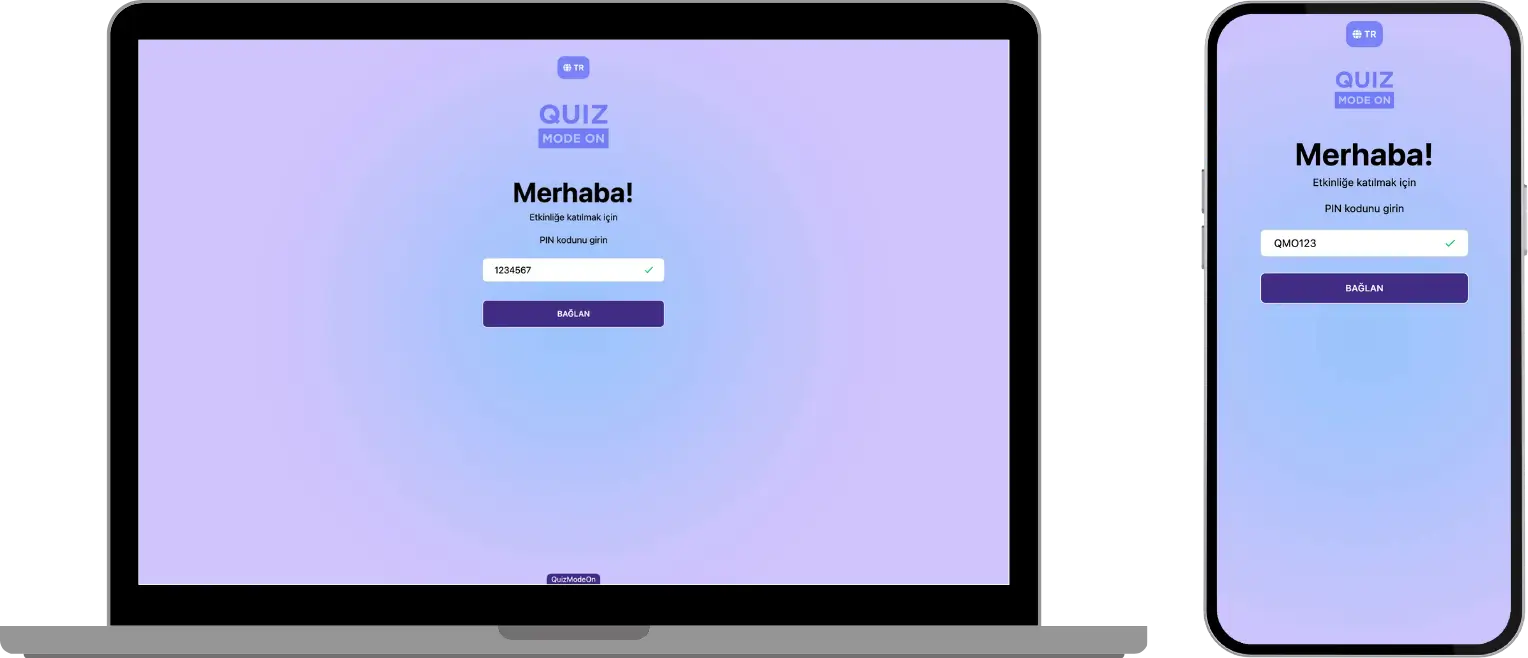
participant - login screen - login with a PIN
Note #2: For a practical and user-friendly experience, participant links should be shared without a PIN.
Note #3: The QR code shown on the presenter screen works for login without a PIN.
Note #4: In live events, the PIN code is shown on the screen. In 24/7 events, the PIN code must be shared by the admin.
2) Register
After you open the link, the registration screen for entering participant details appears. The registration screen may ask the participant for an avatar, name surname, email, phone and ID, along with GDPR consent.
Avatar: Pick one of the ready-made avatar images.
Name Surname: Enter your name and surname or a nickname.
Email: Enter your personal or corporate email address.
Phone: Enter your phone number.
ID: Enter your corporate employee number or ID number.
GDPR consent: Accept QuizModeOn’s explicit consent text and privacy notice on the storage and processing of your data.
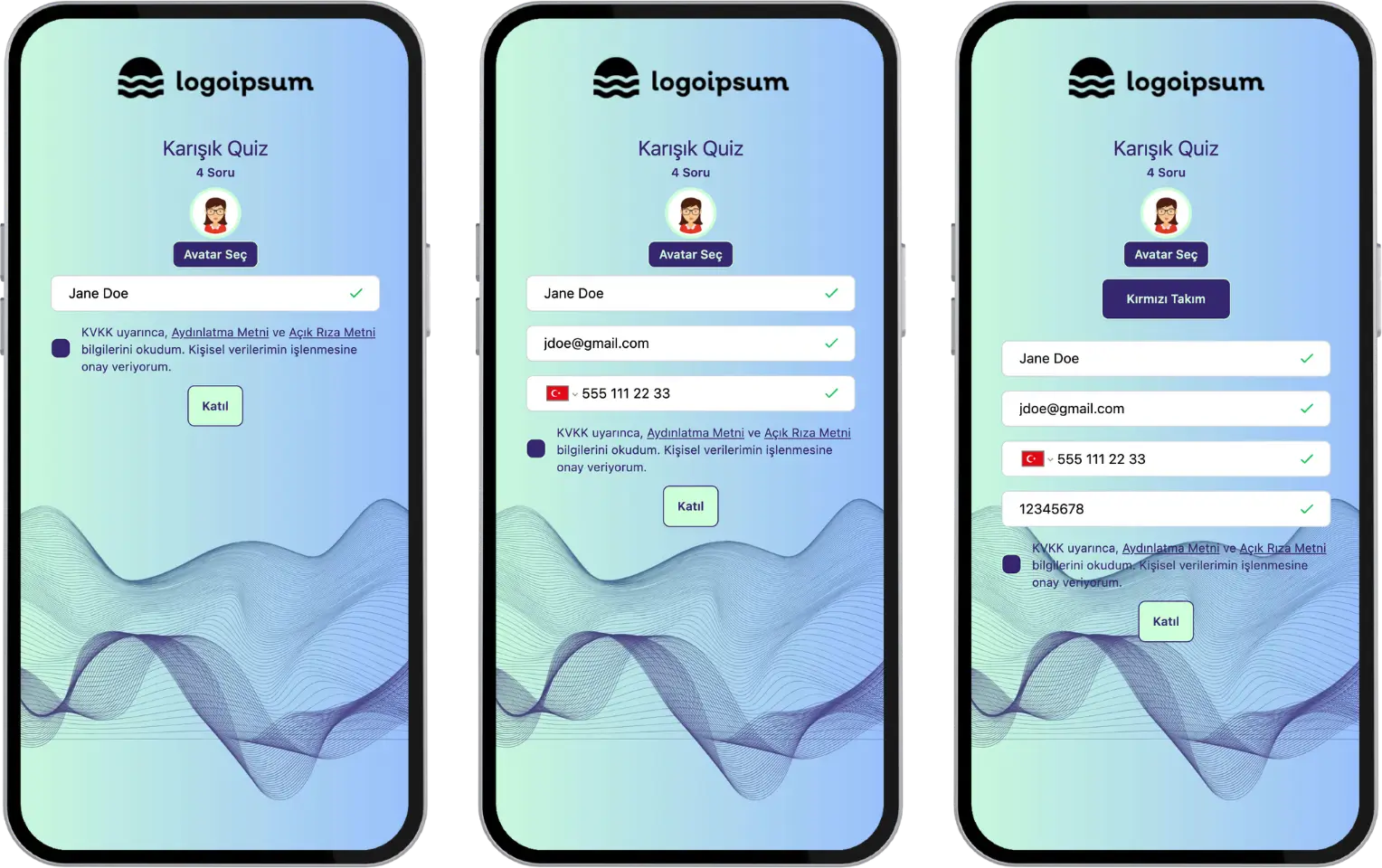
participant - registration screen - participant details
Important note: The registration screen can be customized. The details collected on the registration screen are set by the admin (member) who created the event, under Settings -> Registration. All fields except GDPR can be hidden.
Note #1: All registration fields shown on the screen are mandatory.
Note #2: The details requested on the registration screen can vary depending on the needs of the event. For example, a Word Cloud event for an internal brainstorming meeting may ask only for name and surname, while a Quiz competition with prizes for employees or candidates may ask for email and ID. If a Prize Wheel, Quiz or Poll is run as part of a marketing event, email and phone details may be requested along with the name to collect participants’ data.
Note #3: An admin (member) with an ENTERPRISE membership can upload GDPR documents specific to their own brand. This way, the brand obtains the participant’s consent on how the participant data it collects will be stored and processed.
3) Get started
After you register, you are taken to the lobby screen.
If the event flow is Live, wait for the presenter or moderator to start the event.
If the event flow is 24/7, you can start the event right away without waiting for other participants.
The flow screens vary by event type. For more details about the flow screens, see the Event Flow category.
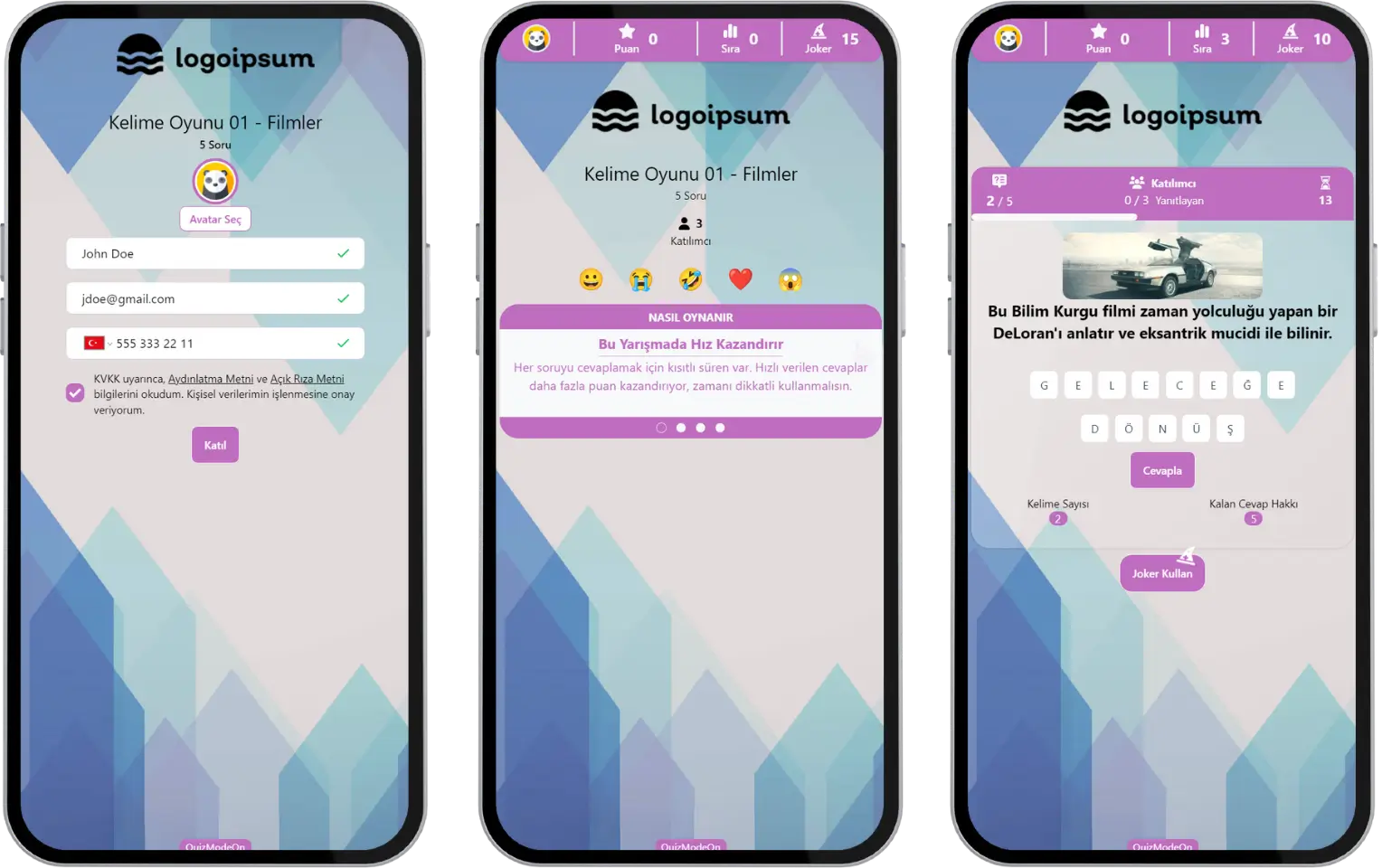
participant - flow screens - registration, lobby and game