Guess What - Flow screens
Questions and Answers
On this screen, where you see the current question with empty letter boxes, you may come across several kinds of questions. Instead of standard questions, you can see richer ones: profile questions, image-supported questions and audio questions.
In this event type, the letters of the word or words that answer the question are split into boxes. You need to guess the answer by typing the word, and find the correct answer by using your guess rights.
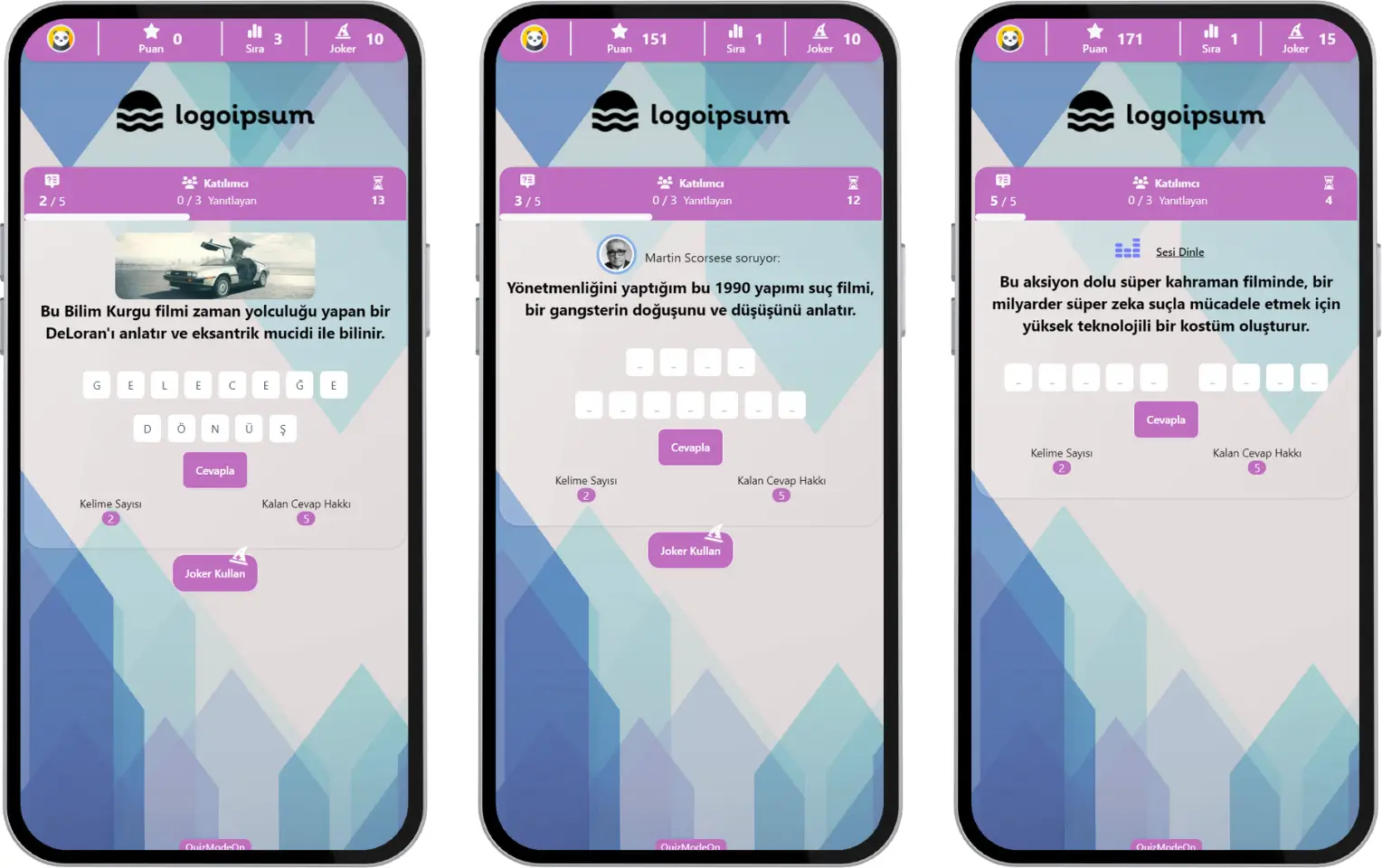
participant - event flow (guess what) - question formats
You have at least one guess right to answer the questions. The number of guess rights defined is shown at the bottom right of the letter boxes. Before each question, the number of remaining guesses returns to its initially defined value.
Note: Using guess rights does not cause any loss of points. Likewise, guess rights you do not use do not give you extra points. Do not forget to use your guess rights on the questions where you need them, to guess the correct answer faster!
Jokers
Jokers let you reveal some letters of the word you are trying to find so you can answer faster and more accurately. If you have joker rights, click the Use Joker button below the answers to use one. You can use more than one joker for each question.
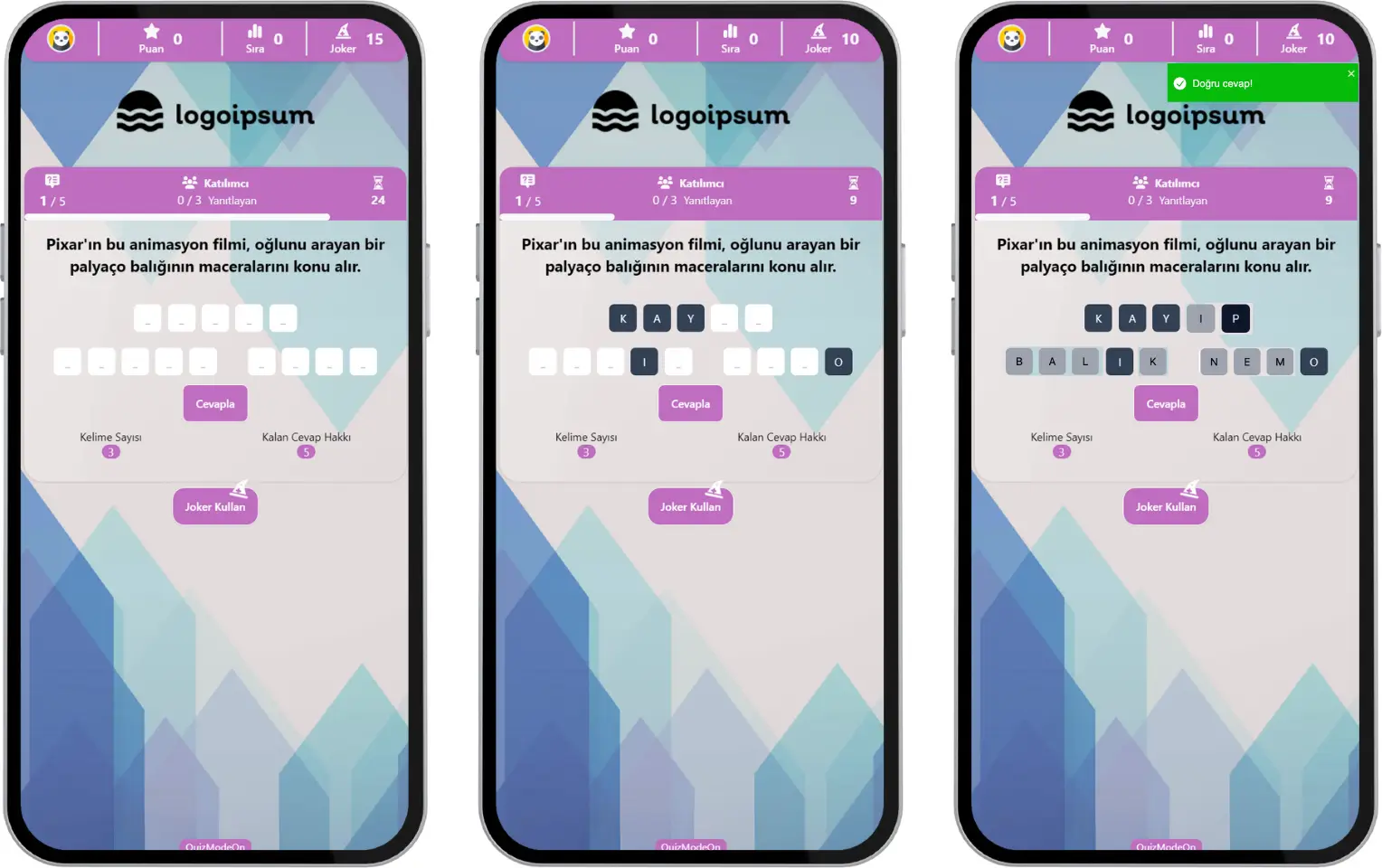
participant - event flow (guess what) - using a joker
Note #1: You can even reveal all the letters in a question, as long as you do not exceed your remaining joker rights. However, you may need your jokers again to give the correct answer and earn points in the following questions. We recommend being more careful and using your jokers at the right time and place, keeping all the questions in mind.
Note #2: Using a joker does not cause any loss of points. Likewise, jokers you do not use do not give you extra points. Do not forget to use your jokers on the questions where you need them!
Instant Results
When the answering time ends, you see a result screen based on the answer you gave. If your answer is correct, you earn points. Before moving on to the next question, the instant standings are shown on the screen.
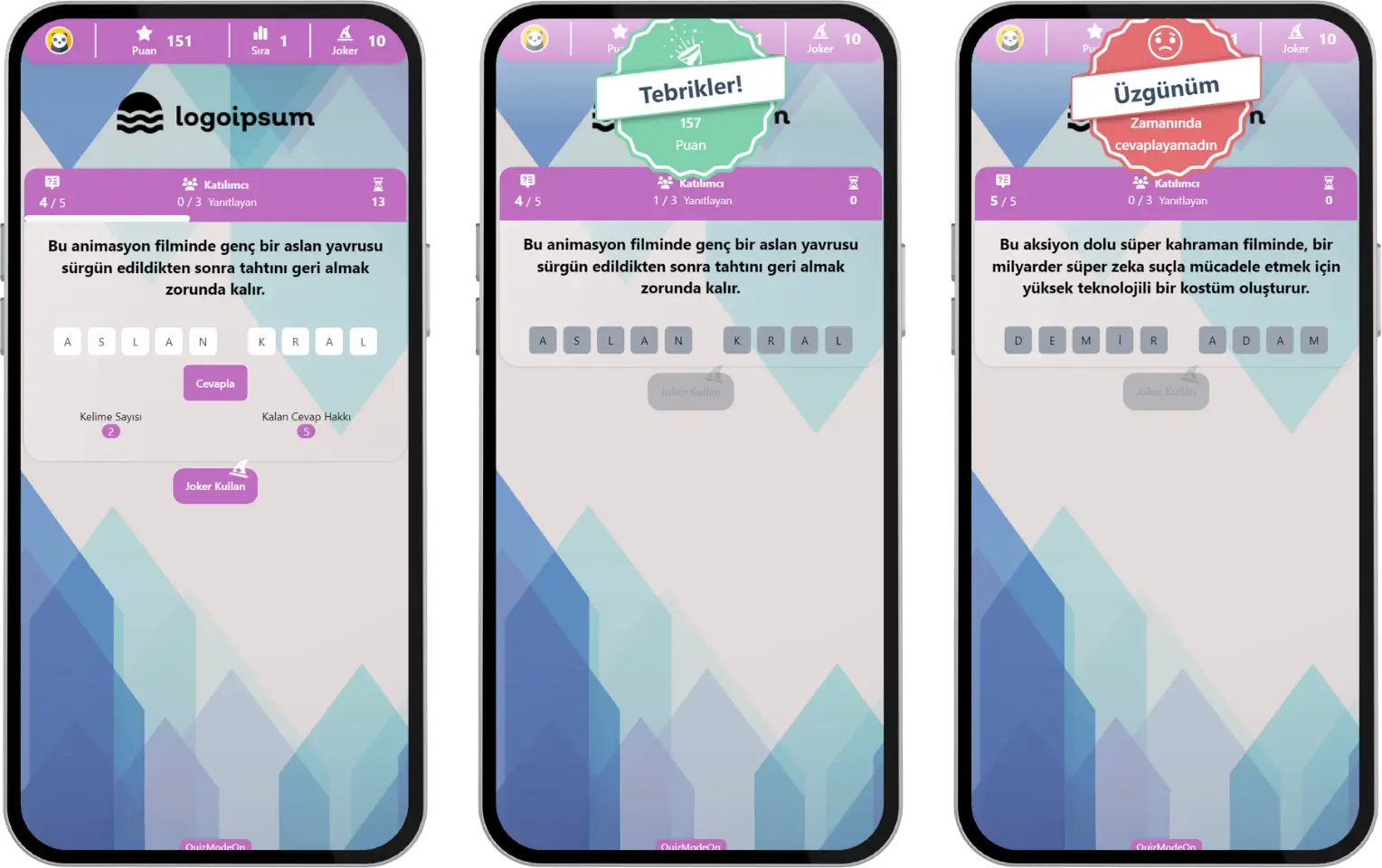
participant - event flow (guess what) - instant results
Note #1: Before moving on to the next question, the presenter / moderator screen can also show the instant top 10 participants. To raise the excitement and heat up the competition in the event, the moderator can click the See More button to show the top 10 participants with the highest scores at that moment.
Note #2: If the event flow is set to live, the current standings table is shown on the screen after each question. If the event flow is set to 24/7, the next question comes right after the question time ends.
Current Standings and High Scores
After each question, the current standings of the participants with the highest scores are shown instantly. At the end of the event, the top 3 participants with the highest scores are shown on the screen. Click the See More button to see the top 10 participants with the highest scores.
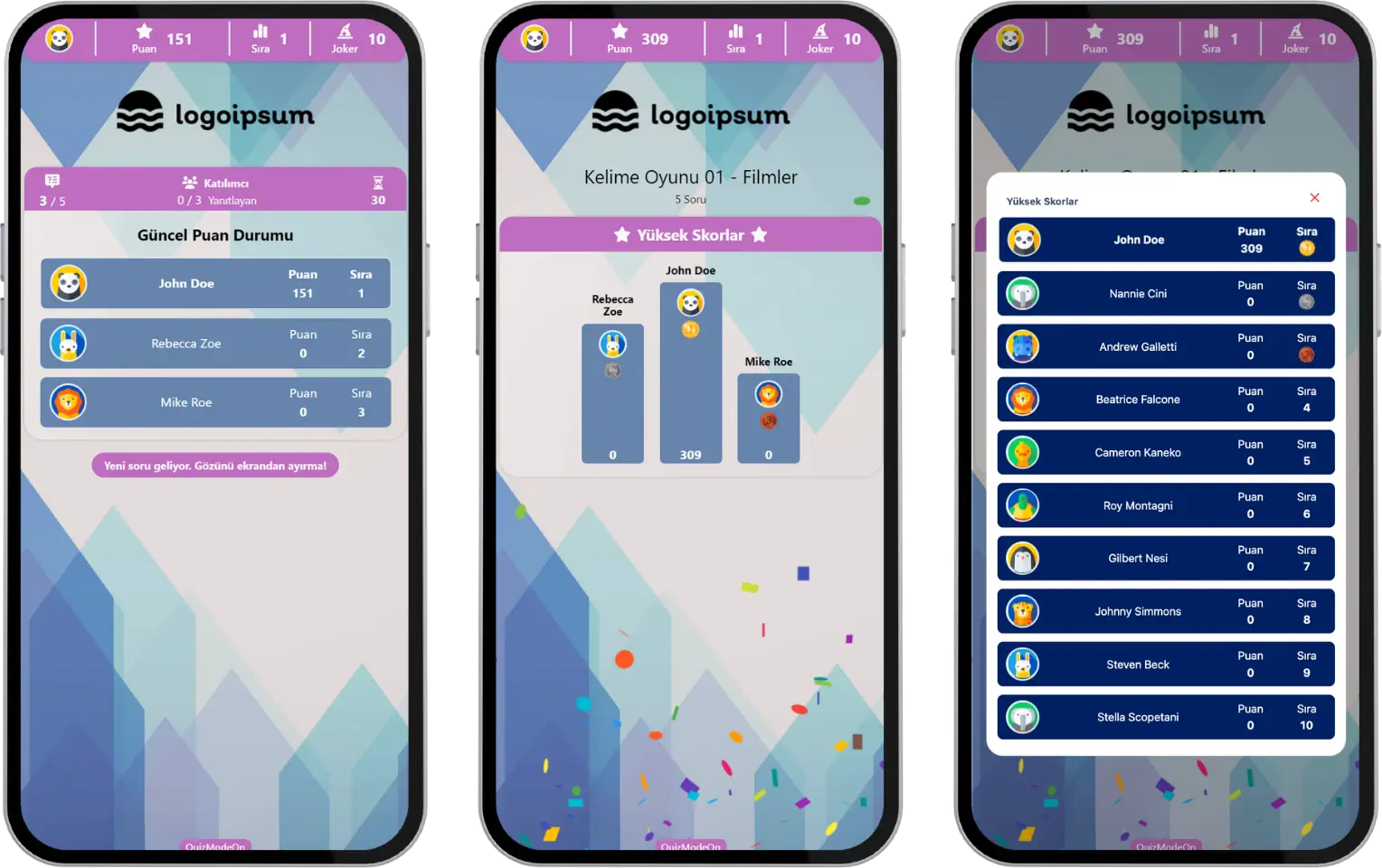
participant - event flow (guess what) - standings - high scores table
Note #1: The person who created the event (the admin or moderator) may have hidden some areas of the app interface. If elements such as the high scores table shown between questions, the final scores table shown at the end of the event and the names of the scorers are hidden, they will not appear on participant screens.
Note #2: In live events, if you try to register after the event has started, you may see the warning “You can’t enter right now because this event has already started.” If the person who created the event (the admin or moderator) turned on the option to join after the event starts, you can join before the event ends.