Explore the user menu and profile settings
Where can I find the user menu?
Click the avatar image at the top right of the portal to open the user menu. From this menu you can make various updates to your user profile and discover other features.
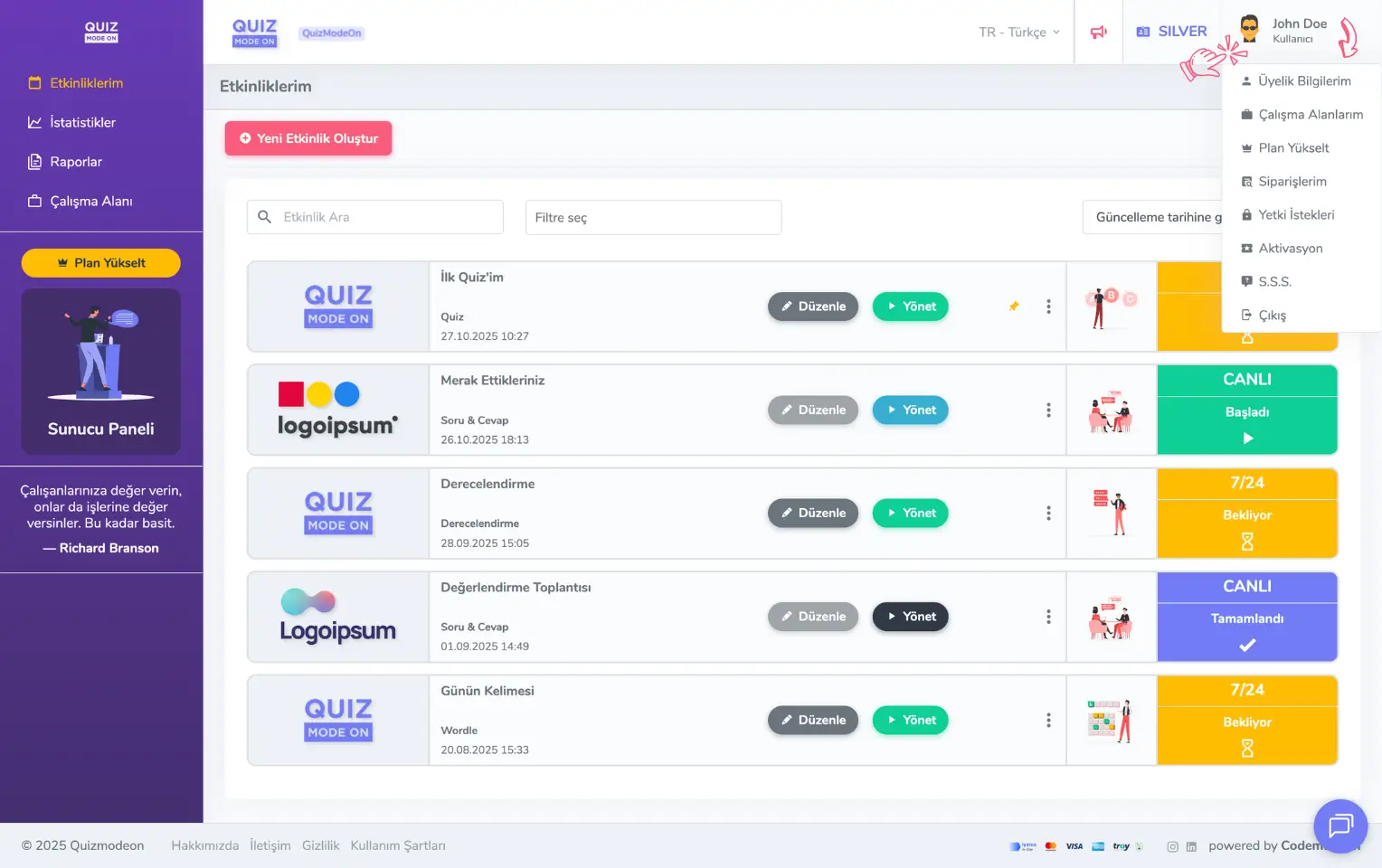
admin member - user menu - overview
The pages and links in the user menu are:
- Account Details
- My Workspaces
- Upgrade Plan
- My Orders
- Auth Requests
- Redeem
- F.A.Q. (Frequently Asked Questions)
- Logout
Review and update your membership information
Open the Account Details page from the user menu to check your account. The Account Details page has 5 tabs.
- Profile: Basic user information
- Change Password: Password information
- Billing Information: General billing information
- Payment Methods: Credit card information
- Account: Account type and login information
Profile
You can update basic information such as your avatar, email, name, phone and communication language.
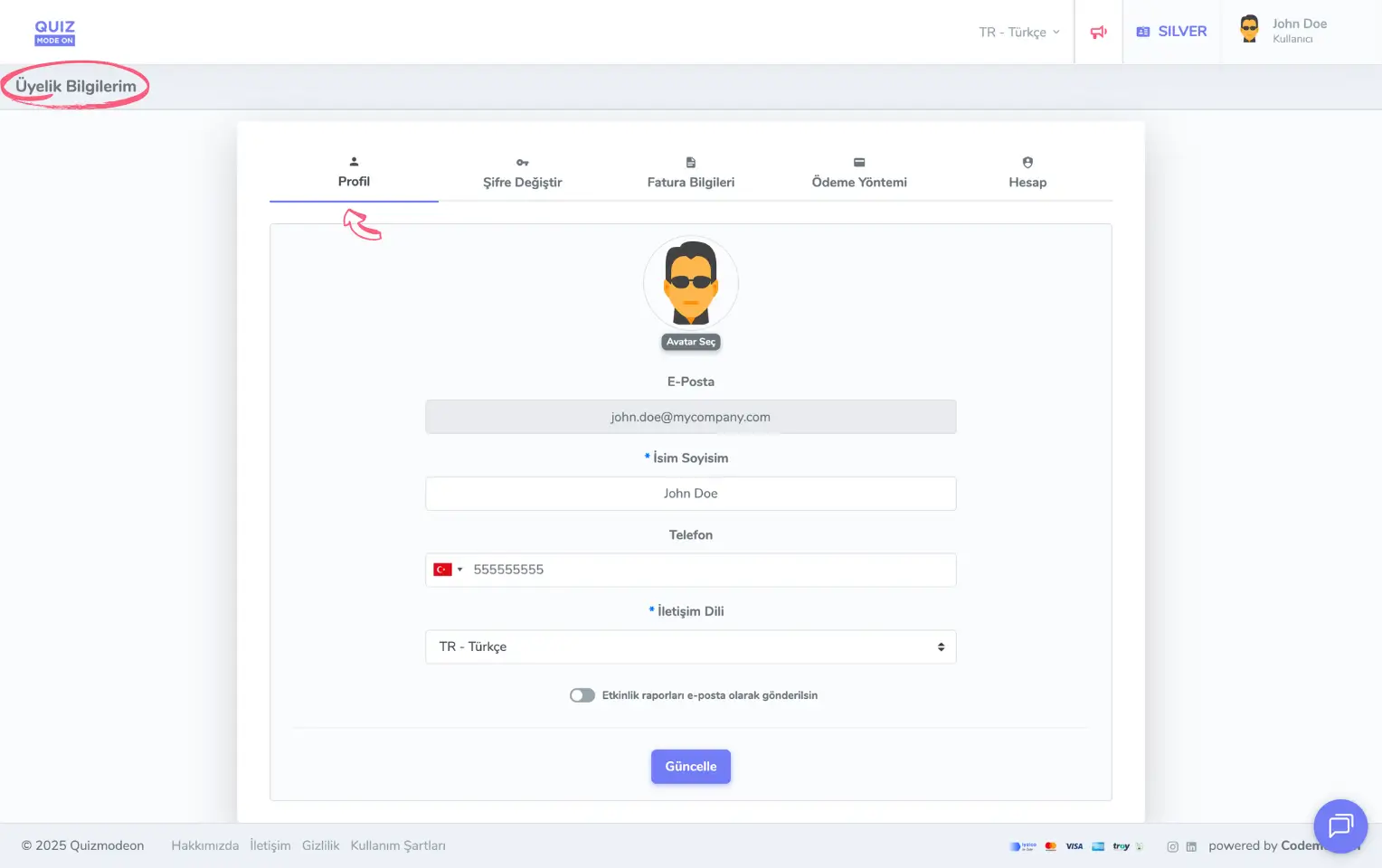
admin member - user menu - account details - profile information
Change Password
You can replace your current password with a new one.
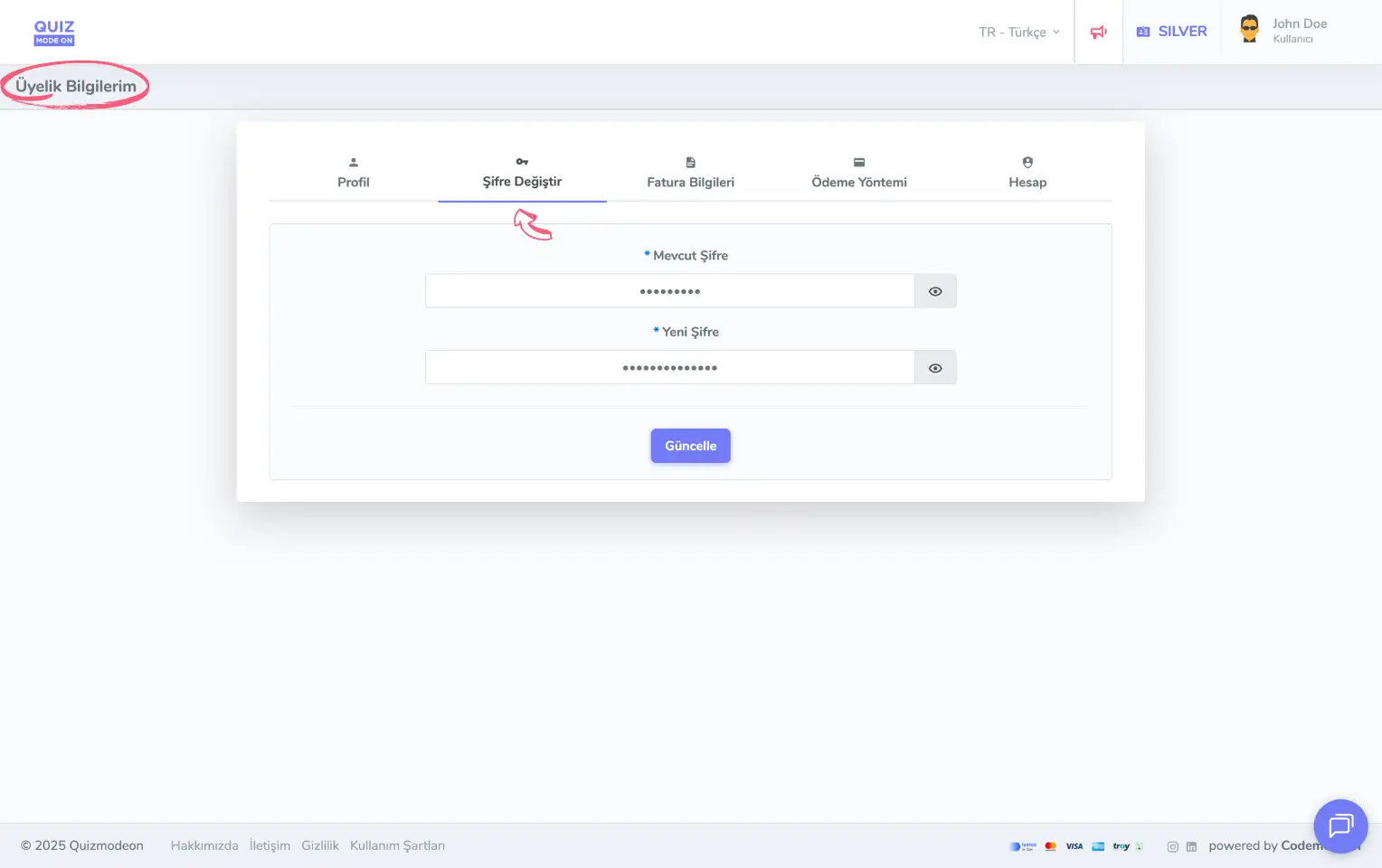
admin member - user menu - account details - changing the password
Note: To change your password under the Change Password tab, you also need to enter your current password.
Billing Information
You can add and change your billing information. You can set up your billing information as corporate or individual.
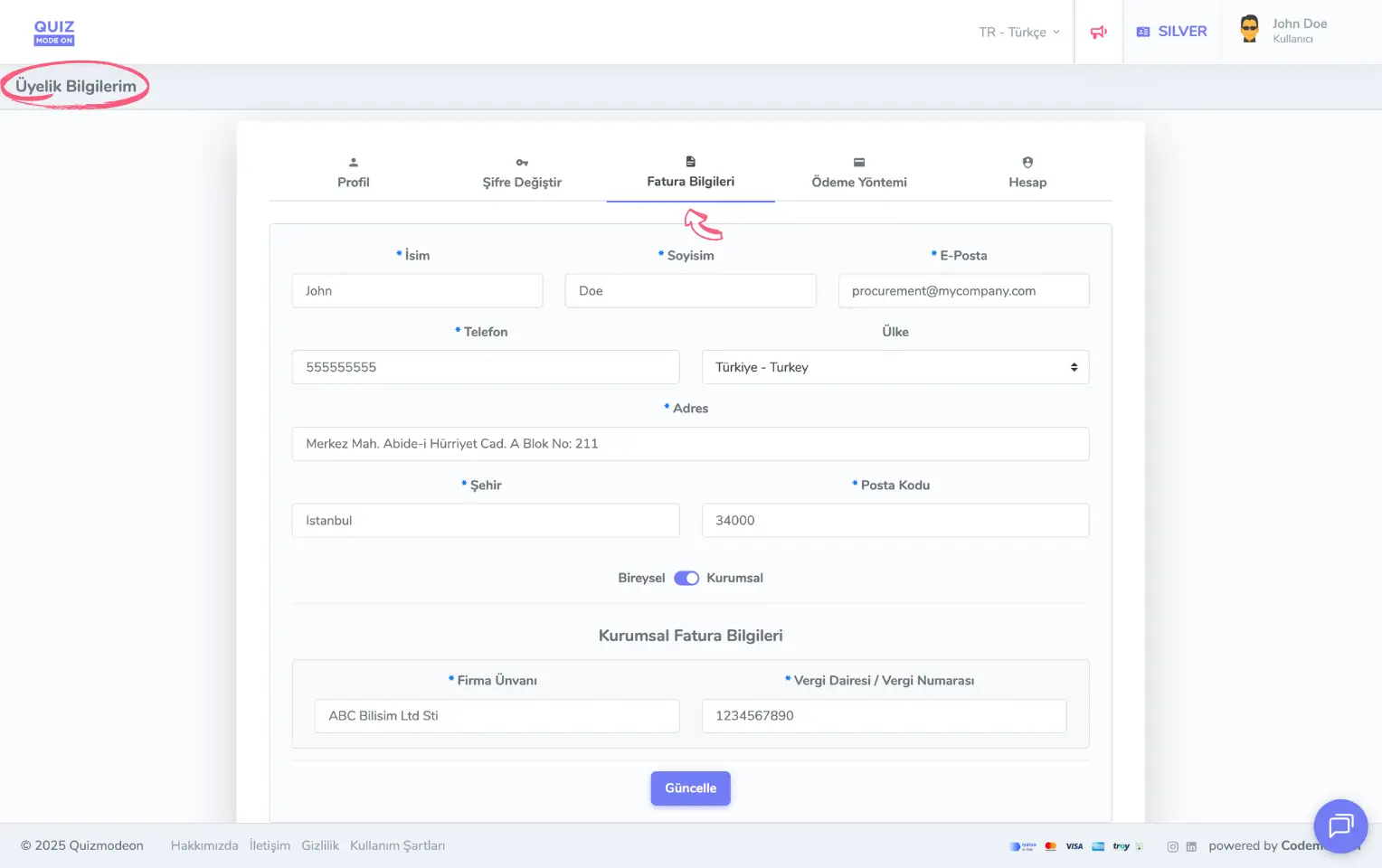
admin member - user menu - account details - billing information
Payment Methods
You can add or delete credit card details for your membership payments. All your saved credit cards appear under the Payment Methods tab.
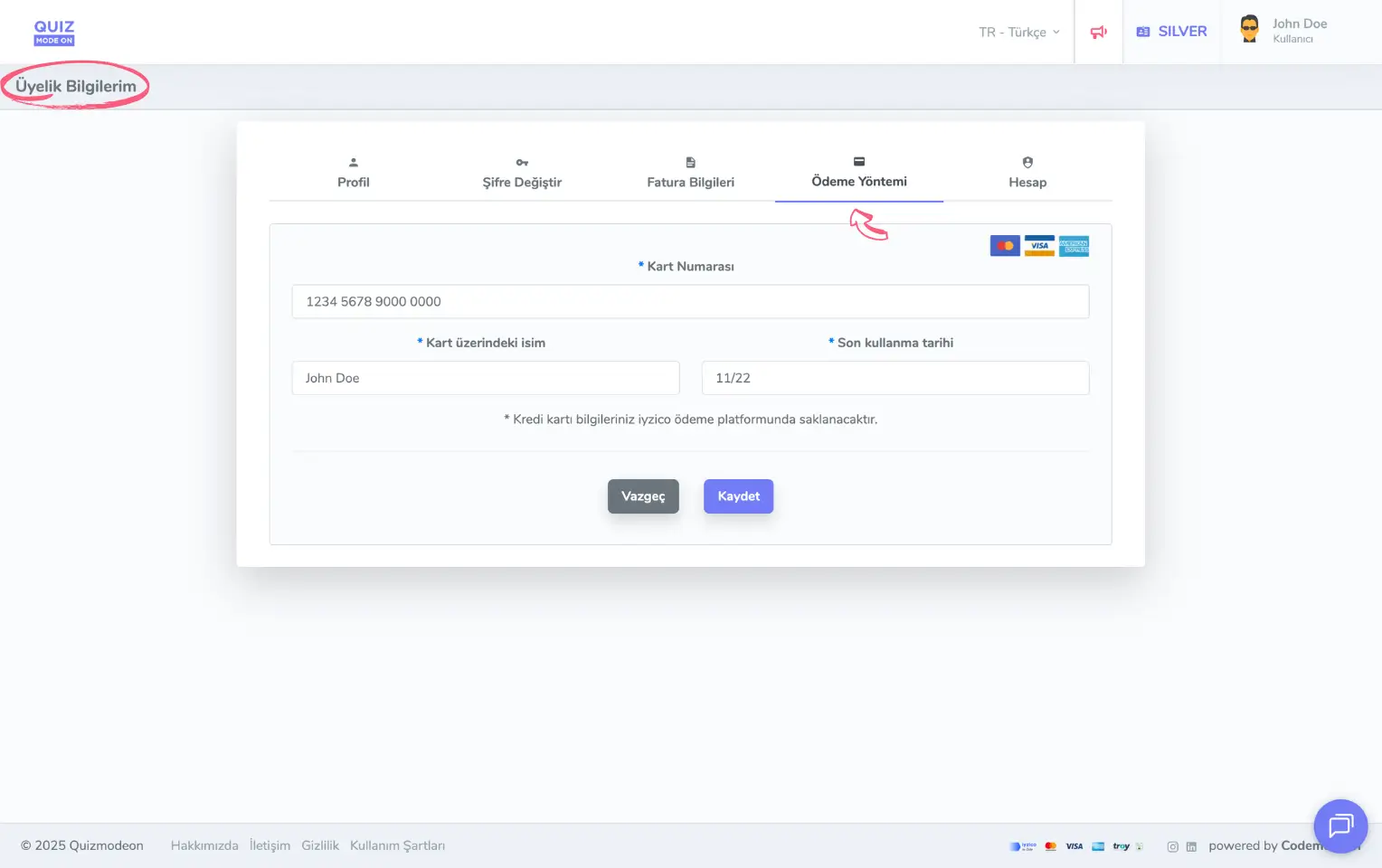
admin member - user menu - account details - payment methods
Account
You can review your account type, login settings and login details. For a more secure login, you can also activate the Two Factor Authentication (2FA) option for your account.
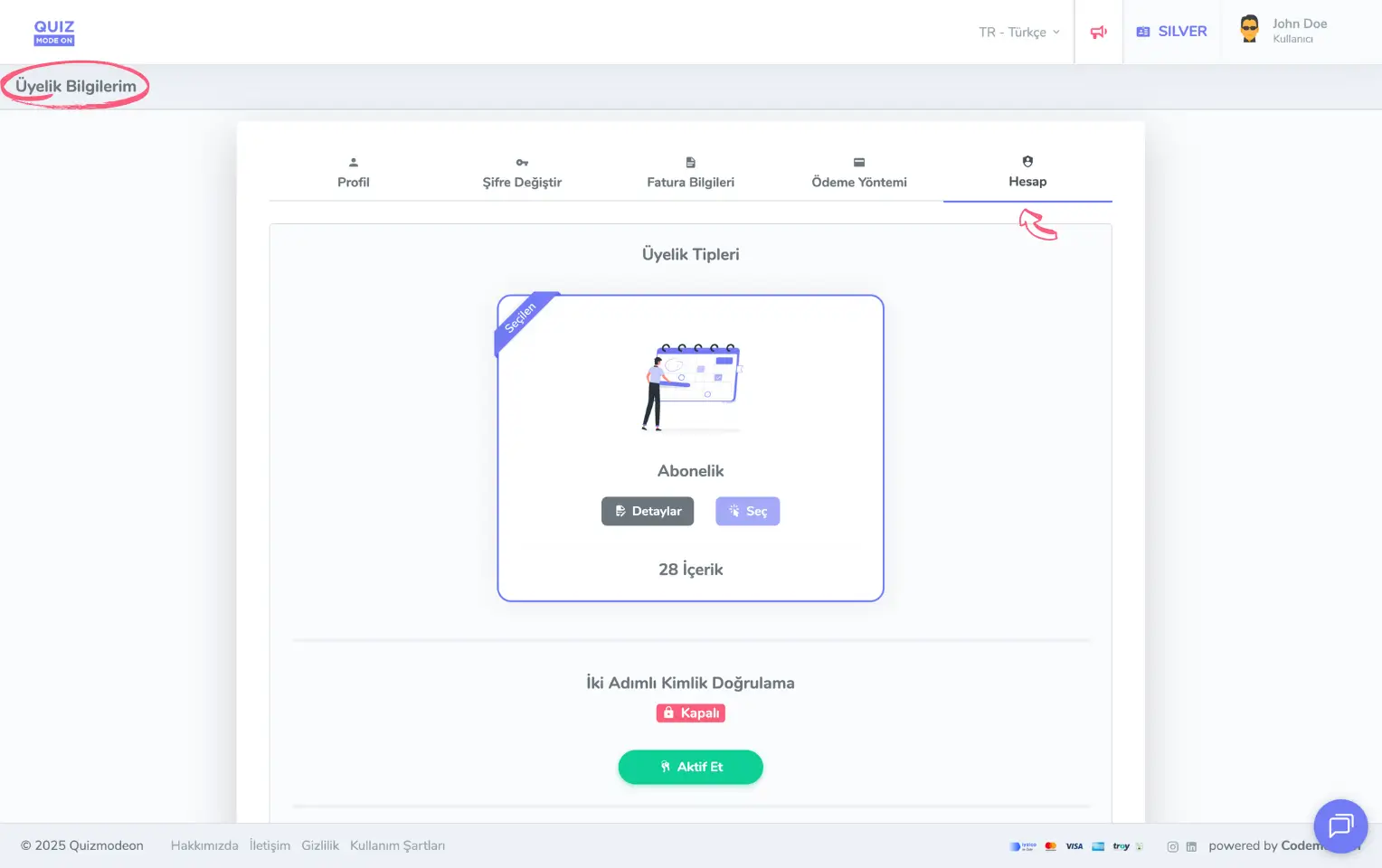
admin member - user menu - account details - account and subscription information
Review your workspaces and create new ones
You must have a workspace before you can create and plan your events.
Every member has at least one workspace. ENTERPRISE members can create more than one workspace.
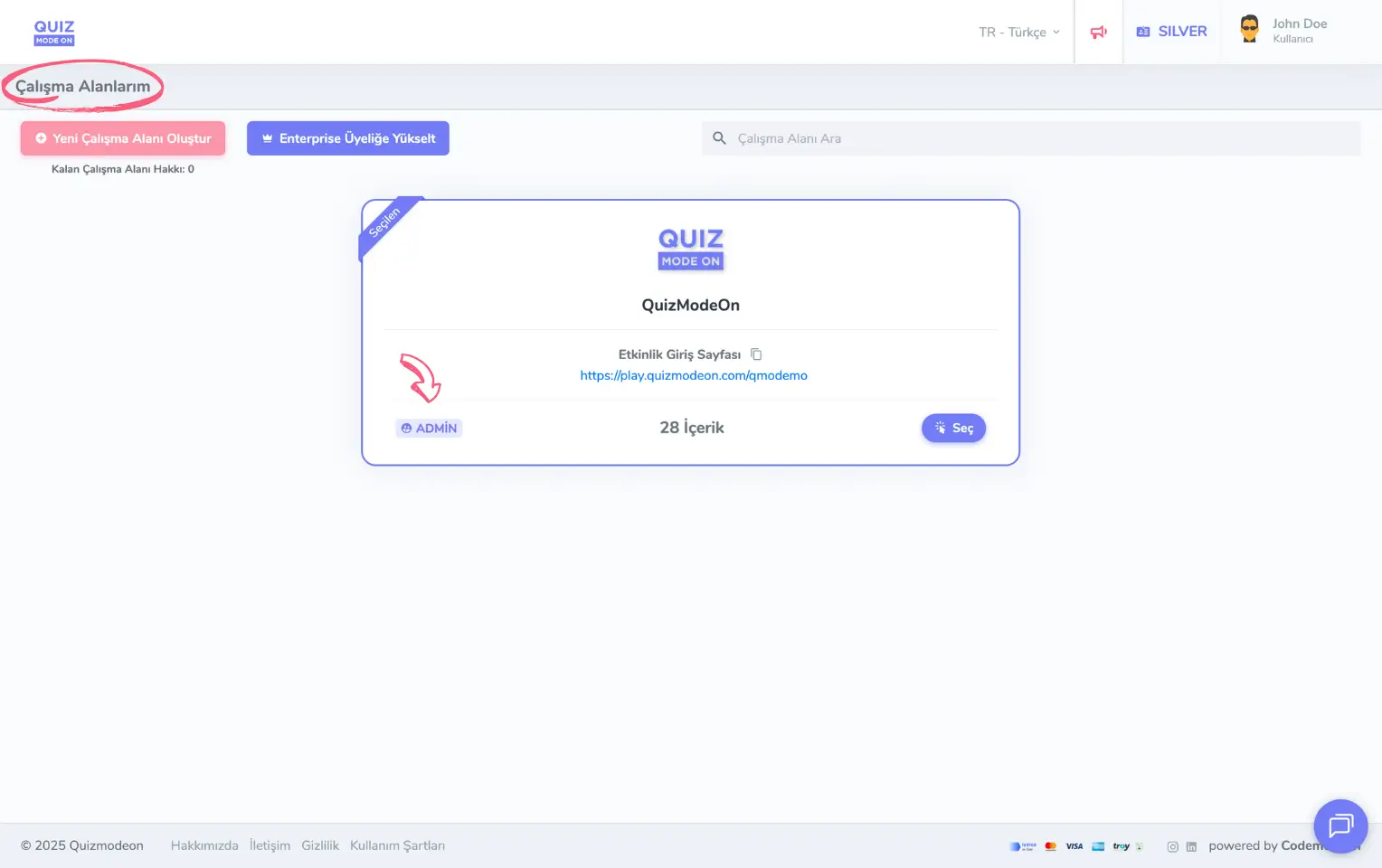
admin member - user menu - workspaces - admin
Note #1: Workspaces you created yourself show the ADMIN label at the bottom left.
Note #2: A user with an ENTERPRISE membership can authorize you for a workspace. In that case, you will see the Sub-Member label on the other workspaces on the My Workspaces page.
Check your permissions on other workspaces
A user with an ENTERPRISE membership can send authorization requests to other members so that they can manage the user’s workspaces.
On the Auth Requests page under the user menu, you can view the authorization requests sent to you and accept or reject them.
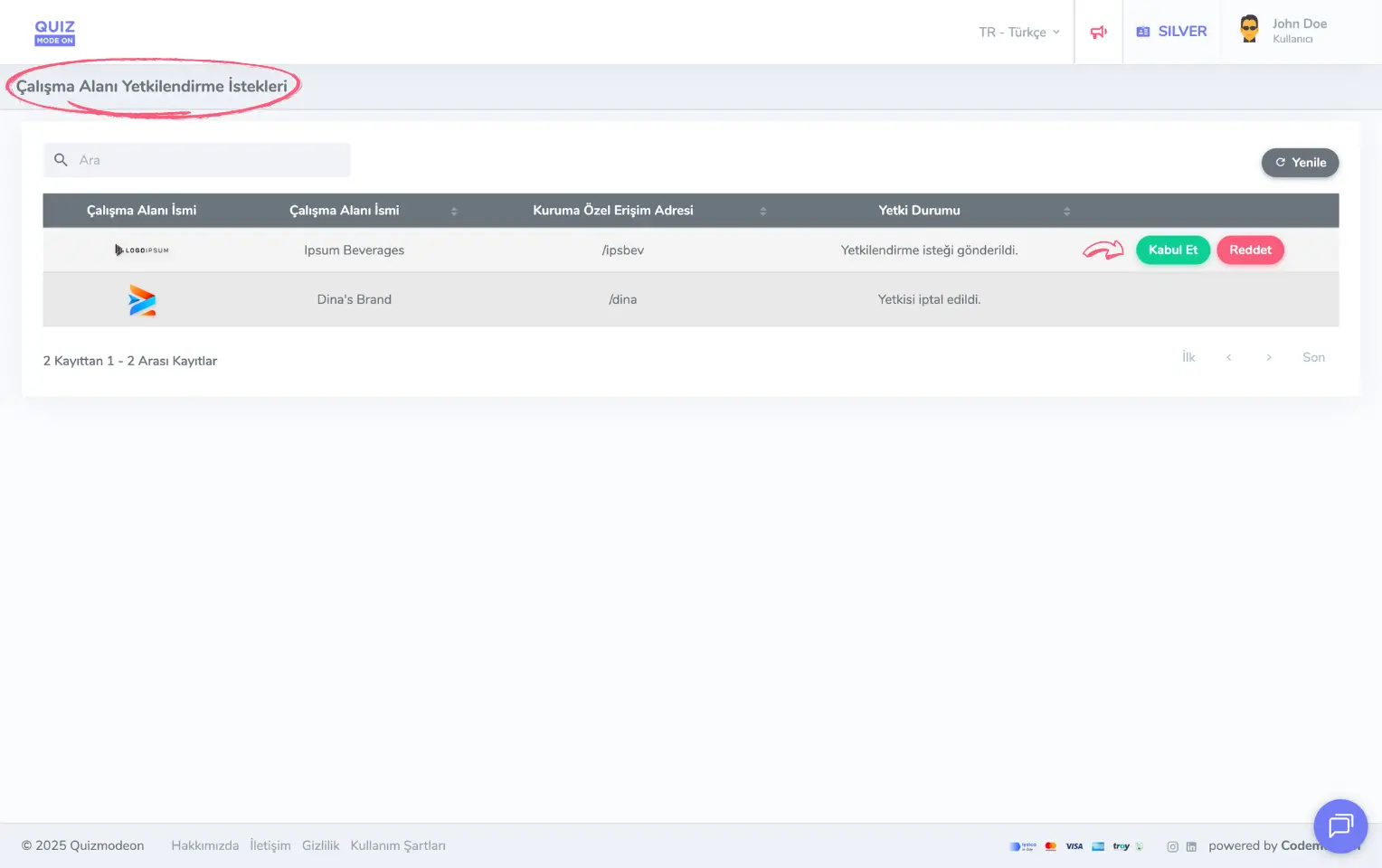
admin member - user menu - authorization requests
You can find the workspaces whose authorization request you accepted on your own My Workspaces page. Because these workspaces do not belong to you, they show the Sub-Member label at the bottom left.
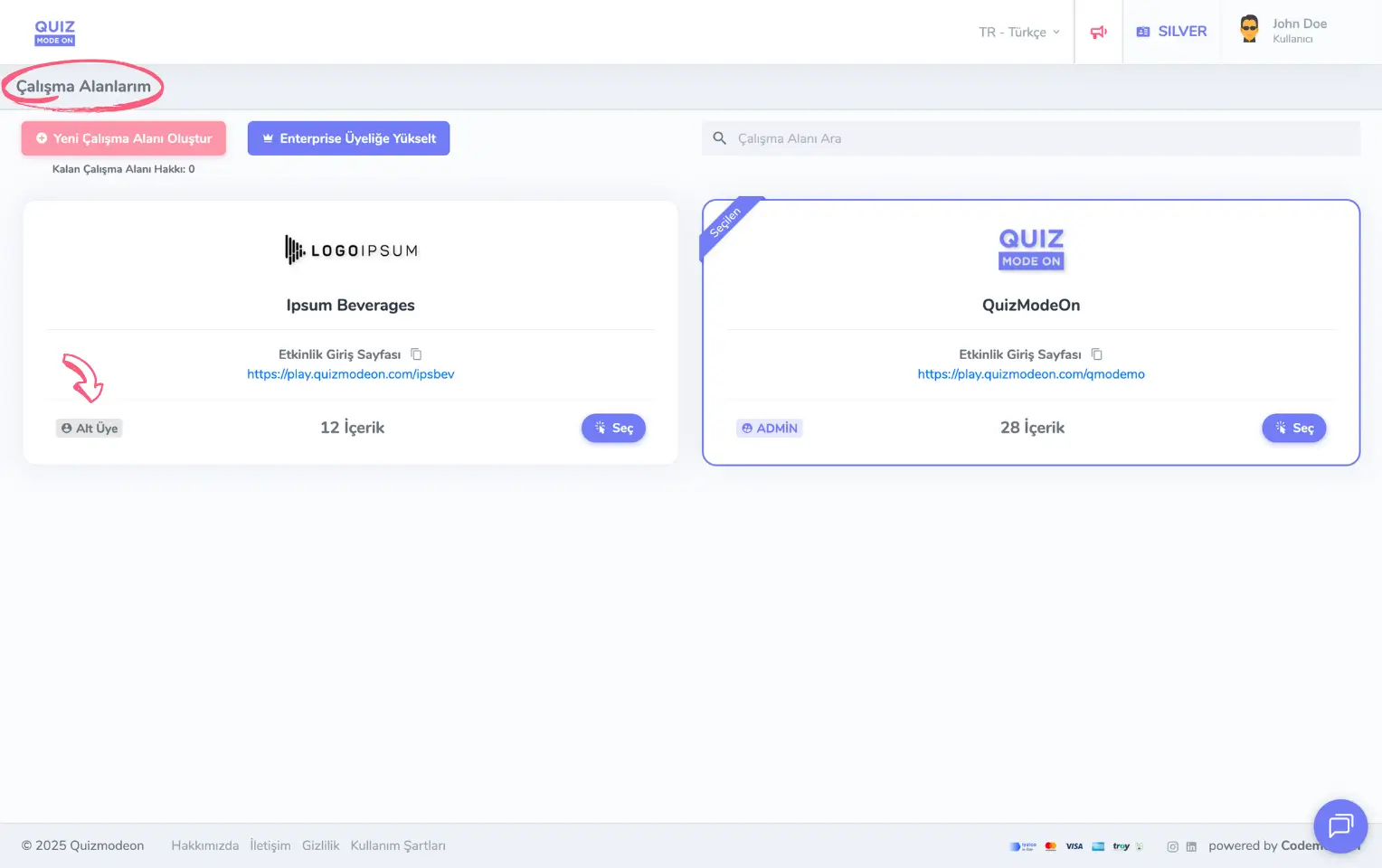
admin member - user menu - workspaces - sub-member
Upgrade your membership plan
Choose a membership plan according to your usage period and the number of concurrent participants you want to reach.
To choose your membership in 3 easy steps:
- Choose the usage period for your membership plan.
- Choose the maximum number of concurrent participants you want to reach.
- Decide on one of the membership plans that matches your choices.
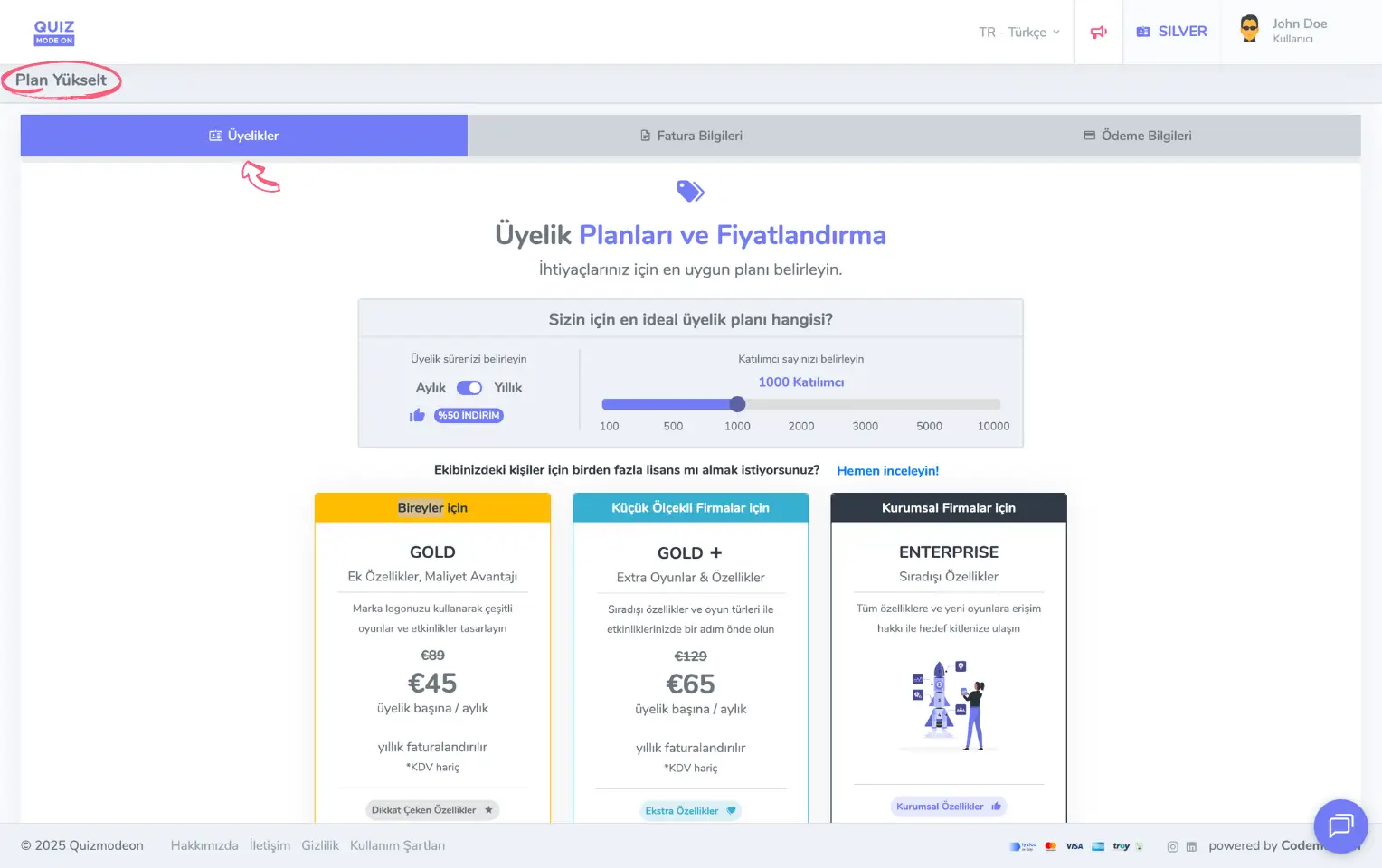
admin member - user menu - membership upgrade - membership plans
Note: Unlike other platforms, you can choose your membership plan duration as monthly or annual.
Review your orders and payments
After buying a paid membership, you can find the details of all your payments on the My Orders page. On this page you can view all payment details, including:
- Order number,
- Order status,
- Payment receipt,
- Billing information.
You can also review the records of membership upgrades, membership cancellations and other purchases in this area.
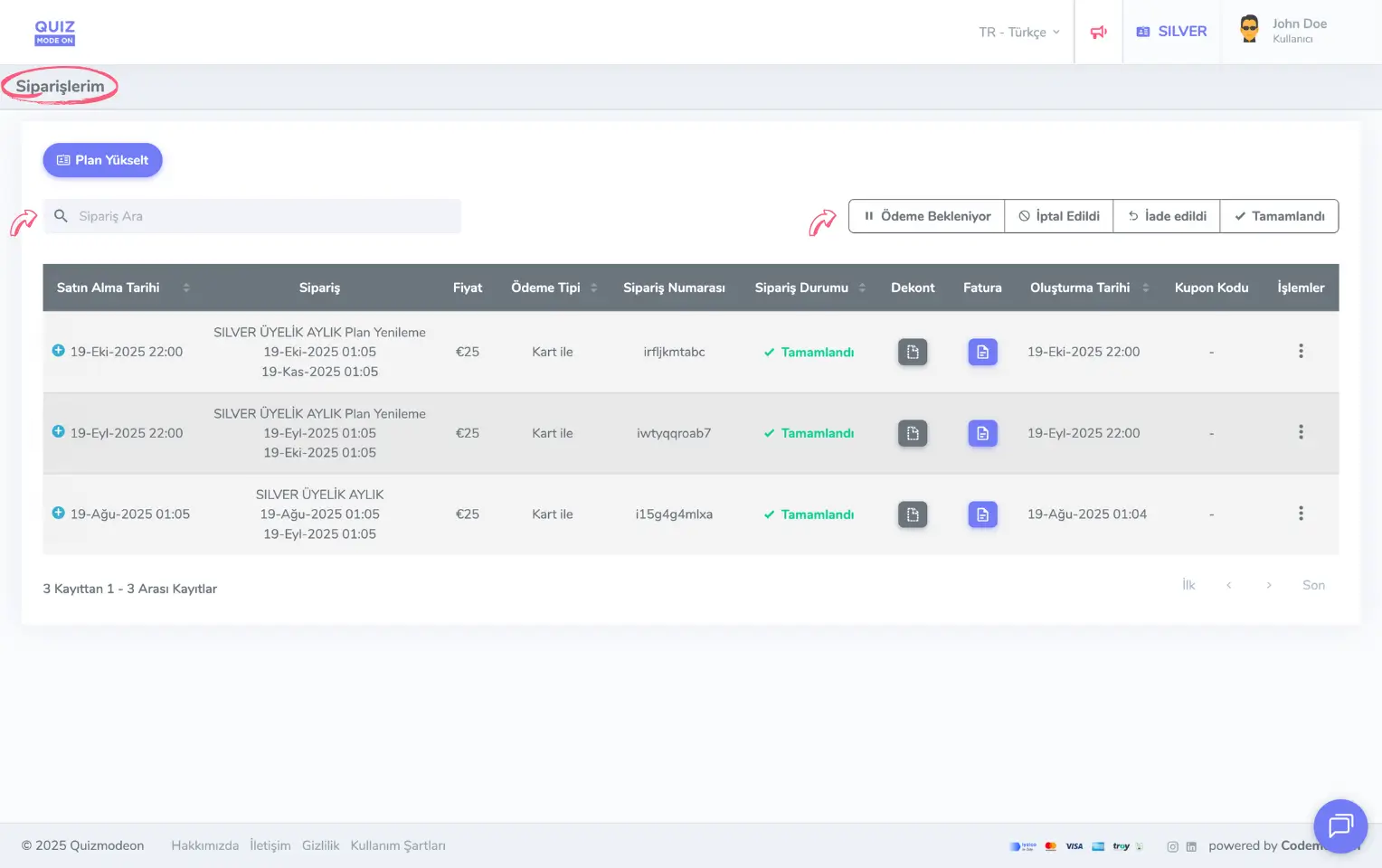
admin member - user menu - orders and payments
Browse the frequently asked questions
If you want to learn more about the most common questions on the QuizModeOn app and the member portal, visit the Frequently Asked Questions page.
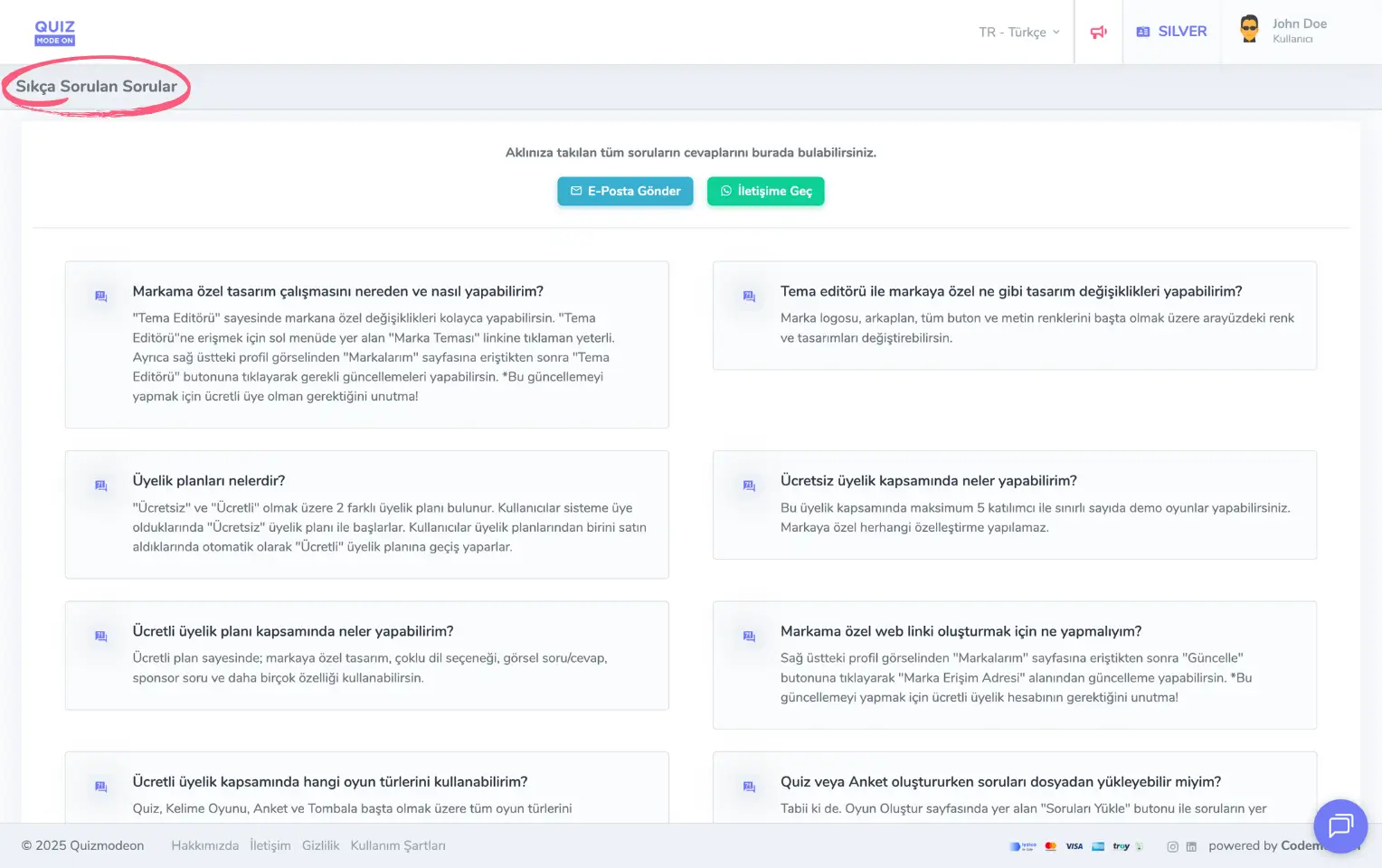
admin member - user menu - frequently asked questions (FAQ)