Explore the My Events page
In the portal, the home page opens as the My Events page.
Create and manage a new event
You can easily create, update and manage your events.
Create New Event: Choose one of 20 different event types and create it quickly.
Edit: Update the event content, theme (interface colors, logo, background, etc.) and settings.
Manage: Start the event, control the flow and view participant reports.
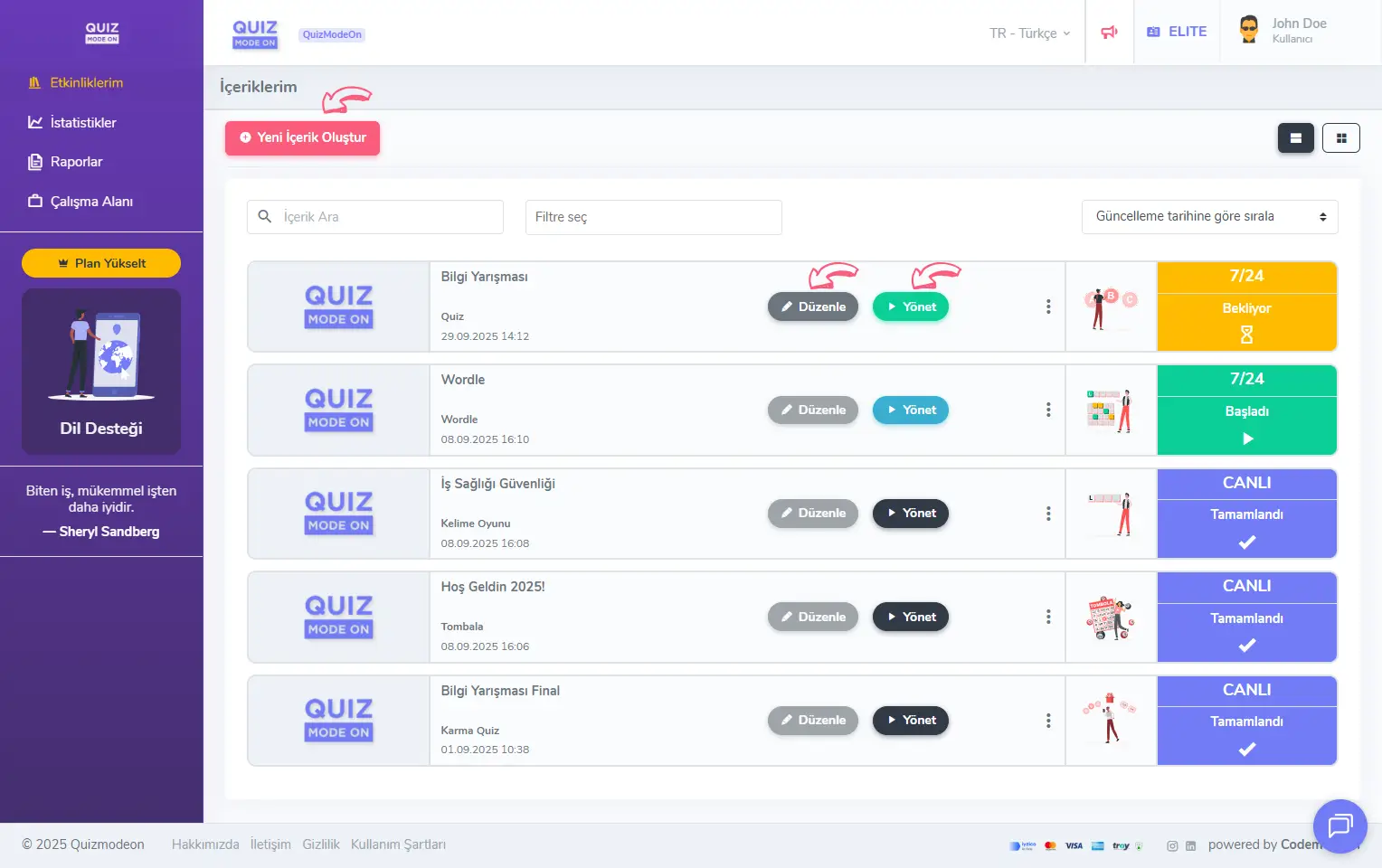
admin member - home page - my events - editing and managing
Explore the event actions
Click the ⋮ vertical three-dot icon next to each event to run some quick actions for it. These include pinning the event to the top of the list, cloning, deleting and more.
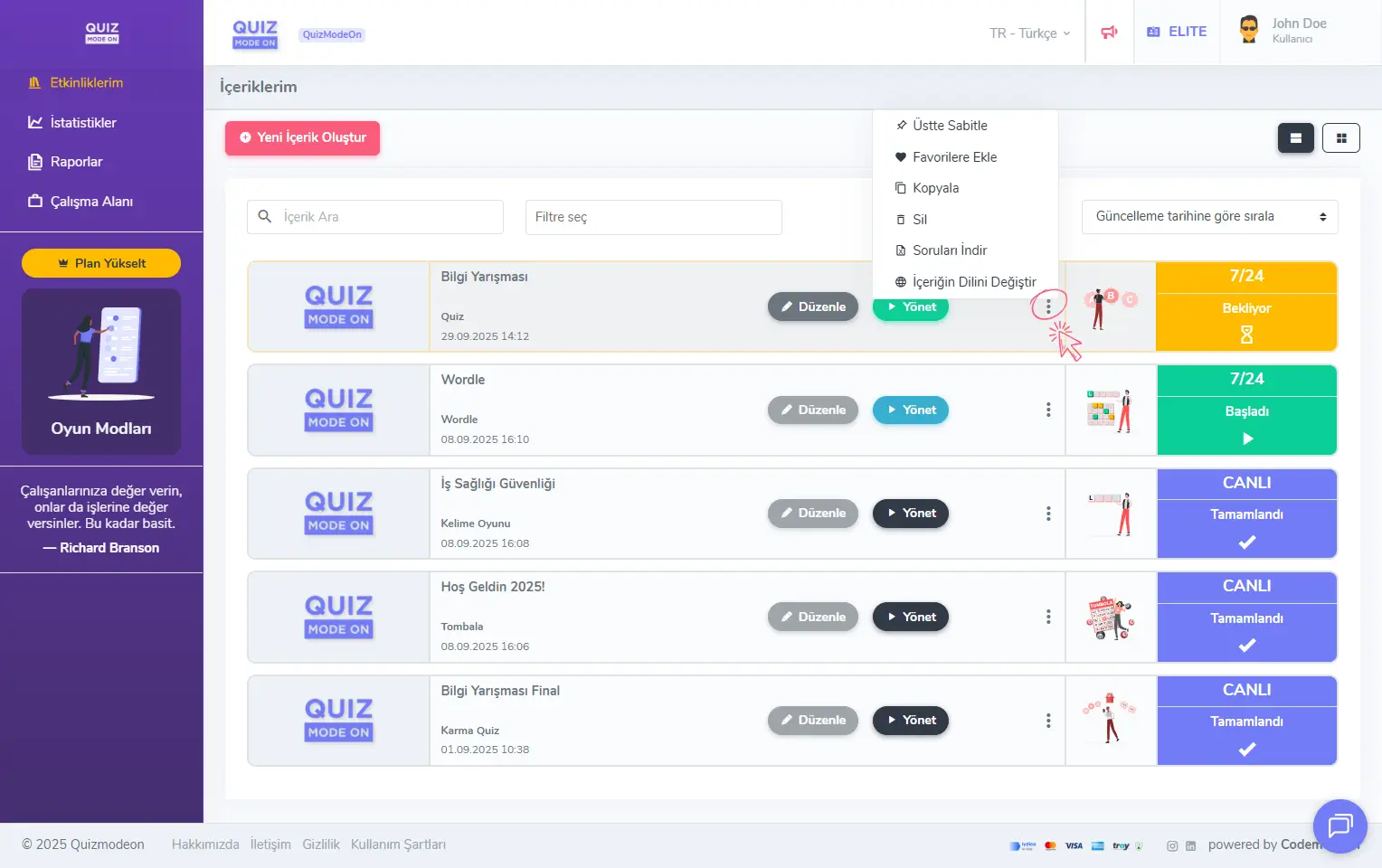
admin member - home page - my events - event action menu
Pin to Top: Pin (📌) an event you want to reach easily to the top of the list.
Add to Favorites: Like (❤️) events you plan to reuse to add them to your favorites.
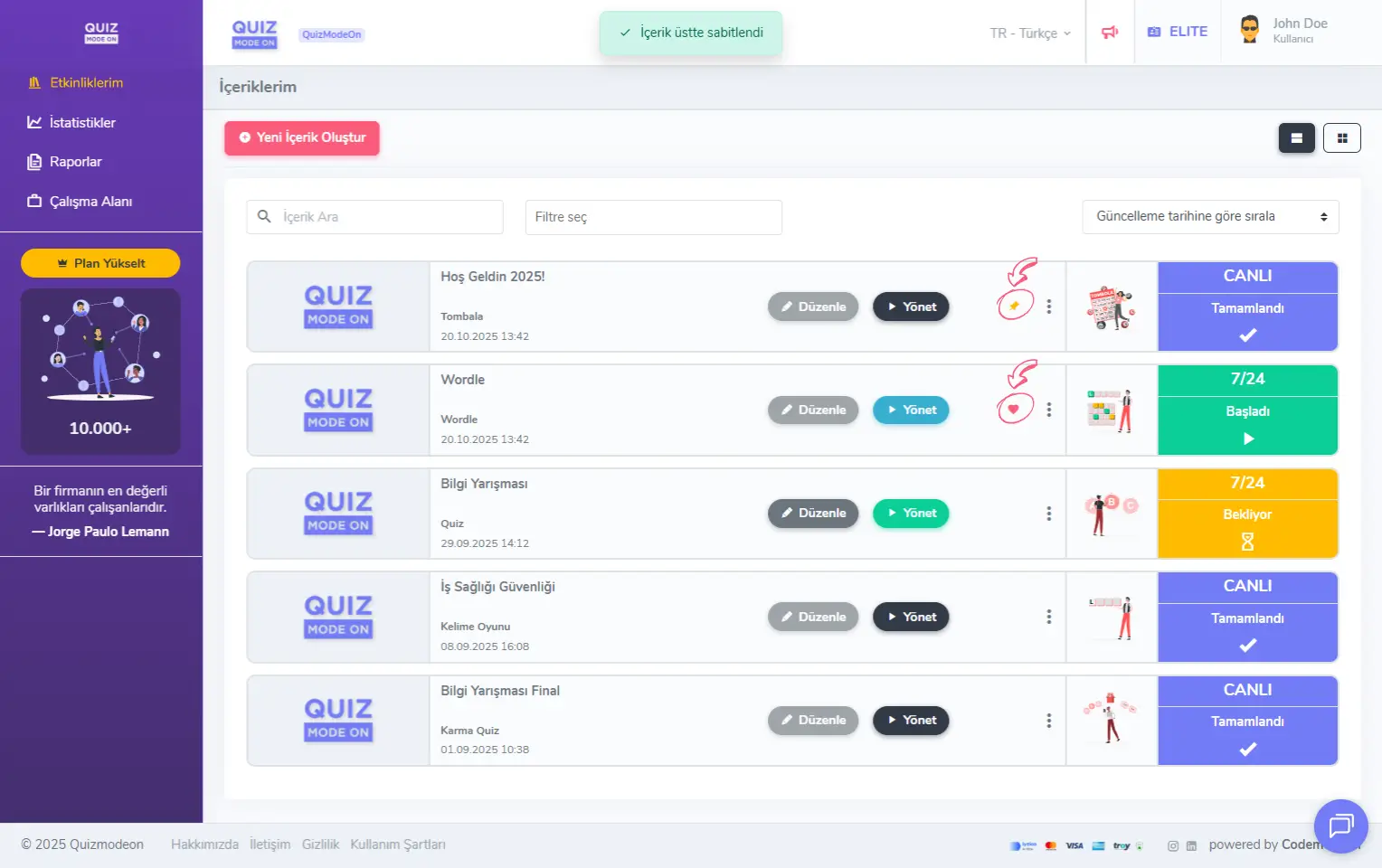
admin member - home page - my events - pin to top and add to favorites
Clone: Instead of creating a similar event from scratch, quickly make a copy of it. Cloning copies all of the event’s content, theme designs and settings.
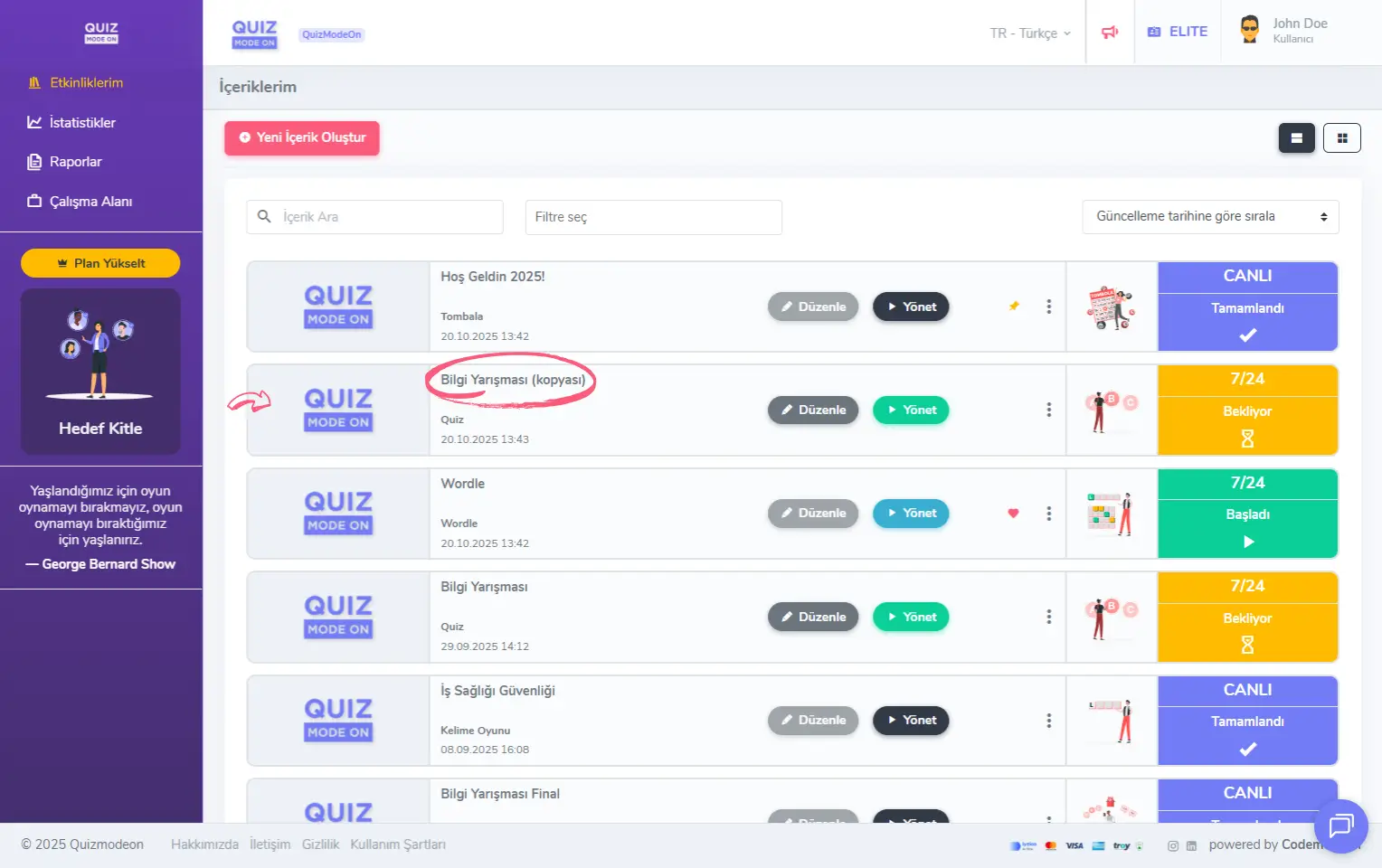
admin member - home page - my events - cloning
Delete: Delete an event you no longer want to use, or created by mistake, to remove it from the list. All data of the event you delete (content, theme, settings) is lost. The reports created after an event finishes (participants, scores, etc.) are not deleted. You can open these reports from the Reports tab on the left.
Download Questions: Easily download the content of question-and-answer events such as Quiz, Poll and Guess What in Excel format. In the Taboo event this option appears as Download Cards, and in the Wordle event as Download Words.
Change Content Language: Easily change the language you previously set for the user interface and content. Only ENTERPRISE members can add more than one language option.
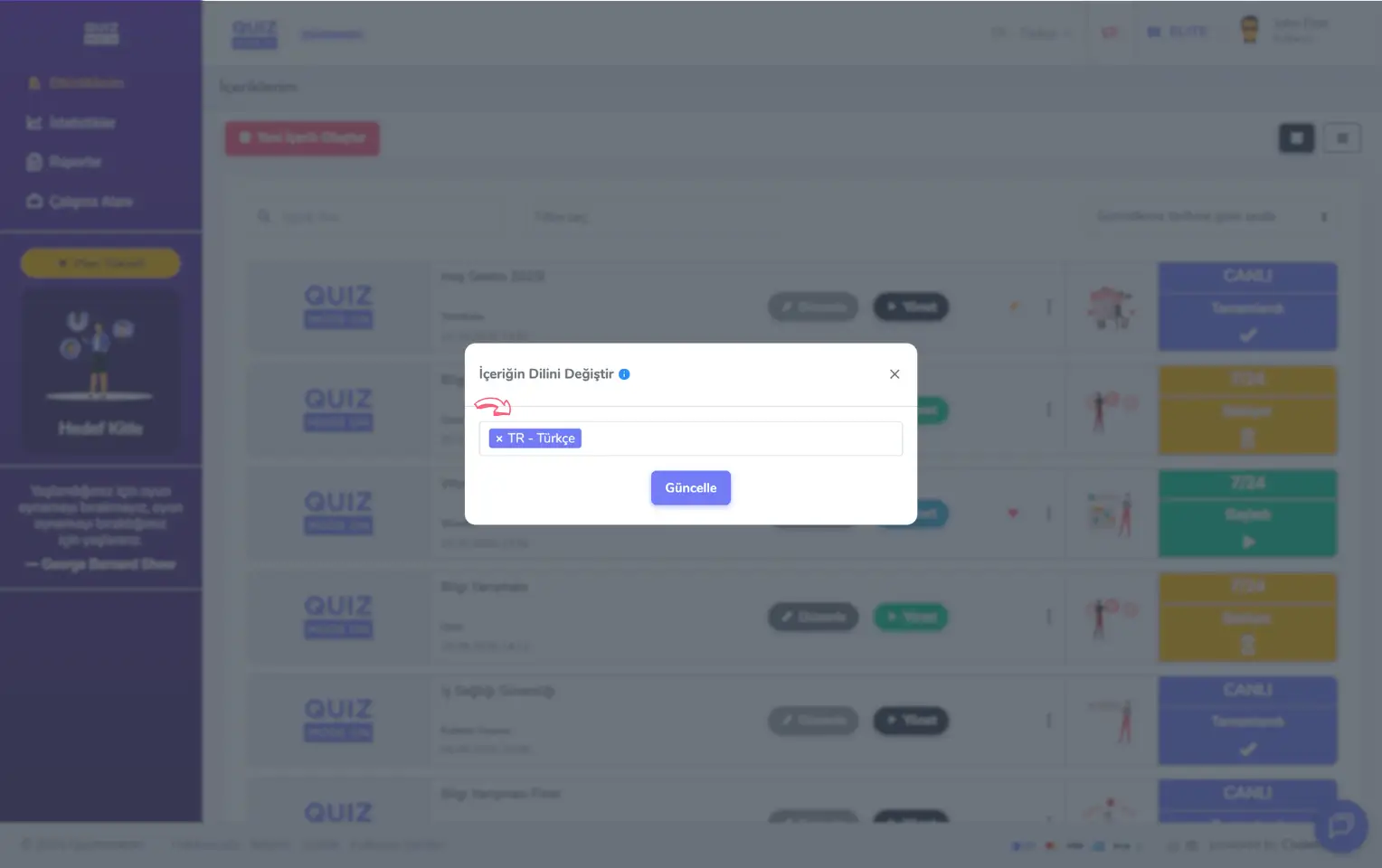
admin member - home page - my events - changing the language
Sort and filter your events
Search for events
Use the Search Event box at the top left of the event list to find the events you want easily. Search results are shown according to the words found in the event name and tag information.
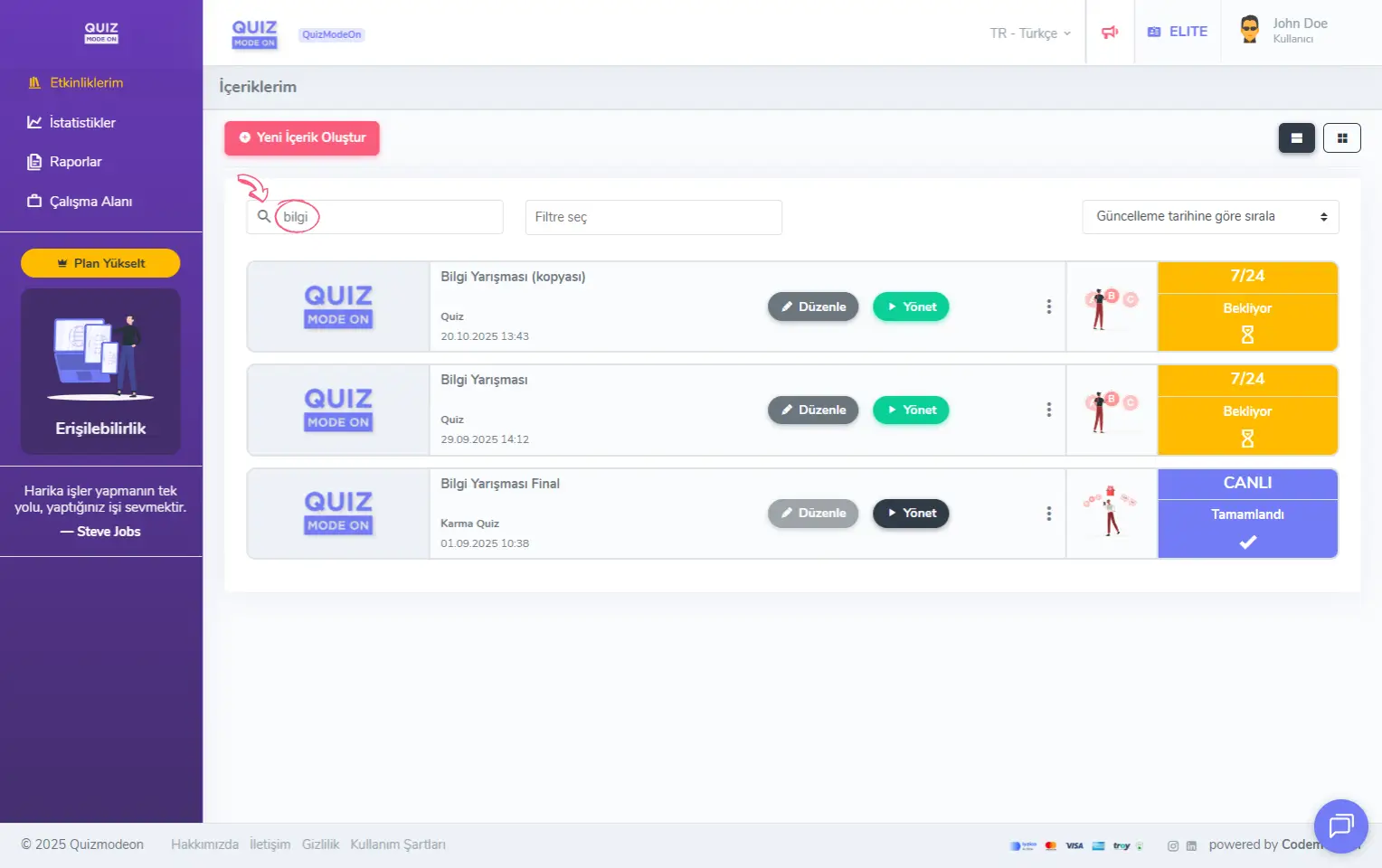
admin member - home page - my events - search
Filter events
You can filter the event list by event type. After clicking the Filter field, select the event types you want to see.
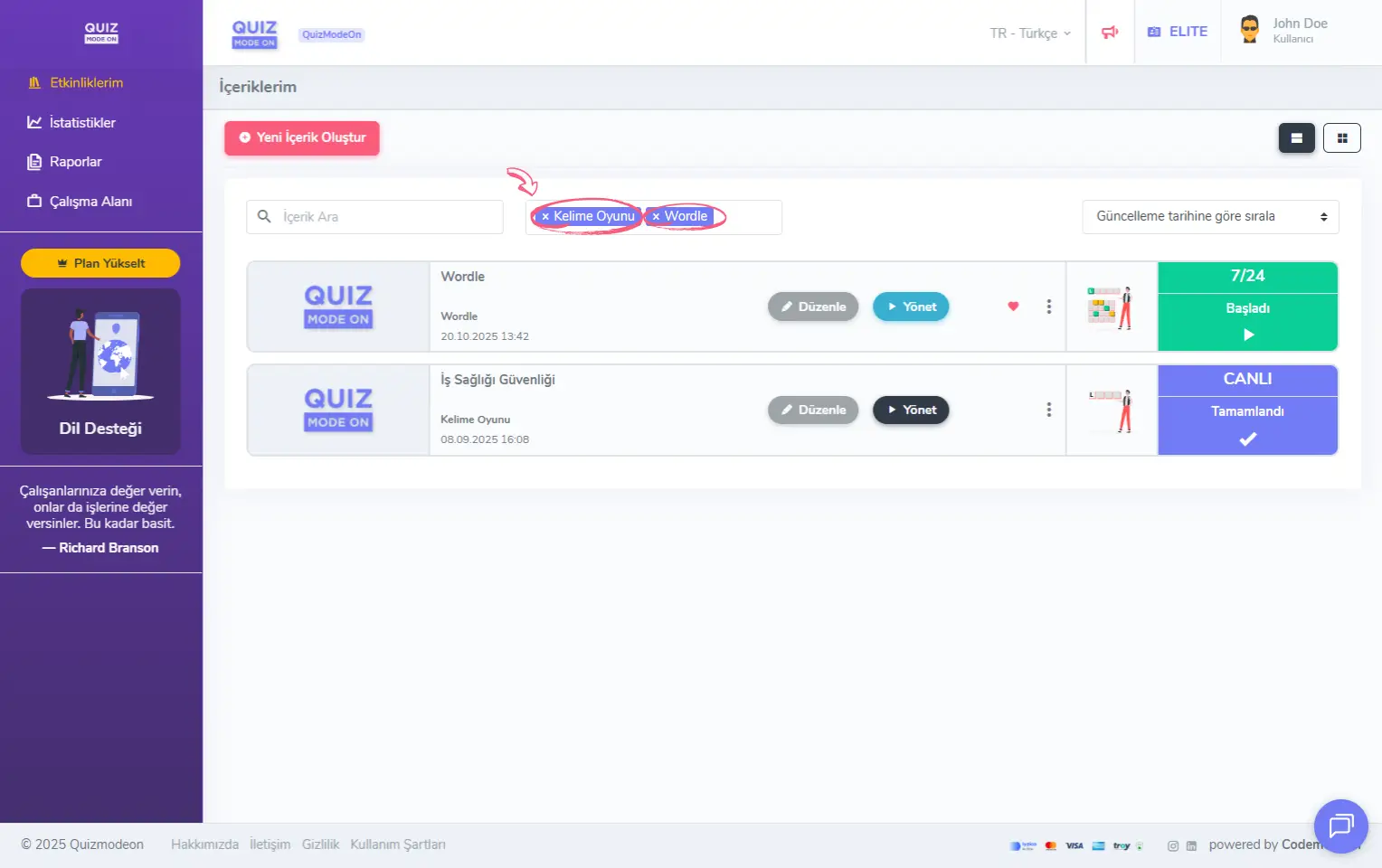
admin member - home page - my events - filtering
Sort events
Use the Order by update date field at the top right of the event list to sort events by different criteria.
The sorting options are:
- Order by update date: The most recently updated events come first.
- Order by create date: The most recently created events come first.
- Order by favorites: Events added to favorites come first.
- Order by name: Sorted alphabetically by event title.
- Order by type: Sorted alphabetically by event format.
- Order by status: Sorted by whether the event is waiting, started or finished.
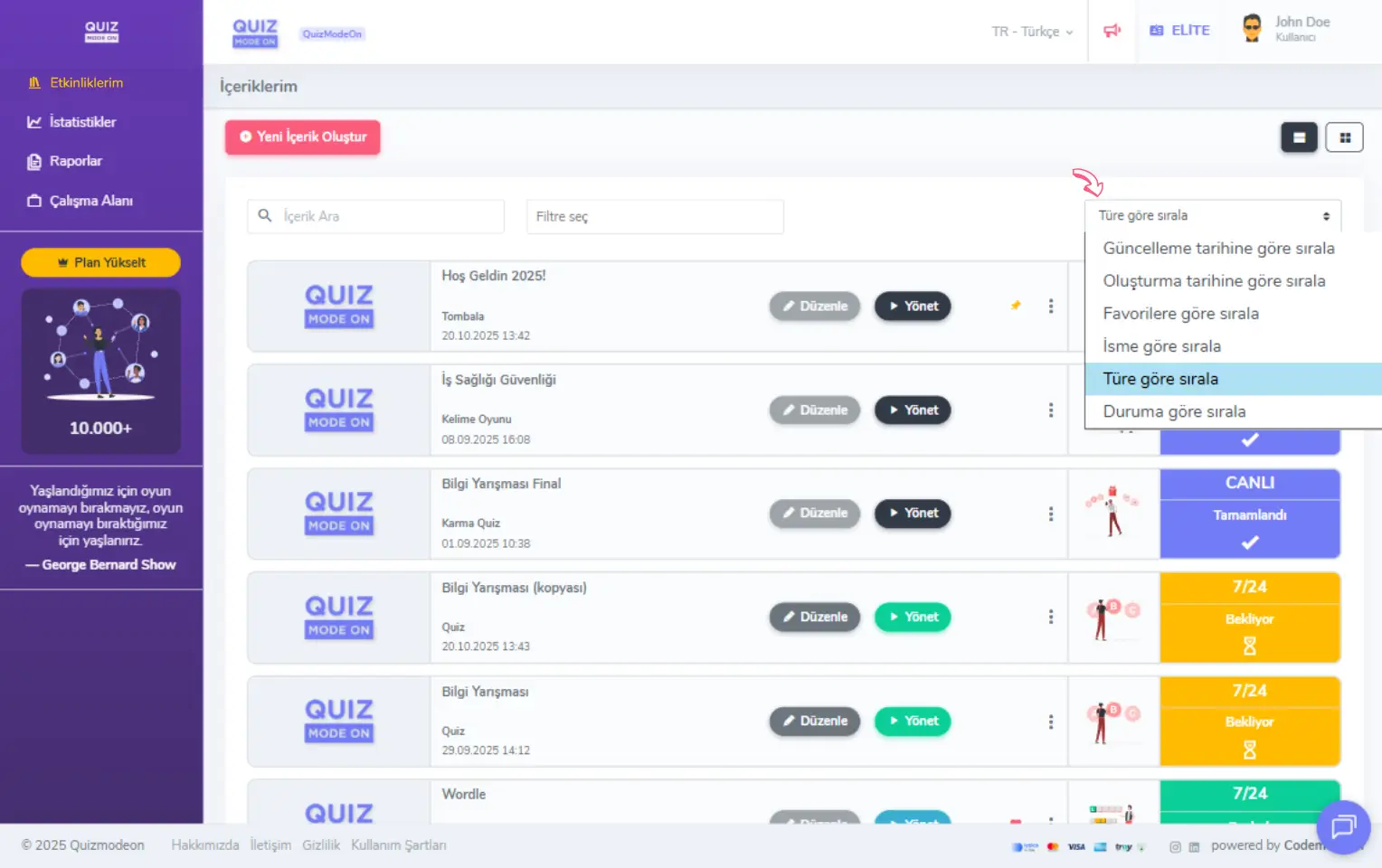
admin member - home page - my events - sorting
Note: Pinned events always stay at the top of the list, whatever the sorting. If you sort by favorites only, favorites appear higher.
Change the list view
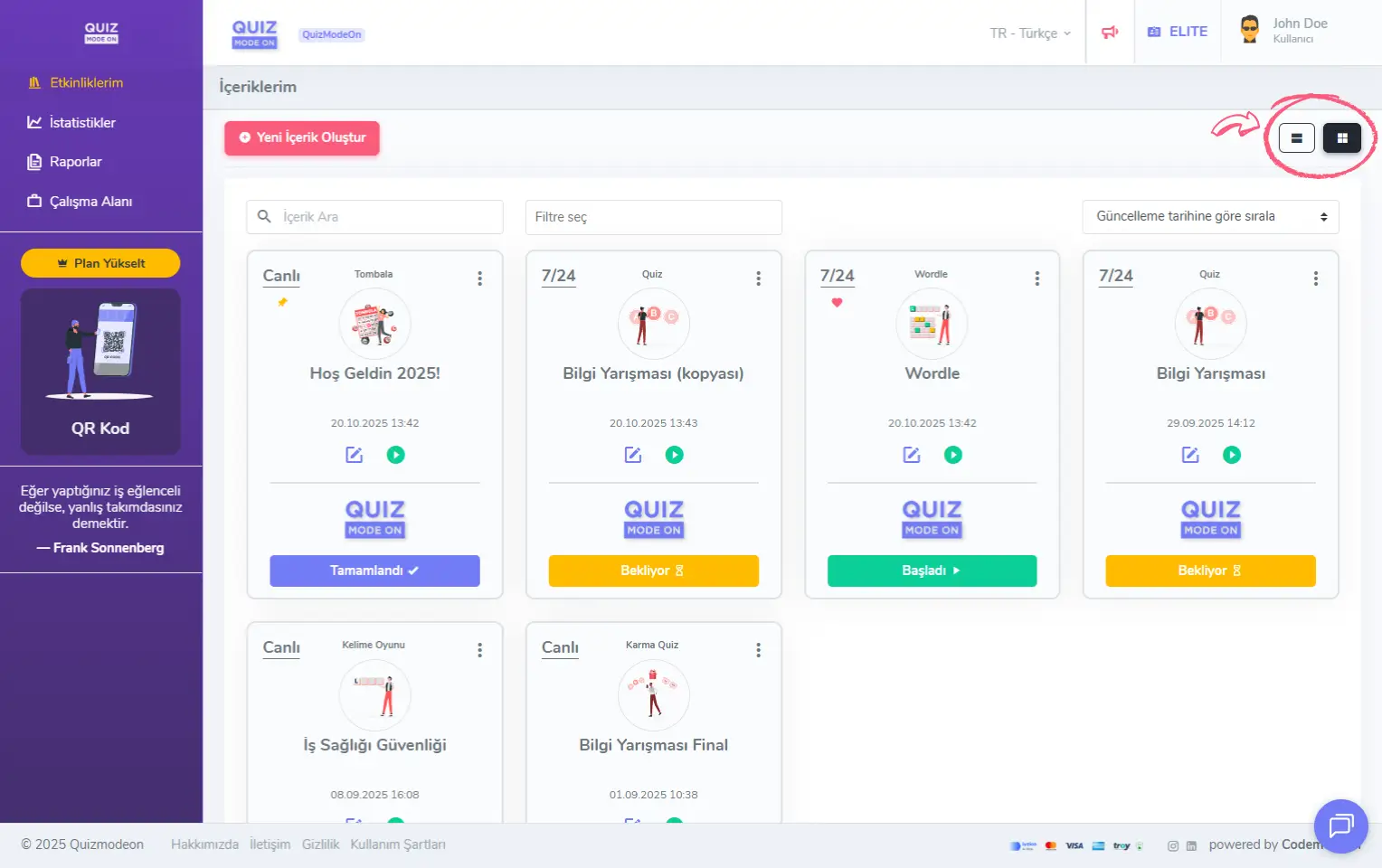
admin member - home page - my events - list and grid view
Click the small square buttons at the top right of the event list to see all your events in a grid layout instead of a list.