How to configure event settings for Lucky Pick
1) Set the event flow
On the Flow tab you can set the event only as live. In a live flow participants can join only at the scheduled time and the event moves forward in sync for everyone.
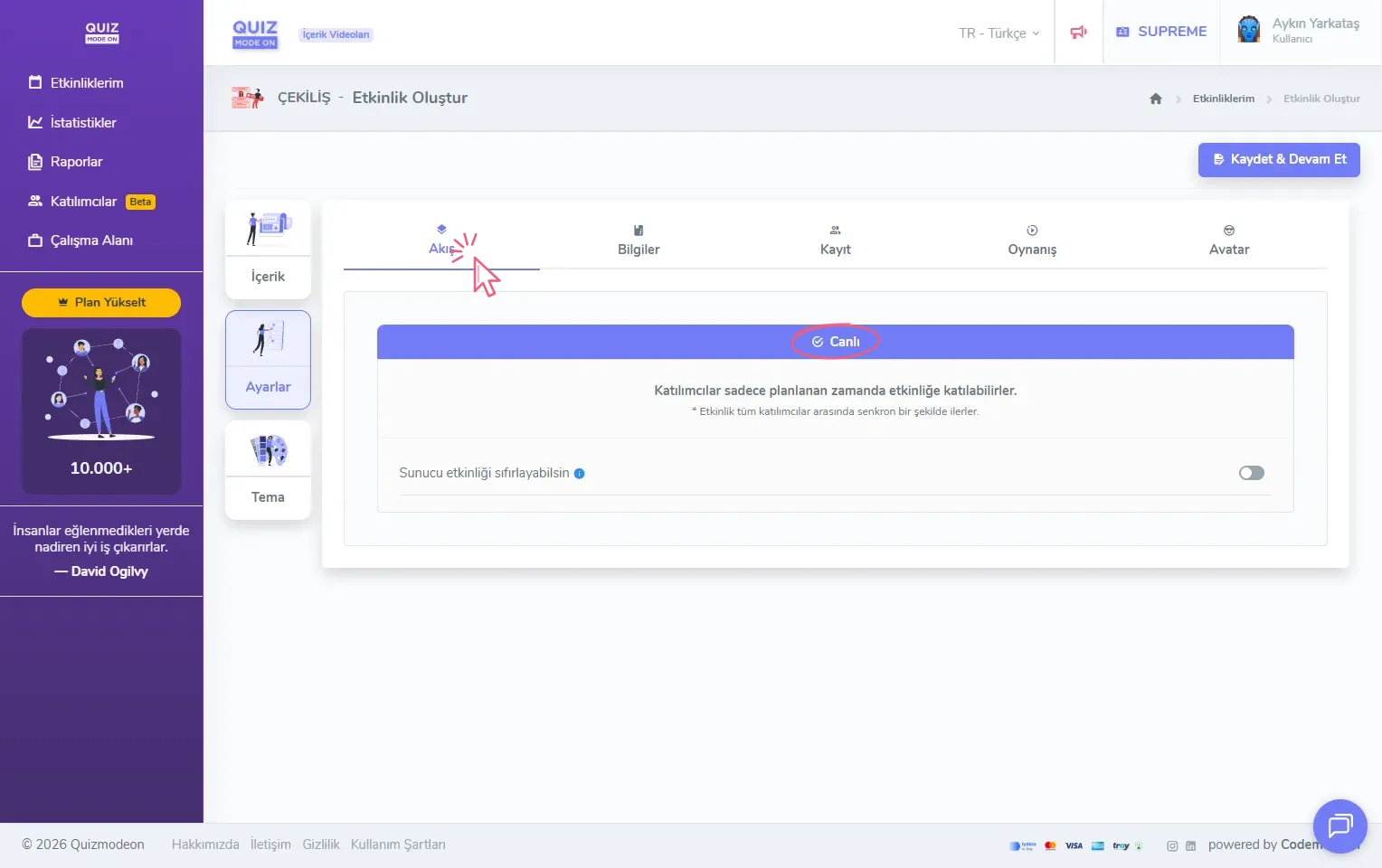
create a lucky pick - settings - event flow - live
Note: The 24/7 event flow is not available for Lucky Pick events. The whole draw is run by the moderator from the presenter page: starting the event, drawing the lucky participants one by one with the New Pick button or starting the automatic draw is all up to the moderator.
If the Let the presenter reset the event option is on, the presenter (moderator) can stop the whole flow during or at the end of the event and return to the very beginning. This option is generally preferred for reasons such as rehearsals and tests.
2) Enter the event information
On the Information tab you can define the participant limit, PIN, label and date settings.
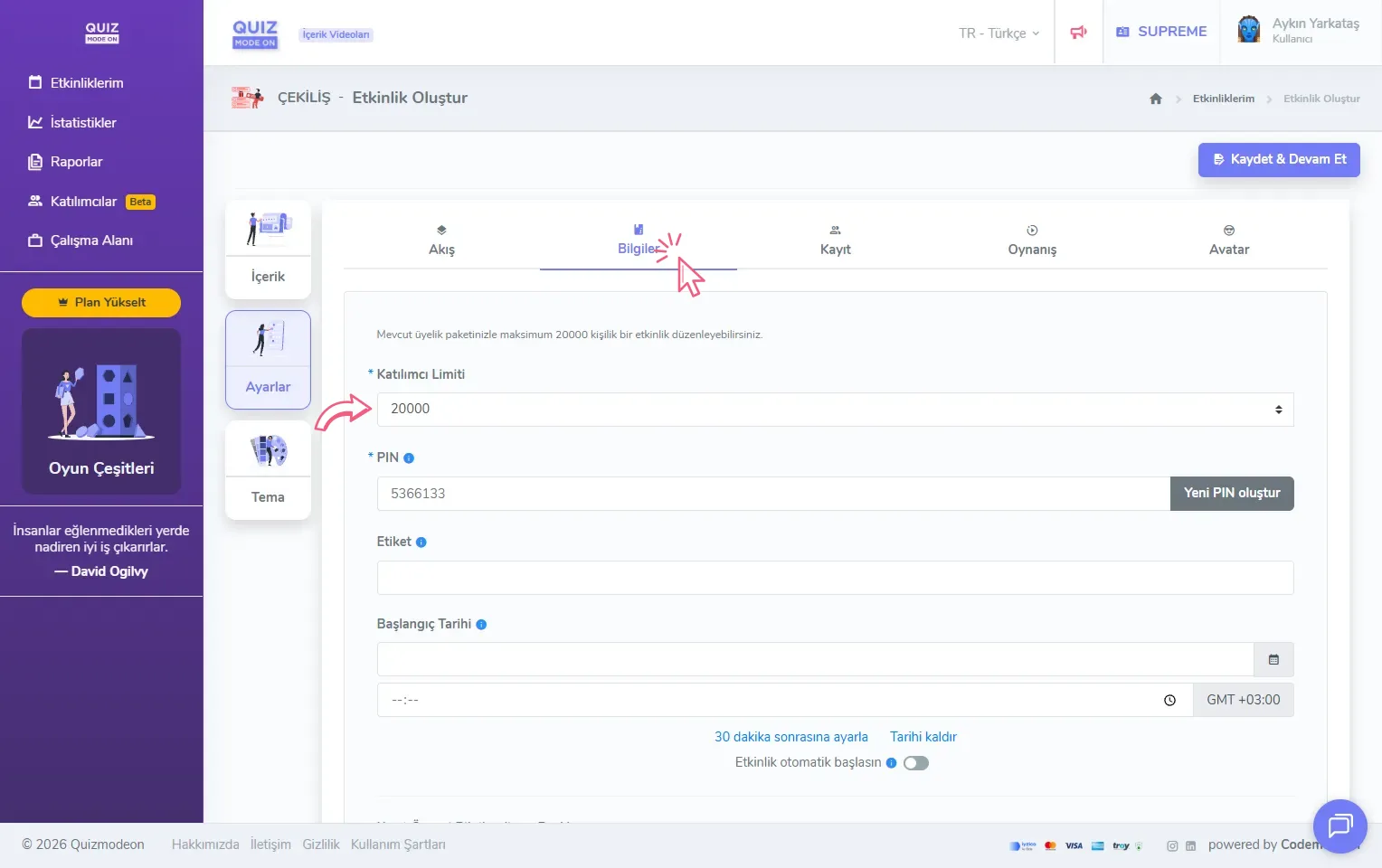
create a lucky pick - settings - general information
The default value of the Participant Limit shows the maximum number of concurrent participants supported by your current membership plan. For example: if your membership allows events for up to 20,000 people, you can set this value to 20,000 or a lower number.
In the PIN section you can set a login code for the event you created. With the Generate a new PIN button, you can have the system set a random PIN code.
Note: Every event must have a unique PIN code. However, for a more practical and user-friendly experience, a quick access link or QR code is usually shared. This way participants go straight to the registration screen without going to the PIN screen.
The few words you enter in the Label field help you search for and find your past events more easily.
In the Start Date field, you can enter the date and time the event will start. The Set to 30 minutes later link quickly moves the start time half an hour ahead, and the Remove date link clears the date you entered. The start date is shown as a countdown both on the moderator screen and on the participants’ lobby screen. It is not a mandatory field.
If you turn the Automatic Start option on, the event starts automatically at the date and time you set.
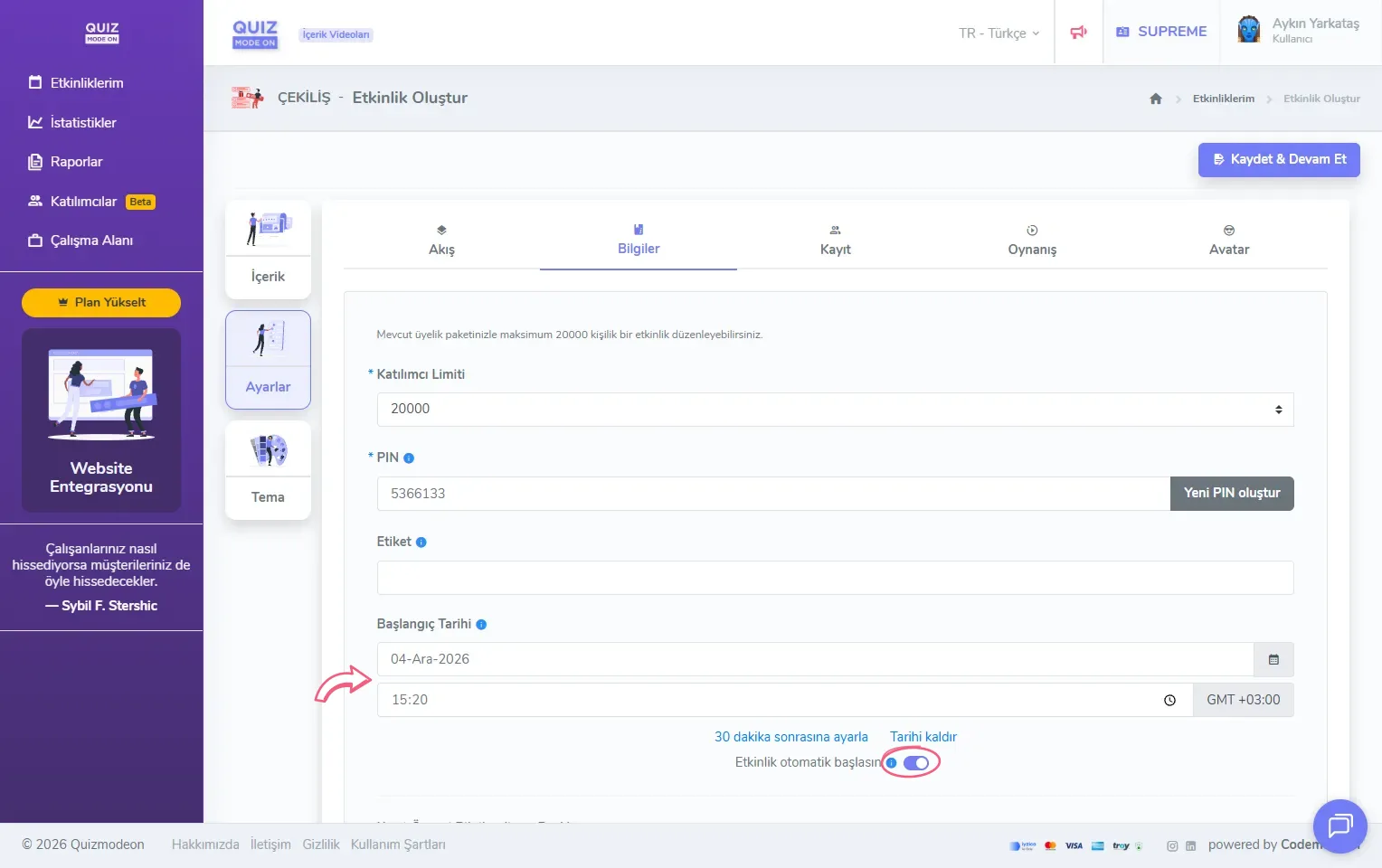
create a lucky pick - settings - general information - auto start - start date
With the information fields at the bottom of the page, you can prepare an announcement that participants see before and after they register:
- Pre-Registration Information Title and Description: Shown in the popup that opens when participants click the information button before completing their registration. For example: who can take part in the draw or how the prizes will be delivered.
- Post-Registration Information Title and Description: Shown in the popup that opens when participants click the information button after completing their registration. For example: the time the draw starts.
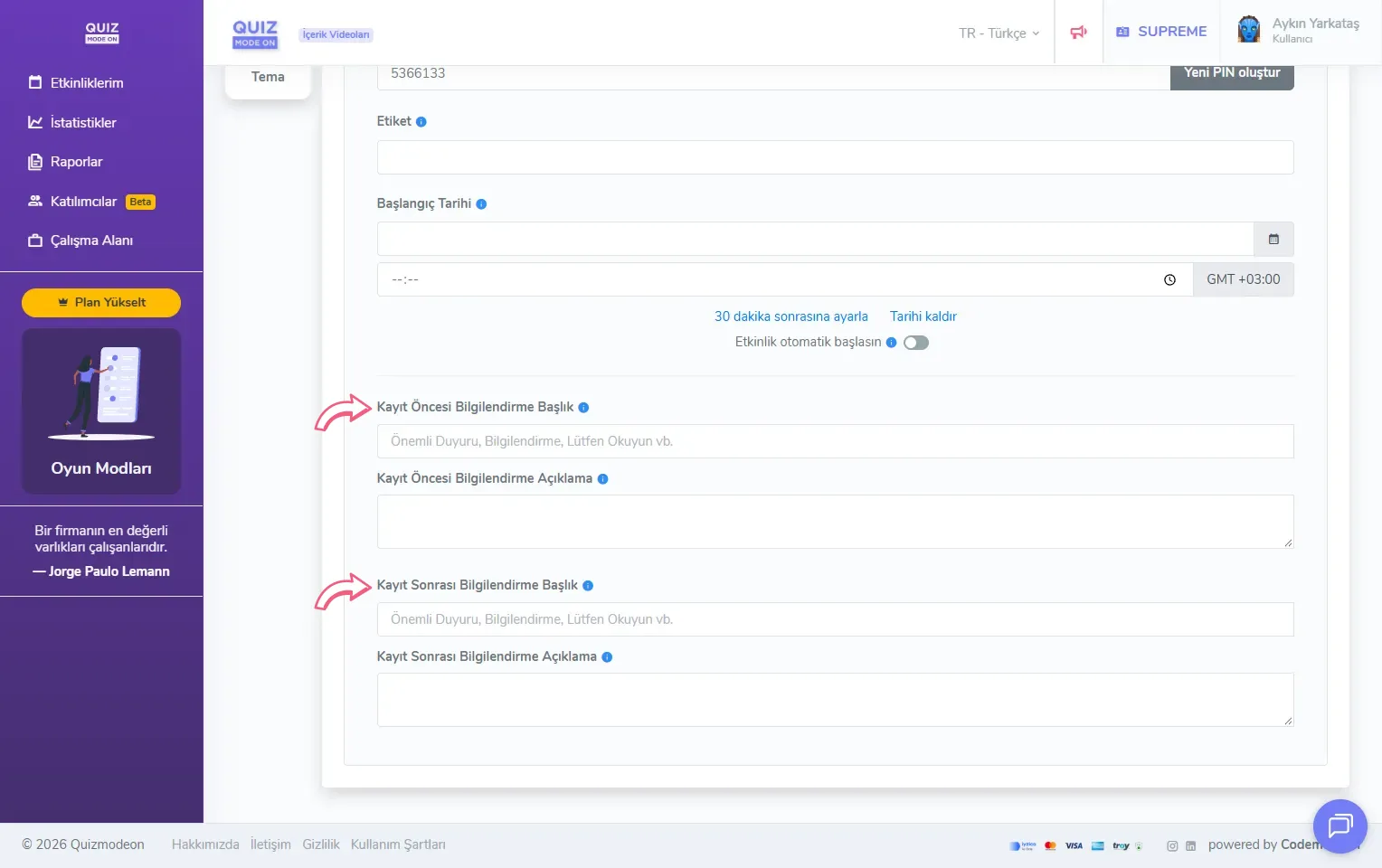
create a lucky pick - settings - general information - pre- and post-registration information
3) Choose who takes part in the draw and set registration
The Registration tab decides which people the draw is made among and which details participants log in with.
Note: If registration is open, new users cannot log in or register once the moderator has started the first draw. Make sure everyone you want in the draw registers before the first draw.
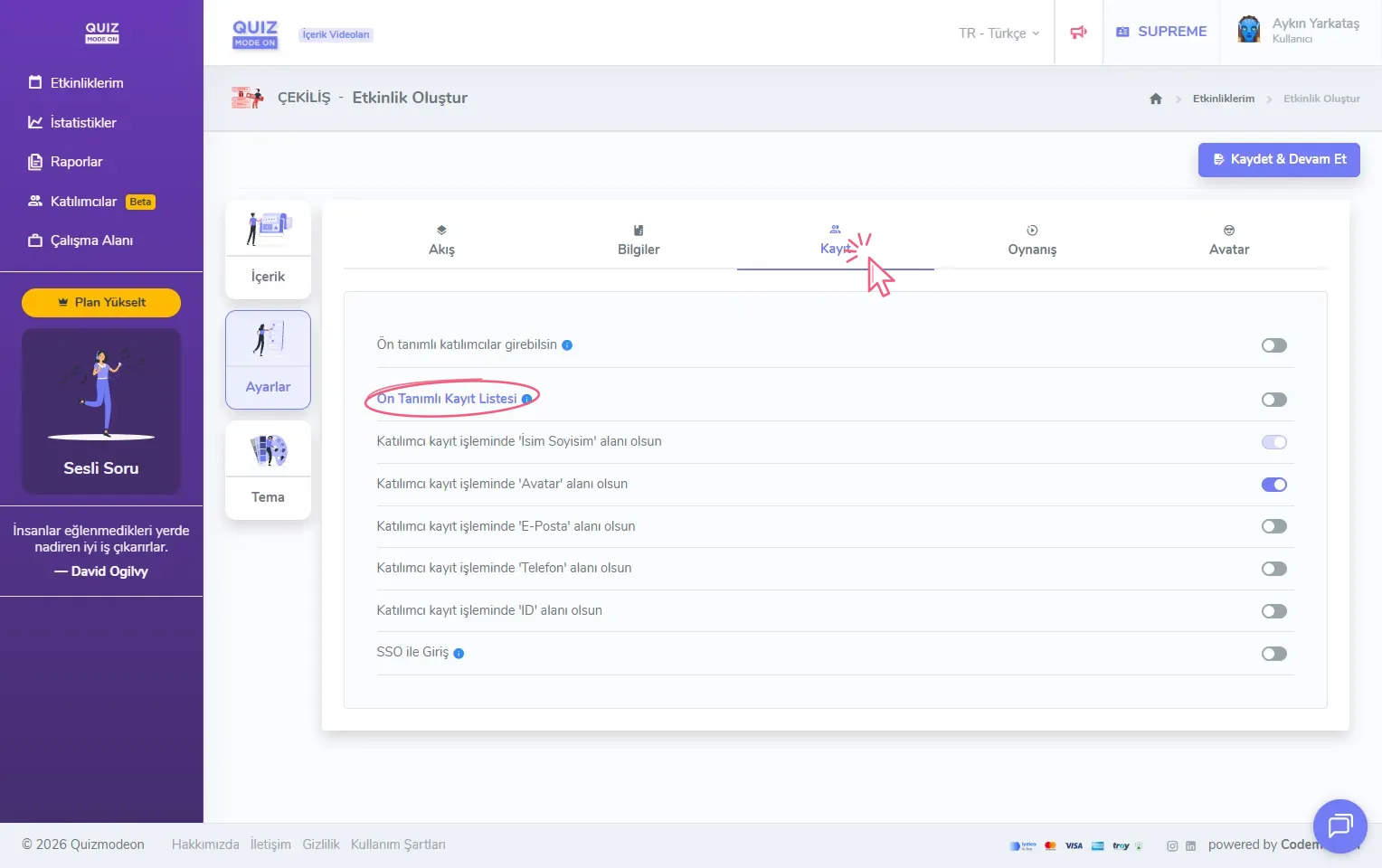
create a lucky pick - settings - registration
Predefined Registration List
The Predefined Registration List is an Excel list you upload for this event only. It contains people’s names together with unique details such as email, phone or ID. In Lucky Pick this list is also the draw pool: once the list is uploaded, everyone on it takes part in the draw, even if they never log in to the event. This way you can draw directly from a list you already have, such as an employee list.
When you turn the option on, you can upload your list with the Upload Predefined Registration List button in the area that opens. When preparing the file, use the format of the sample file from the Download XLSX Sample link. There is also a Predefined Registration List button with the same name at the top left of the Content screen.
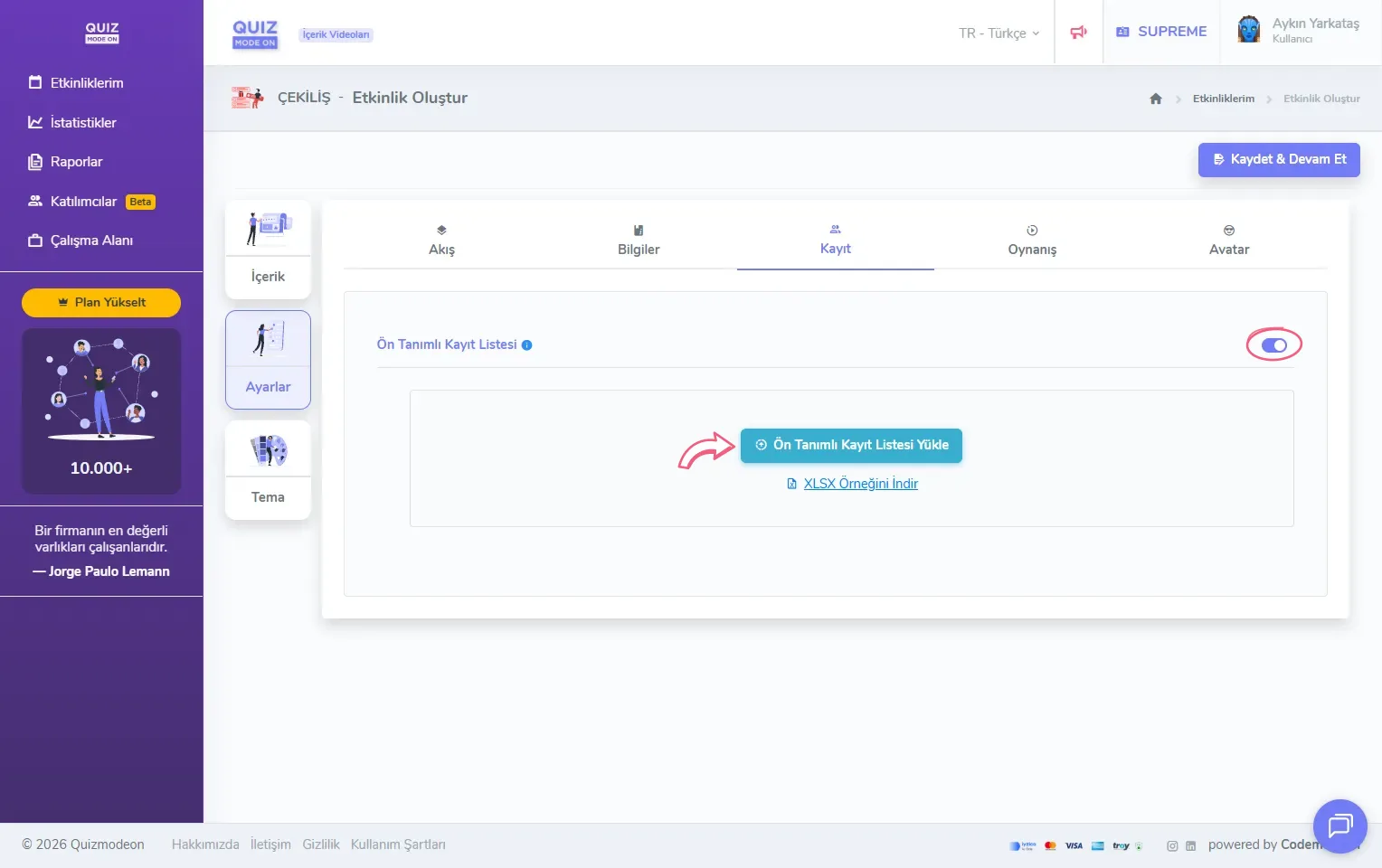
create a lucky pick - settings - registration - predefined registration list
Participants can also log in to the event from their own phones. In that case the detail to be checked against the list must also be turned on in the registration fields. For example: if the list contains people’s email addresses, you should also turn on the ‘Email’ field option below; when a participant registers, the email address they enter is checked against the list. You can use more than one unique field at the same time (for example, email and phone).
Note: The Predefined Registration List is not specific to Lucky Pick; it is available in the settings of every game and event type. The difference in Lucky Pick is that the list is also the pool the winners are drawn from.
Only predefined participants can join
This option is different from the Predefined Registration List. On the Participants page of the portal (participant tracking and analysis), you can upload all the participants of your workspace as one list, independent of any event, and group them. If this option is on, only the predefined participants on that list can log in to the event. Participants are matched by a unique detail such as email, phone number or ID, and the events they join are tracked.
Participant registration details
On the Registration tab you can collect participants’ Name Surname, Avatar, Email, Phone and ID details. The Name Surname field is always on; you can turn on any of the others and set some rules.
Note: Participants cannot leave any of the registration details shown on the login screen empty. Do not forget to take this into account when you ask for one of these details.
When you turn the Email option on, additional options open so you can make more detailed settings.
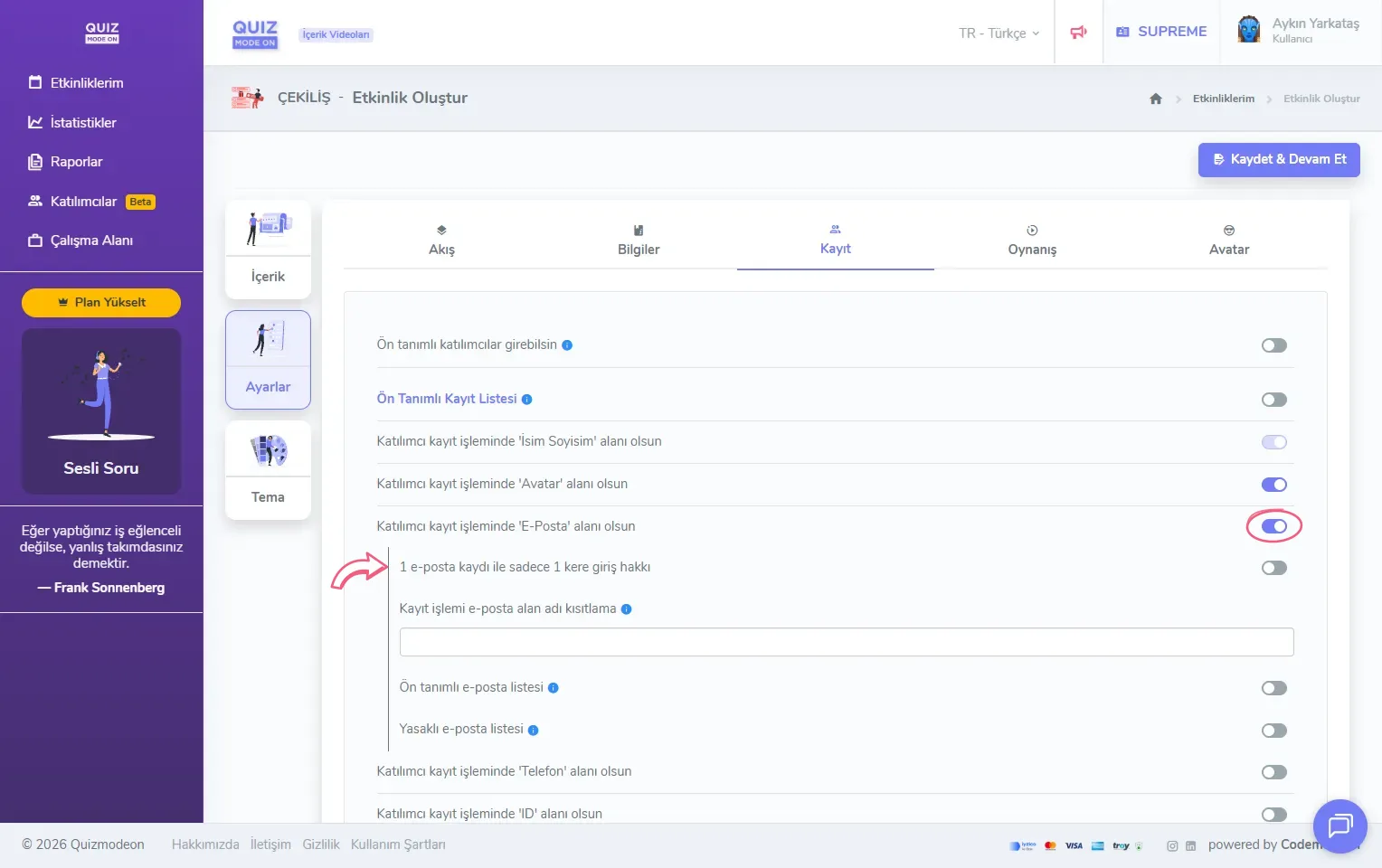
create a lucky pick - settings - registration - email
- Only 1 login right per 1 email registration: The same email address cannot be used to log in again. This way you prevent duplicate registrations.
- Registration email domain restriction: Only participants with the email extension set here can log in to the event. If you want to enter more than one domain, you can add new ones with the “enter” or ”,” keys.
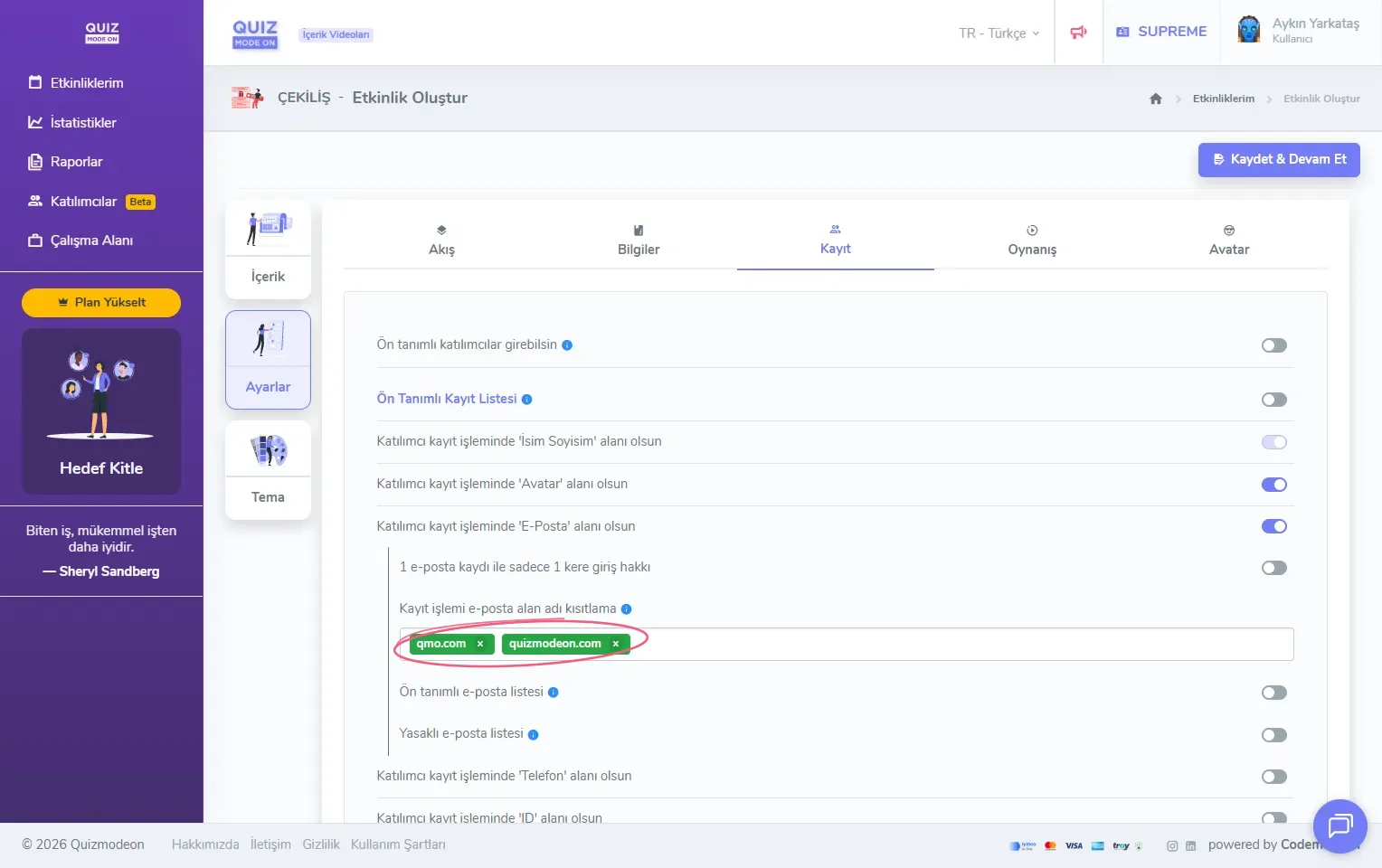
create a lucky pick - settings - registration - email - domain restriction
- Predefined email list: You can upload the email addresses of the people you want to join the event in Excel format. An email address that is not on the list cannot be used to log in.
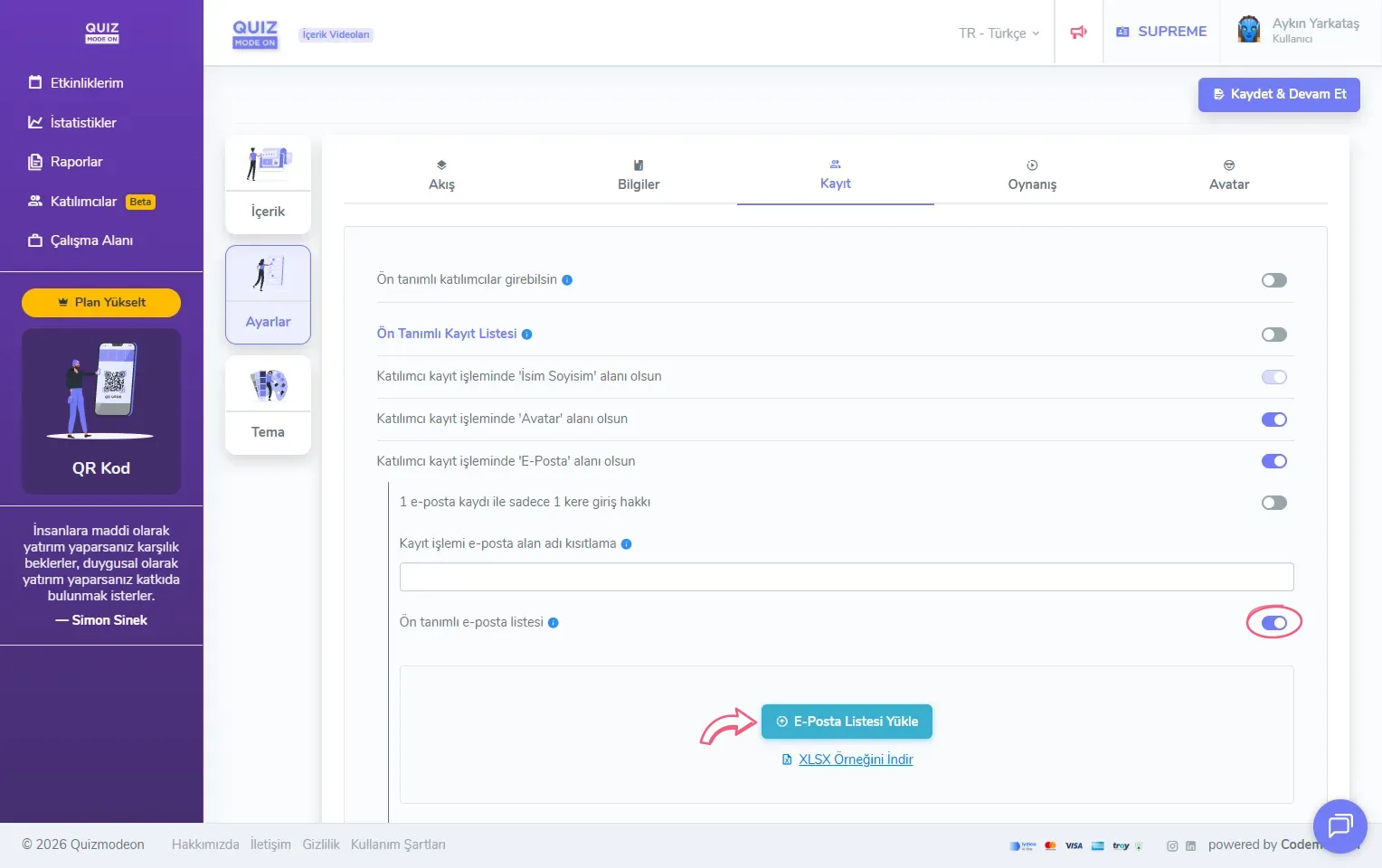
create a lucky pick - settings - registration - email - predefined email list
- Banned email list: You can upload the email addresses of the people you do not want to join the event in Excel format. The email addresses on this list cannot be used to log in.
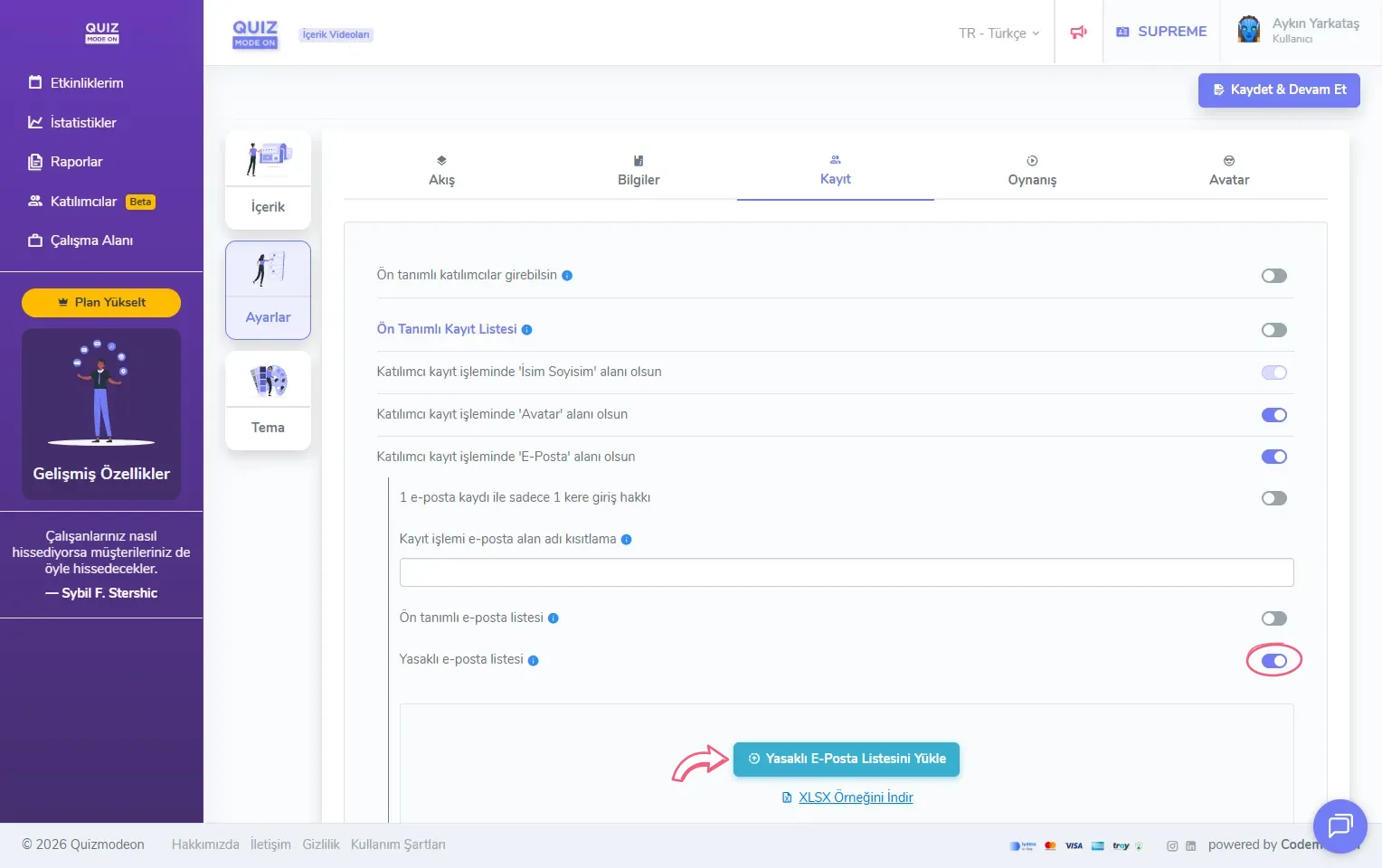
create a lucky pick - settings - registration - email - banned email list
When you turn the Phone option on, additional options open as well.
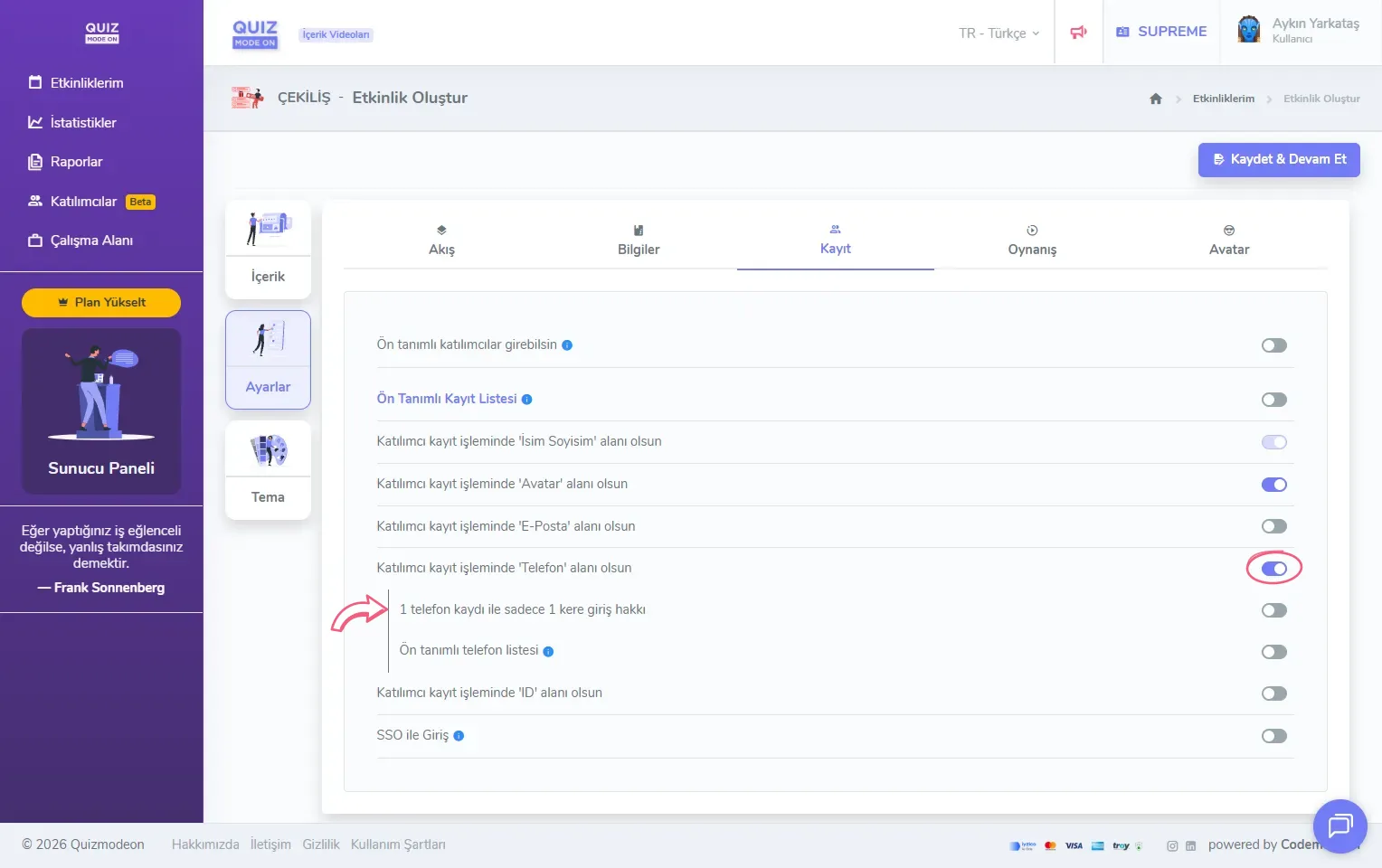
create a lucky pick - settings - registration - phone
- Only 1 login right per 1 phone registration: The same phone number cannot be used to log in again.
- Predefined phone list: You can upload the phone numbers of the people you want to join the event in Excel format. A number that is not on the list cannot be used to log in.
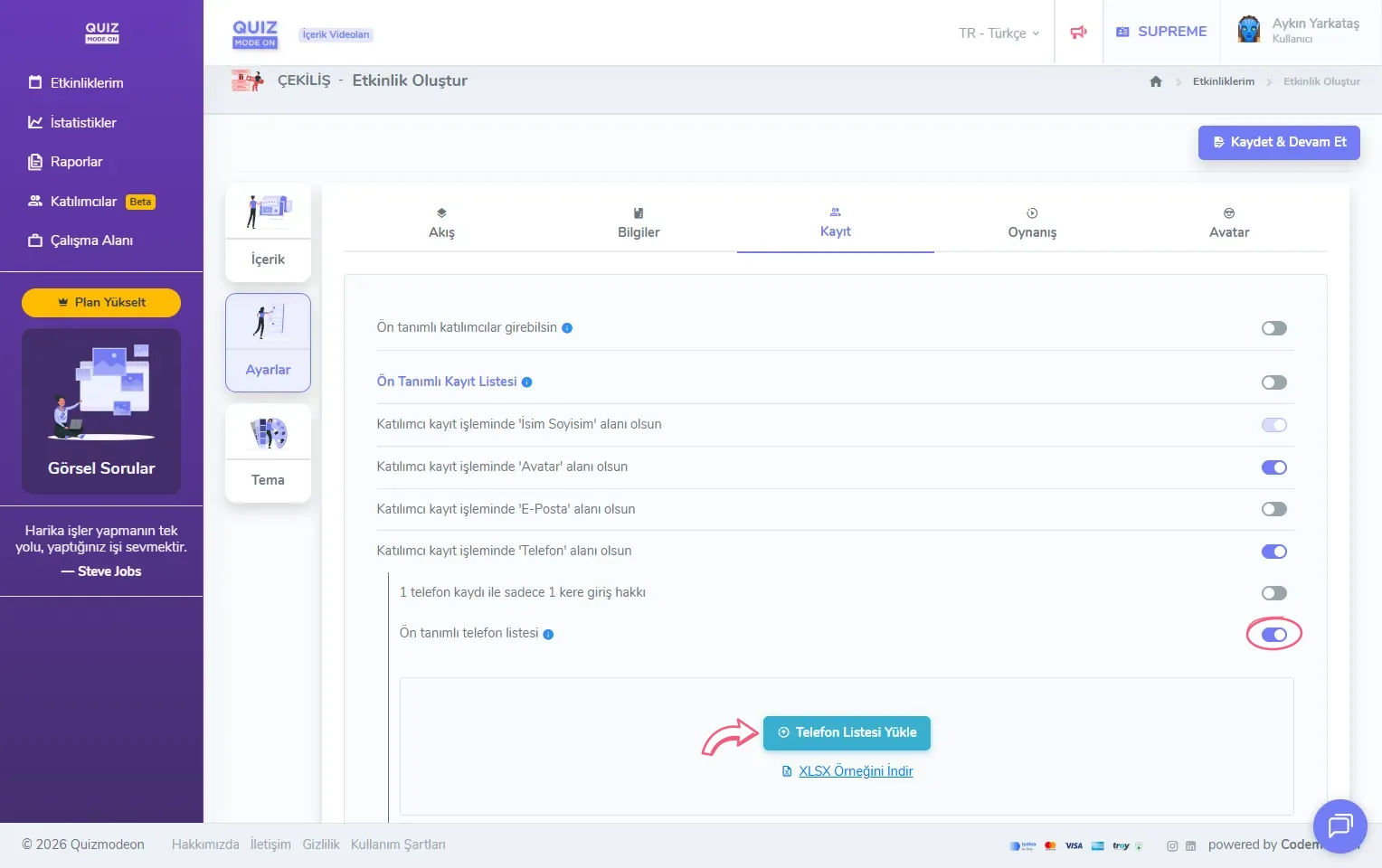
create a lucky pick - settings - registration - phone - predefined phone list
When you turn the ID option on, additional options open as well.
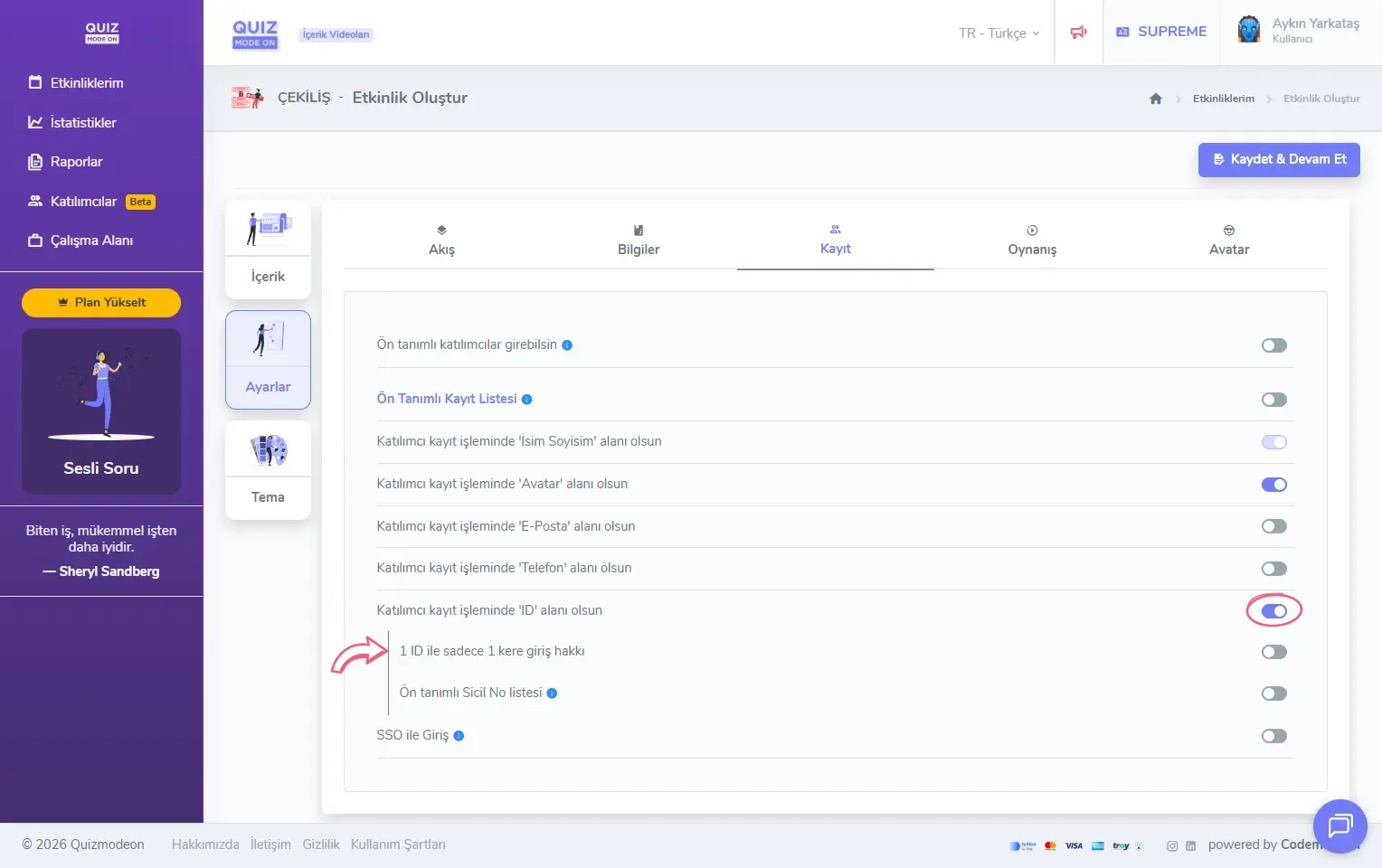
create a lucky pick - settings - registration - ID
- Only 1 login right per 1 ID: The same ID cannot be used to log in again.
- Predefined employee ID list: You can upload the employee IDs of the people you want to join the event in Excel format. An ID that is not on the list cannot be used to log in.
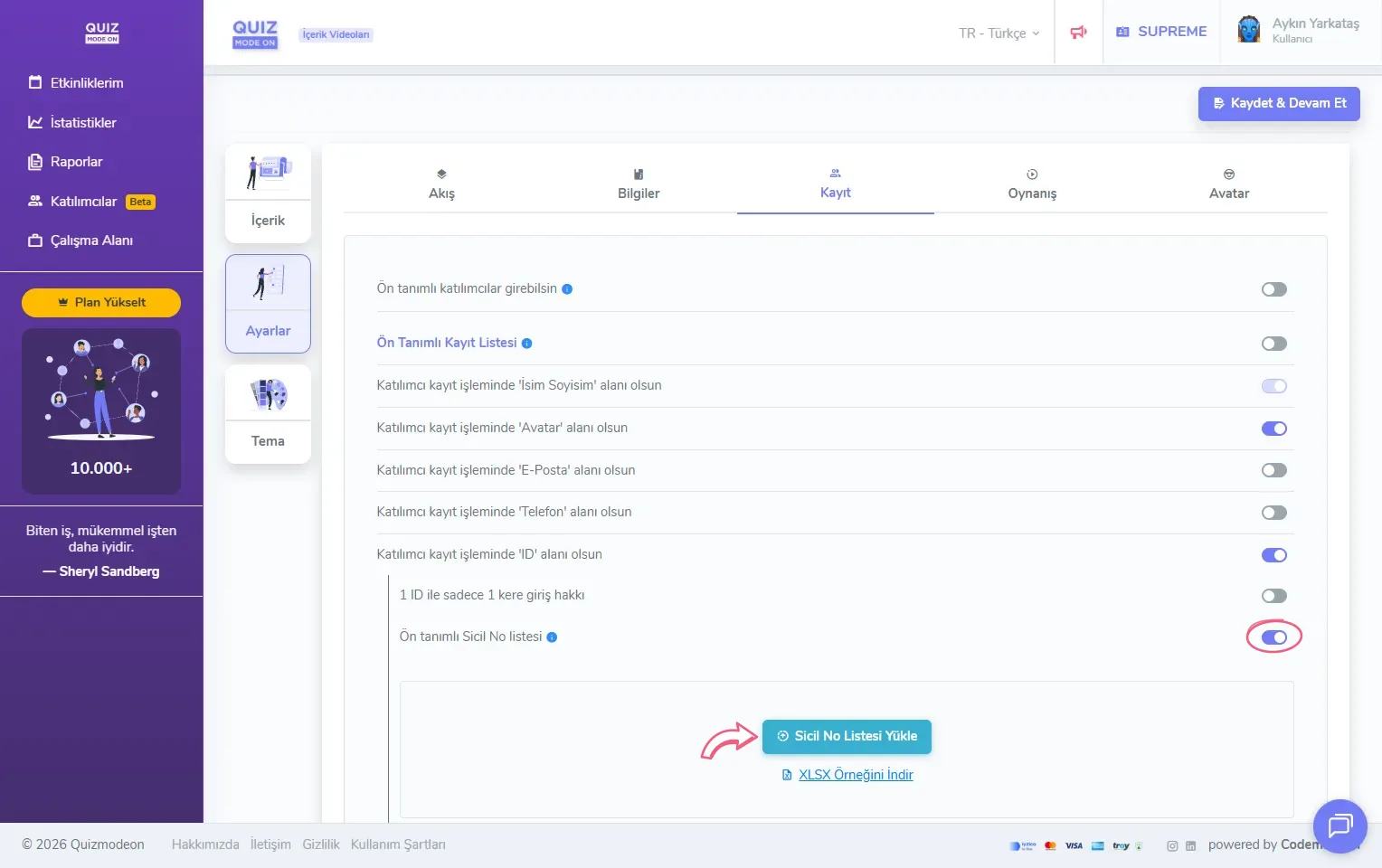
create a lucky pick - settings - registration - ID - predefined employee ID list
If the Login with SSO option is on, participants can log in only with their corporate accounts through single sign-on (SSO), and they are not asked for details such as name and surname. For details, see the SSO participant login page.
4) Update the gameplay settings
The Gameplay tab has only the Round time (seconds) setting. When the moderator runs the draw automatically, this time sets how long one round, that is, drawing all the lucky participants of one prize, takes. The default value is 10 seconds; you can change it with the + and - buttons.
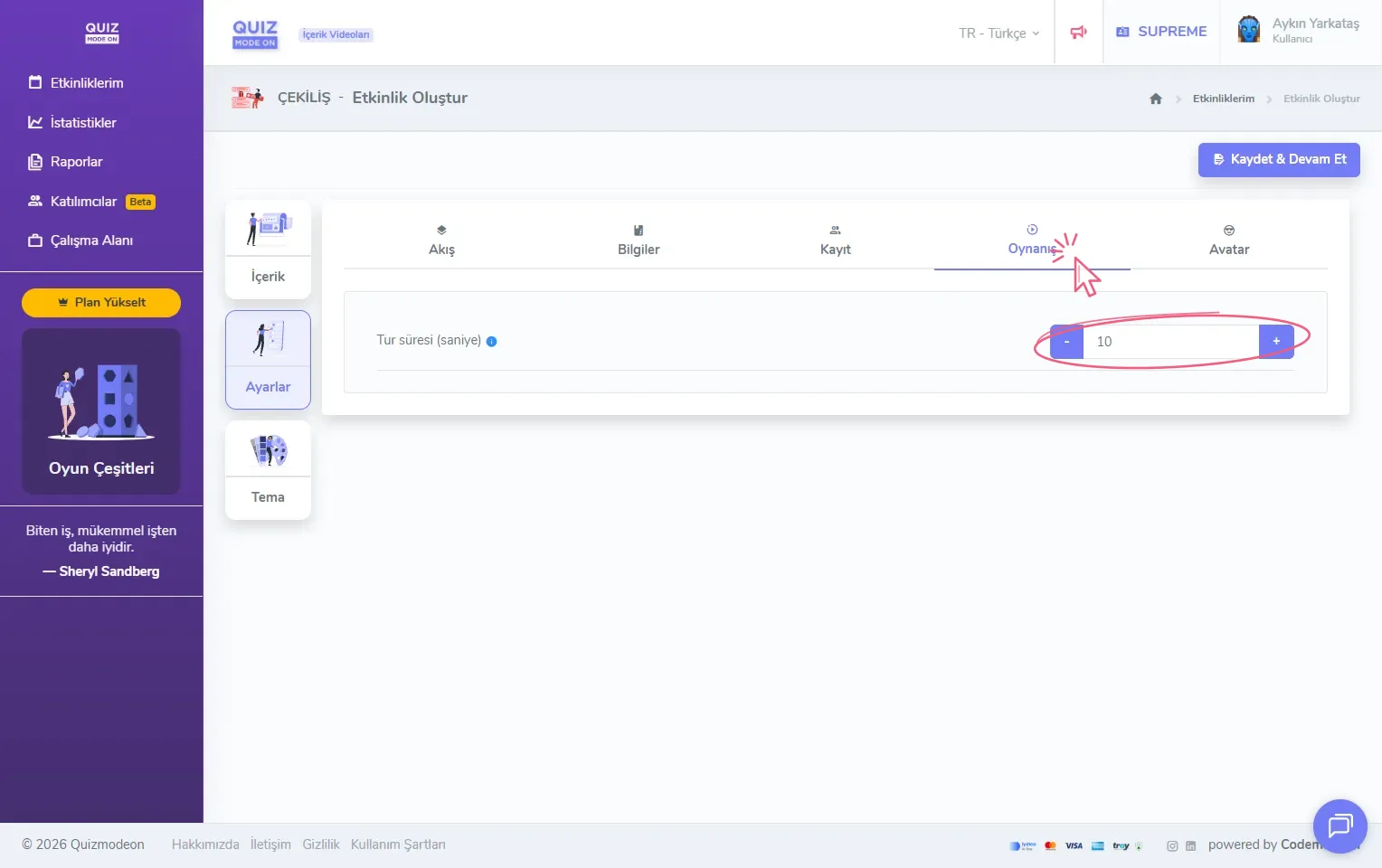
create a lucky pick - settings - gameplay - round time
Note: If the moderator draws the lucky participants one by one with the New Pick button, the round time is not used; the pace of the draw is fully in the moderator’s hands. In draws with many prizes, the automatic draw saves time.
5) Choose one of the avatar sets
On the Avatar tab you can look through the avatar sets participants can choose from on the login screen and pick one of them. With the View button you can see all the avatars in a set, and with the Select button you choose that avatar set.
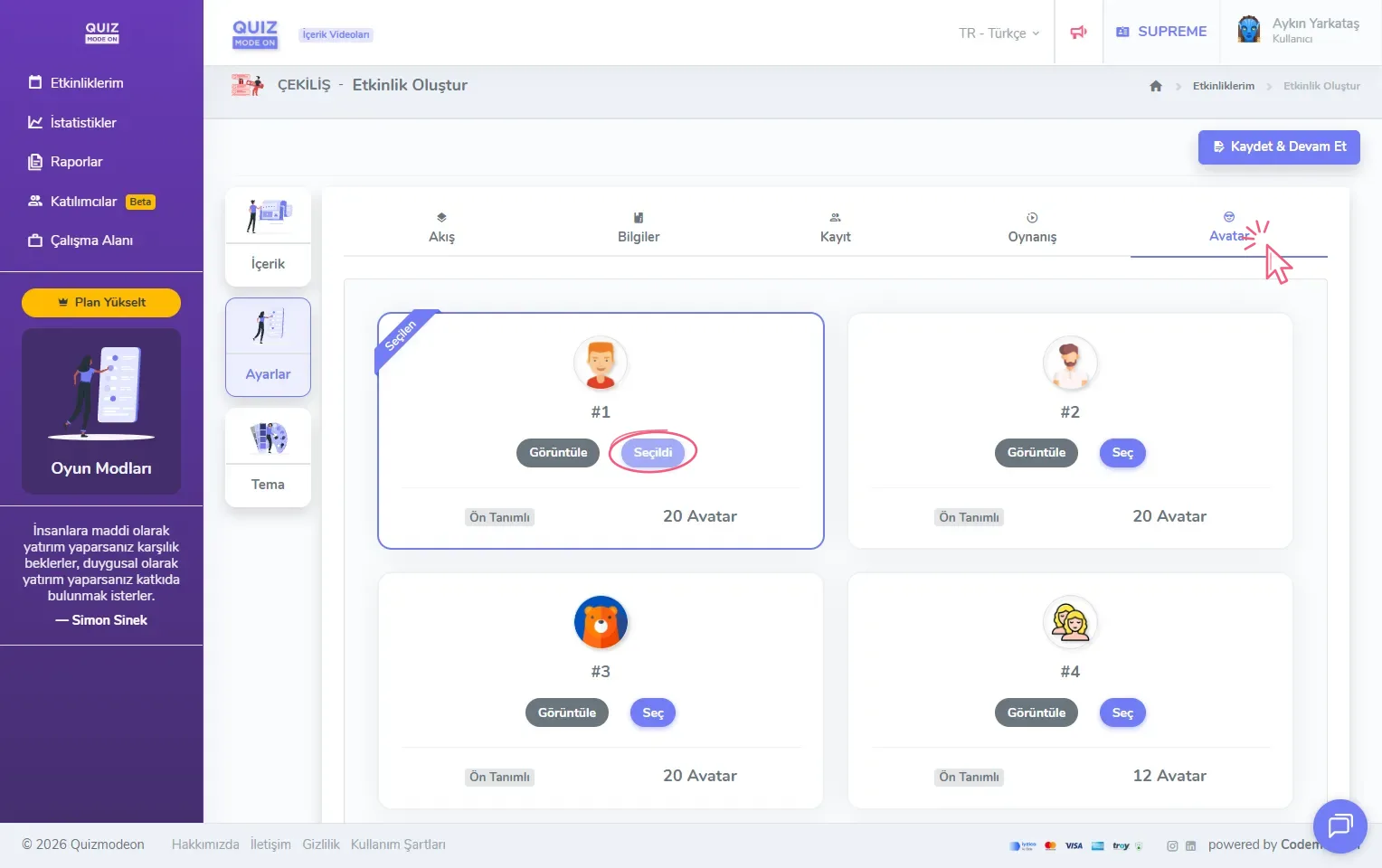
create a lucky pick - settings - avatar set selection