Review your end-of-event reports
Event reports are detailed reports that record the participant data of each event. All reports can be viewed only by the admin (member).
Review and evaluate the results
You can open reports in 2 different ways.
- When the event is finished, click the Download Report button on the Event Management page.
- Click the Reports link in the left panel, then click the 📑 report icon under the relevant event.
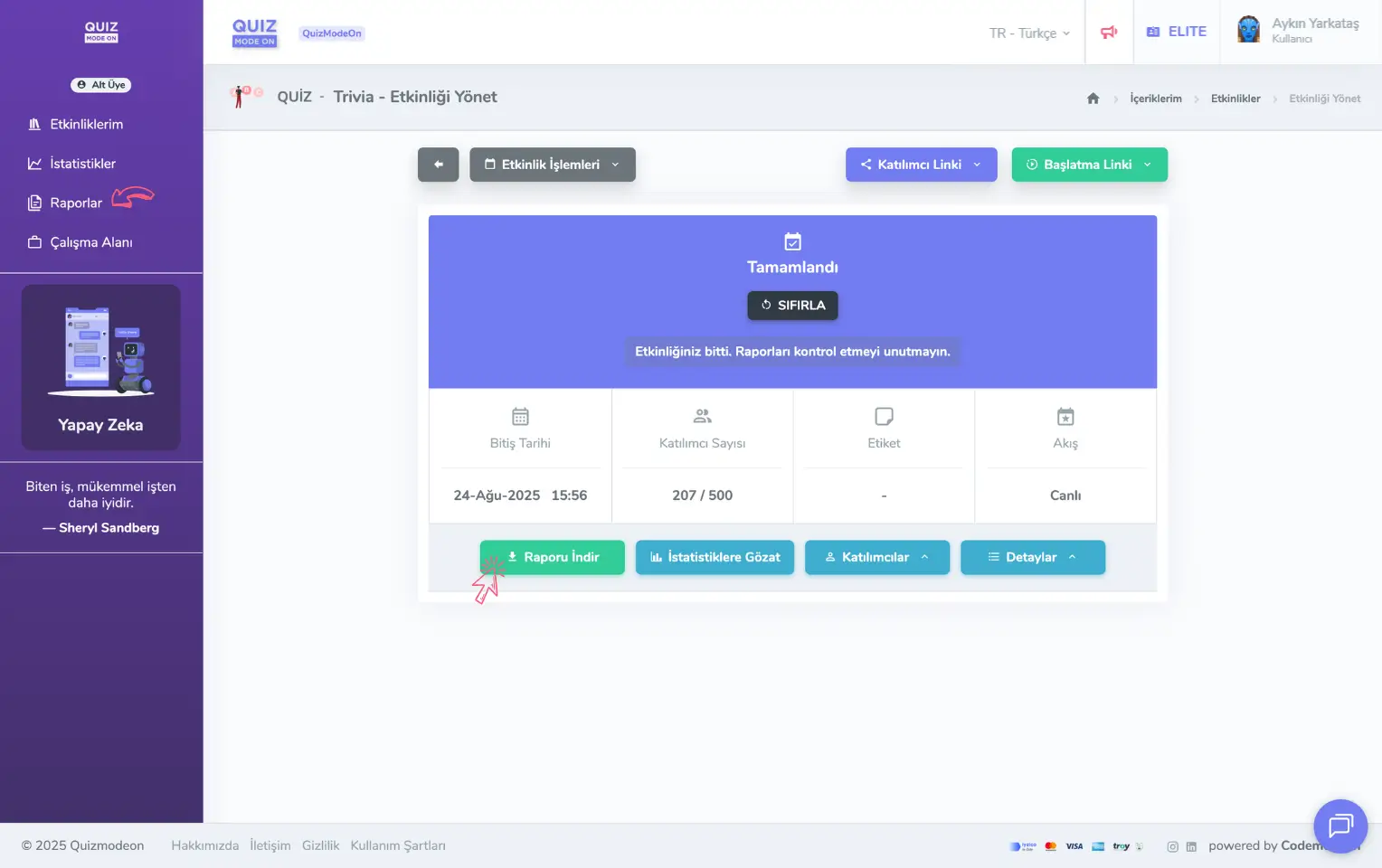
admin member - events - event management - downloading the report
Note #1: From the Reports link in the left panel, you can open the reports of every event you have run so far. If you want to find the reports of a specific event faster, you can also look at them from the Event Management page.
Note #2: After an event is finished, you can reset and start it again. In that case, you get reports for the same event over time. To look at previous reports, click the Details button on the Event Management page and select the View Previous Reports link.
Check the statistics for a quick evaluation
For events such as Quiz, Poll and Guess What, different Statistics are generated at the end of the event depending on the event type. These statistics are generally shown as bar charts, stacked column charts and pie charts.
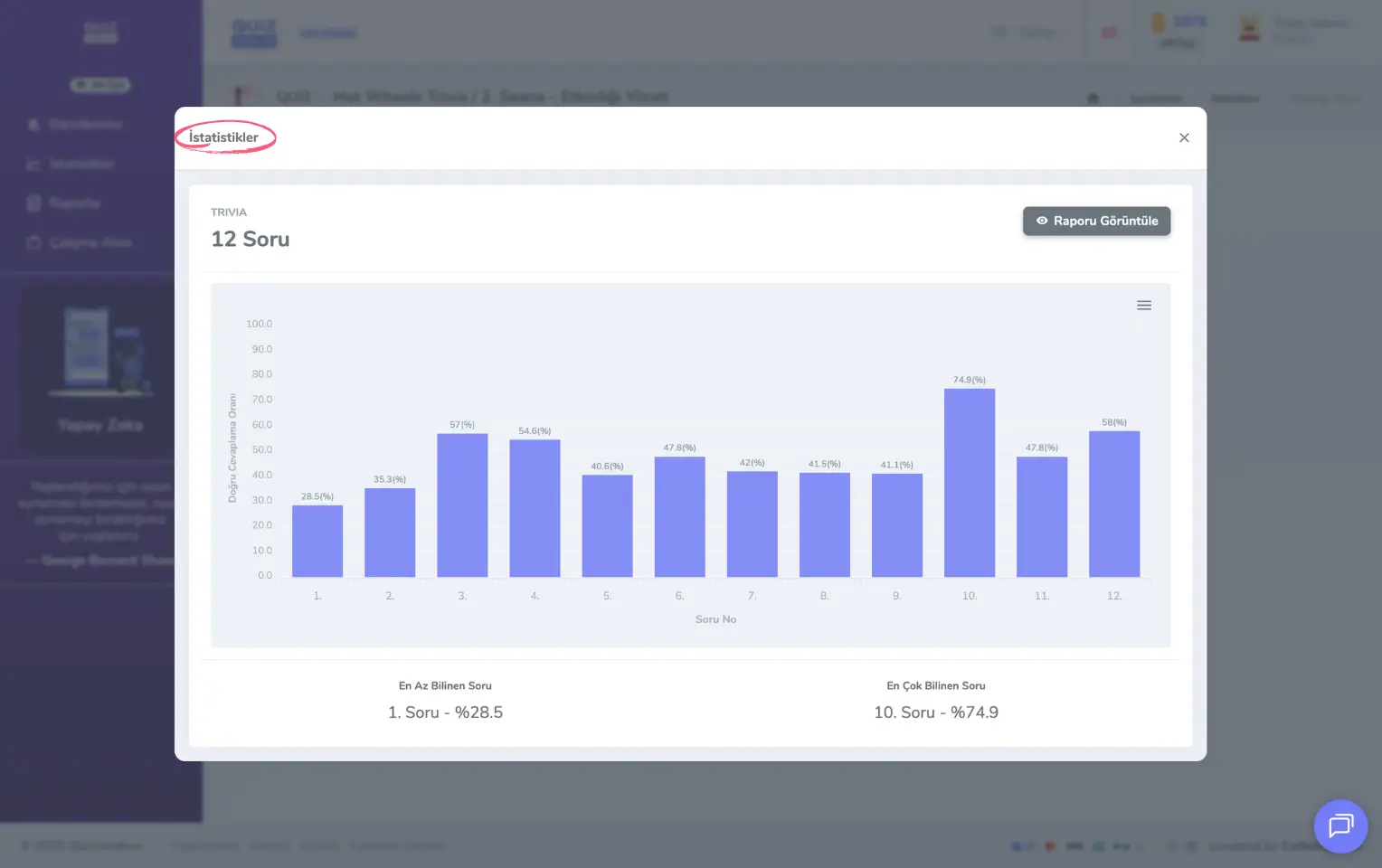
admin member - events - event management - statistics
You can open the statistics in 2 different ways.
- When the event is finished, click the View Statistics button on the Event Management page.
- Click the Reports link in the left panel, then click the 📊 chart icon under the relevant event.
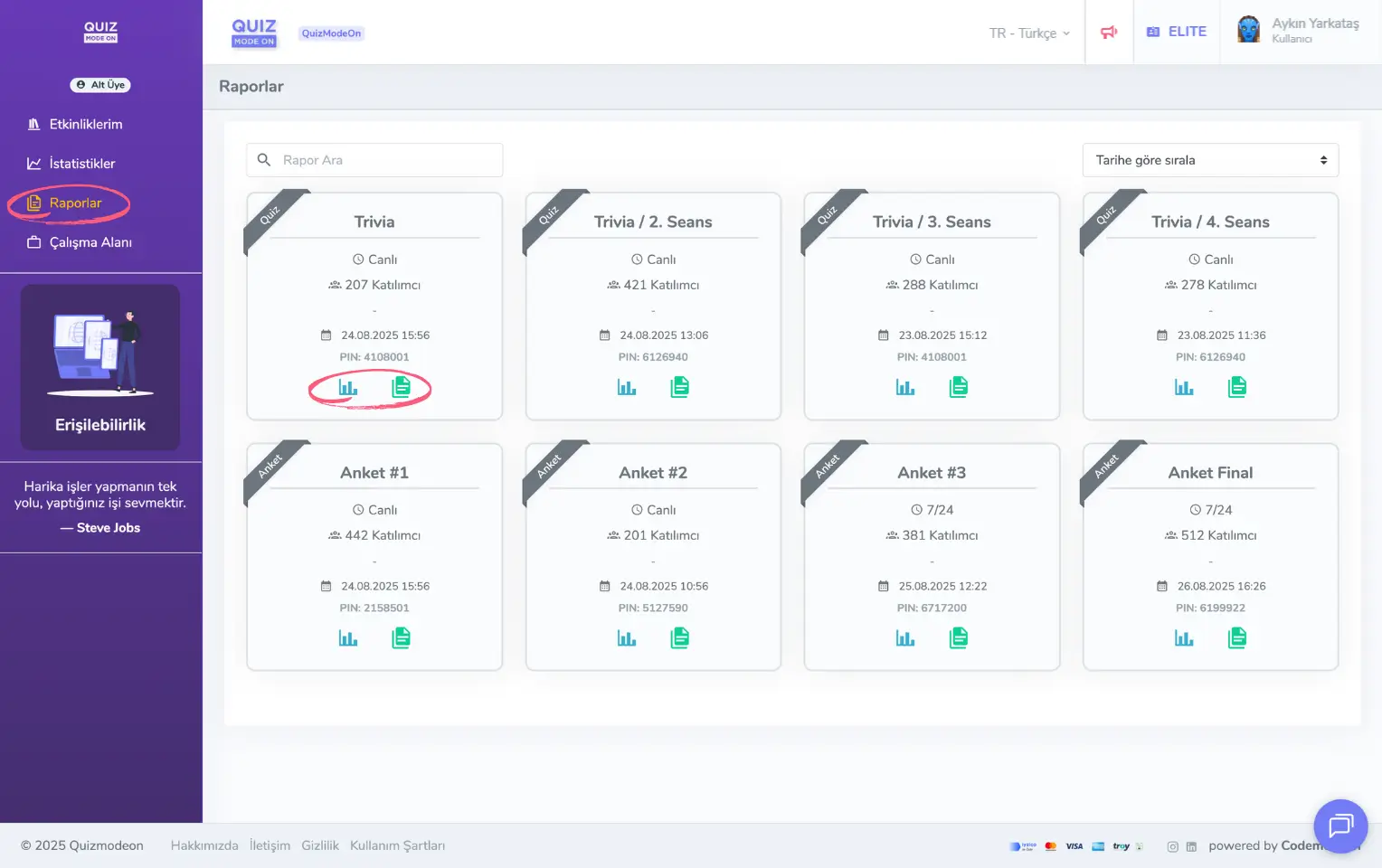
admin member - left menu - reports