Create your first event
Create a new event
After you sign up for the portal, you are taken to the My Events page.
To create one of the 20 different event and game types, first click the Create New Event button at the top left of the My Events page.
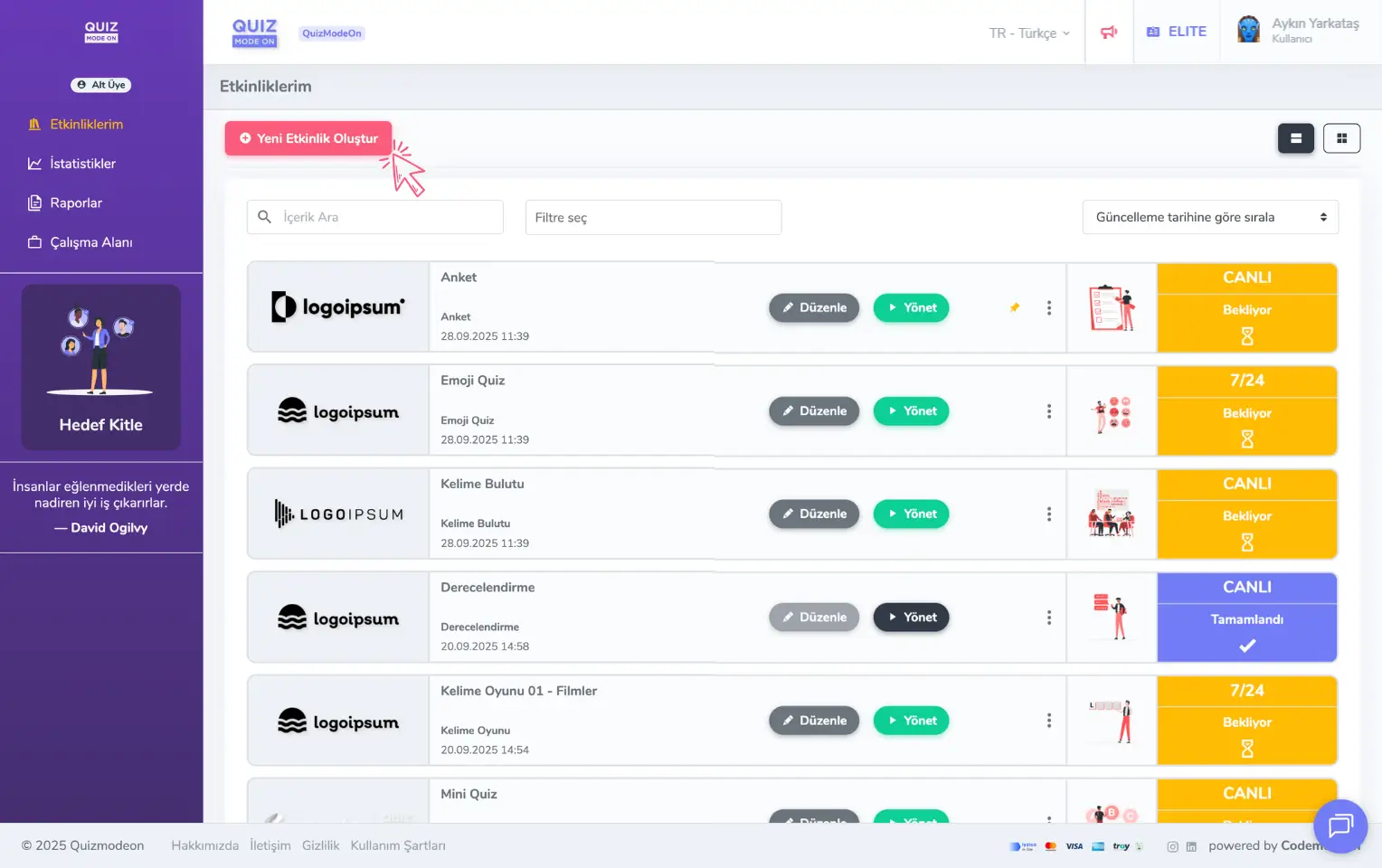
admin member - home page - my events - create a new event
Choose Create from Scratch or Start from a Template to continue.
- Create from Scratch: Use this option if you want to produce content made specifically for your event. You can write your content yourself or upload it from a file.
- Start from a Template: The QuizModeOn content library has ready-made content for each event type. If you want to create a general-purpose event quickly, you can pick one of the templates.
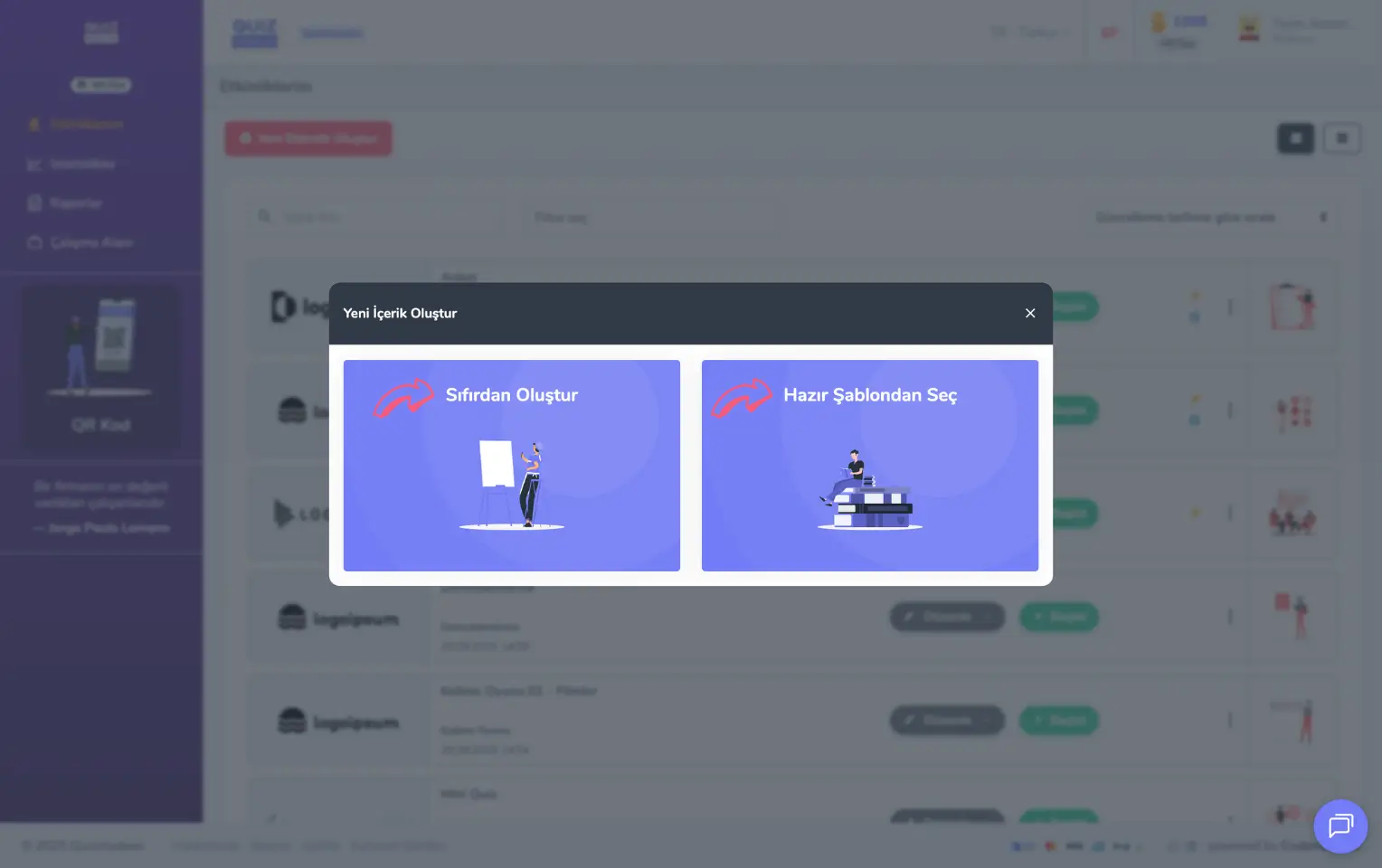
admin member - home page - my events - new event - from scratch or from a template
Note: If you already have planned content prepared, creating the event from scratch may be a better choice than picking a template.
Create an event from scratch
You can choose one of 20 different events or games, such as Quiz, Poll, Word Cloud, Taboo, Draw It, Guess What, Spin Wheel, Rating and Open-Ended.
Create an event from a template
Pick the event type you want from the content library. Use the Content Type field at the top right to filter the content. Use the Categories area on the left to browse content in different categories. Type a few words in the Search box at the top to find the events you are looking for quickly.
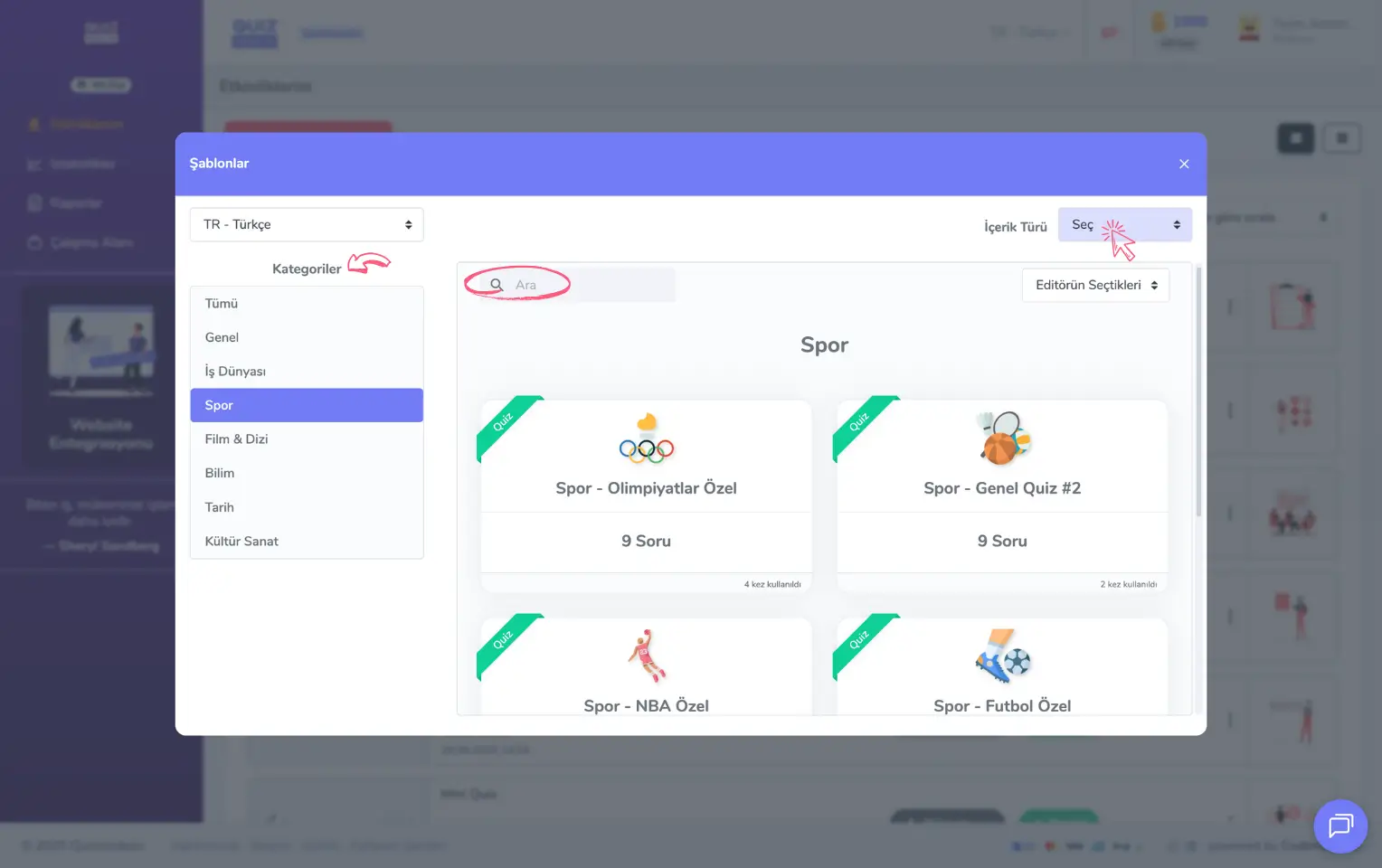
admin member - home page - my events - create a new event - ready-made content templates
Customize your event in 3 steps
You can update the content, settings and theme of the events you create.
1) Content
Create the content for your event. If it is a quiz, write the questions and answers and select the correct answers. If it is a Taboo game, create and add the Taboo cards.
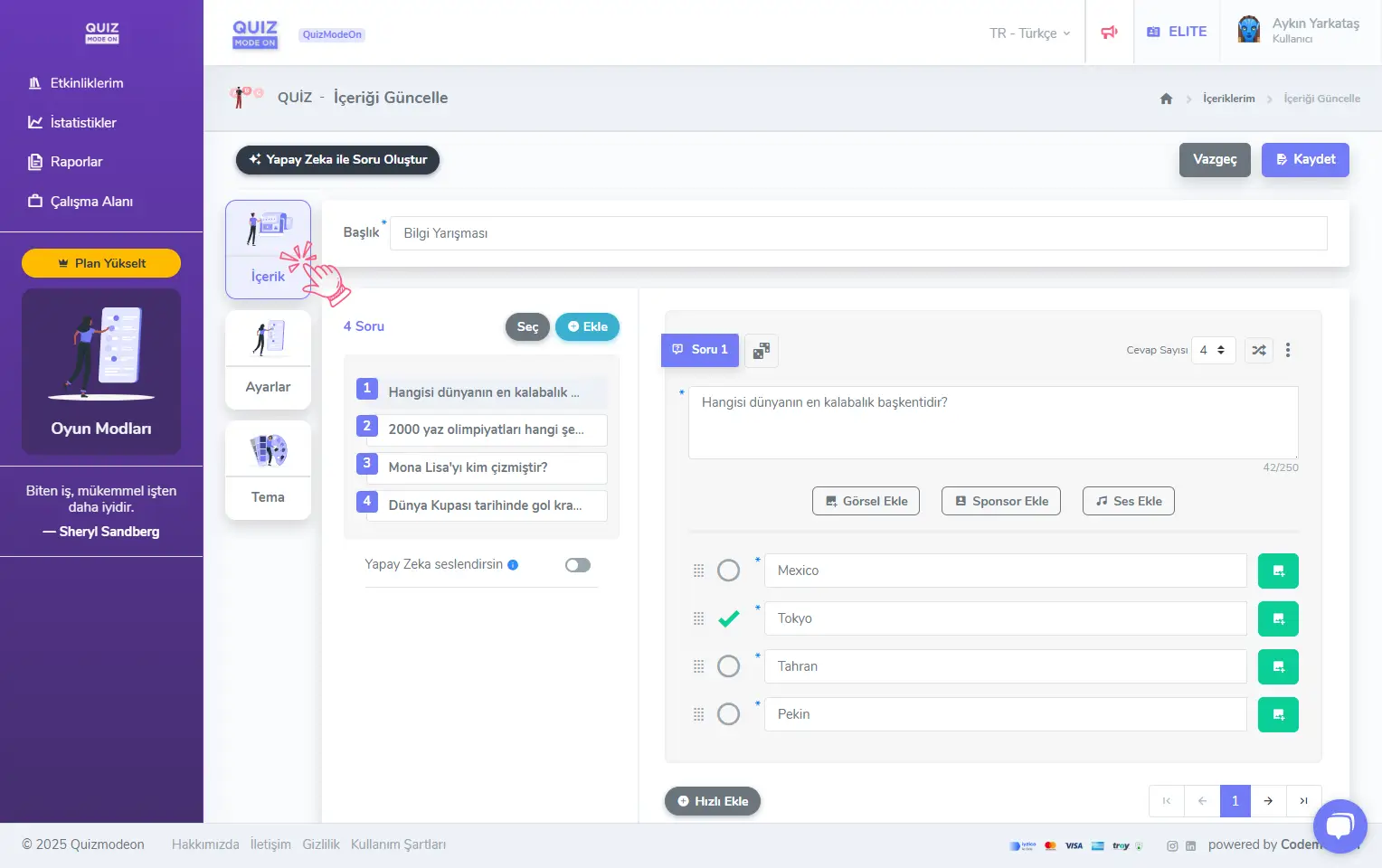
admin member - new event - content
2) Settings
Define settings such as the event flow type, general information, participant registration, avatar set and gameplay.
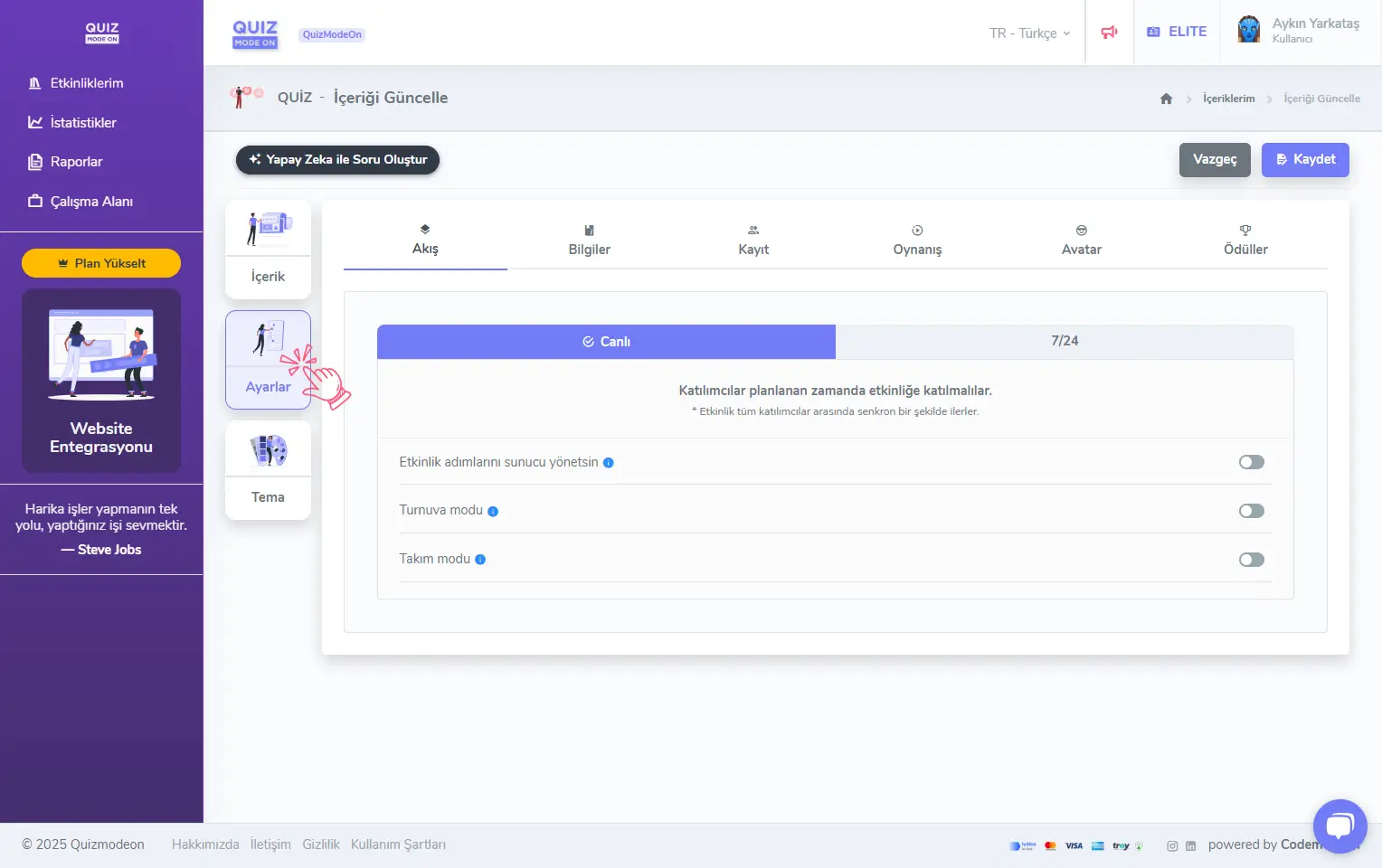
admin member - new event - settings
3) Theme
Customize the look of your event with visual settings such as colors, background and logo, and create a tailored experience for your users. Some features are available only to ENTERPRISE members.
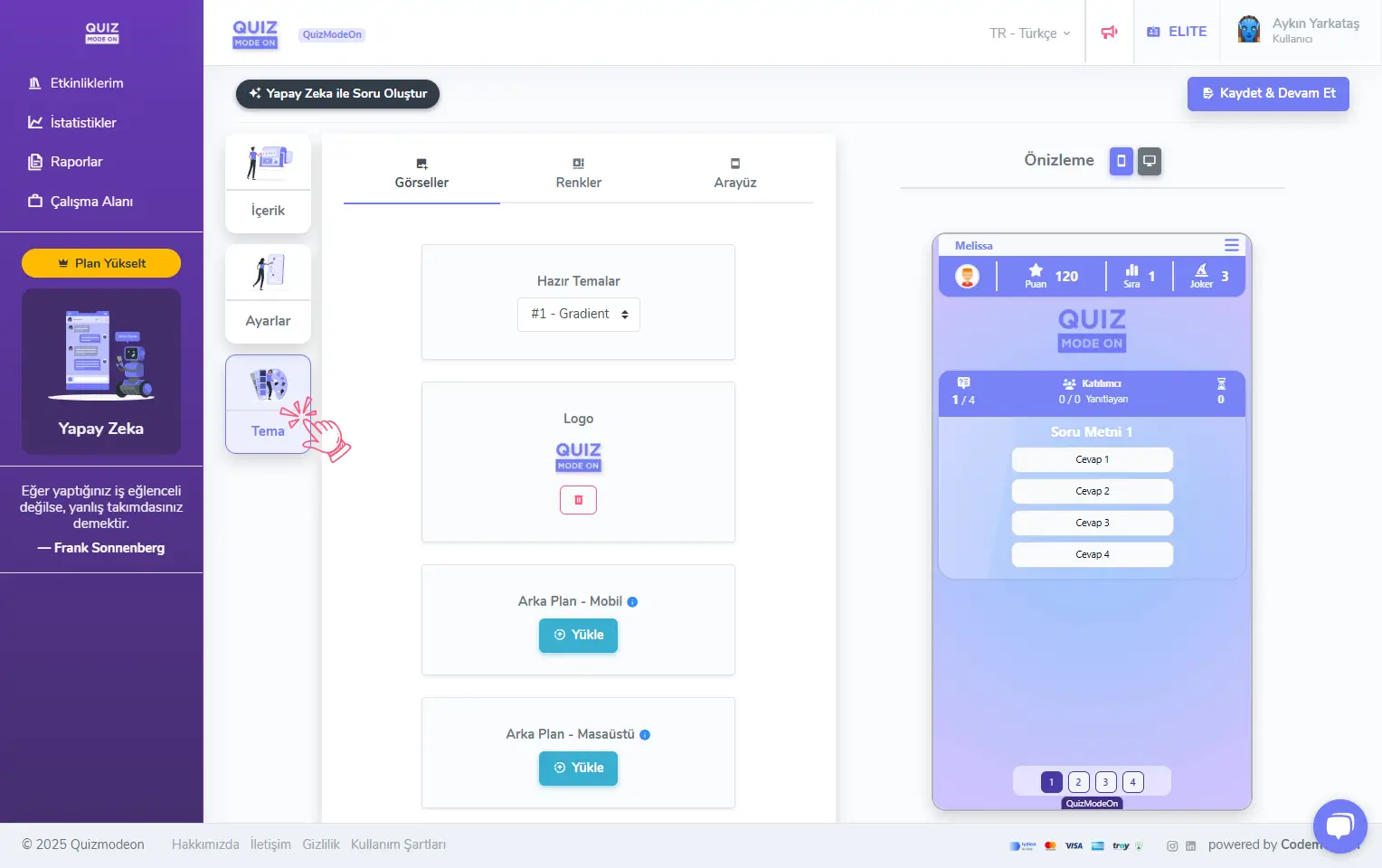
admin member - new event - theme
Note: The content, settings and theme screens can vary by event type. To learn more about creating content, settings and the theme editor for every event type, visit the Create Games and Events category.