Registration screen
After you log in, the registration screen appears, where you enter your participant details.
After you fill in the requested details and accept the GDPR option, you are taken to the lobby / waiting screen to join the event.
Note: To complete registration, you must fill in all the fields shown on the screen.
How do I get to the registration screen?
If the link you opened took you to the PIN screen, you see the registration screen after entering the PIN code.
If the link you opened is a link or QR code without a PIN, you go straight to the registration screen when you log in.
Where can I find the login link for registration?
You can get all the information you need to log in as a participant from the authorized person who organizes the event. This person is usually a user with the admin, presenter or moderator role.
What details does the registration screen ask for?
The registration screen may ask for an avatar, name surname, email, phone and ID. These details are set by the authorized person who created the event (the admin).
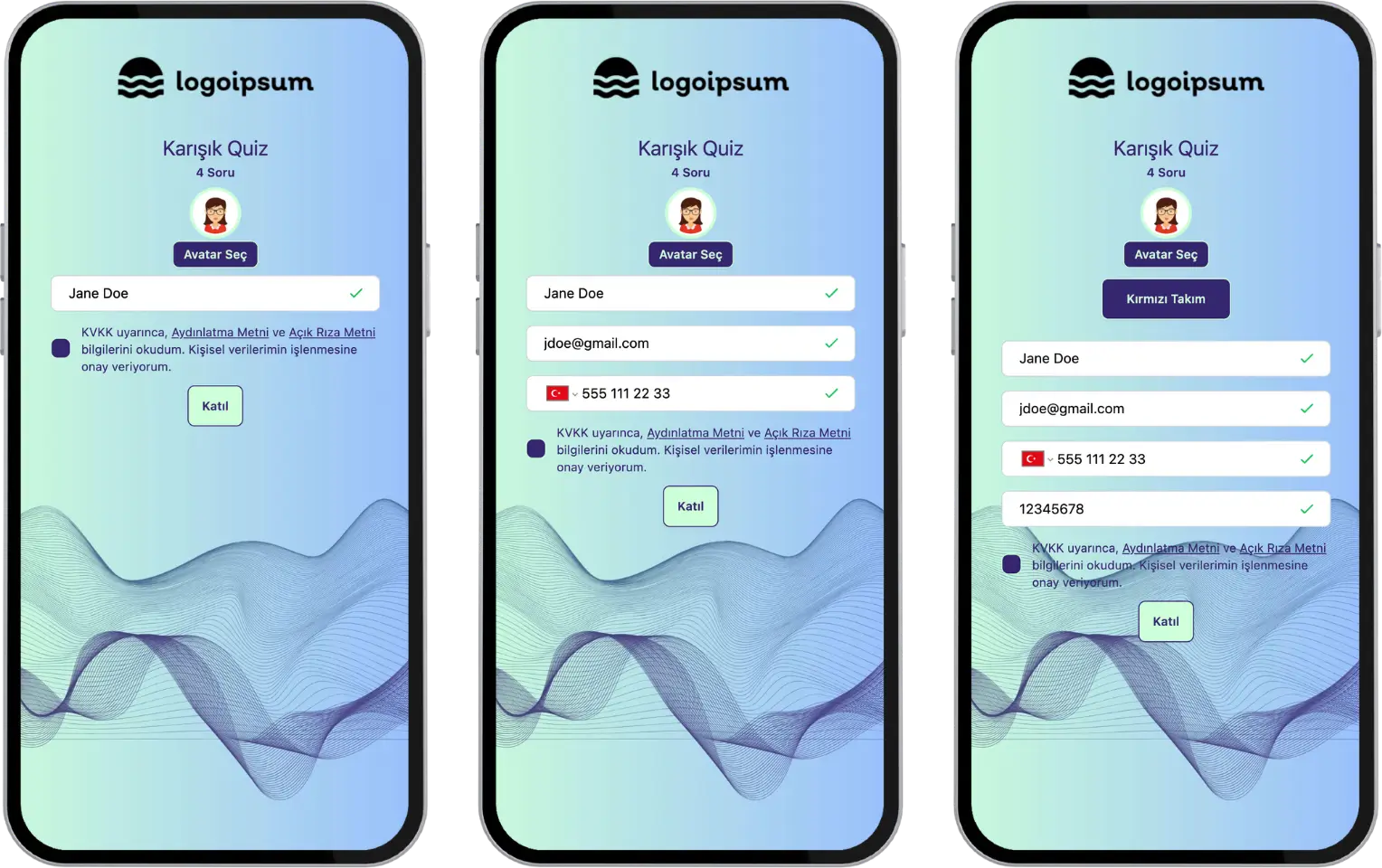
participant - registration screen - participant details
Default fields
Avatar: Pick one of the ready-made avatar images.
Name Surname: Enter your name and surname or a nickname.
Email: Enter a personal or corporate email address.
Phone: Select the area code and enter the phone number.
ID: Enter a unique number, such as a corporate employee number or ID number.
Note #1: All the details requested on the registration screen are optional and are set by the admin (the brand representative). So the event may ask for only the name, or for none of these details at all.
Note #2: If the event you are joining is a team game, you may see a Select Team button on the registration screen. The Select Team button appears unless the person who created the event (the admin or moderator) set team selection to random.
Custom fields
During registration, besides the default fields, custom information such as gender, city, occupation, school, dealer name, branch code, department and shift hours can also be requested.
Note: Custom fields are defined by the admin (the brand representative) and requested from the participant.